Send Alarm Email to Customer
Send a temperature alarm email to a customer using the Rule Engine. The email recipient and device address are read dynamically from entity attributes — no hardcoded addresses required.
Use Case
Section titled “Use Case”Thermostat Home sends temperature telemetry. The device is assigned to Customer A, who has an email server attribute.
When the temperature goes outside the acceptable range (below −40 °C or above 80 °C):
- ThingsBoard fetches the customer’s email from their attributes
- Fetches the device’s physical address from the device’s server attributes
- Creates an alarm
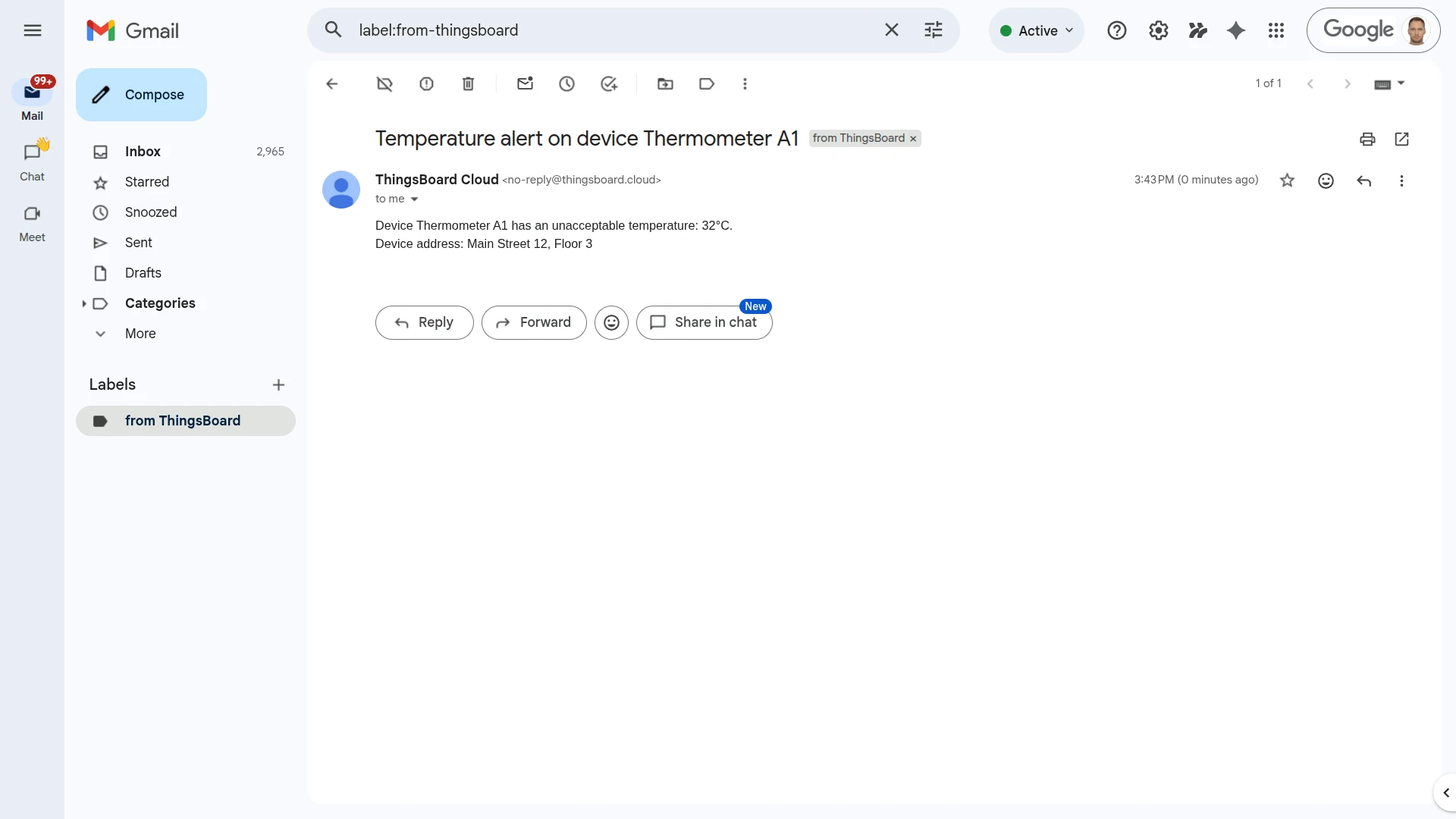
- Sends an email to the customer with the device name, temperature value, and address
Prerequisites
Section titled “Prerequisites”- Configure your mail server settings in ThingsBoard before proceeding.
- Review Notification Center if you prefer a no-code alternative to rule-chain-based email.
Step 1. Prepare Entities
Section titled “Step 1. Prepare Entities”Step 1.1 Create Device under Customer A
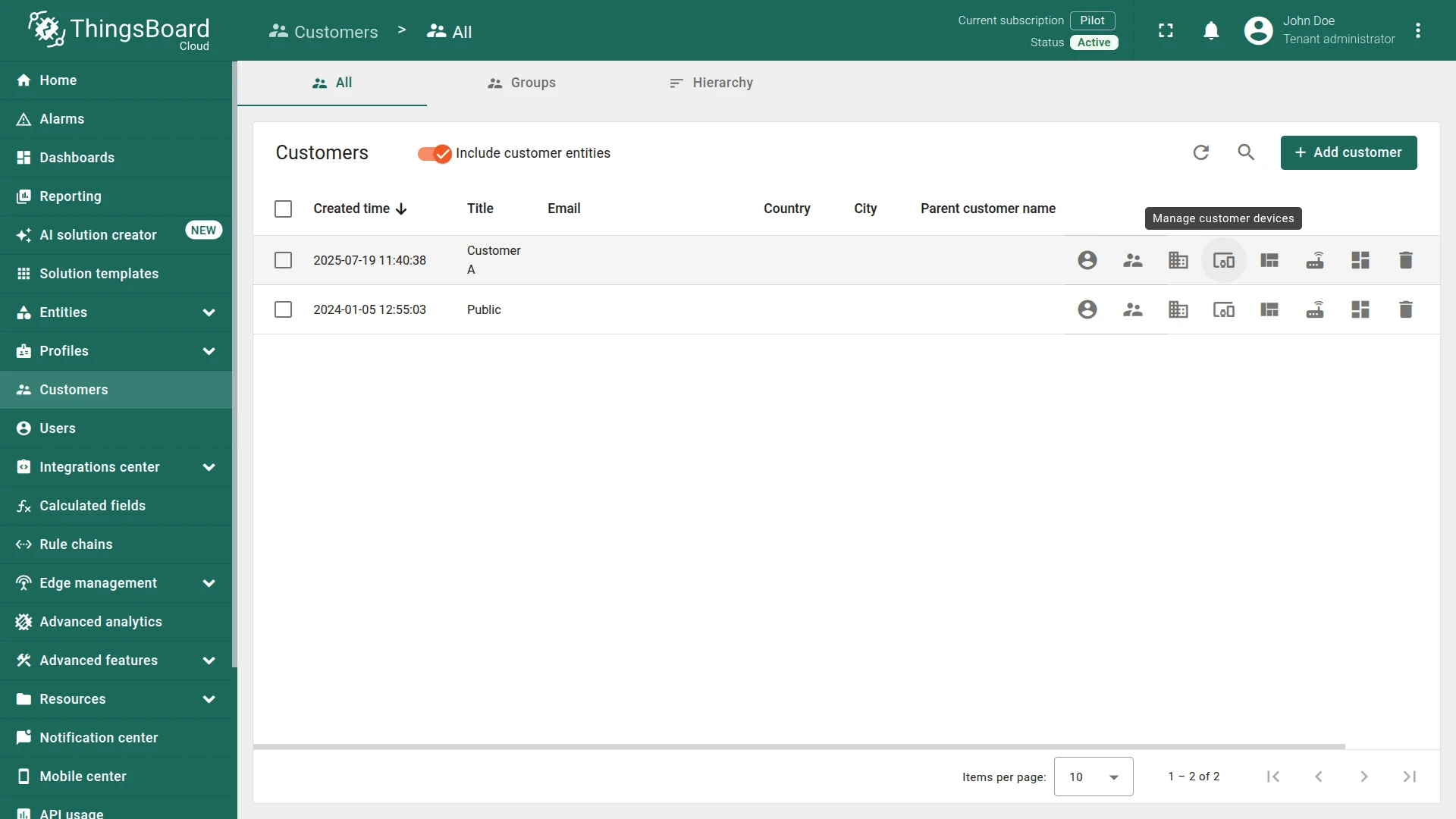
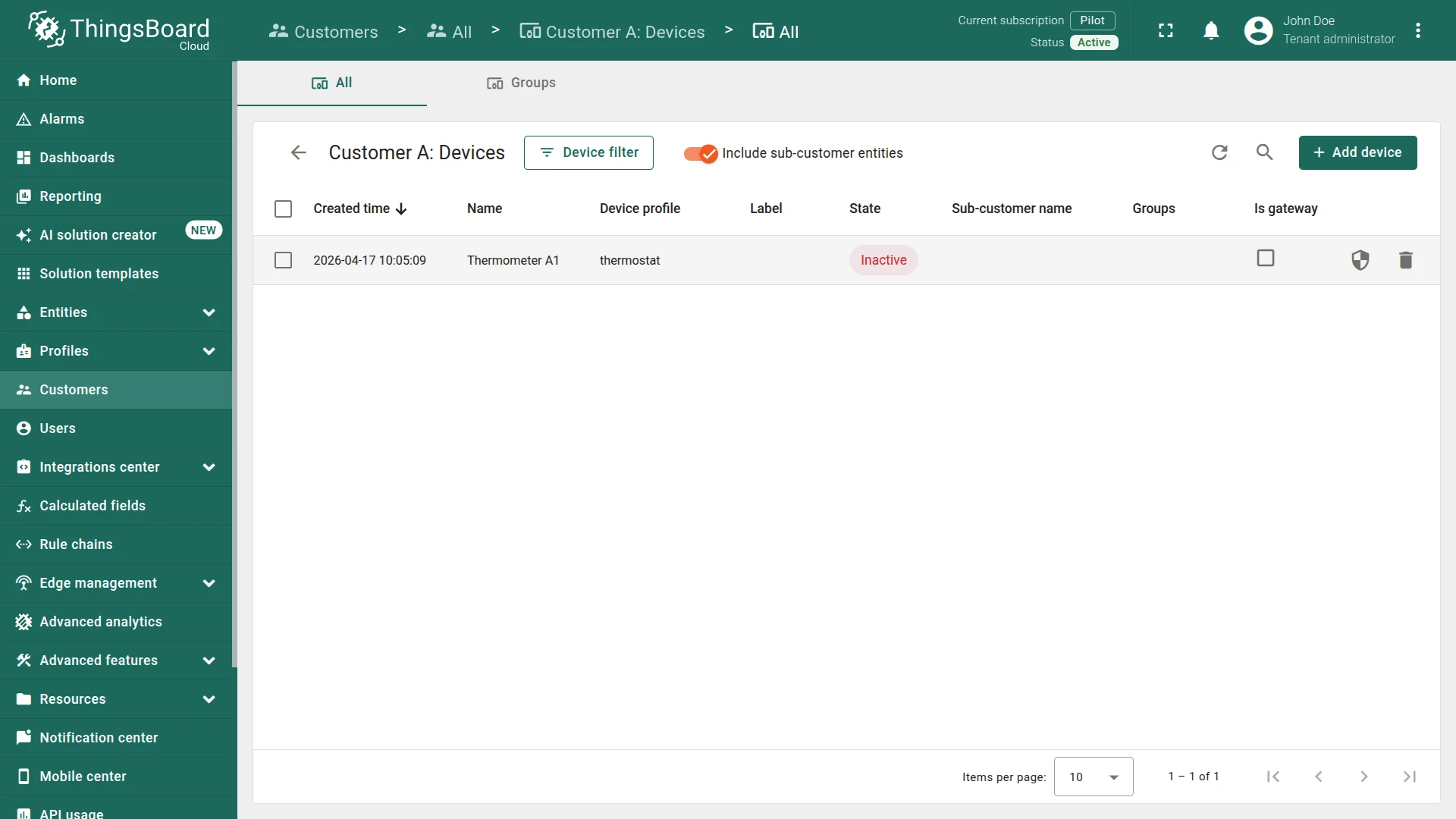
Section titled “Step 1.1 Create Device under Customer A”Go to Customers & users ⇾ Customers ⇾ Customer A (Create if it doesn't exist) ⇾ Manage customer devices and create an device under Customer A:
- Name:
Thermostat A1 - Device profile:
thermostat
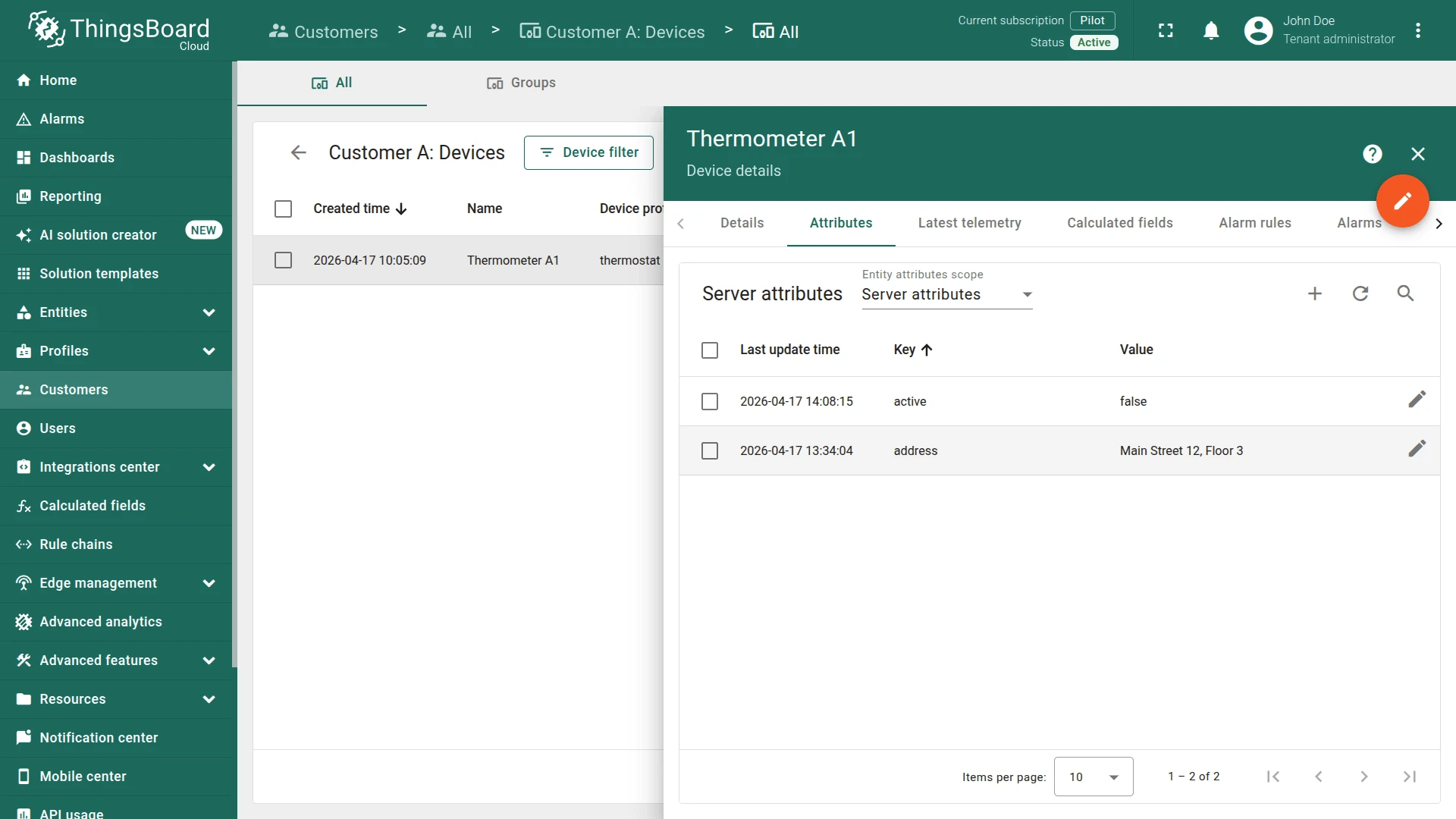
Open Building A ⇾ Attributes tab and add the following Server attribute:
- Key:
address - Type:
String - Value: the physical address of the device (e.g.
Main Street 12, Floor 3)
Step 1.2 Add Server Attribute to Customer
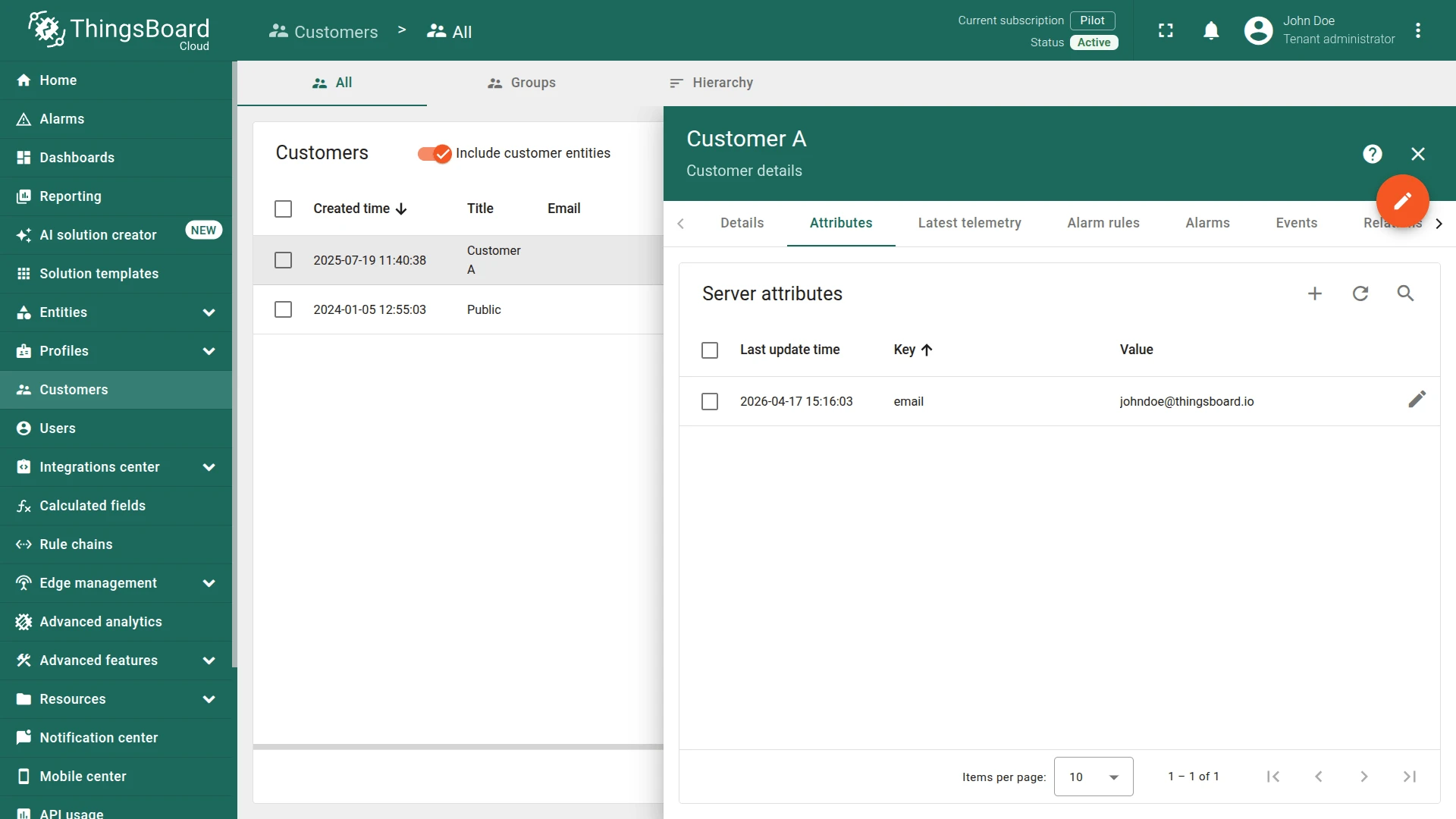
Section titled “Step 1.2 Add Server Attribute to Customer”Open Customer A ⇾ Attributes tab and add a server attribute:
- Key:
email - Type:
String - Value: the customer’s email address
Step 2. Create Rule Chain
Section titled “Step 2. Create Rule Chain”You can import a ready-made rule chain or build it manually.
Option 1. Import rule chain
- Download the Send Alarm Email to Customer rule chain as a JSON file and import it into your instance.
Option 2. Create manually
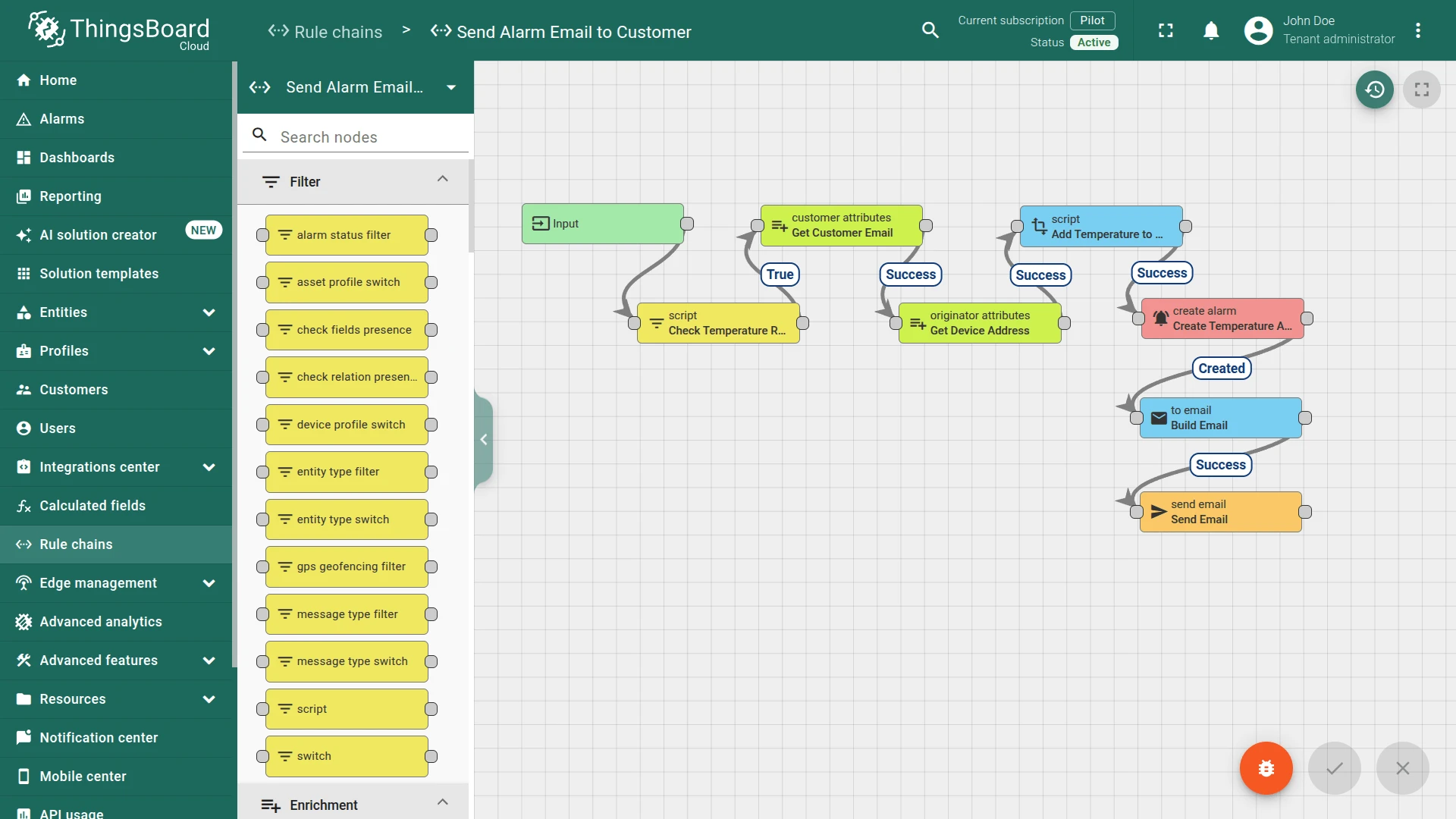
- Create a new rule chain named
Send Alarm Email to Customer, open it, and add the following nodes:
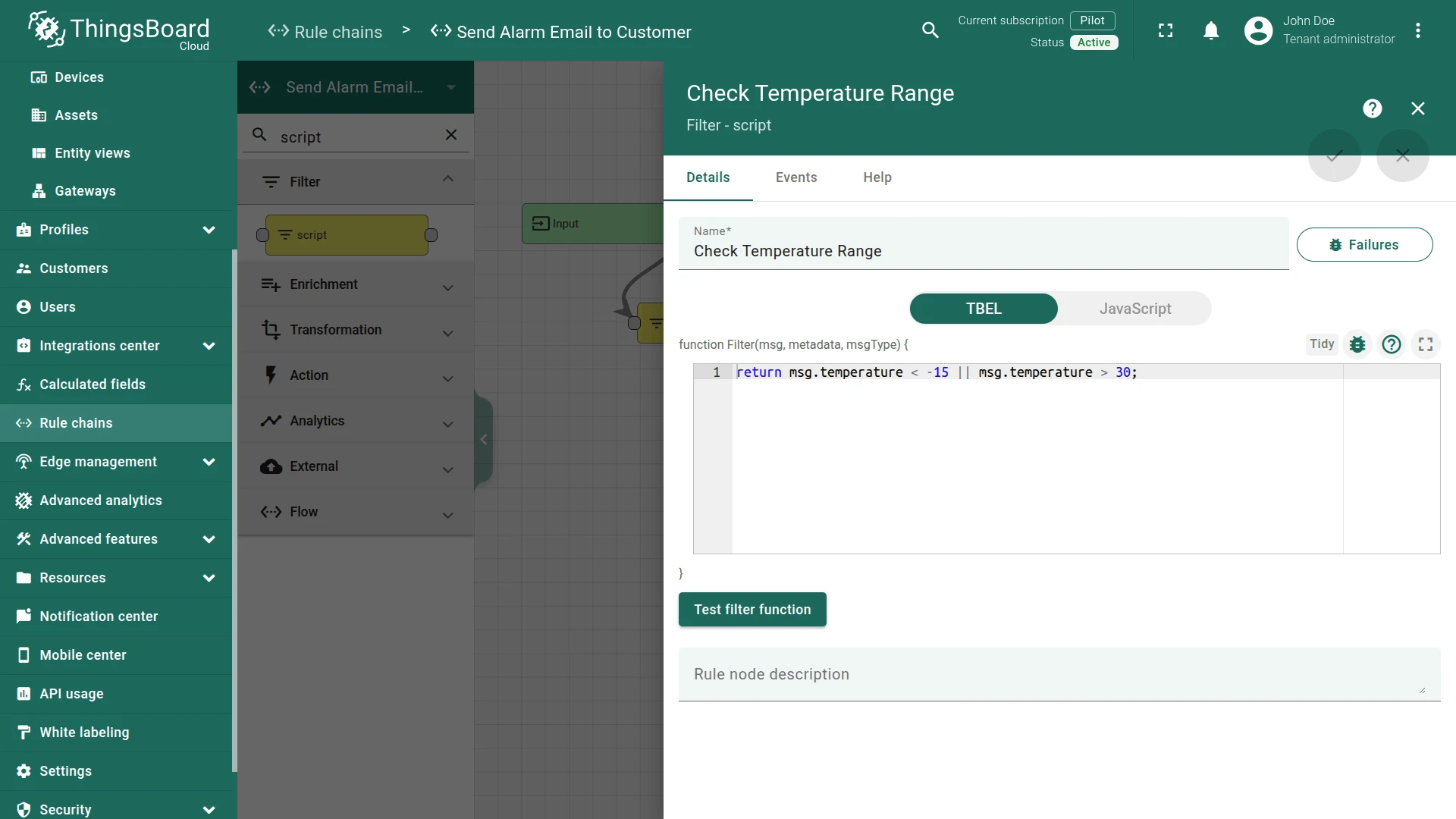
Step 2.1. Filter Script Node
Section titled “Step 2.1. Filter Script Node”Add a Filter Script node connected to the Input node.
Passes the message only when the temperature is outside the acceptable range.
-
Name:
Check Temperature Range -
Add the following script:
return msg.temperature < -15 || msg.temperature > 30;return msg.temperature < -15 || msg.temperature > 30;
Step 2.2. Customer Attributes Node
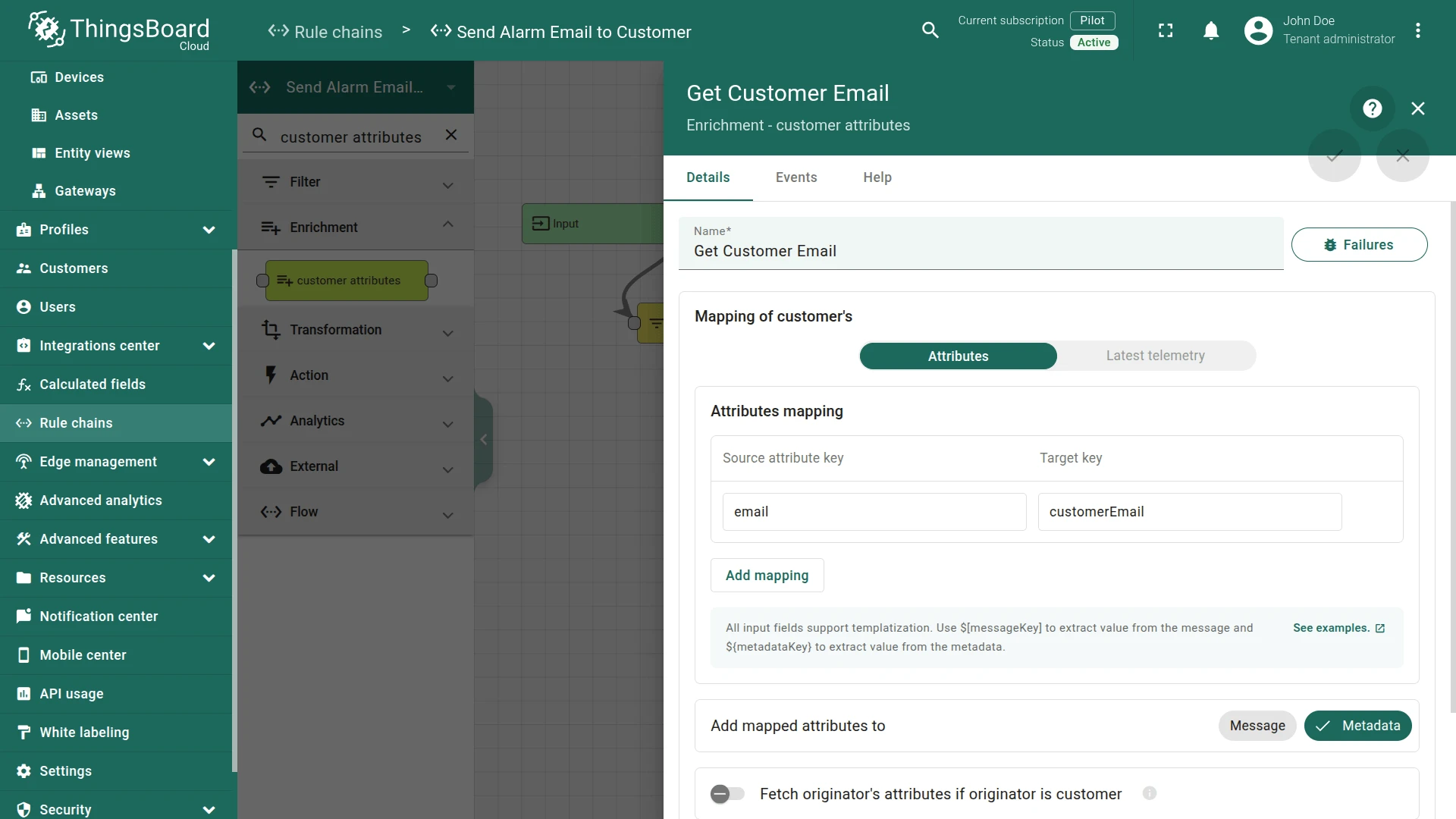
Section titled “Step 2.2. Customer Attributes Node”Add a Customer Attributes node connected to the Check Temperature Range node with relation type True.
Loads the customer’s email attribute into message metadata as customerEmail.
- Name:
Get Customer Email - Mapping of customer's:
Attributes - Attributes mapping:
- Source attribute key:
email - Target key:
customerEmail
- Source attribute key:
Step 2.3. Originator Attributes Node
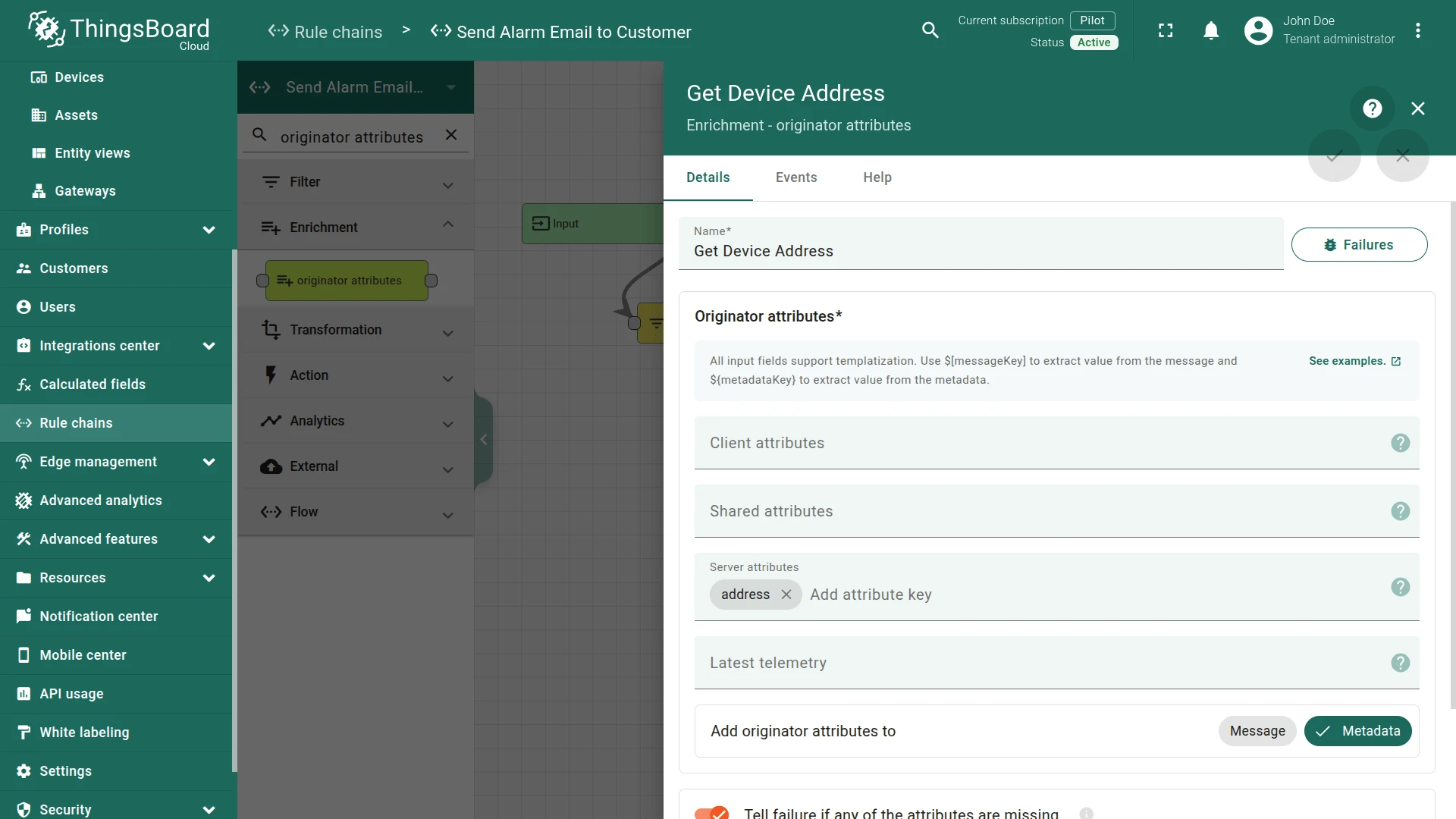
Section titled “Step 2.3. Originator Attributes Node”Add an Originator Attributes node connected to the Get Customer Email node with relation type Success.
Loads the device’s address server attribute into message metadata as ss_address.
- Name:
Get Device Address - Server attributes:
address
Step 2.4. Transformation Script Node
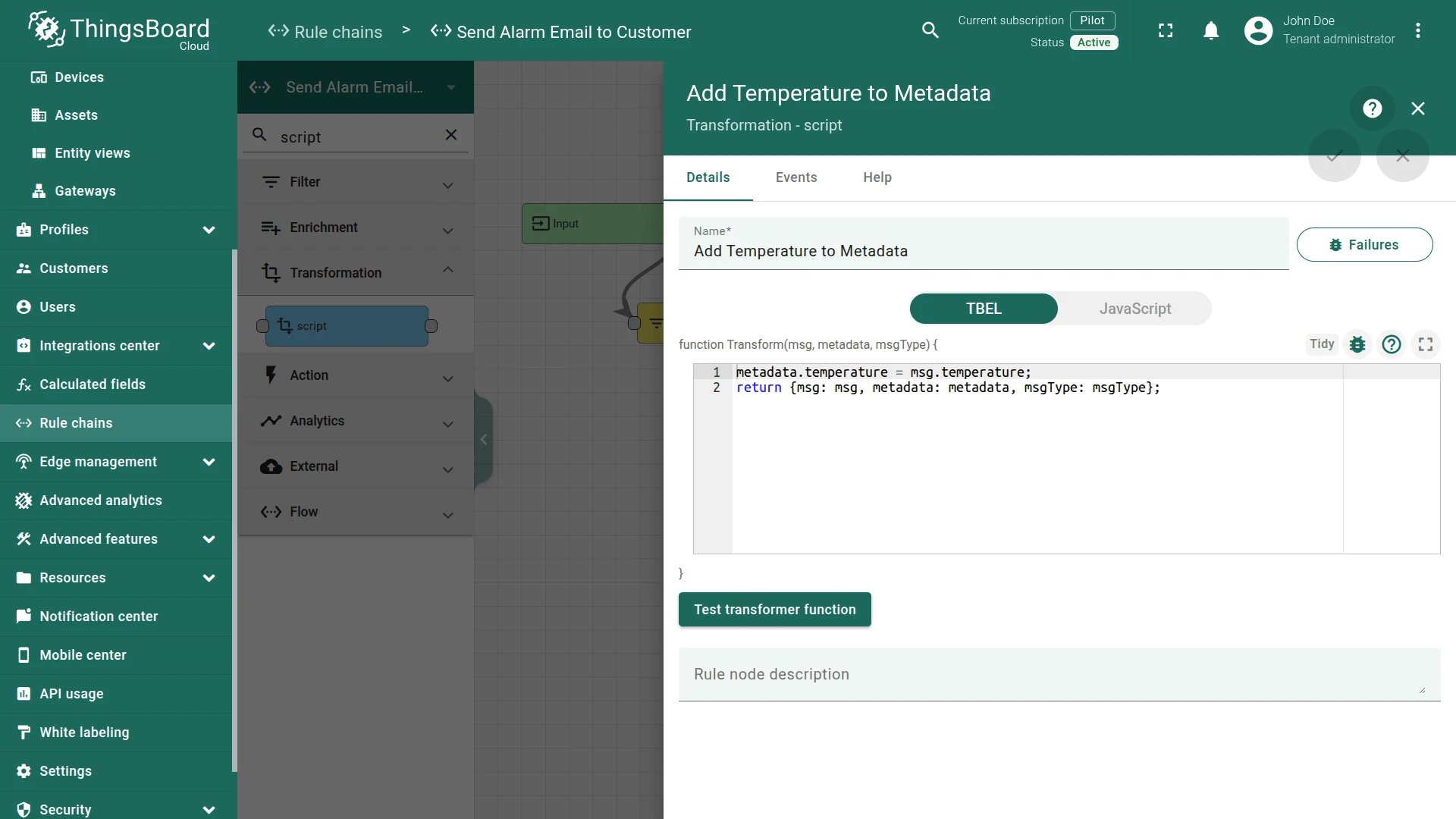
Section titled “Step 2.4. Transformation Script Node”Add the Transformation Script node and place it after the Get Device Address node with a relation type Success.
This node will use for saving current temperature from Message Data to the Message Metadata using the following script:
-
Name:
Add Temperature to Metadata -
Add the following script:
metadata.temperature = msg.temperature;return {msg: msg, metadata: metadata, msgType: msgType};metadata.temperature = msg.temperature;return {msg: msg, metadata: metadata, msgType: msgType};
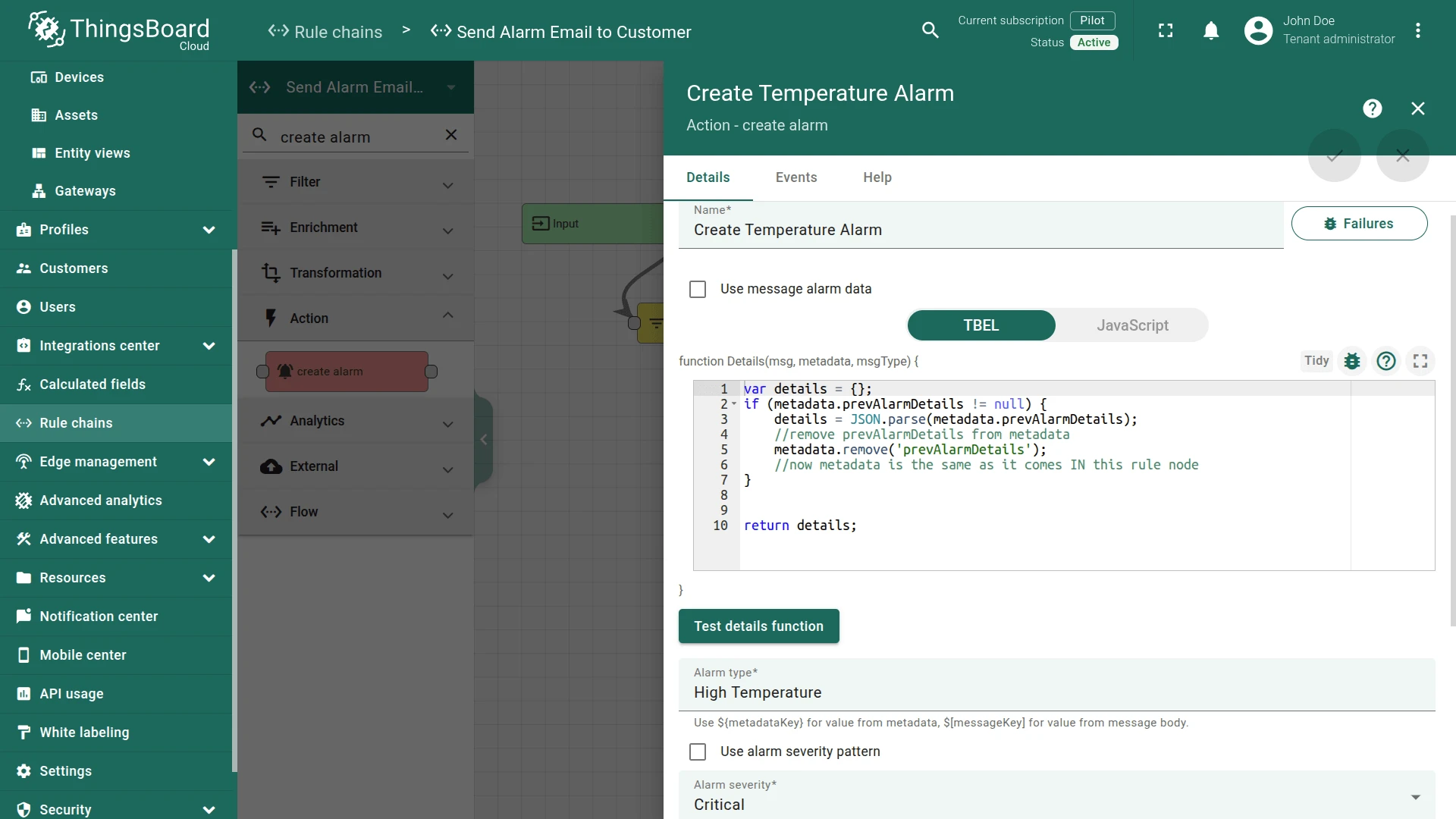
Step 2.5. Create Alarm Node
Section titled “Step 2.5. Create Alarm Node”Add a Create Alarm node connected to the Add Temperature to Metadata node with relation type Success.
Creates an alarm when the temperature is out of range.
- Name:
Create Temperature Alarm - Alarm type:
High Temperature - Alarm severity:
Critical
Step 2.6. To Email Node
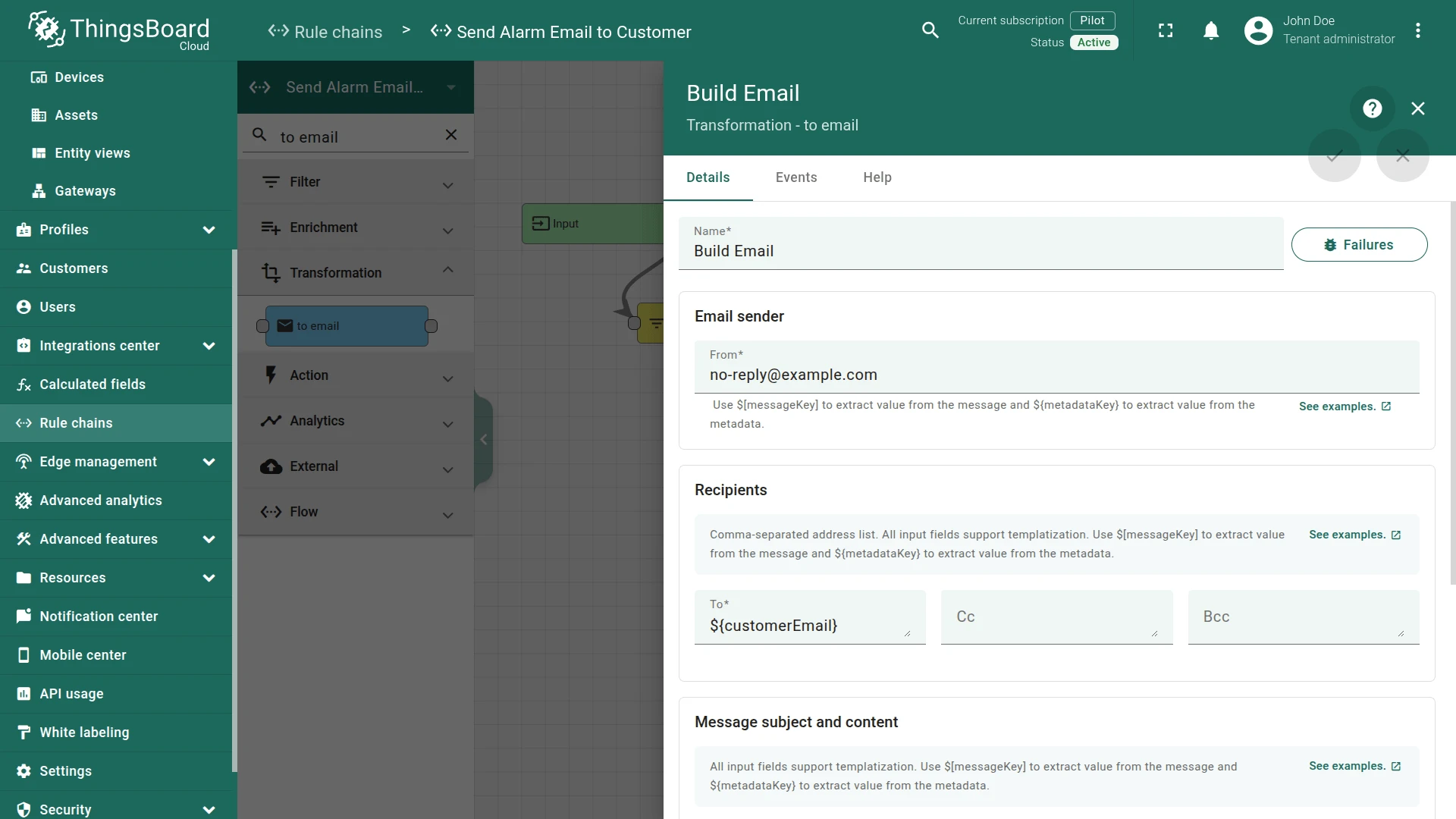
Section titled “Step 2.6. To Email Node”Add a To Email node connected to the Create Temperature Alarm node with relation type Created.
Transforms the message into an email using metadata variables populated by the earlier enrichment nodes.
- Name:
Build Email - Email sender:
- From:
no-reply@example.com
- From:
- Recipients:
- To:
${customerEmail}
- To:
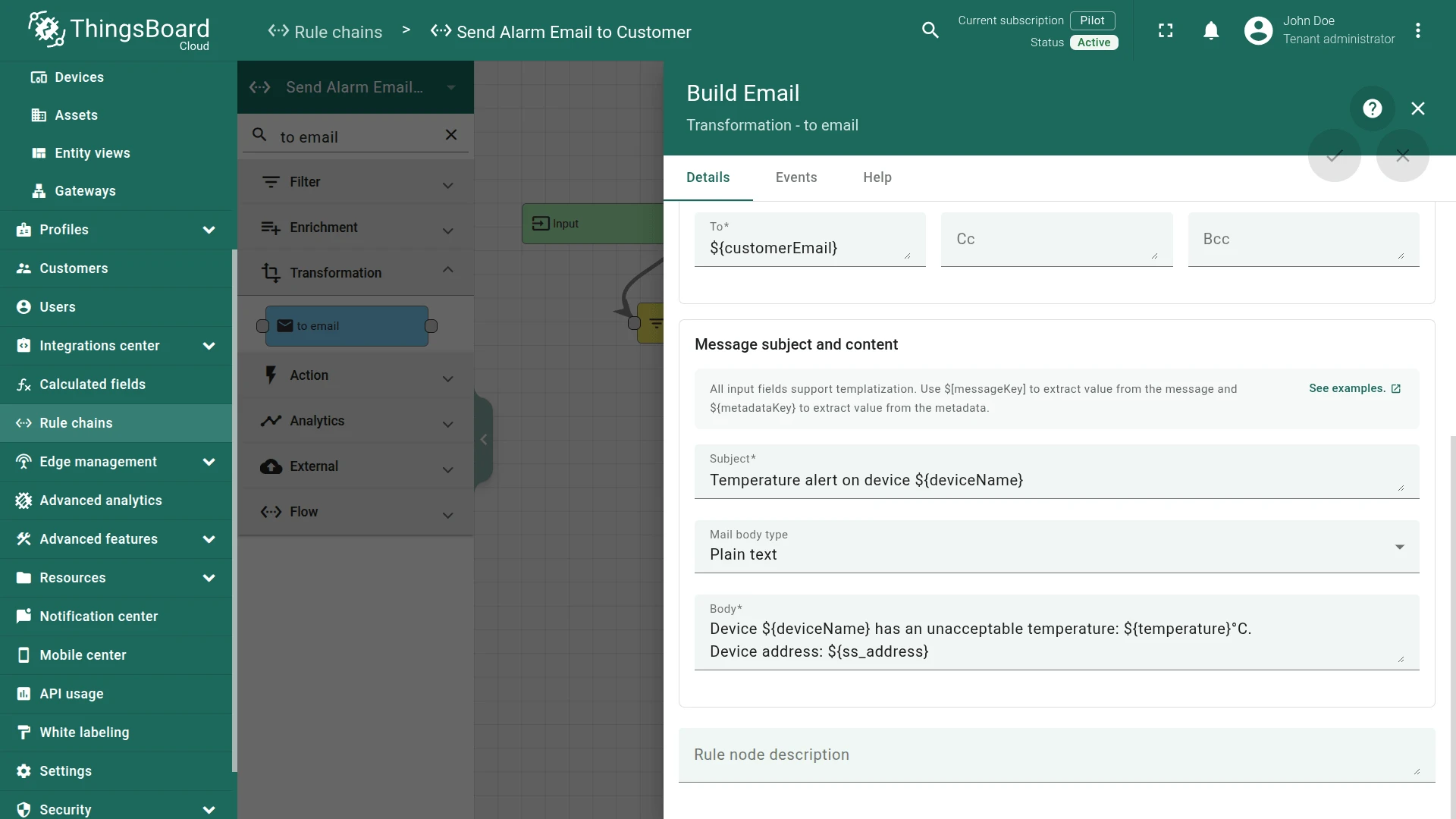
- Message subject and content:
-
Subject template:
Temperature alert on device ${deviceName} -
Mail body type: Plain text
-
Body template:
Device ${deviceName} has an unacceptable temperature: ${temperature}°C.Device address: ${ss_address}
-
Step 2.7. Send Email Node
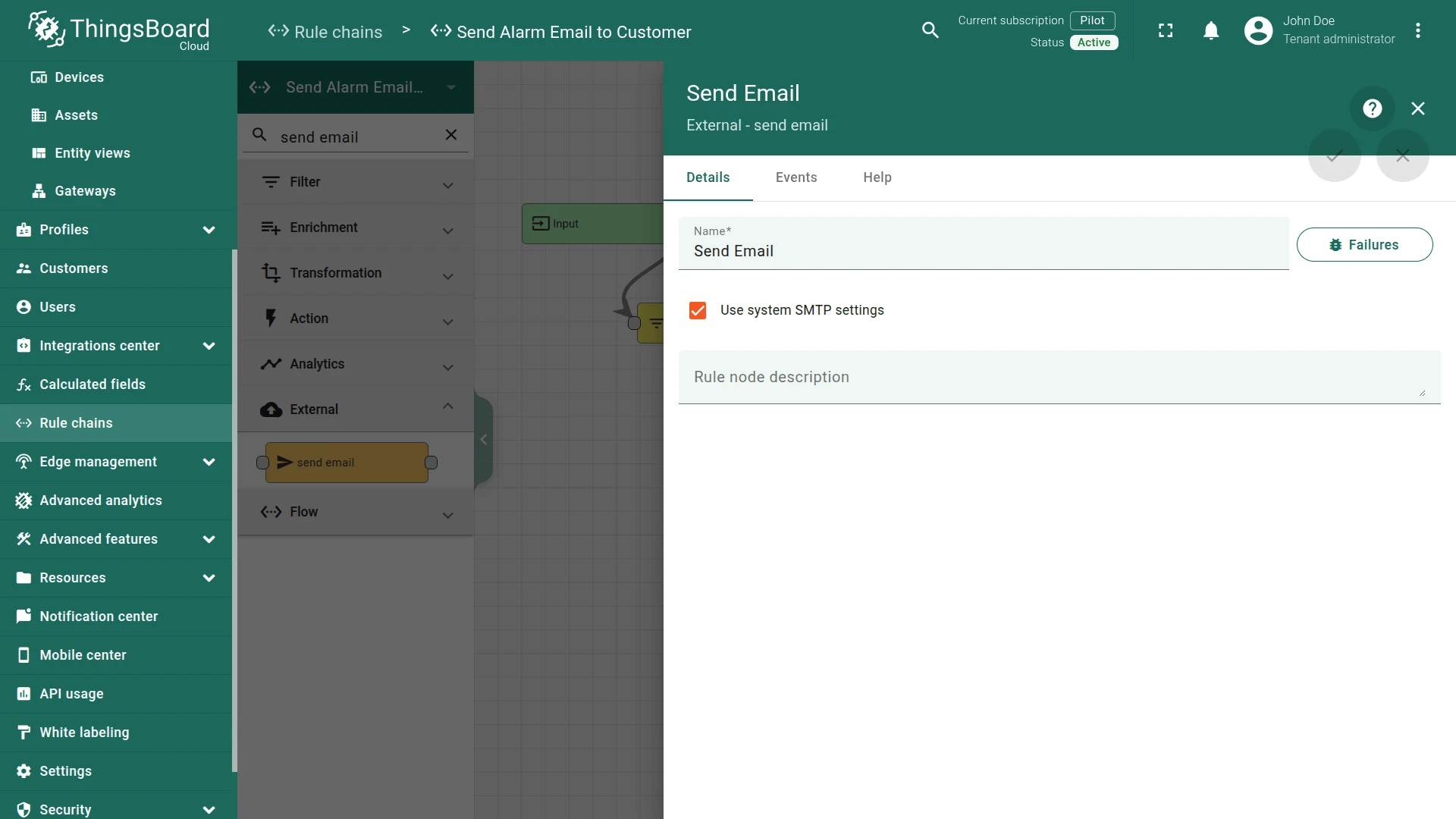
Section titled “Step 2.7. Send Email Node”Add a Send Email node connected to the Build Email node with relation type Success.
Sends the email via the mail server configured in ThingsBoard system settings.
- Name:
Send Email - Use system SMTP settings: enabled
Step 2.8. Check Node Connections
Section titled “Step 2.8. Check Node Connections”- Input ⇾ Check Temperature Range
- Check Temperature Range ⇾
True⇾ Get Customer Email - Get Customer Email ⇾
Success⇾ Get Device Address - Get Device Address ⇾
Success⇾ Add Temperature to Metadata - Add Temperature to Metadata ⇾
Success⇾ Create Temperature Alarm - Create Temperature Alarm ⇾
Created⇾ Build Email - Build Email ⇾
Success⇾ Send Email
Save the rule chain.
Step 3. Route Telemetry to the Rule Chain
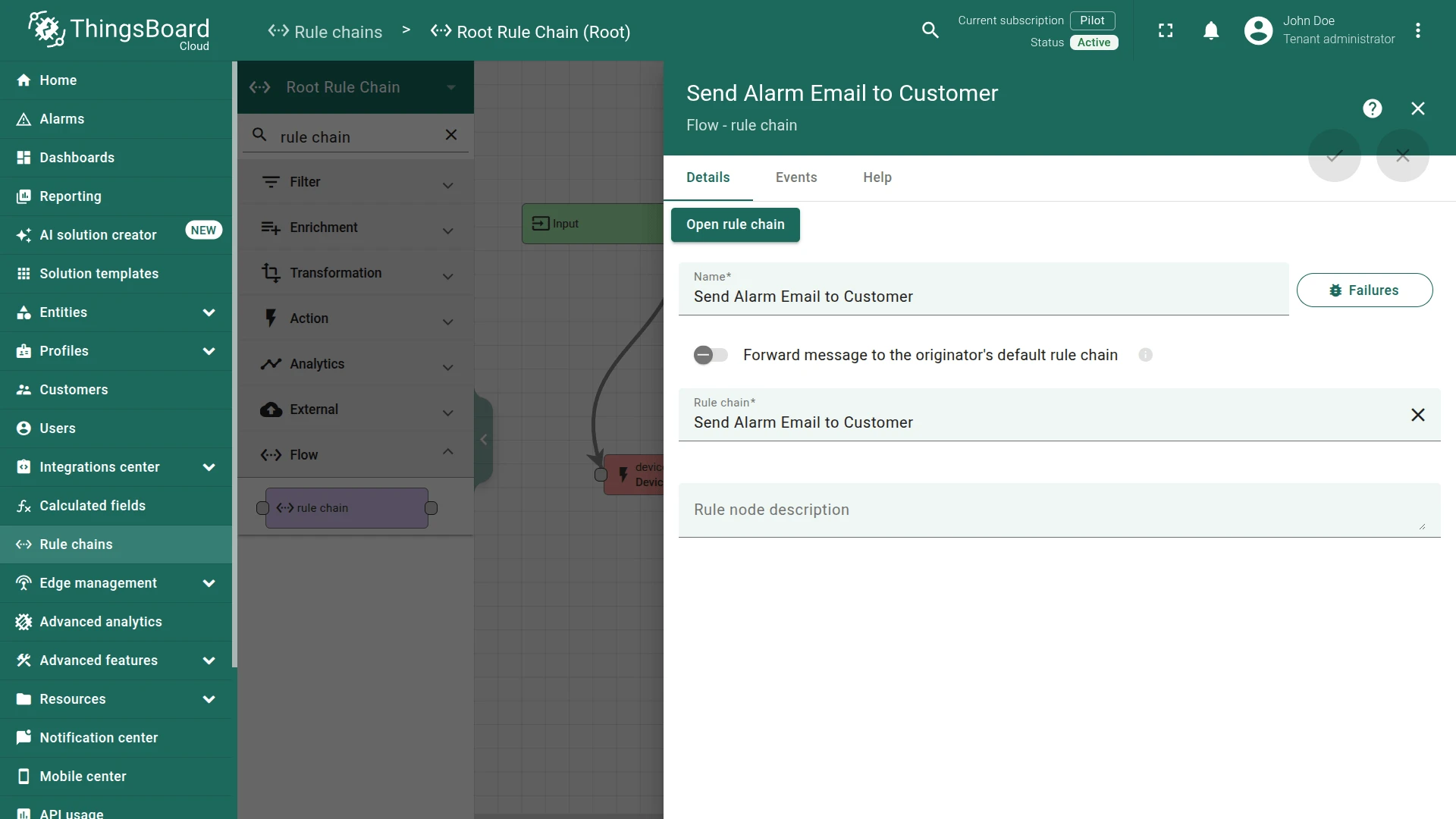
Section titled “Step 3. Route Telemetry to the Rule Chain”In the Root Rule Chain, add a Rule Chain node connected to the Message Type Switch node with relation type Post telemetry:
- Name:
Send Alarm Email to Customer - Rule Chain:
Send Alarm Email to Customer
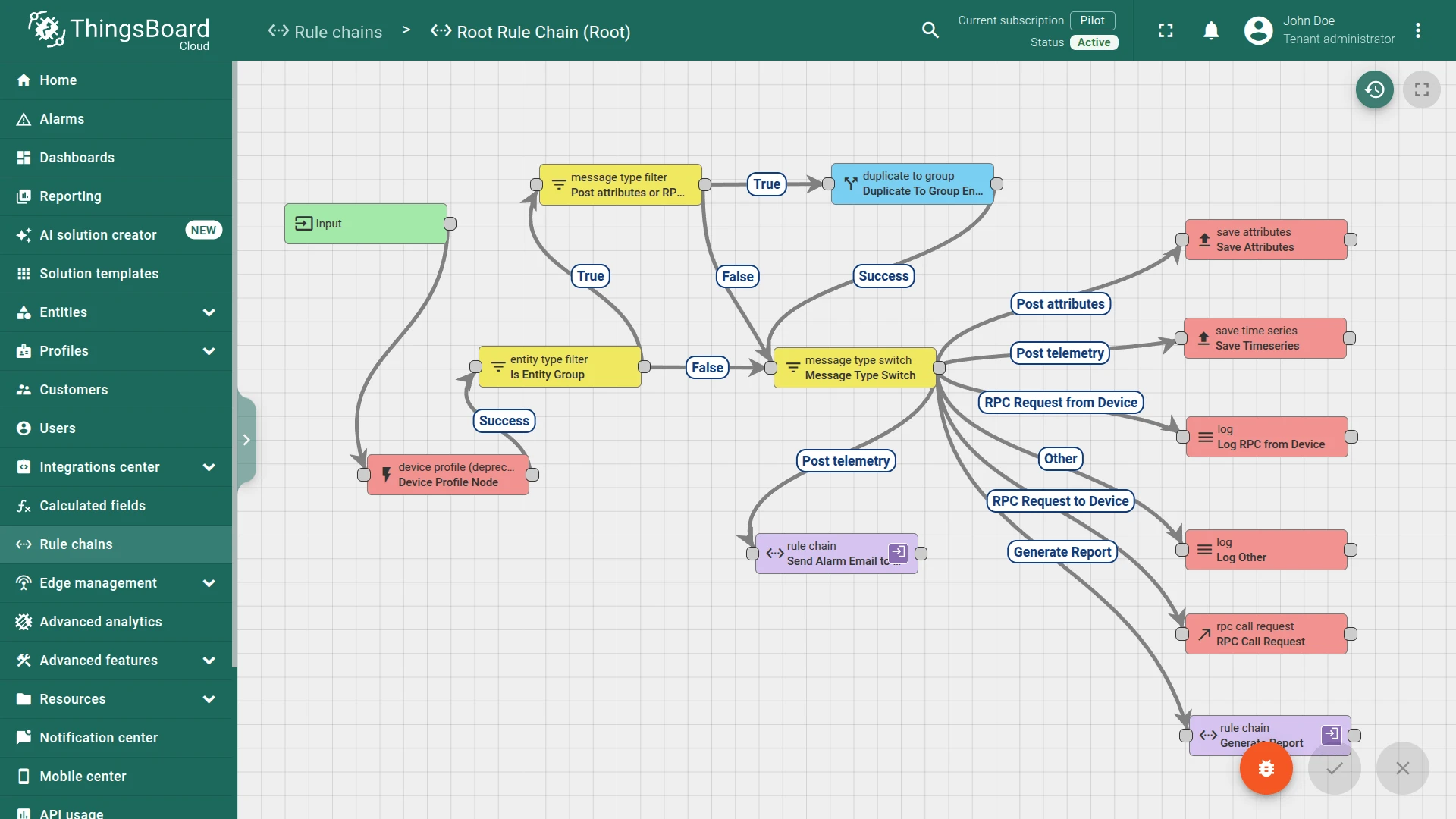
Save the rule chain.
Step 4. Test the Setup
Section titled “Step 4. Test the Setup”Post a temperature value that exceeds 30 °C. Replace $ACCESS_TOKEN with the access token of Thermostat A1.
curl -v -X POST \--header "Content-Type: application/json" \--data '{"temperature": 32}' \https://thingsboard.cloud/api/v1/$ACCESS_TOKEN/telemetryExpected result:
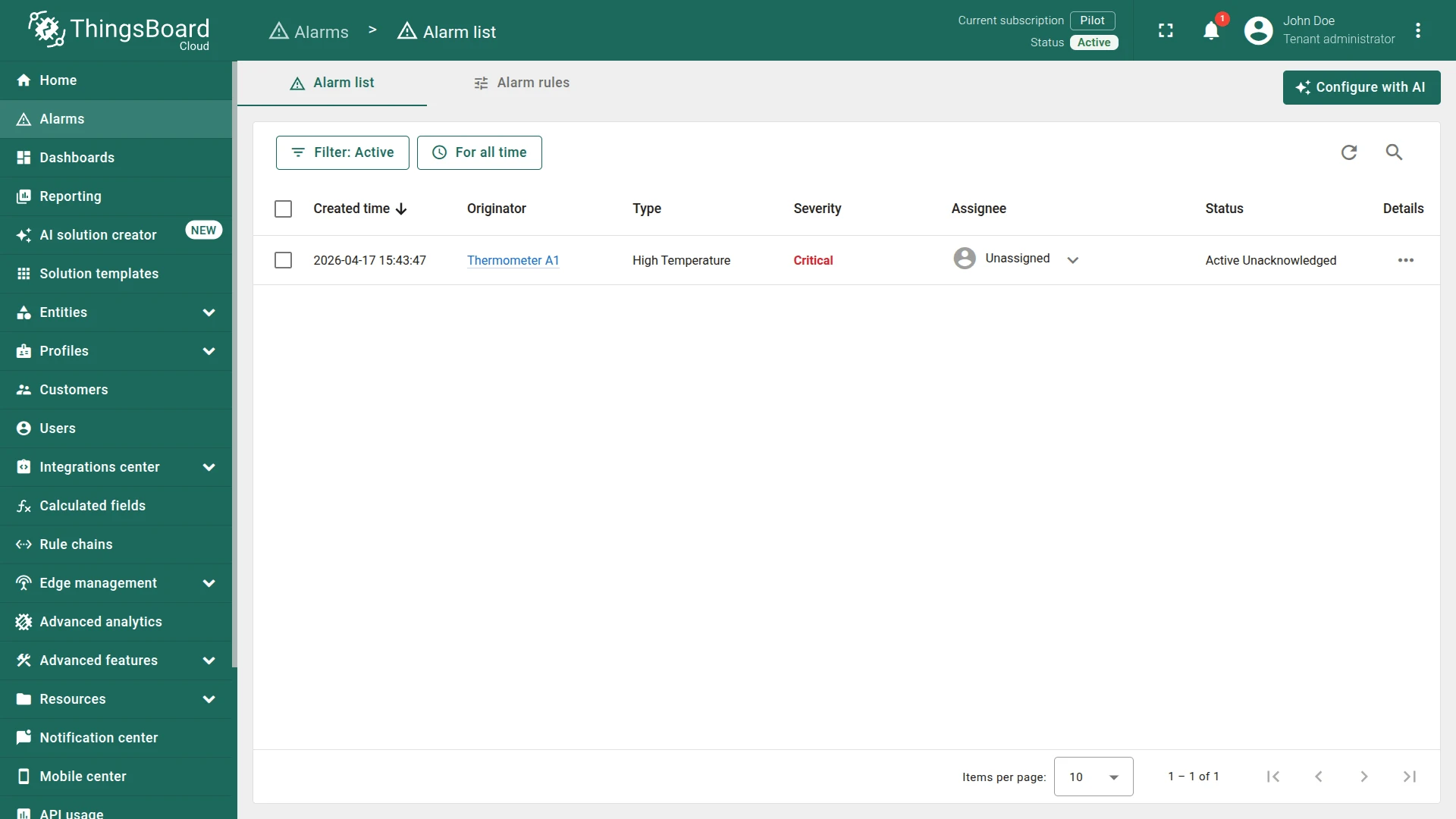
A High Temperature Critical alarm is created on Thermometer A1 and appears in the Monitor ⇾ Alarms list.
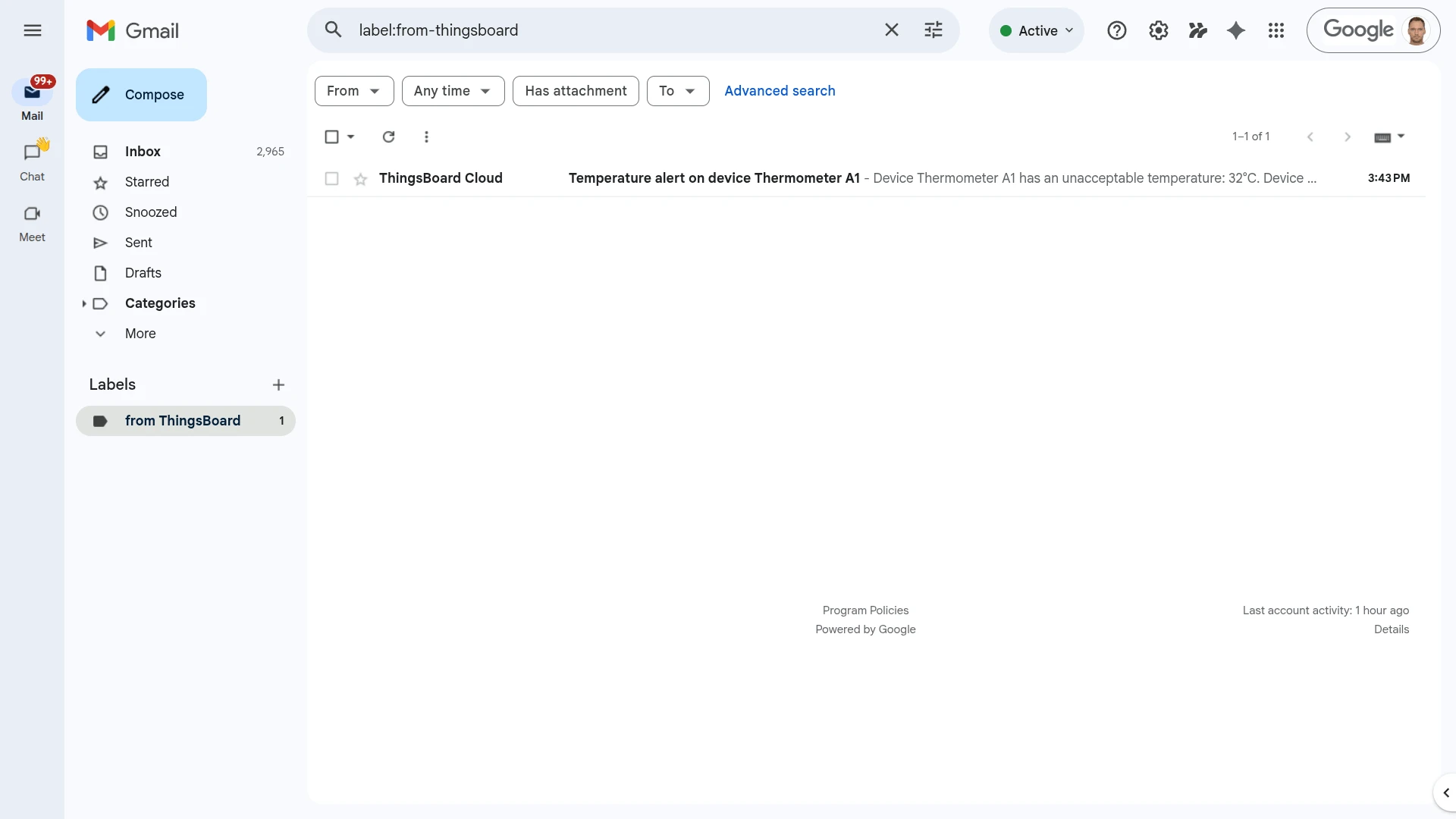
The customer receives an email at the address stored in their email attribute. The email subject shows the device name and the body includes the temperature value and device address.
See Also
Section titled “See Also”- Mail server settings — configure SMTP in ThingsBoard
- Send email on alarm — Notification Center approach (no rule chain required)
- Create and Clear Alarms — alarm rule basics
- Customer Attributes node — full node reference
Was this helpful?