Enrich Alarms with Details
This tutorial shows how to enrich alarm details with custom data using the Rule Engine — tracking the triggering temperature reading and a running alarm count that increments with each occurrence.
Use Case
Section titled “Use Case”A Thermostat device publishes temperature readings. When temperature goes outside the acceptable range, ThingsBoard:
- Creates an alarm and stores in its details:
temperature— the value that triggered the alarmcount— how many times the alarm has fired since it was last cleared
- Clears the alarm when temperature returns to normal, appending
clearedTemperatureto the existing details
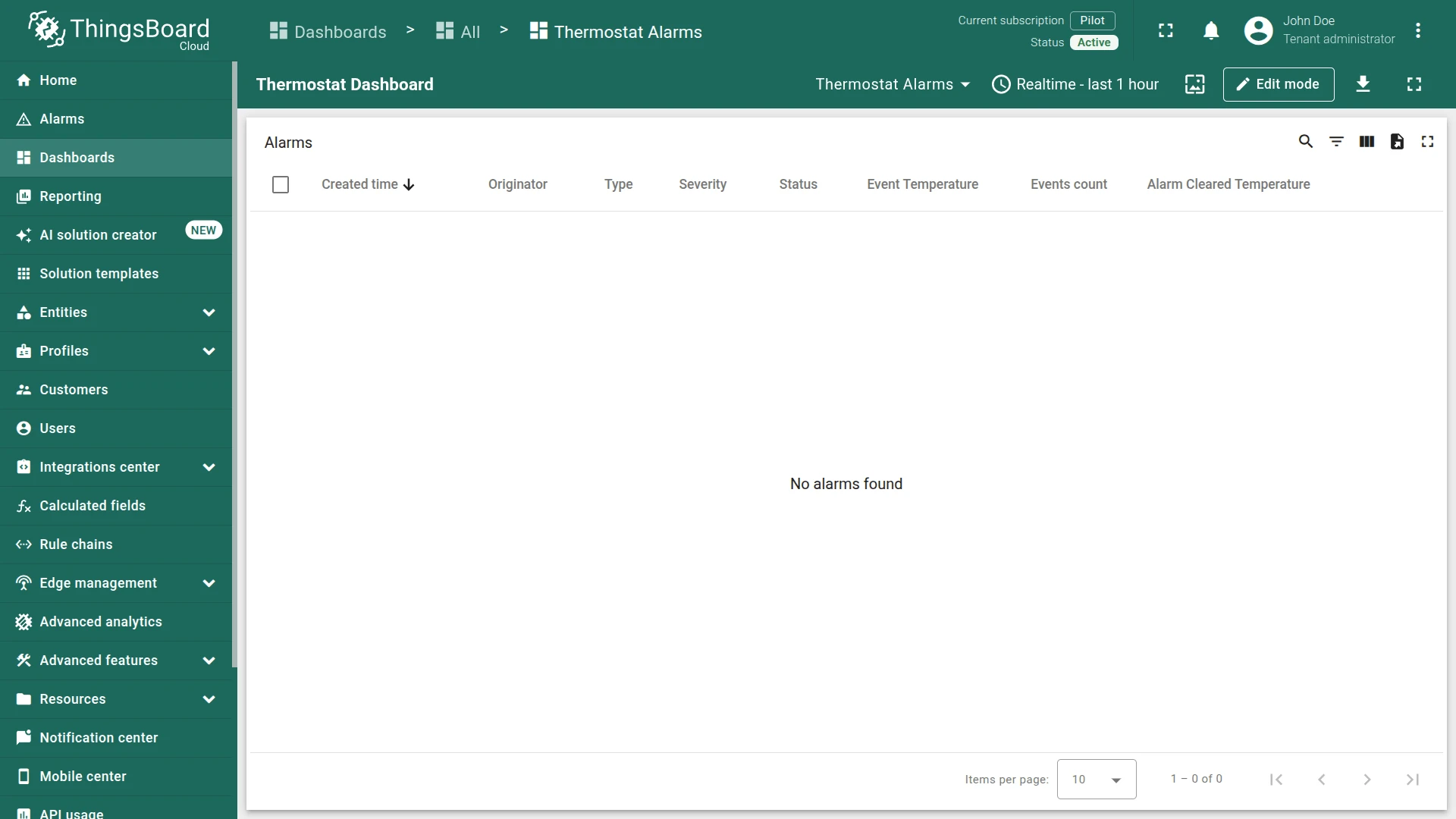
All three fields can be displayed as columns in an alarm widget on a dashboard.
Prerequisites
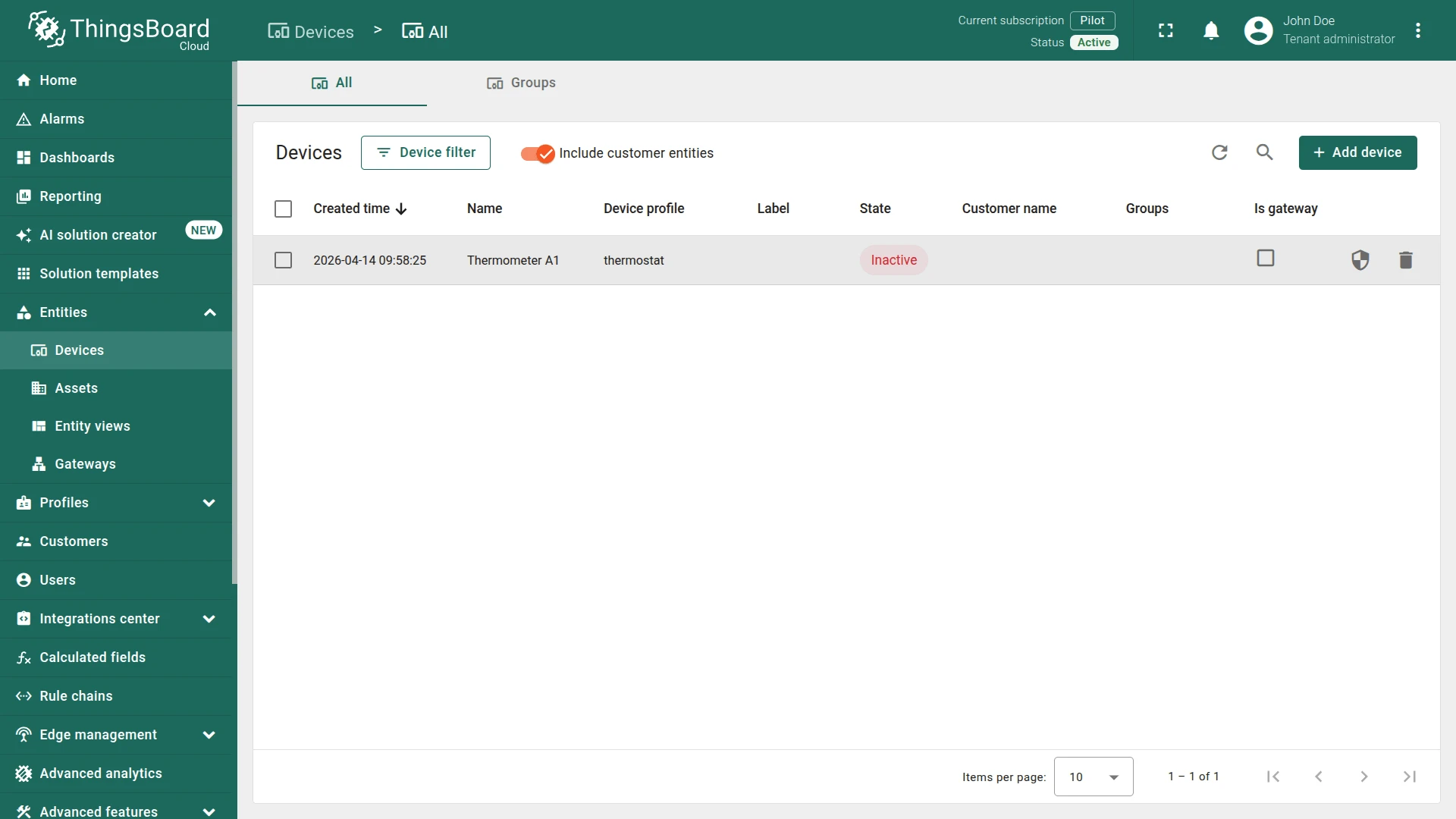
Section titled “Prerequisites”You need a device to test with. Use an existing device or create one:
- Name:
Thermometer A1 - Type:
thermostat
Step 1. Create the Rule Chain
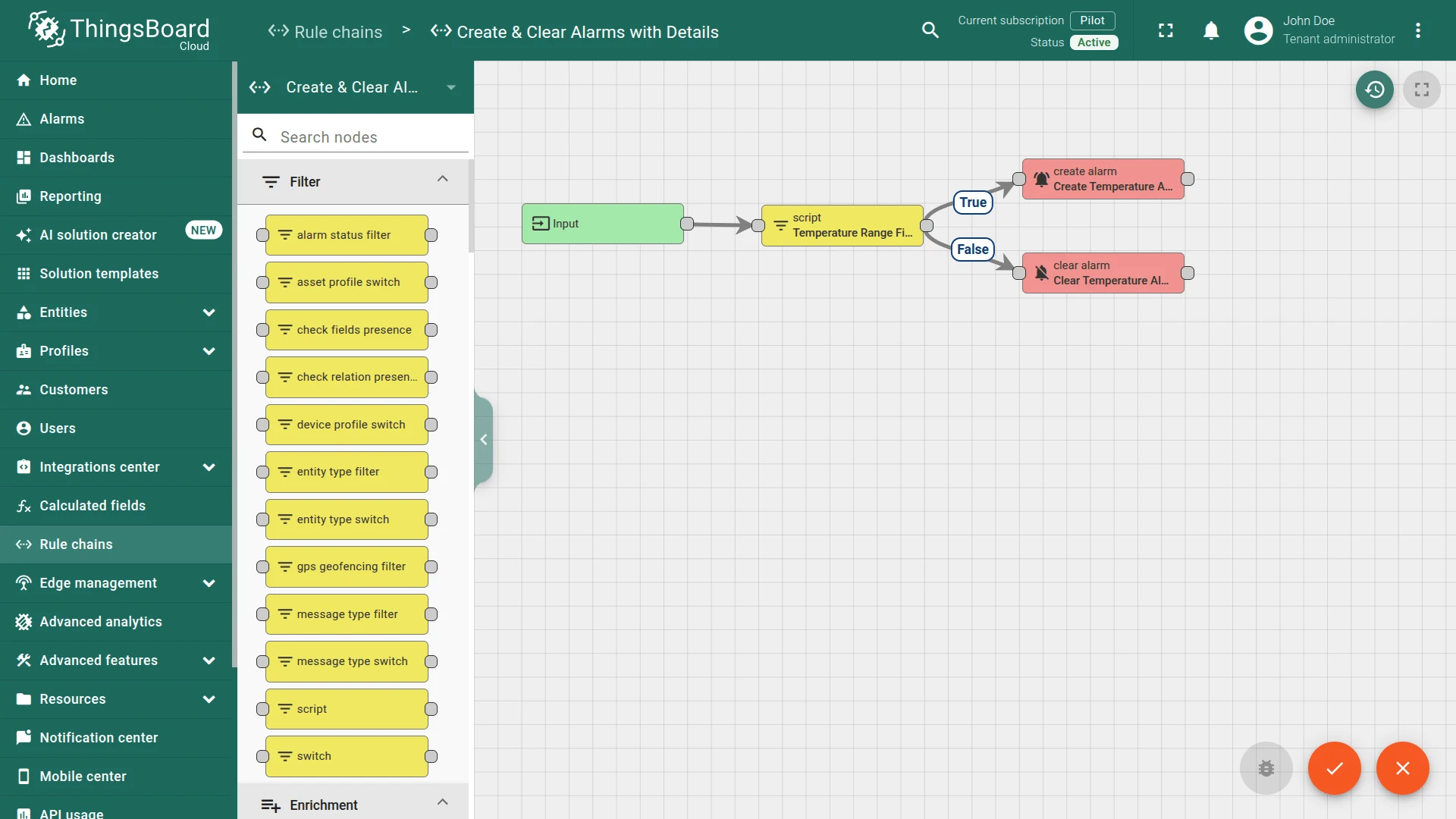
Section titled “Step 1. Create the Rule Chain”Create a new rule chain named Create & Clear Alarms with Details, open it, and add the following nodes:
Step 1.1. Filter Script Node
Section titled “Step 1.1. Filter Script Node”Add a Script filter node and connect it to the Input node.
This node returns true when the temperature is outside the valid sensor range, routing the message to the Create Alarm branch; otherwise it returns false and routes to the Clear Alarm branch.
- Name:
Temperature Range Filter - Add the following script:
return msg.temperature < -25 || msg.temperature > 15;return msg.temperature < -25 || msg.temperature > 15;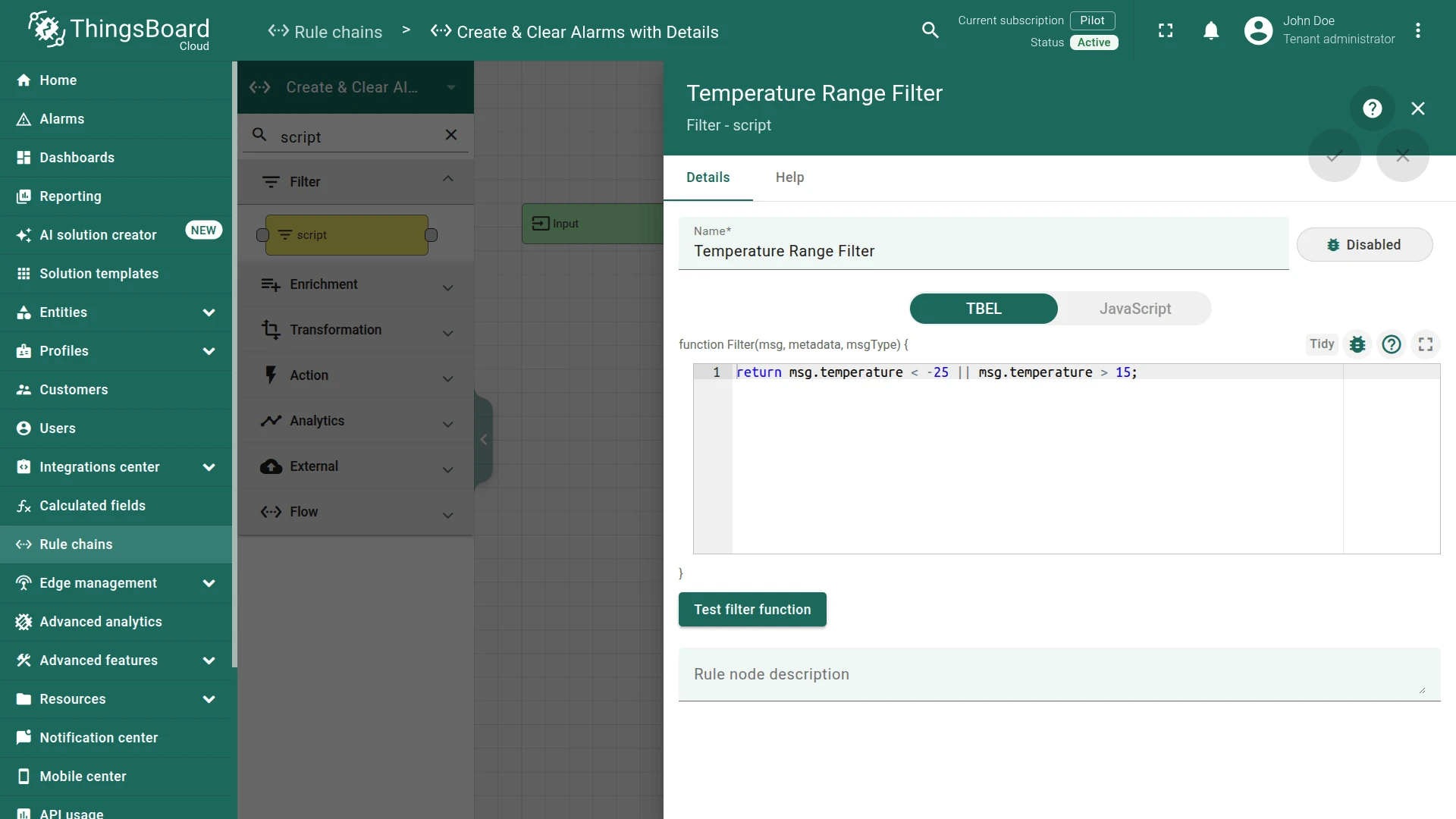
Step 1.2. Create Alarm Node
Section titled “Step 1.2. Create Alarm Node”Add a Create Alarm node and connect it to the Temperature Range Filter node with relation type True.
Fill in the fields:
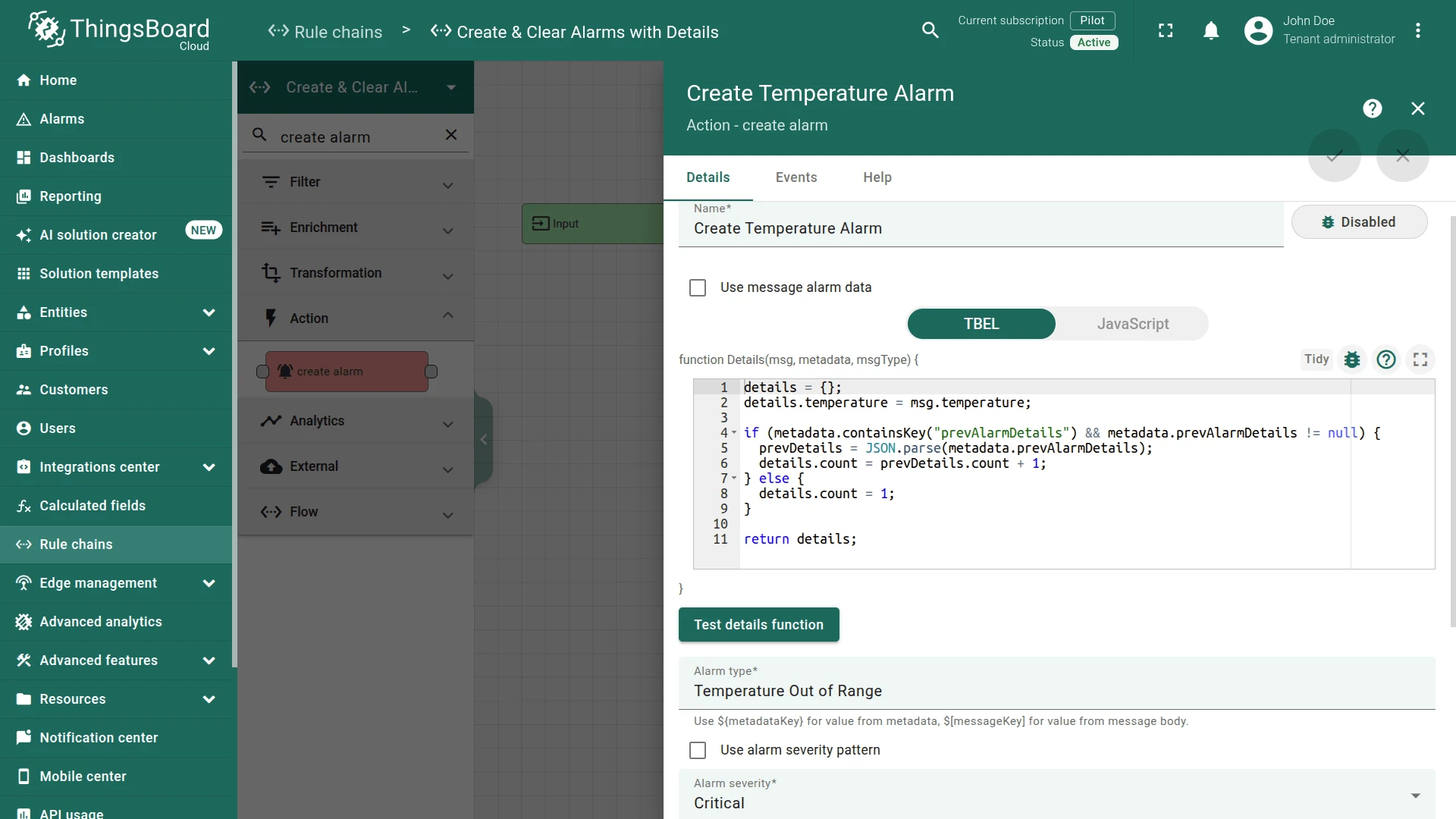
- Name:
Create Temperature Alarm - Alarm type:
Temperature Out of Range - Alarm severity:
Critical
Enter the following Details function:
details = {};details.temperature = msg.temperature;
if (metadata.containsKey("prevAlarmDetails") && metadata.prevAlarmDetails != null) {  prevDetails = JSON.parse(metadata.prevAlarmDetails);  details.count = prevDetails.count + 1;} else {  details.count = 1;}
return details;
var details = {};details.temperature = msg.temperature;
if (metadata.prevAlarmDetails) { var prevDetails = JSON.parse(metadata.prevAlarmDetails); details.count = prevDetails.count + 1;} else { details.count = 1;}
return details;The function stores the triggering temperature and increments count on each alarm update. On first trigger, count is set to 1.
Step 1.3. Clear Alarm Node
Section titled “Step 1.3. Clear Alarm Node”Add a Clear Alarm node and connect it to the Temperature Range Filter node with relation type False.
Fill in the fields:
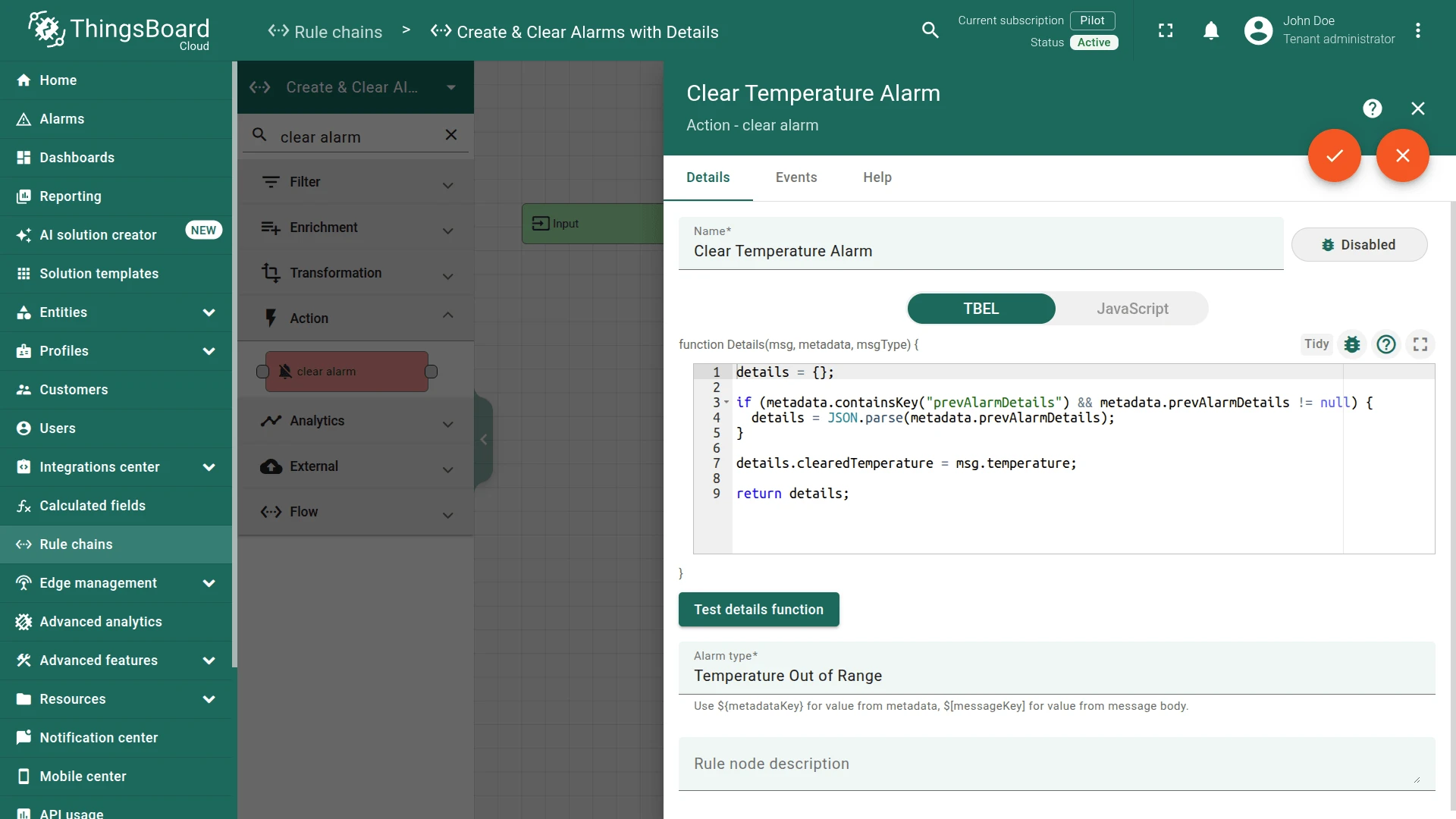
- Name:
Clear Temperature Alarm - Alarm type:
Temperature Out of Range
Enter the following Alarm Details function:
details = {};
if (metadata.containsKey("prevAlarmDetails") && metadata.prevAlarmDetails != null) {  details = JSON.parse(metadata.prevAlarmDetails);}
details.clearedTemperature = msg.temperature;
return details;
var details = {};
if (metadata.prevAlarmDetails) { details = JSON.parse(metadata.prevAlarmDetails);}
details.clearedTemperature = msg.temperature;
return details;The function preserves the existing alarm details (retaining temperature and count) and appends the temperature reading at the moment of clearing.
Step 1.4. Check Node Connections
Section titled “Step 1.4. Check Node Connections”- Input ⇾ Temperature Range Filter
- Temperature Range Filter ⇾
True⇾ Create Temperature Alarm - Temperature Range Filter ⇾
False⇾ Clear Temperature Alarm
Save the rule chain.
Step 2. Route Telemetry to the Rule Chain
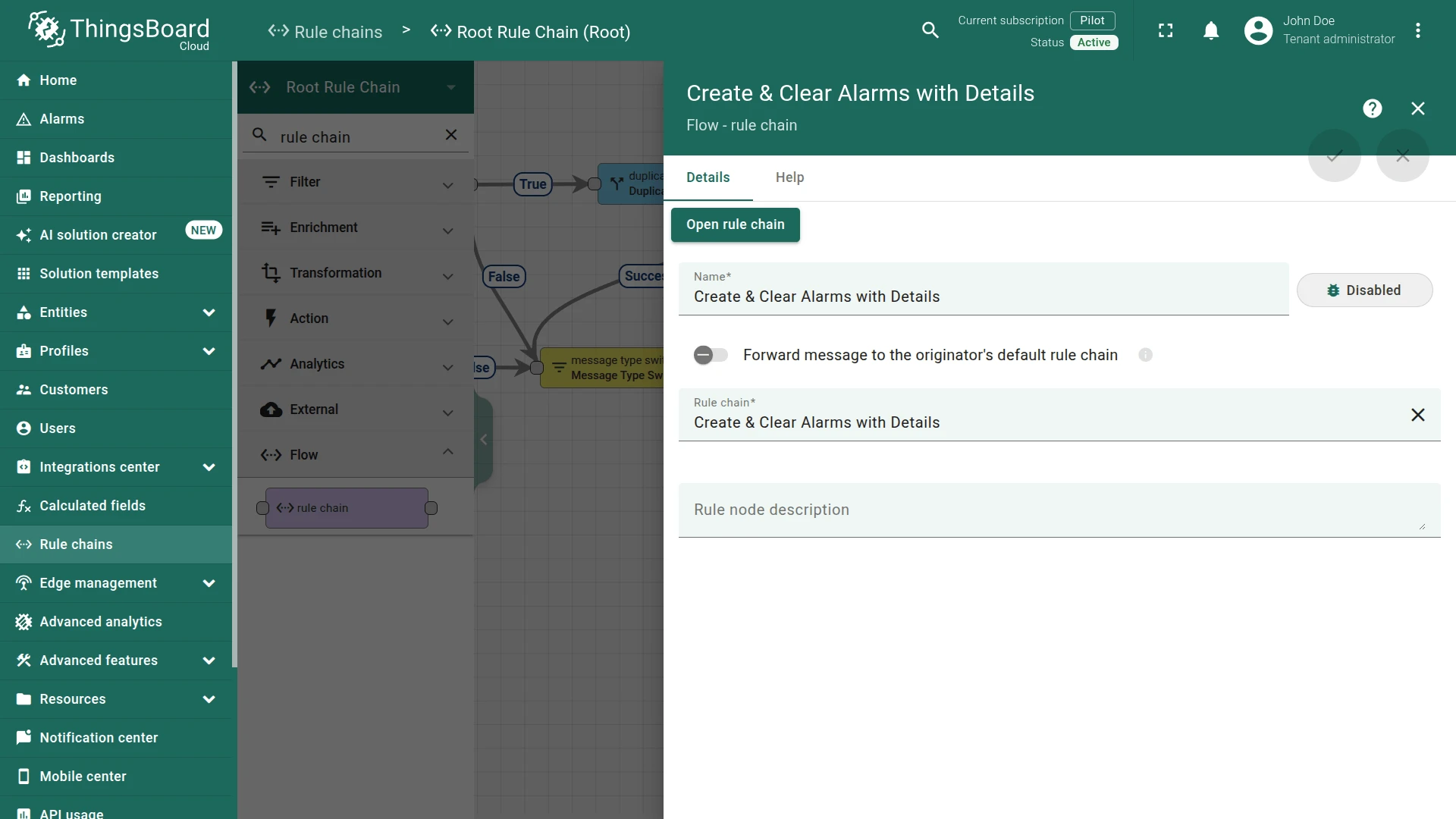
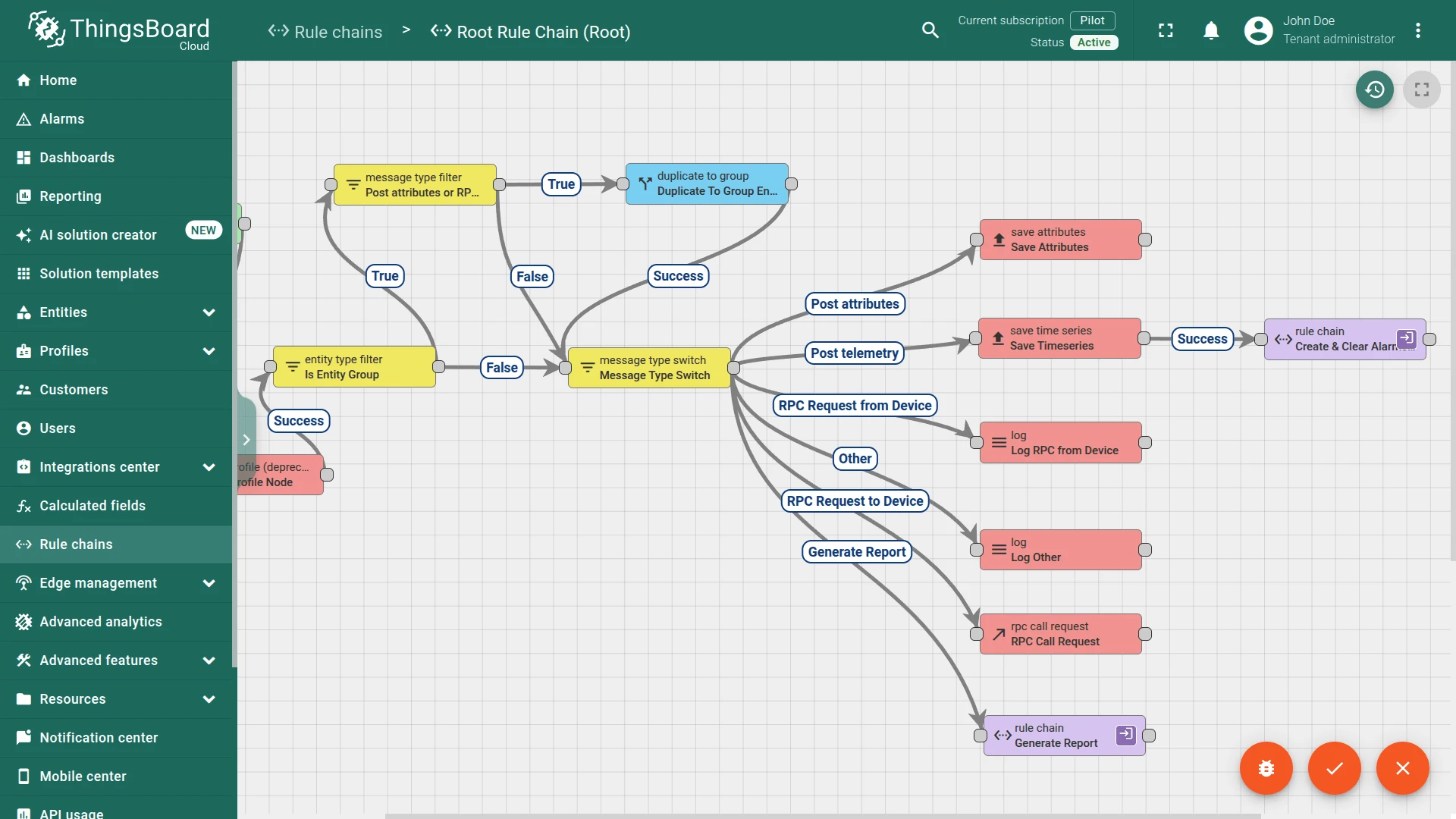
Section titled “Step 2. Route Telemetry to the Rule Chain”In the Root Rule Chain, add a Rule Chain node connected to the Save Timeseries node with relation type Success:
- Name:
Create & Clear Alarms with Details - Rule Chain:
Create & Clear Alarms with Details
Save the rule chain.
Step 3. Configure the Dashboard
Section titled “Step 3. Configure the Dashboard”To display alarm details in the widget, download the attached JSON file for the dashboard and import it.
Step 4. Test the Setup
Section titled “Step 4. Test the Setup”Use curl to publish telemetry to Thermostat A1. Replace $ACCESS_TOKEN with the device access token.
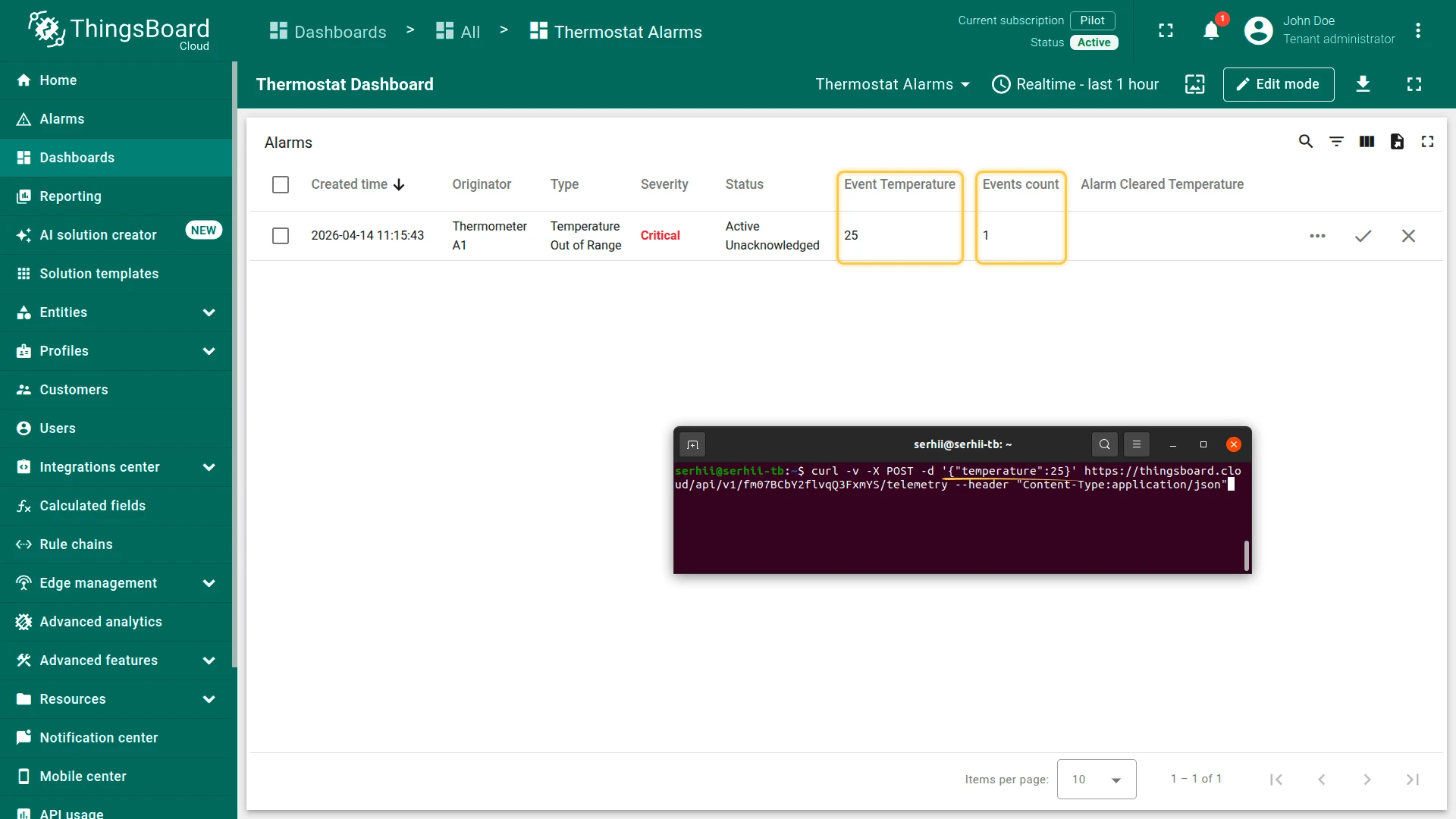
Trigger the alarm — publish a temperature above 15 °C:
curl -v -X POST -d '{"temperature":25}' https://thingsboard.cloud/api/v1/$ACCESS_TOKEN/telemetry --header "Content-Type:application/json"The alarm is created with details.temperature = 25 and details.count = 1.
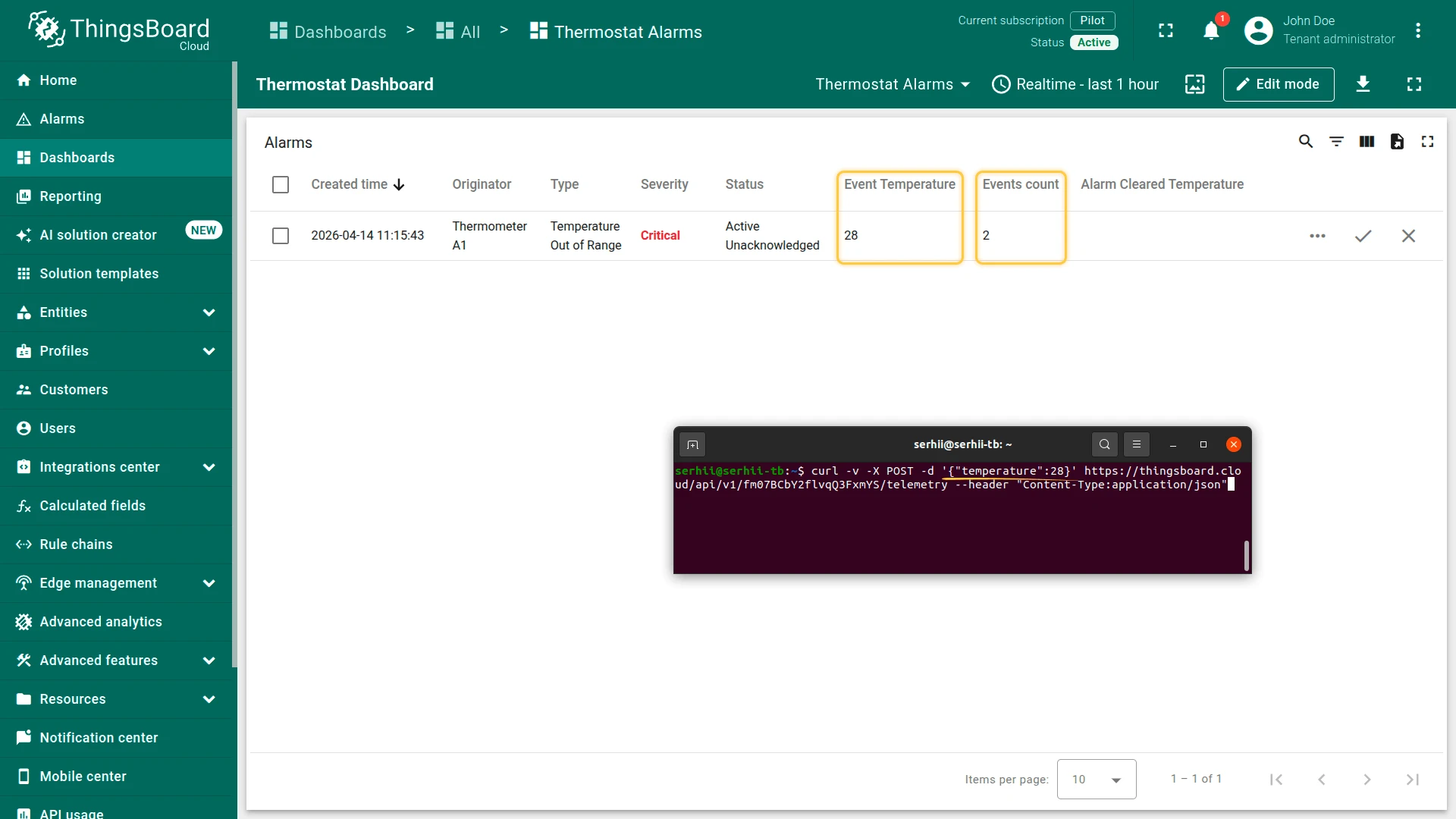
Update the alarm — publish another out-of-range value:
curl -v -X POST -d '{"temperature":28}' https://thingsboard.cloud/api/v1/$ACCESS_TOKEN/telemetry --header "Content-Type:application/json"The alarm is updated: details.temperature = 28, details.count = 2.
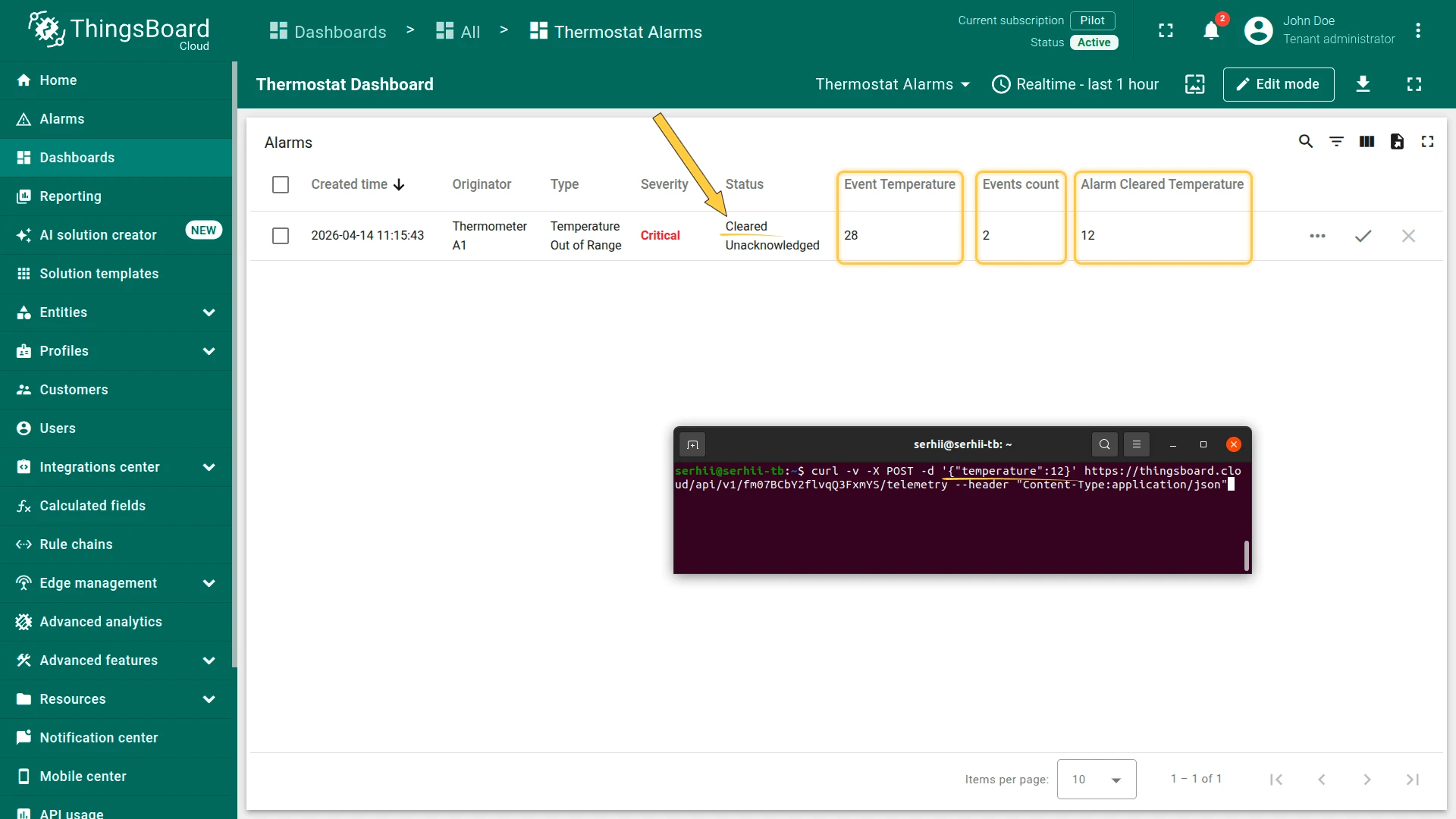
Clear the alarm — publish a value within the normal range:
curl -v -X POST -d '{"temperature":12}' https://thingsboard.cloud/api/v1/$ACCESS_TOKEN/telemetry --header "Content-Type:application/json"The alarm is cleared with details.clearedTemperature = 12 appended to the existing details.
See Also
Section titled “See Also”- Create and Clear Alarms — alarm rules approach without rule engine customization
- Send email on alarm — extend alarm processing with email notifications
- Alarms — full alarm lifecycle reference
Was this helpful?