Led Indicator
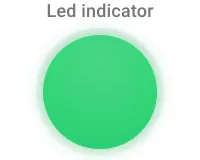
The LED Indicator widget displays a colored LED icon that lights up or dims based on a device’s current ON/OFF state. Use it on control panels and monitoring dashboards to give operators an instant visual status indicator for relays, machines, or any binary device state.
How It Works
Section titled “How It Works”The LED indicator follows two functional principles:
- State detection — on dashboard load, the widget reads the current device state from a configured source (RPC call, attribute subscription, or time-series subscription) and sets the LED to the matching color.
- Real-time update — when the device state changes externally, the widget receives the update and adjusts the LED color immediately, without any page reload.
Key Capabilities
Section titled “Key Capabilities”- LED title and active color are independently configurable.
- Three state sources: RPC poll, attribute subscription, or time-series subscription.
- Custom
f(data)converter transforms raw attribute, telemetry, or RPC values into a boolean ON/OFF state. - Configurable fallback state when no data is available.
Adding the Widget
Section titled “Adding the Widget”- Open the dashboard in edit mode. Click Add widget in the top toolbar, or click the Add new widget icon in the center of an empty dashboard.
- In the widget bundle selection dialog, find and click Control widgets.
- Select the Led indicator widget.
- Configure the datasource, appearance, and value settings, then click Add.
Configuration
Section titled “Configuration”All settings in this section use Basic mode — a quick-start configuration covering the essentials. For finer widget controls like title font, card style, and tooltip, switch to the Advanced tab.
Datasource
Section titled “Datasource”Select the source of state data:
- Device — a specific device; the widget reads state for this device.
- Entity alias — a set of entities matched by an entity alias; use this when the target device is selected dynamically at runtime.
Appearance
Section titled “Appearance”Controls the LED label, color, and fallback message.
| Setting | Description |
|---|---|
| “No data to display” alternative message | Fallback text shown when the entity state data is unavailable. |
| LED title | Label displayed above the LED icon, like Ventilation or Power. |
| LED color | Color of the LED when it is in the active (ON) state. The LED is gray when inactive (OFF). |
Value Settings
Section titled “Value Settings”Defines how the widget determines the current ON/OFF state.
Initial value — the default state shown when no data has been received yet. Checked means ON, unchecked means OFF.
Check status settings — how the widget reads the current device state:
| Mode | Description | Configuration |
|---|---|---|
| Perform RPC device status check enabled | Executes an RPC call to fetch device status on load. | RPC Method: e.g. checkStatus |
| Perform RPC device status check disabled | Subscribes to device data updates. | Retrieve LED status value using: Subscribe for attribute (e.g. powerState) or Subscribe for time series (e.g. led_state) |
Parse LED status value function f(data) — a JavaScript function that converts the raw attribute, time-series, or RPC response value into a boolean. Return true for ON, false for OFF.
return data ? true : false;Summary of LED state sources:
| Source type | Description | Example |
|---|---|---|
| RPC | Polls the device using a configured RPC method. | checkStatus() returns true |
| Attribute | Subscribes to attribute updates. | shared.powerState = true |
| Time series | Reads the latest telemetry value. | led_state = 1 |
Card Appearance
Section titled “Card Appearance”| Setting | Description |
|---|---|
| Background | Solid color or image background for the card. |
| Show card buttons | Enable the Fullscreen toolbar button. |
| Card border radius | Corner rounding in pixels. |
| Card padding | Spacing between card content and its border. |
Actions
Section titled “Actions”The Led indicator supports the Widget header button action — a button placed in the widget header that triggers a configured action when clicked.
Example
Section titled “Example”Ventilation Relay LED Indicator
Section titled “Ventilation Relay LED Indicator”Scenario: A Ventilation Relay device maintains a shared attribute powerState (Boolean). When powerState = true, the relay is ON; when powerState = false, the relay is OFF.
Goal: Add a Led indicator widget that reads powerState and shows a green LED when the relay is ON, and a gray LED when it is OFF.
Prerequisites: Create a device named Ventilation Relay and add a shared attribute:
- Key name:
powerState - Data type: Boolean
- Value:
true
Step 1. Add the widget. Open the dashboard in edit mode, click Add widget, select Control widgets, then choose Led indicator.
Step 2. Configure the datasource. Set Datasource type to Device, then select Ventilation Relay.
Step 3. Configure appearance. In the Appearance tab, set the following:
- “No data to display” alternative message:
No telemetry available - LED title:
Ventilation LED - LED color:
#4CAF50
Step 4. Configure value settings. In the Value settings section, set the following:
- Initial value: Unchecked (OFF)
- Perform RPC device status check: Disabled
- Retrieve LED status value using: Subscribe for attribute
- Device attribute containing LED status value:
powerState - Parse LED status value function:
return data ? true : false;
Step 5. Save. Click Add, resize and reposition as needed, then click Save on the dashboard toolbar.
Result: The widget reads powerState from the Ventilation Relay device. If powerState = true, the LED glows green, indicating the relay is ON. If powerState = false, the LED is gray, indicating the relay is OFF.
Interaction: Add a Single switch widget to the same dashboard to control the powerState attribute directly. Flipping the switch to ON sets powerState = true and the LED turns green; flipping to OFF sets powerState = false and the LED turns gray.
Troubleshooting
Section titled “Troubleshooting”LED Does Not Reflect the Correct State
| Cause | Solution |
|---|---|
| Wrong attribute key or subscription type | Verify the key name in value settings. If using an attribute, select Subscribe for attribute; if using telemetry, select Subscribe for time series. Names are case-sensitive. |
| Parse function returns wrong value | Check the f(data) function returns true or false correctly for the expected data values. |
| Attribute not set on device | Open Devices → Attributes and confirm the attribute exists and has a value. |
LED Stays Gray Even When the Device Is ON
| Cause | Solution |
|---|---|
| No data received yet | Verify the device is connected and sending data. Check the attribute or time-series key name matches what the device publishes. |
| Initial value unchecked and data not yet loaded | Wait for the first data update from the device, or set Initial value to Checked as a temporary placeholder. |
LED Does Not Update When Device State Changes
| Cause | Solution |
|---|---|
| RPC mode used instead of subscription | RPC mode only polls on dashboard load — it does not subscribe to updates. Switch to Subscribe for attribute or Subscribe for time series if you need real-time updates. |
| Wrong subscription type | Use Subscribe for attribute for shared or client attributes; use Subscribe for time series for telemetry keys. |
Was this helpful?