Send Slack Message on Alarm
Configure ThingsBoard to automatically send a Slack message when an alarm is created. This guide extends the Create and Clear Alarms recipe by using the Notification Center to deliver alarm-based Slack notifications.
Use Case
Section titled “Use Case”Assume your refrigeration equipment has a temperature sensor that periodically publishes telemetry to ThingsBoard. The normal operating range is 2 °C – 5 °C. When a reading goes outside this range:
- An alarm is created by the alarm rules.
- A Slack message is sent to the responsible user.
Prerequisites
Section titled “Prerequisites”Before proceeding:
- Complete the Create and Clear Alarms recipe — the alarm rules configured there are required for this guide.
- Configure Slack settings in ThingsBoard with a valid Bot User OAuth Token.
Review the following documentation for background:
- Notification Center — how recipients, templates, and rules work together.
- Alarm rules — how alarms are created and cleared.
Configure Notification Center
Section titled “Configure Notification Center”The Notification Center delivers notifications to users. It consists of three components:
- Recipients — define who receives notifications.
- Templates — define the notification content and delivery method.
- Rules — define the conditions under which notifications are sent.
Step 1. Configure Notification Recipients
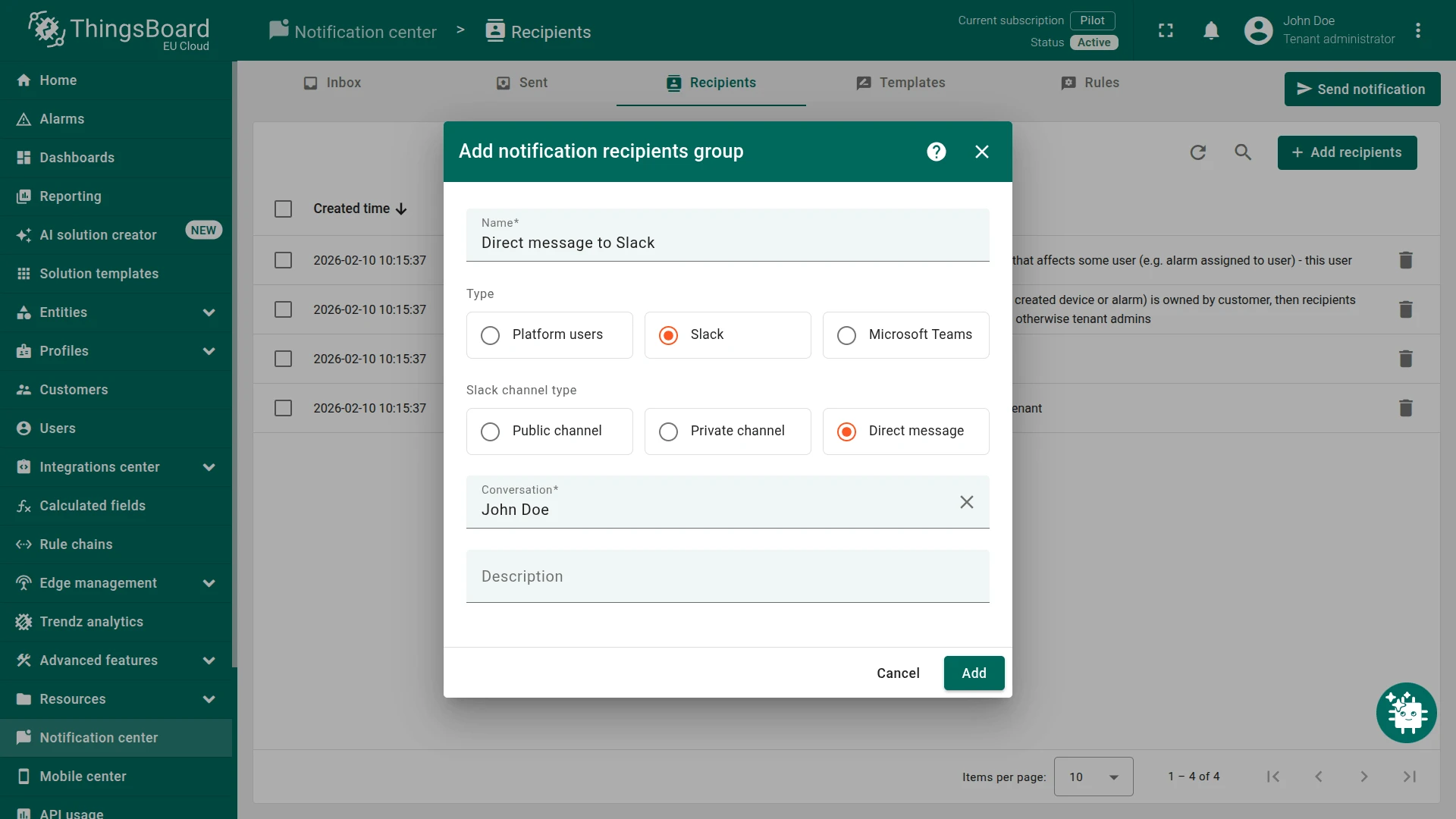
Section titled “Step 1. Configure Notification Recipients”Create a recipient that targets a specific Slack user via direct message.
- Navigate to Monitor ⇾ Notifications ⇾ Recipients.
- Click Add recipients (+) in the top-right corner.
- Configure the recipient:
- Name:
Direct message to Slack - Type: Slack
- Slack channel type: Direct message
- Conversation: enter the target Slack user’s name
- Name:
- Click Add.
Step 2. Create Notification Template
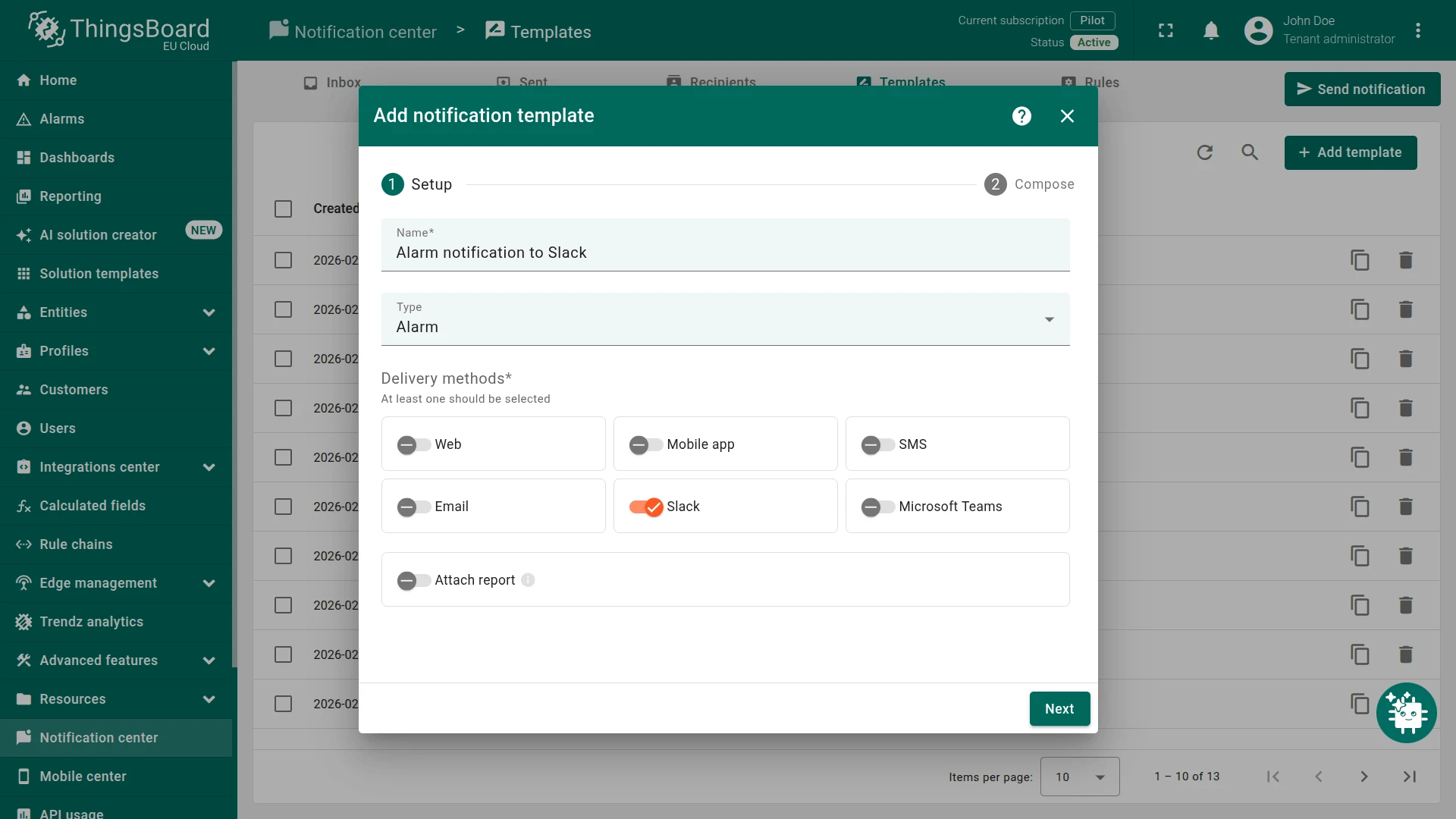
Section titled “Step 2. Create Notification Template”Create a template that defines the Slack message body using alarm variables.
- Navigate to Monitor ⇾ Notifications ⇾ Templates.
- Click Add template (+) in the top-right corner.
- Setup — configure the template:
- Name:
Alarm notification to Slack - Type: Alarm
- Delivery methods: toggle Slack on
- Name:
- Click Next.
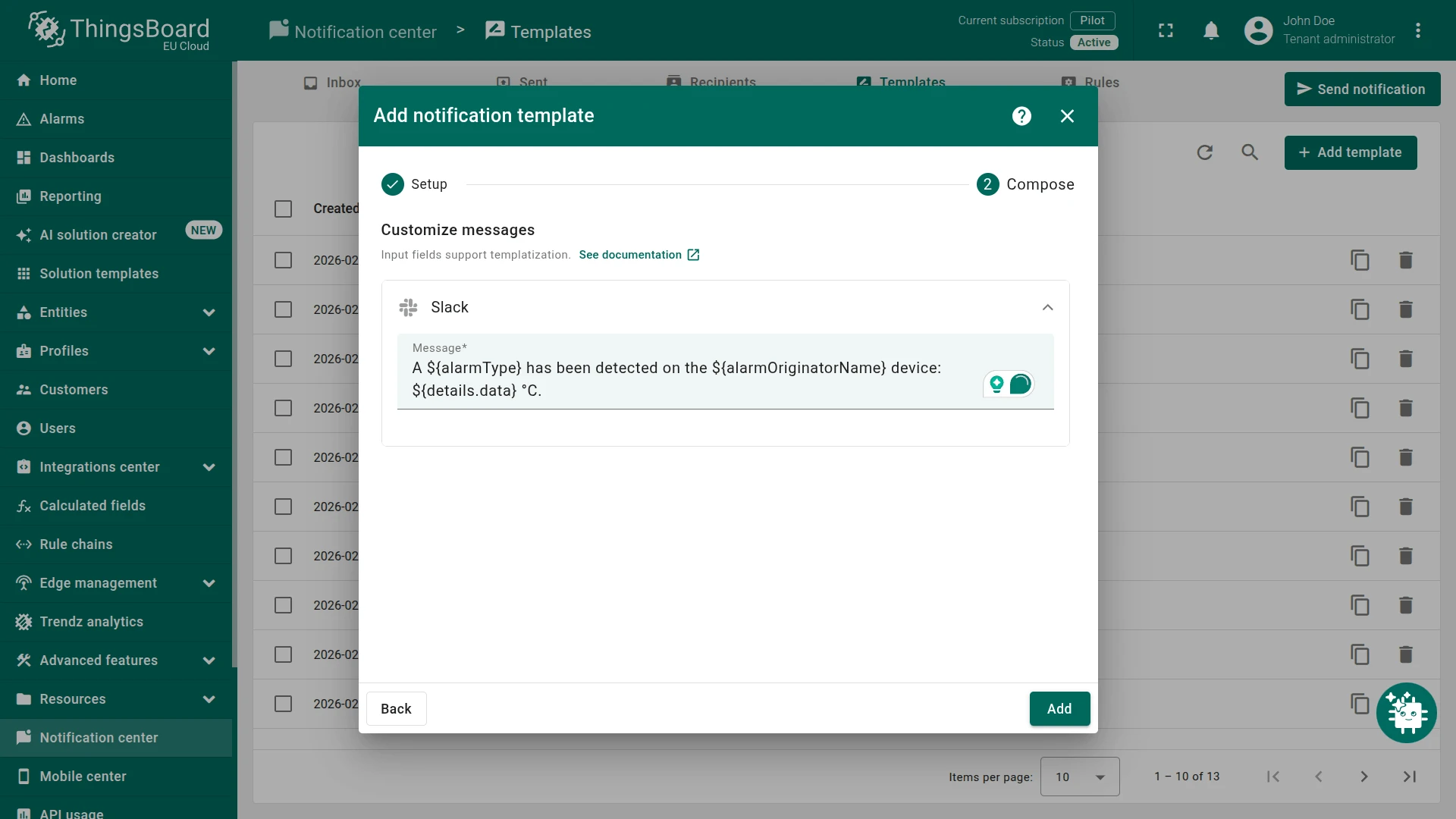
- Compose — expand the Slack section and enter the message:
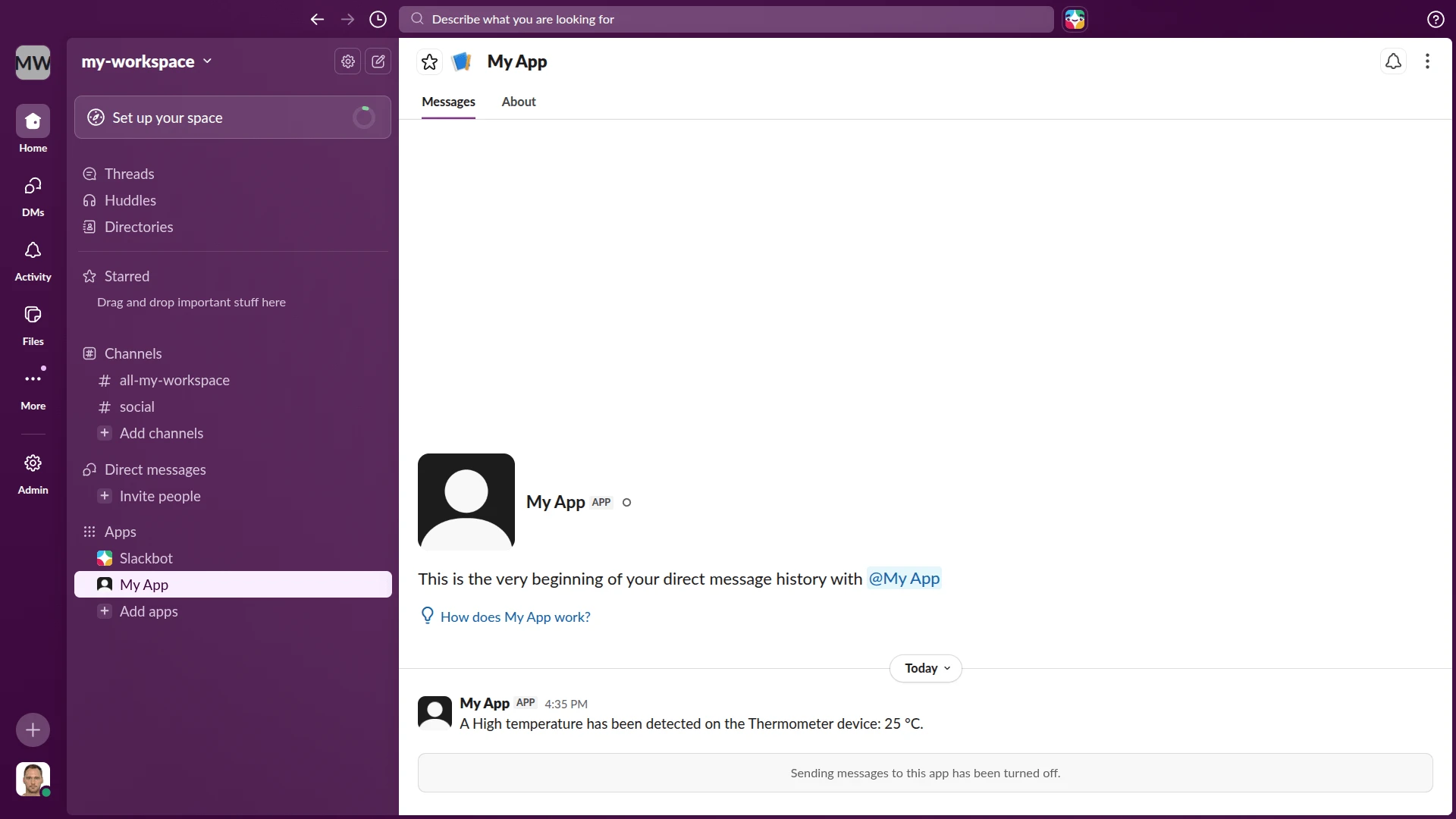
A ${alarmType} has been detected on the ${alarmOriginatorName} device: ${details.data} °C. - Click Add.
Template variables used:
${alarmType}— the alarm type name (e.g. High temperature).${alarmOriginatorName}— the name of the device that triggered the alarm.${details.data}— the reported telemetry value, populated by the alarm rule.
Step 3. Create Notification Rule
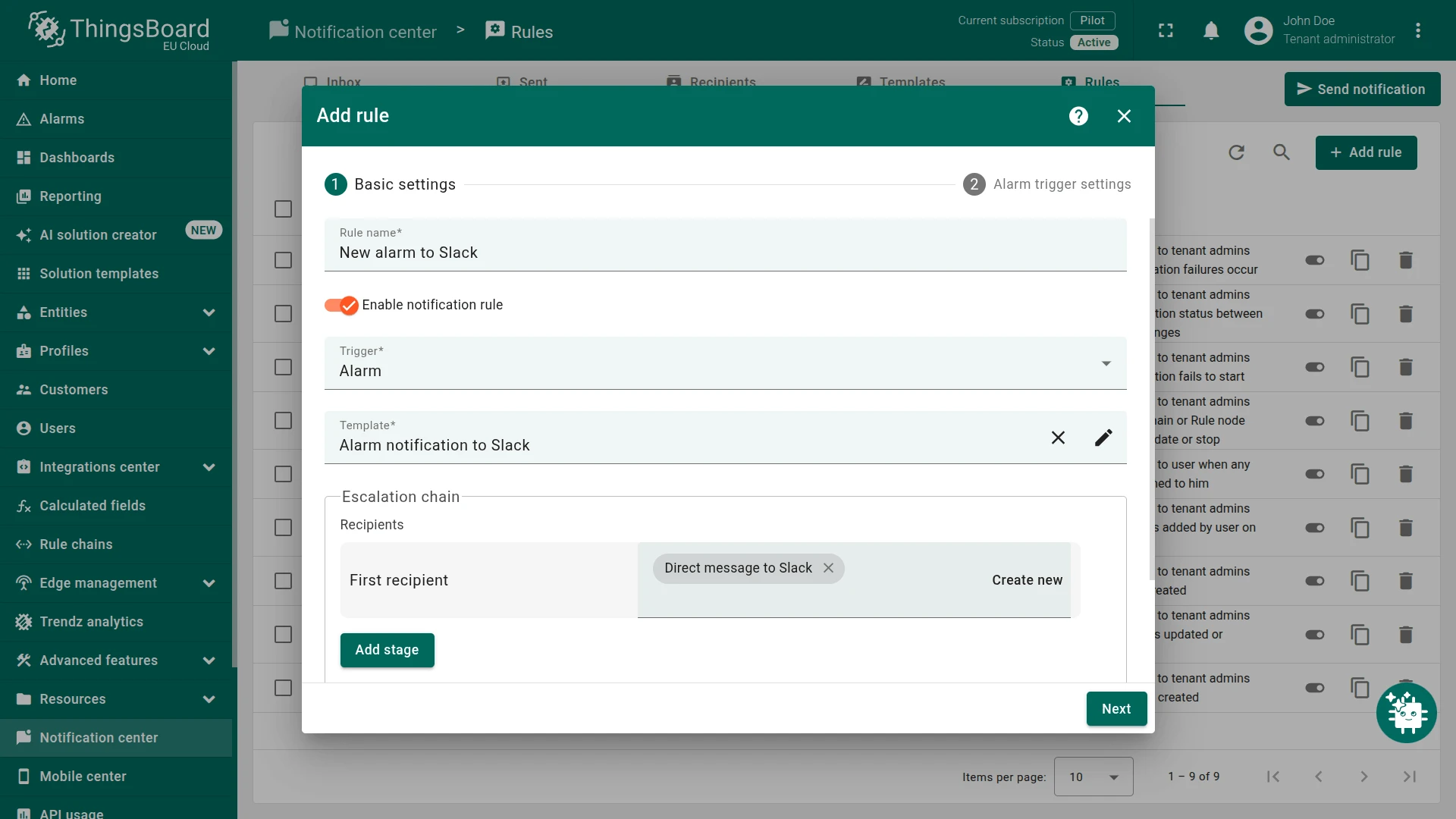
Section titled “Step 3. Create Notification Rule”Create a rule that links the alarm trigger to the template and recipient.
- Navigate to Monitor ⇾ Notifications ⇾ Rules.
- Click Add rule (+) in the top-right corner.
- Basic settings — configure the rule:
- Rule name:
New alarm to Slack - Trigger: Alarm
- Template: Alarm notification to Slack
- Escalation chain ⇾ First recipient: Direct message to Slack
- Rule name:
- Click Next.
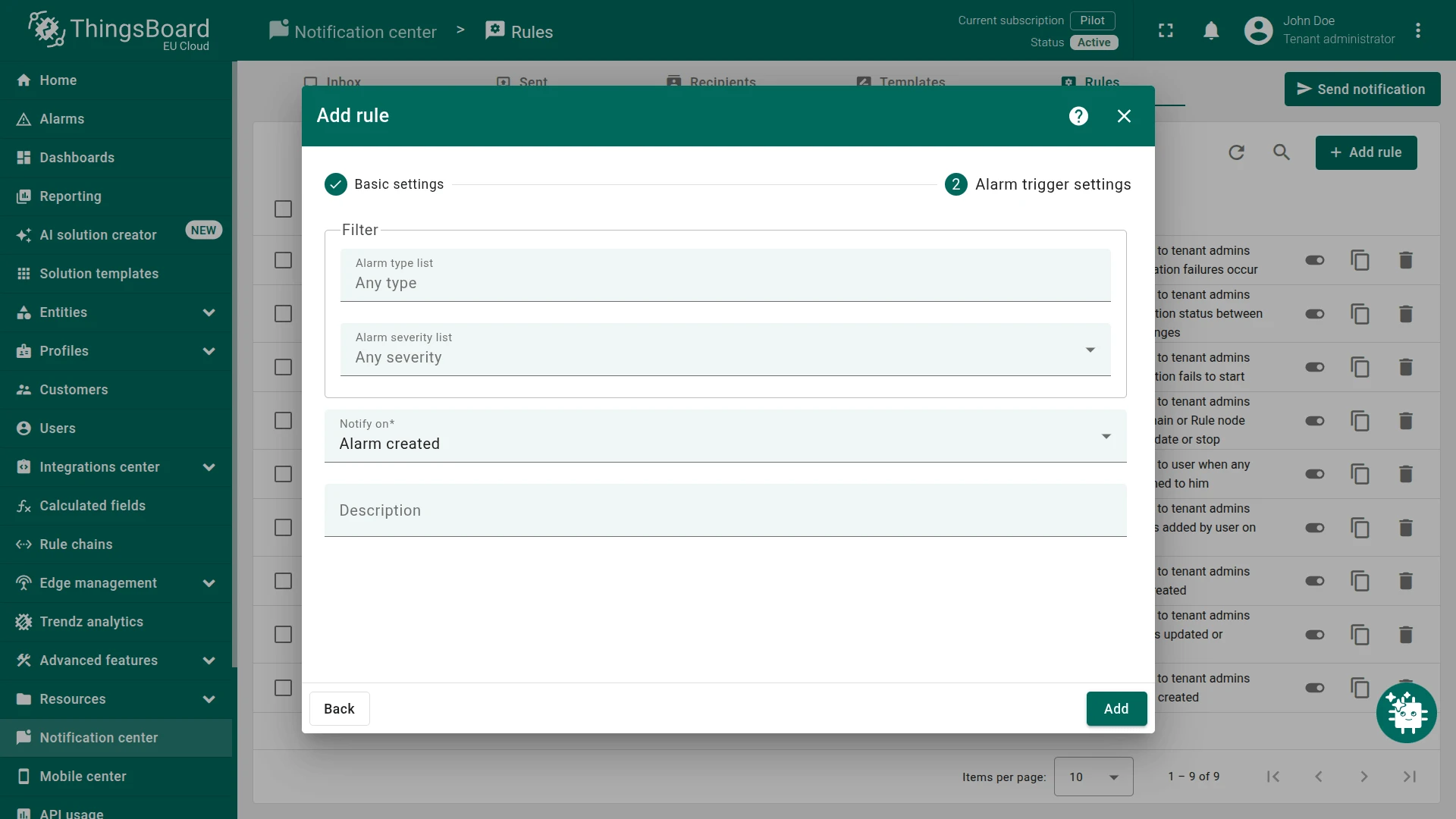
- Alarm trigger settings — configure the filter:
- Alarm type list: Any type
- Alarm severity list: Any severity
- Notify on: Alarm created
- Click Add.
Verification
Section titled “Verification”Publish a temperature value that triggers the alarm (above 5 °C).
Use the Check Connectivity feature or the command below:
curl -v -X POST \--header "Content-Type: application/json" \--data '{"temperature": 25}' \http://thingsboard.cloud/api/v1/$ACCESS_TOKEN/telemetry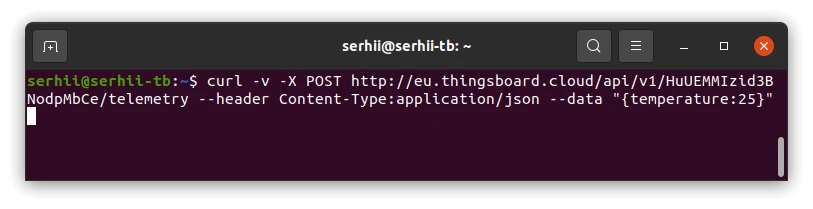
A new alarm is created and the Slack message is sent to the configured recipient. The message body is populated from the template variables.
See Also
Section titled “See Also”- Notification Center — full configuration reference for recipients, templates, and rules
- Slack settings — how to configure the Slack API token in ThingsBoard
- Create and Clear Alarms — alarm rules this recipe builds upon
- Alarm rules — full alarm rule configuration reference
Was this helpful?