Applications
An application is one Docker Compose project managed by an agent: a set of containers, volumes, and networks that runs on the agent’s host. Every operation on an application (install, update, upgrade, restart, rollback, delete) is executed remotely by the agent and tracked as an event with per-step progress.
Operations that change an application are reliable by design: the agent snapshots the application and backs up the selected volumes before it starts, and if a step fails, the application is rolled back to its previous state, including the database volumes. See Application actions.
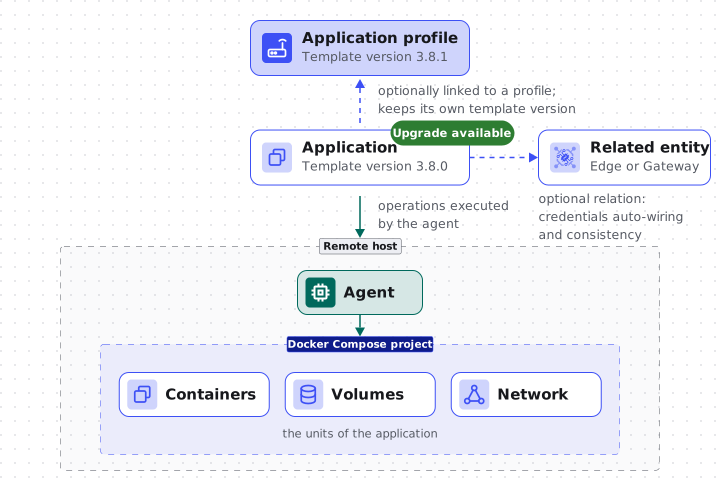
| Type | Purpose |
|---|---|
| Edge | A ThingsBoard Edge instance. Upgrades run the ThingsBoard Edge database upgrade scripts, back up the volumes, and roll back automatically. |
| Gateway | A ThingsBoard IoT Gateway instance. |
| Generic | Any custom Docker Compose application: brokers, databases, or your own services. Has no template version: templates exist for the ThingsBoard-managed types only, Edge and Gateway. |
Deploy an application
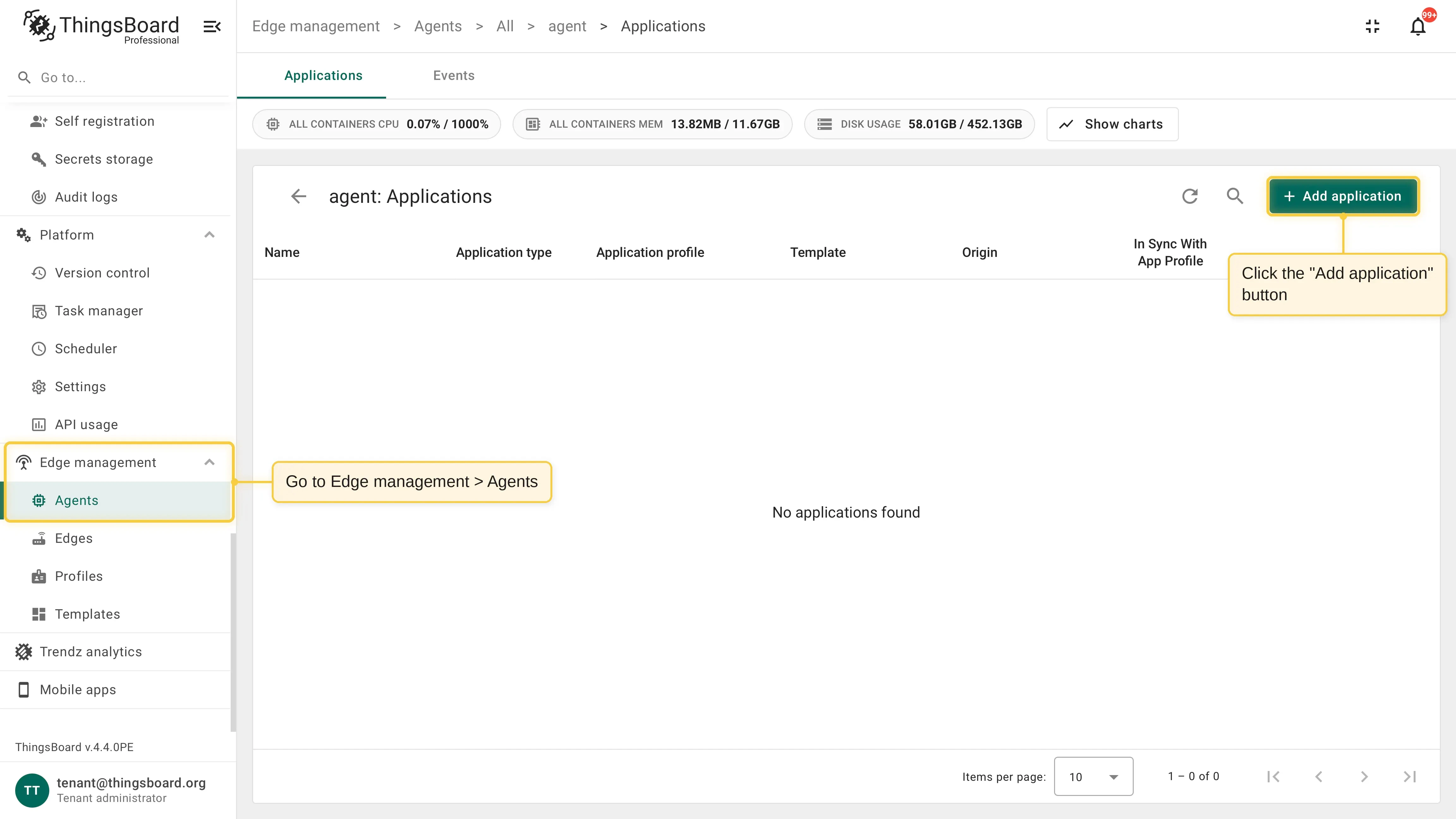
Section titled “Deploy an application”Go to Edge management > Agents, open the agent’s Applications page with the Manage applications row action, and click Add application.
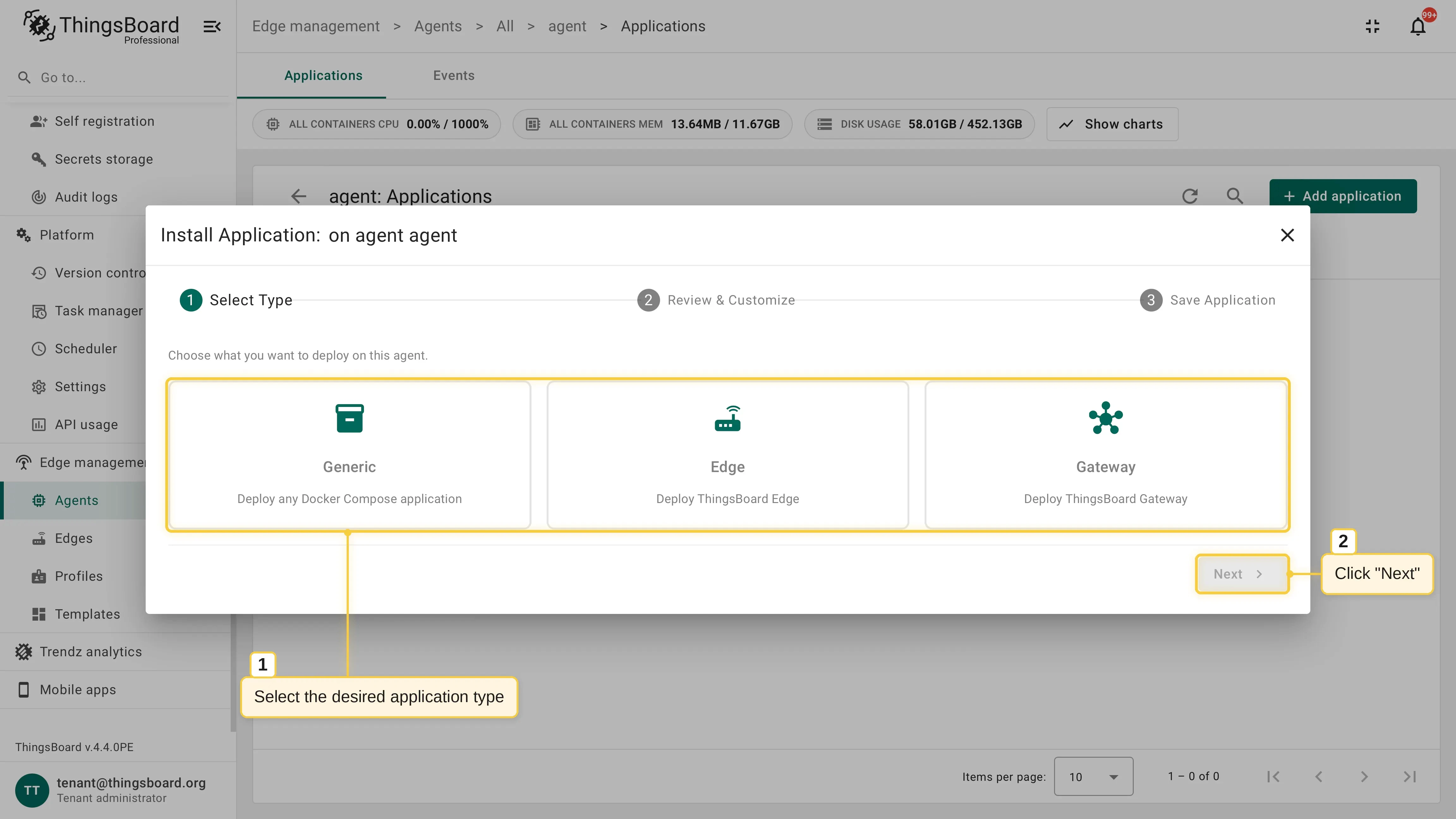
Select the application type (Generic, Edge, or Gateway) and click Next.
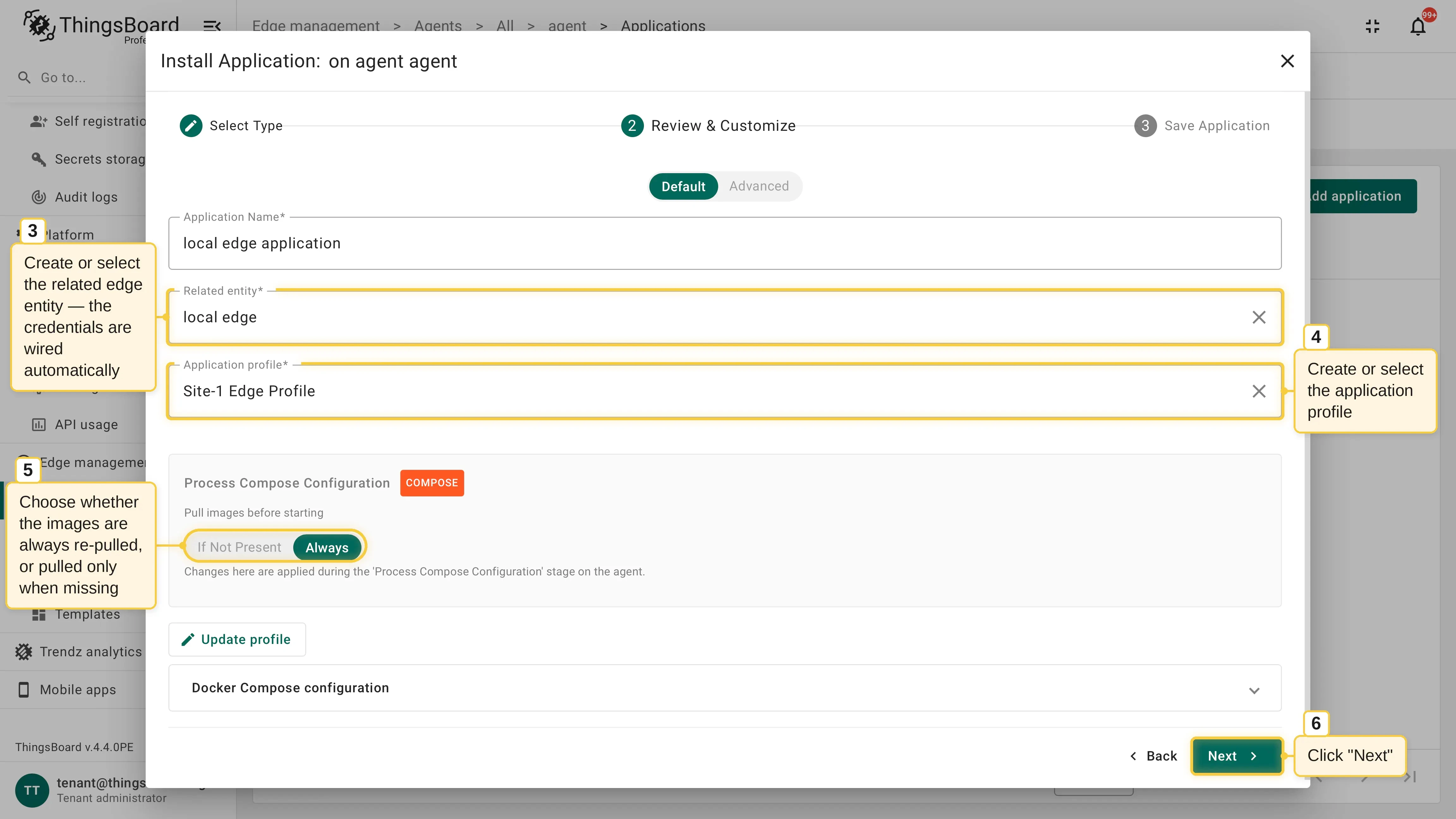
Review and customize the configuration: enter the application name and, for Edge and Gateway applications, create or select the related entity; its credentials are wired into the configuration automatically. Select an application profile or configure the Docker Compose definition directly, adjust the image pull policy (If Not Present or Always) if needed, and click Next.
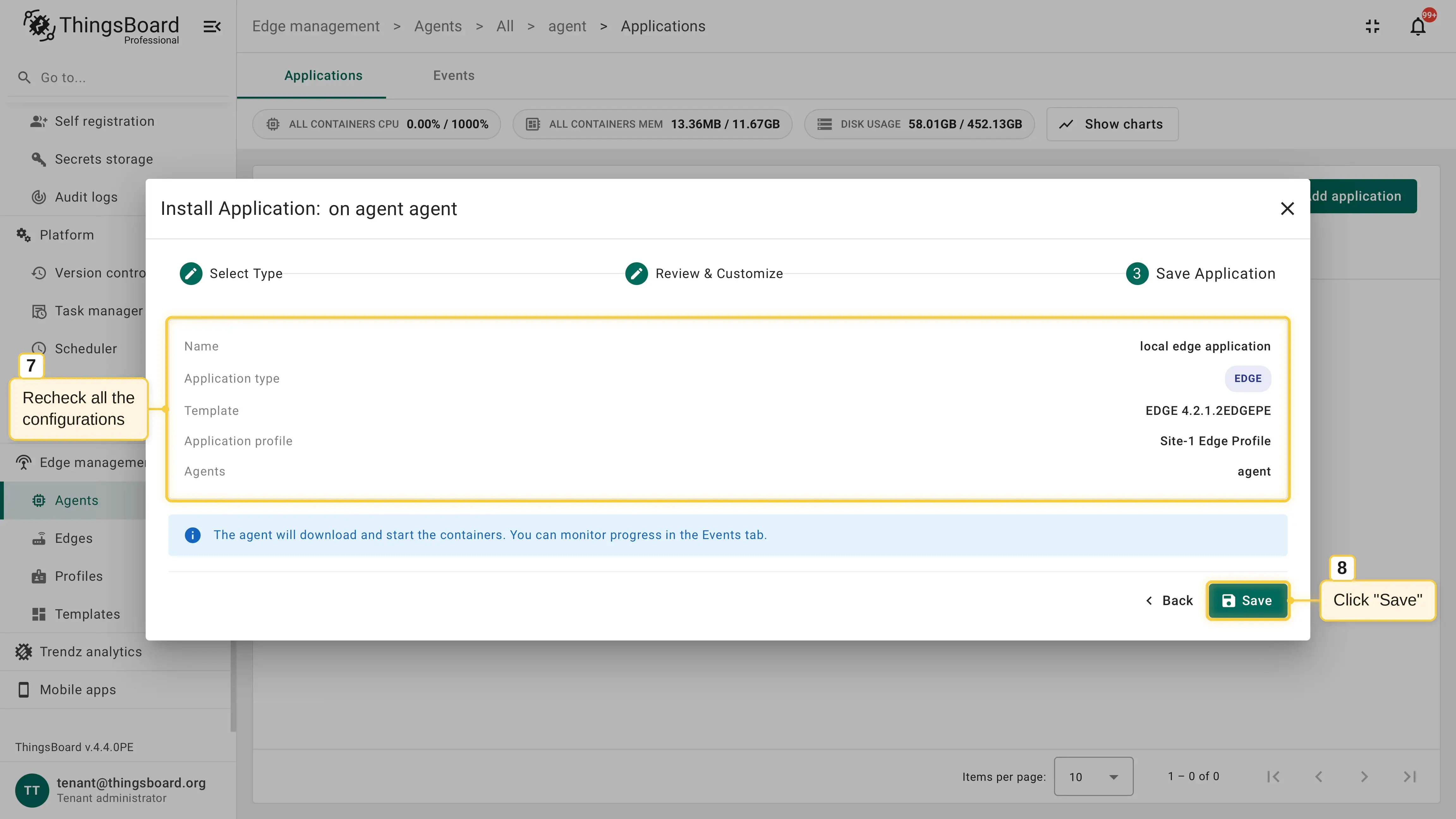
Recheck the configuration summary and click Save. The wizard creates an install event; the agent downloads the images and starts the containers.
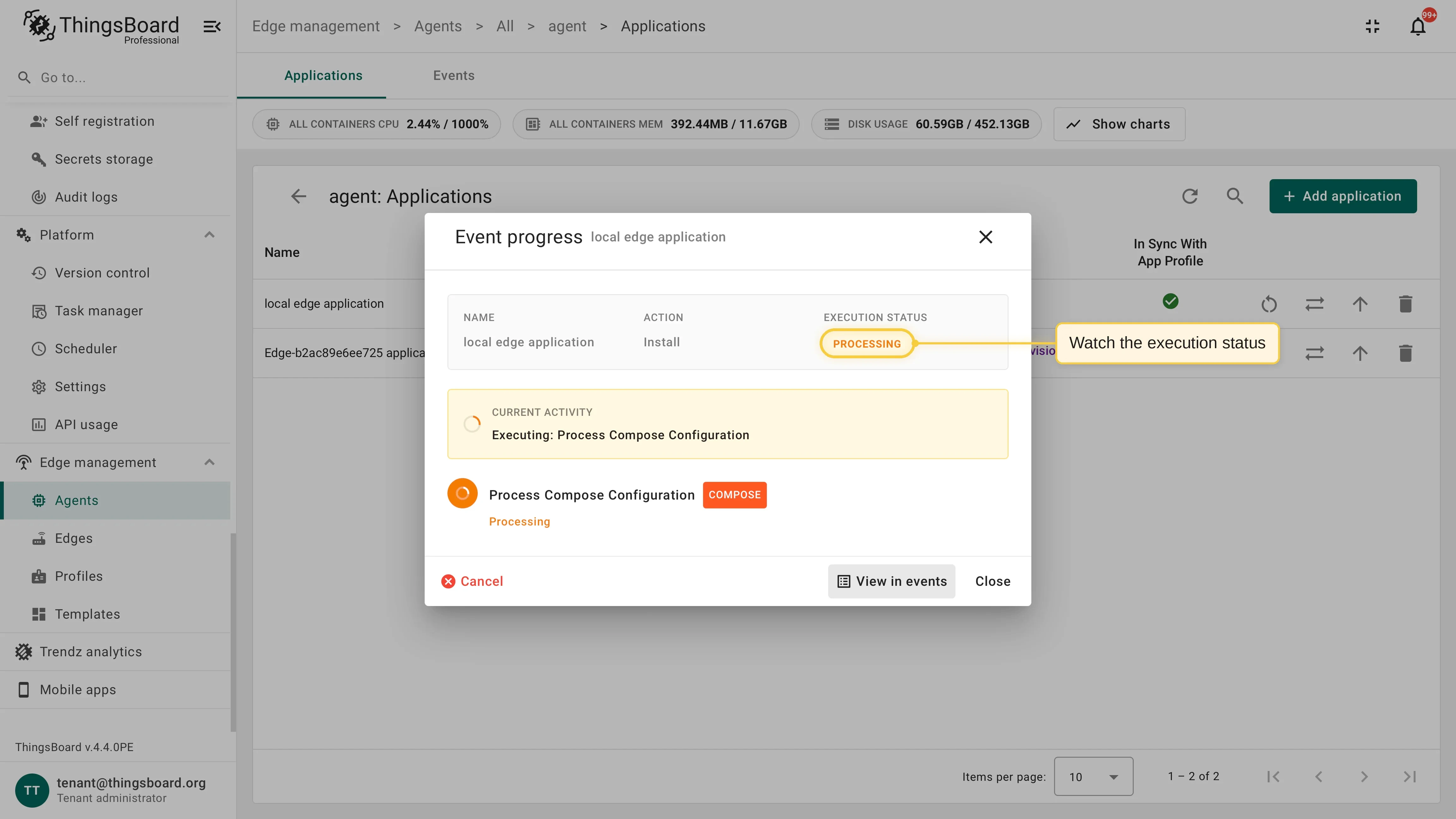
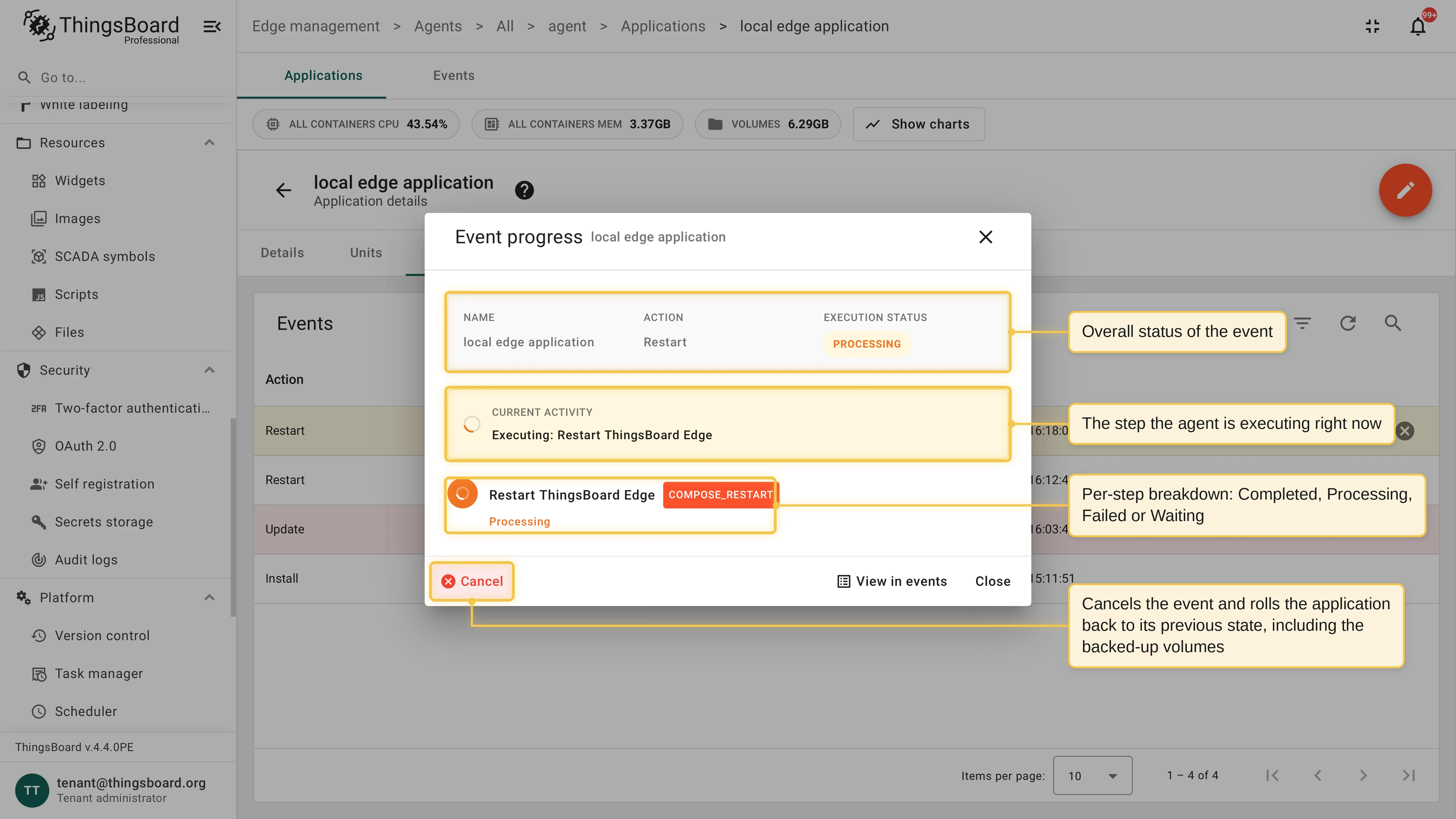
Track the installation in the Event progress dialog: it shows the execution status and every step as it completes.
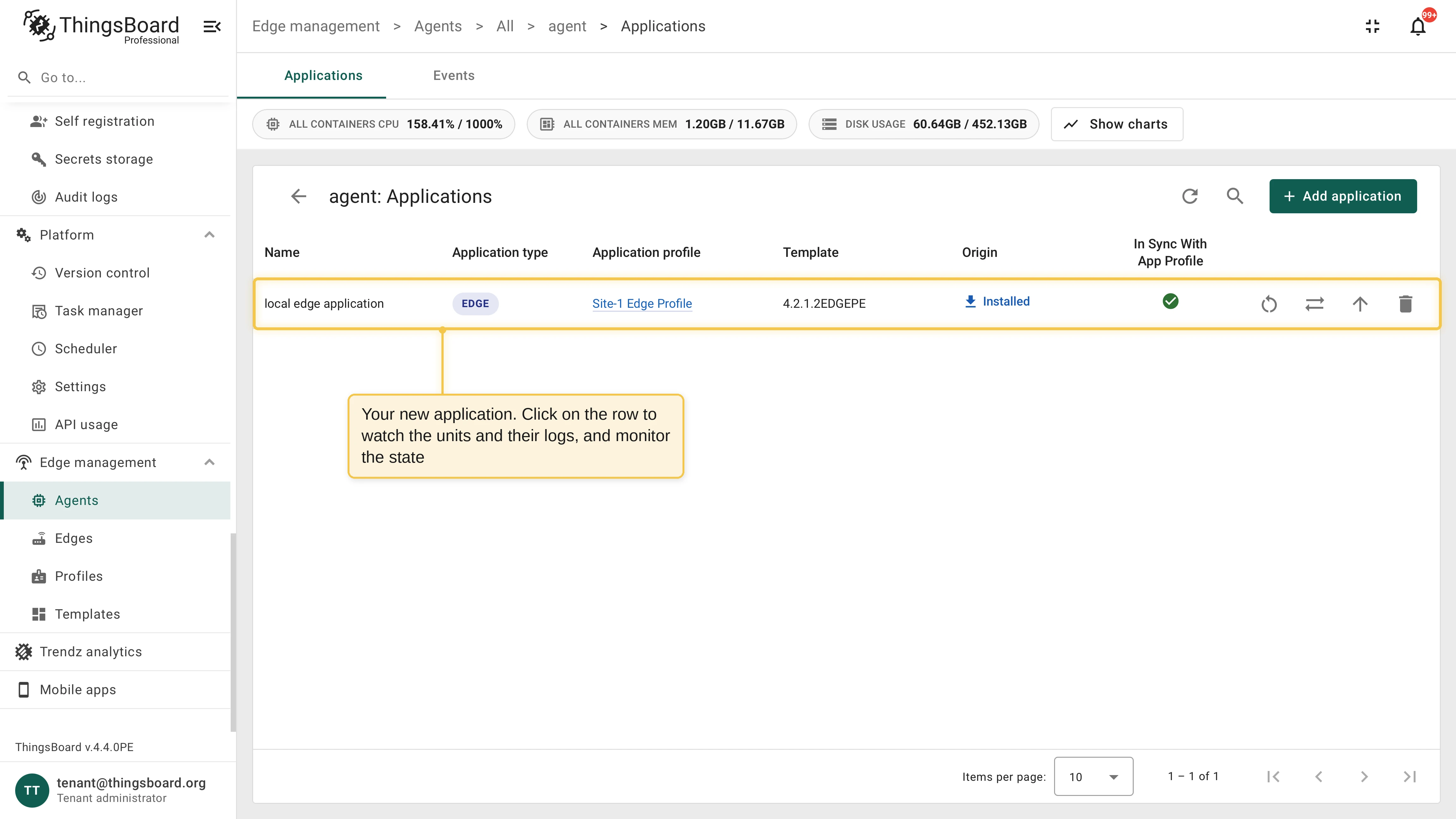
Verify the result. The new application appears in the Applications table with the Installed origin. Click the row to monitor its state, units, and logs.
Monitor an application
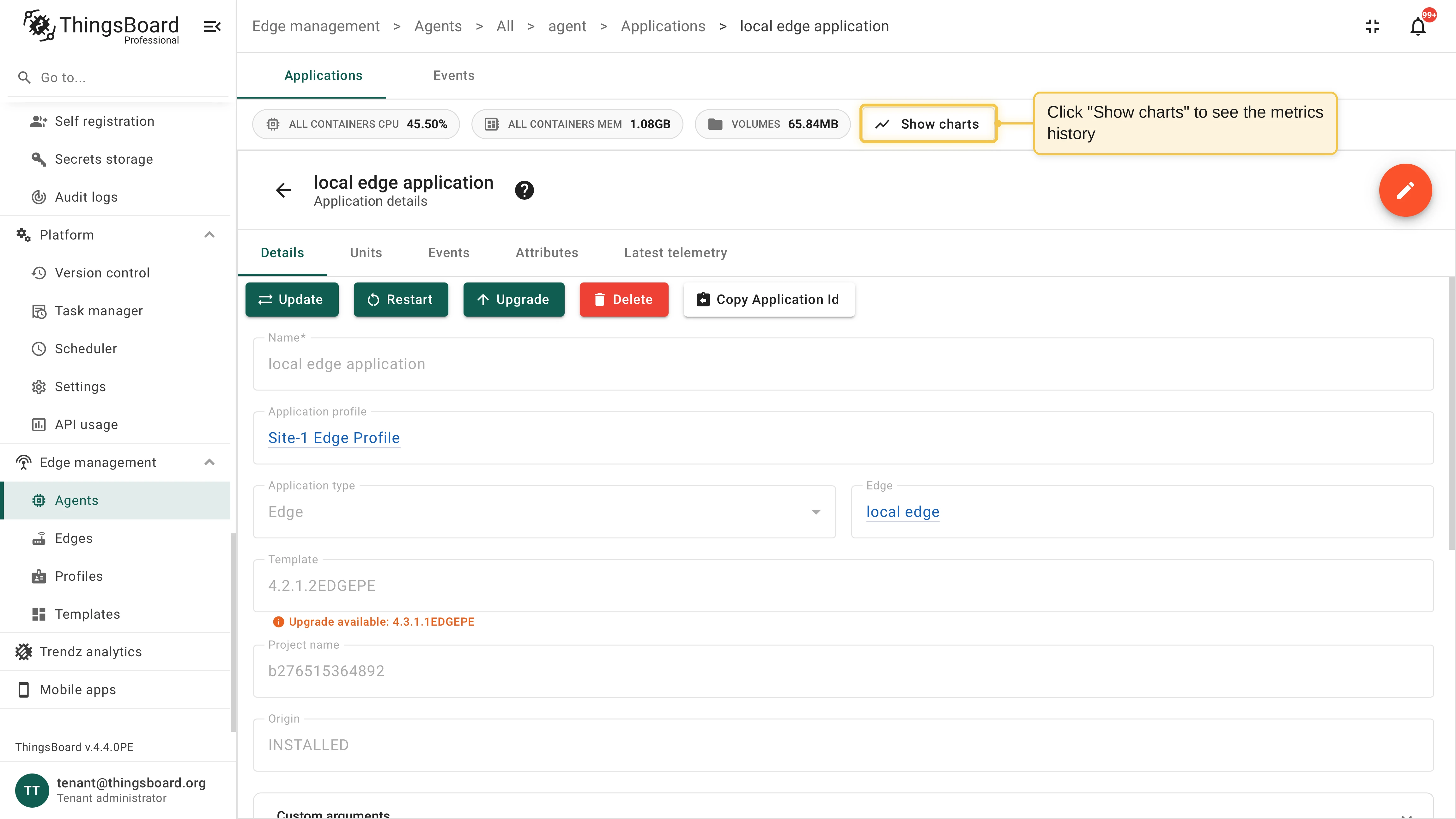
Section titled “Monitor an application”Open an application from the agent’s Applications table to see its details:
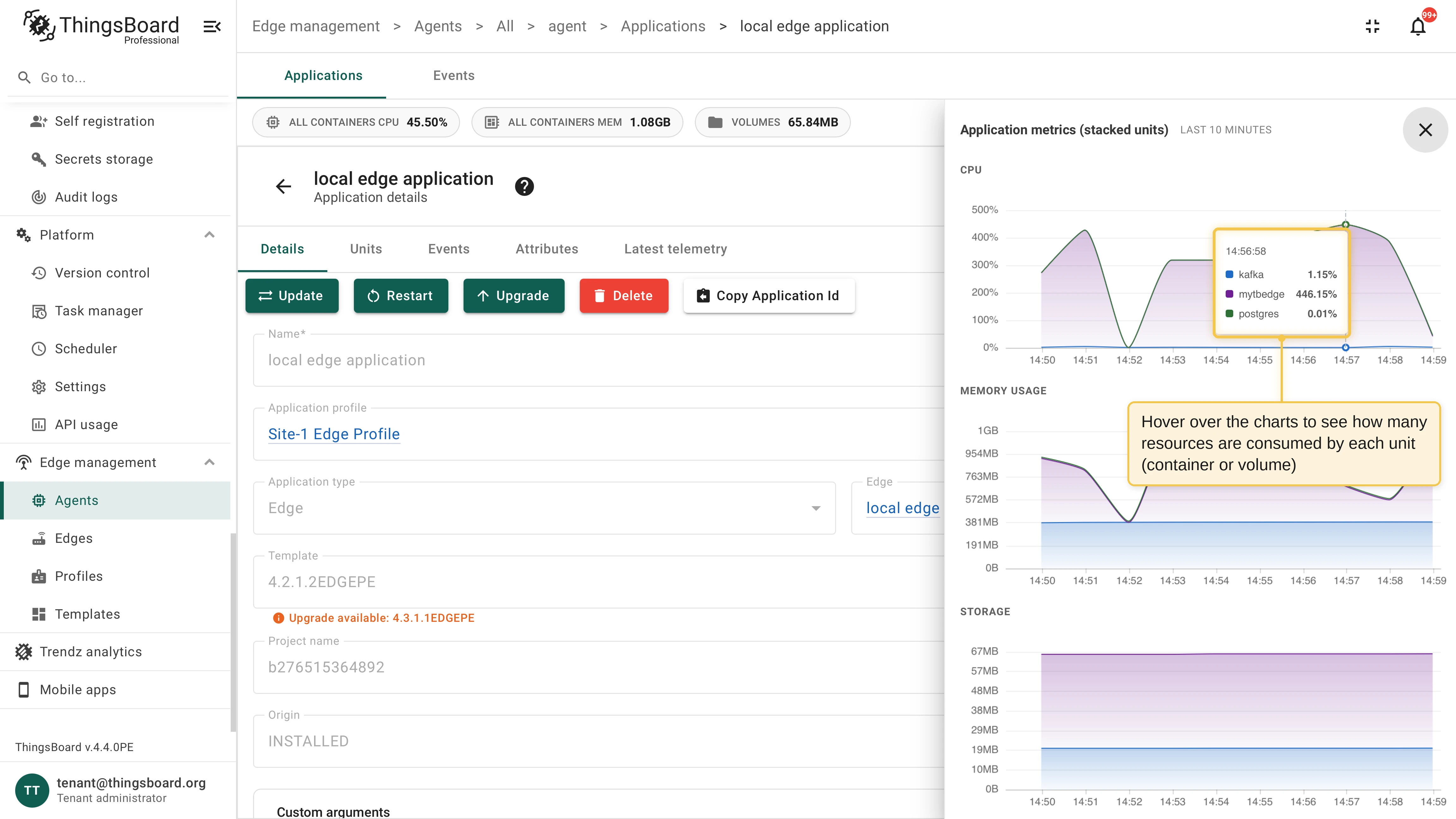
- Metrics: CPU, memory, disk usage, and volume sizes for the application, with history charts.
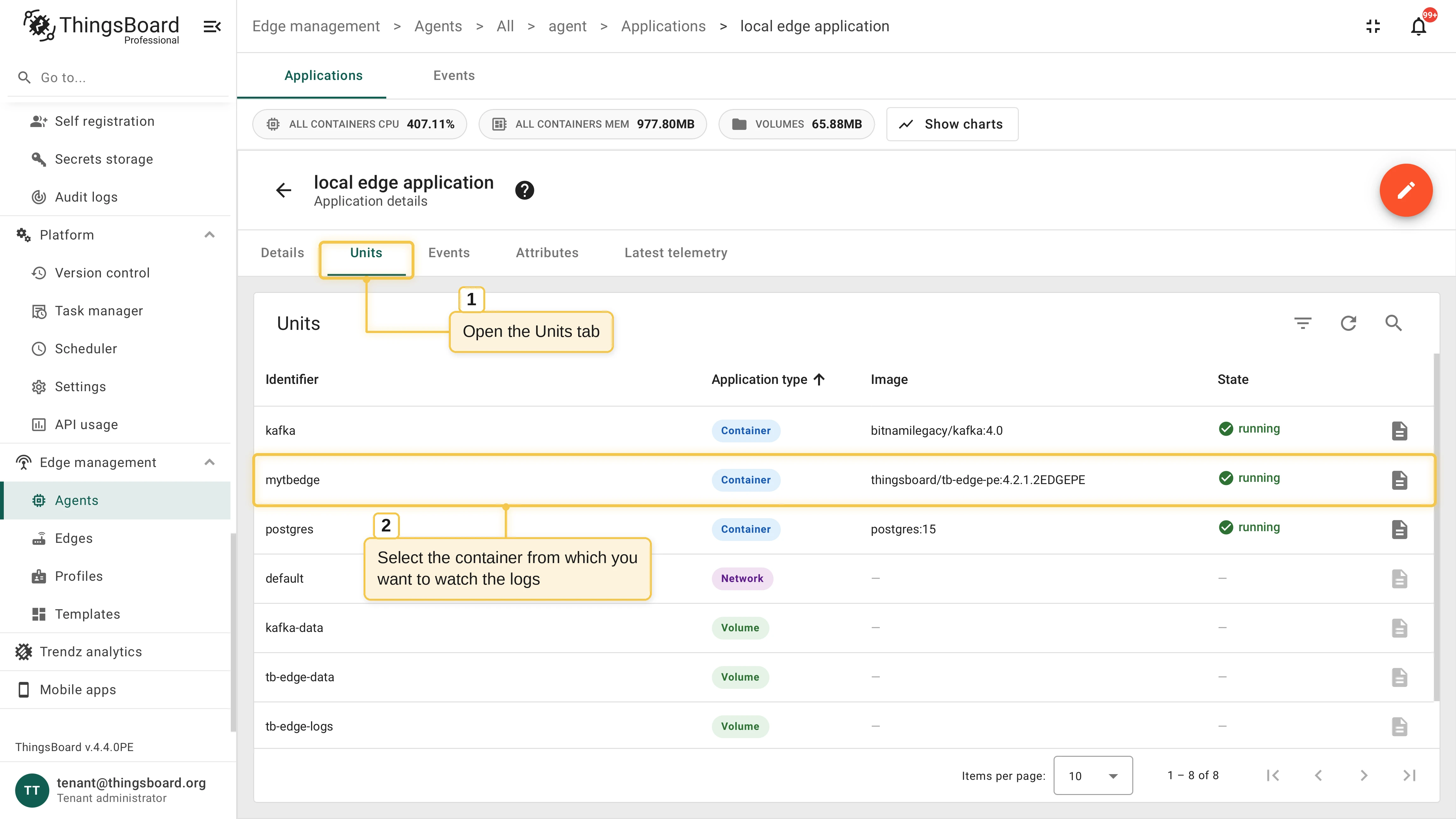
- Units: The containers, volumes, and networks that belong to the application, with image and state for each container.
- Events: The history of operations executed on the application.
View container logs
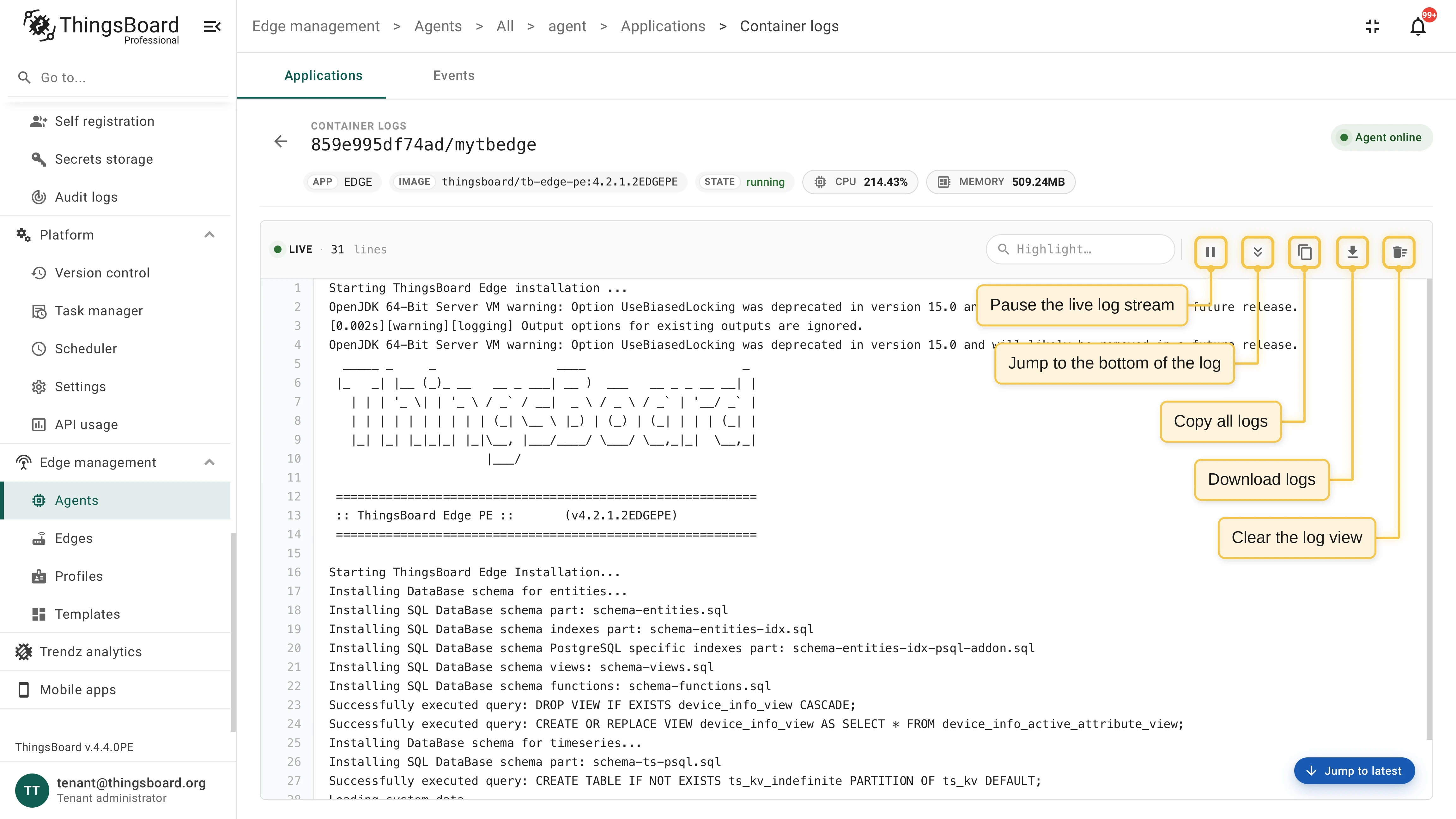
Section titled “View container logs”On the Units tab, click View container logs on a container row. The log viewer streams live logs from the remote container and supports highlight filters. Toolbar actions pause the live stream, jump to the bottom of the log, and copy, download, or clear the log view. Log streaming runs on demand and stops when you close the viewer.
Manage an application
Section titled “Manage an application”The applications table and the application details page provide these actions:
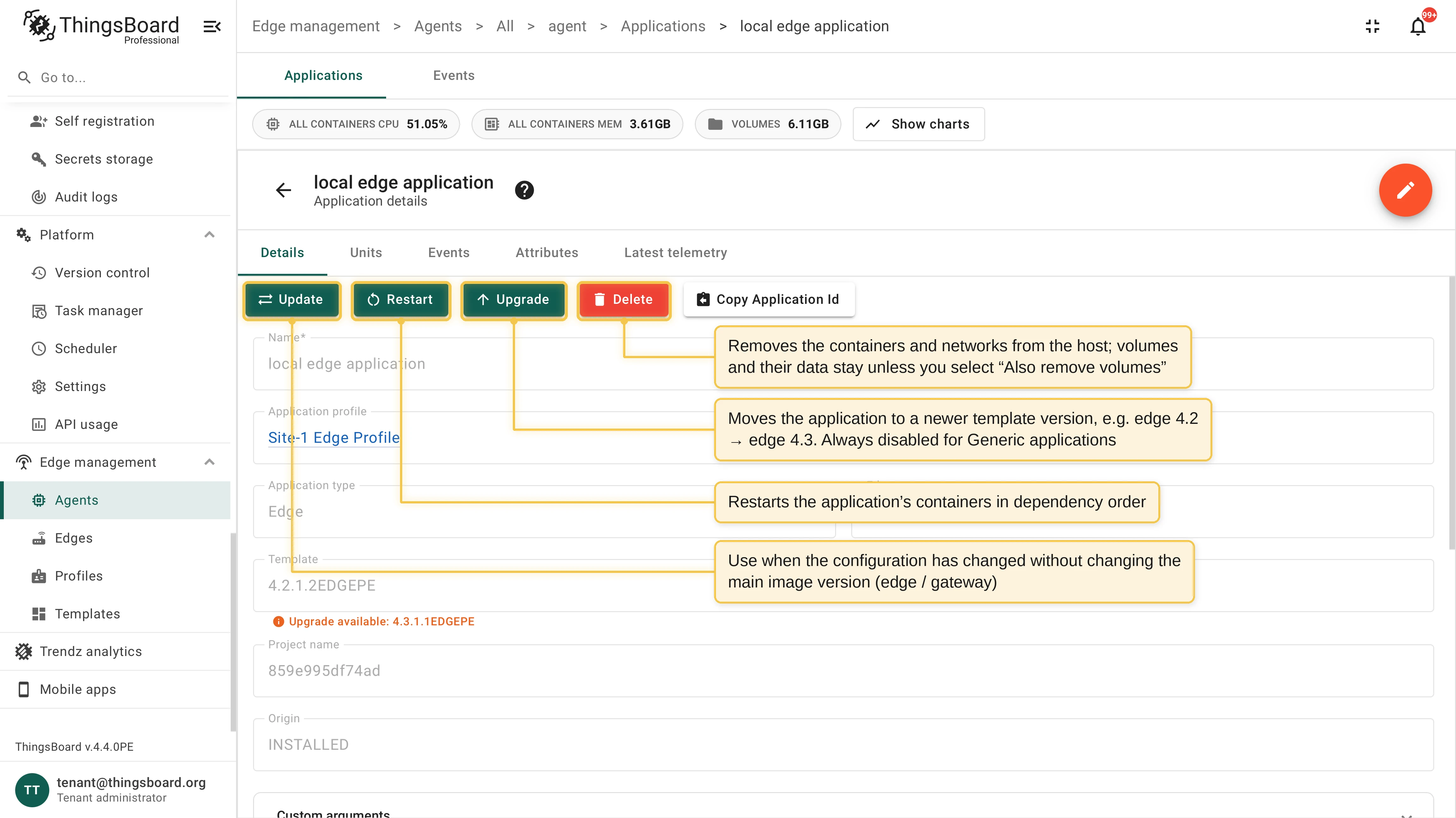
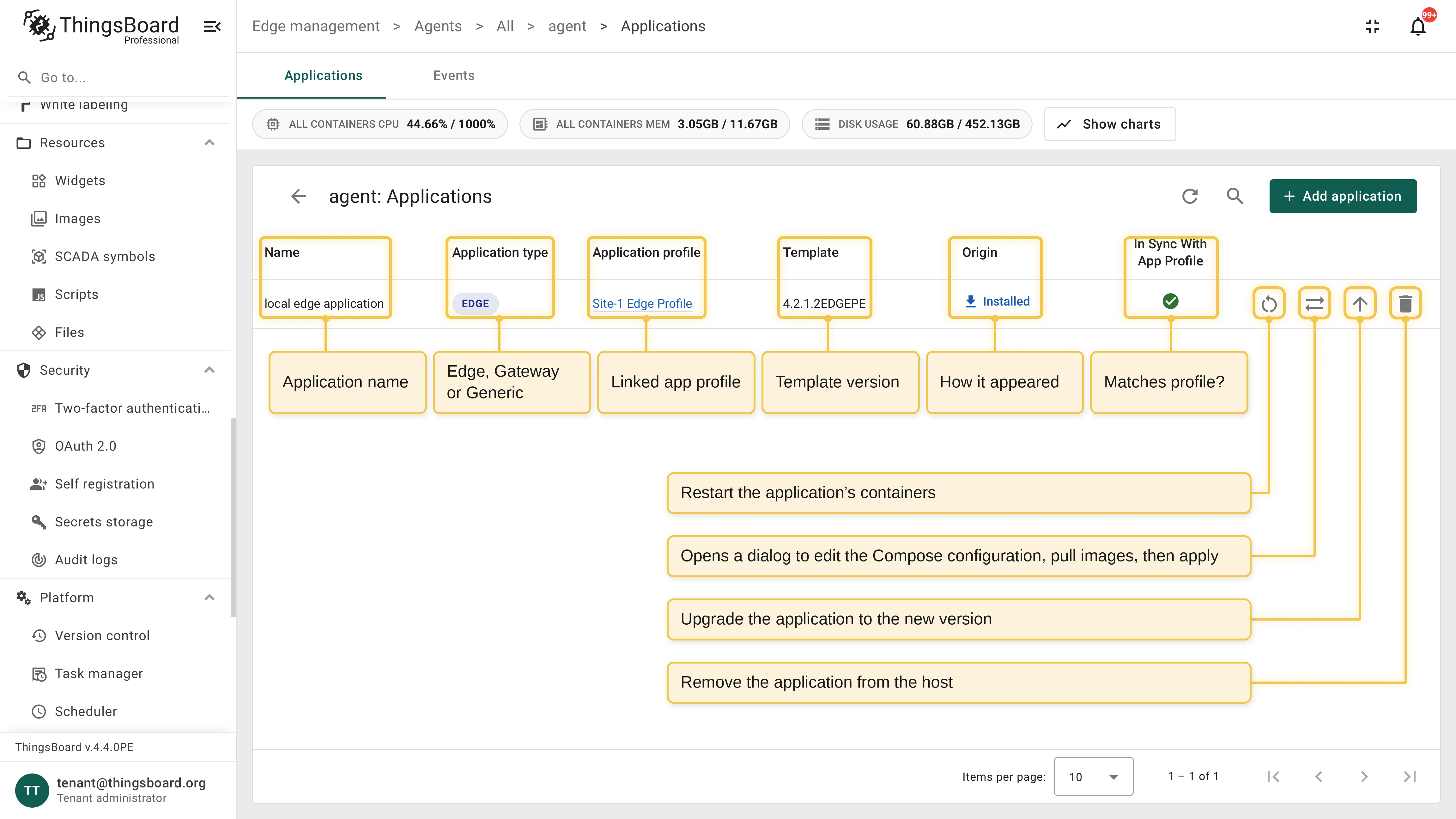
- Restart: Restart the application’s containers in dependency order.
- Update: Edit the Docker Compose configuration and apply it. The agent recreates the project’s containers with the new definition; select Pull images before starting to force a re-pull of the images. Use it for configuration changes that keep the current main Edge or Gateway image version. See Application actions.
- Upgrade: Move the application to the next template version, like Edge 4.2 to Edge 4.3. Always disabled for Generic applications. See Application actions.
- Delete: Remove the application’s containers and networks from the host. The application volumes and their data stay on the host unless you select Also remove volumes.
Events
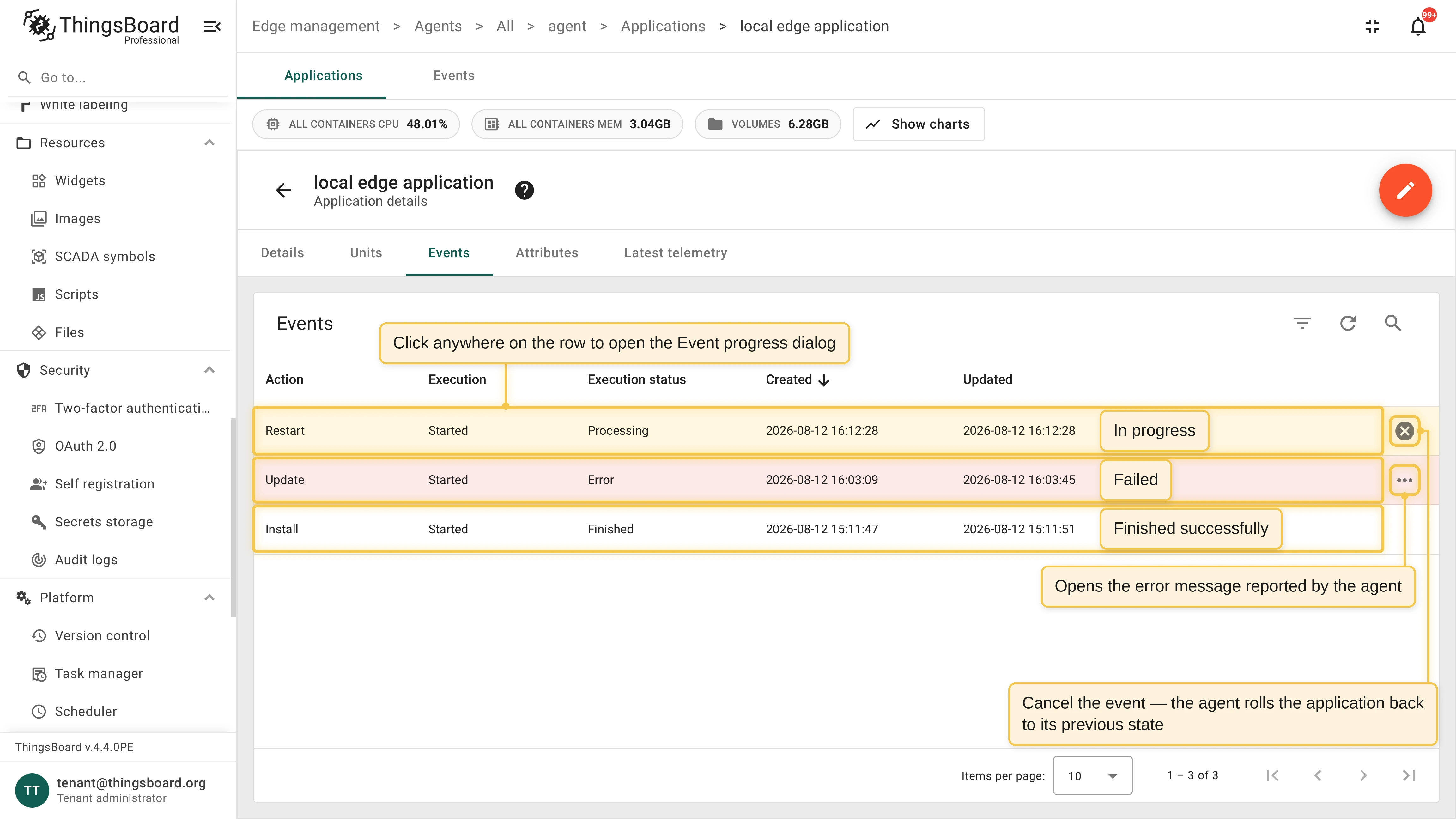
Section titled “Events”Every operation is tracked as an event. The Events tab of an agent or application lists them with their action, execution status, and timestamps. Event statuses: Pending, Queued, Processing, Finished, Error, and Start Failed.
- Click an event to open the Event progress dialog with the per-step breakdown: Completed, Processing, Failed, or Waiting.
- Cancel an event with the Cancel row action. Canceling is safe: the agent rolls the application back to its previous state, including the backed-up volumes.
- If a step fails, the event shows the error message reported by the agent.
Commands are delivered exactly once: if the agent restarts or reconnects mid-operation, already-completed steps are skipped and execution continues from the first unfinished step.
Applications table
Section titled “Applications table”The agent’s Applications table lists every managed application with its type, application profile, template version, origin, and profile sync state, along with the restart, update, upgrade, and delete row actions. Two columns deserve a closer look: Origin and In Sync With App Profile.
Application origins
Section titled “Application origins”The Origin column shows how an application appeared:
- Installed: Deployed from the ThingsBoard UI through the install wizard.
- Auto-provisioned: Installed automatically by the auto-install provisioning strategy of an agent profile. On every agent connection, ThingsBoard installs the assigned application profiles that are not yet installed on that agent: this covers both newly provisioned agents and application profiles assigned to the agent profile later.
- Discovered: A Docker Compose project that already ran on the host when the agent connected. The agent reports such projects automatically; you can attach them to an application profile and manage them like any other application.
Application profile sync
Section titled “Application profile sync”The In Sync With App Profile column shows whether an application still matches the configuration of its application profile. An application drifts out of sync when you edit its Docker Compose configuration directly or when the profile moves to a newer template version. Use Update or Upgrade to bring the application back in sync, or detach the application from the profile to manage it independently.
Was this helpful?