Alarm Widget
Alarm widgets subscribe to alarm data instead of telemetry. The platform delivers alarms matching the configured filter (severity, status, type) through the alarm subscription, and calls self.onDataUpdated() whenever the alarm list changes.
To activate the alarm subscription, call self.ctx.defaultSubscription.subscribeForAlarms(pageLink, null) inside onInit and assign self.ctx.defaultSubscription.alarmSource to the scope. This populates self.ctx.defaultSubscription.alarms.data and triggers onDataUpdated on each change.
Each alarm object delivered by the platform contains:
| Property | Type | Description |
|---|---|---|
id.id |
string | Alarm ID |
type |
string | Alarm type (e.g., “High Temperature”) |
severity |
string | CRITICAL, MAJOR, MINOR, WARNING, INDETERMINATE |
status |
string | ACTIVE_UNACK, ACTIVE_ACK, CLEARED_UNACK, CLEARED_ACK |
createdTime |
number | Timestamp when the alarm was created (ms) |
ackTs |
number | Timestamp when acknowledged (0 if not yet) |
clearTs |
number | Timestamp when cleared (0 if not yet) |
originatorName |
string | Display name of the entity that raised the alarm |
When to Use Alarm Widgets
Section titled “When to Use Alarm Widgets”Use this type when the widget’s purpose is to monitor, display, or act on alarms:
- Custom alarm tables with domain-specific columns and sorting
- Severity-based dashboards showing counts or indicators per level
- Operator consoles where alarms need acknowledgment or clearing
- Compact alarm badges on overview dashboards
Example 1: Alarm Table with Acknowledge and Clear
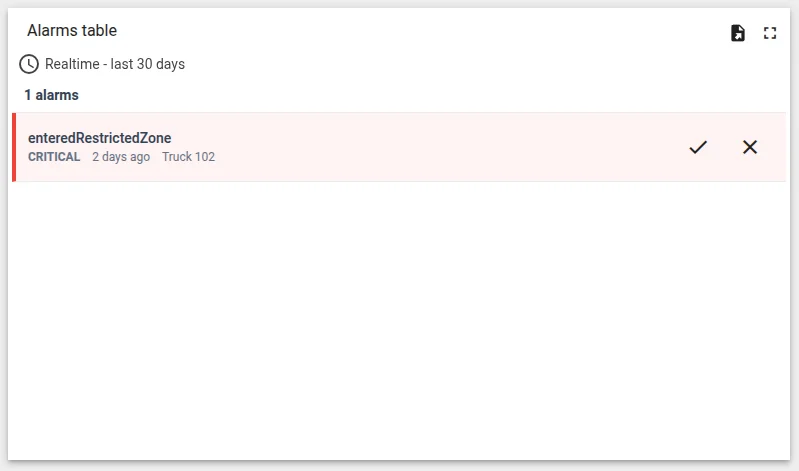
Section titled “Example 1: Alarm Table with Acknowledge and Clear”A scrollable table listing active alarms with severity-colored rows and per-row buttons to acknowledge or clear each alarm.
-
Navigate to Resources ⇾ Widgets ⇾ Widgets bundles tab.
-
Open your bundle, click + Add new widget ⇾ Create new widget, and select Alarm widget as the widget type.
-
In the HTML tab, paste:
<div class="alarm-table-container"><div class="alarm-header"><span class="alarm-count">{{alarms.length}} alarms</span></div>@if (alarms.length === 0) {<div class="no-alarms"><mat-icon>check_circle</mat-icon><span>No active alarms</span></div>}<div class="alarm-list"><div *ngFor="let alarm of alarms"class="alarm-row"[ngClass]="'severity-' + alarm.severity?.toLowerCase()"><div class="alarm-info"><div class="alarm-type">{{alarm.type}}</div><div class="alarm-meta"><span class="alarm-severity">{{alarm.severity}}</span><span class="alarm-time">{{formatTime(alarm.createdTime)}}</span><span class="alarm-originator">{{alarm.originatorName}}</span></div></div><div class="alarm-actions">@if (!alarm.ackTs) {<button mat-icon-button matTooltip="Acknowledge" (click)="ackAlarm(alarm)"><mat-icon>done</mat-icon></button>}@if (!alarm.clearTs) {<button mat-icon-button matTooltip="Clear" (click)="clearAlarm(alarm)"><mat-icon>clear</mat-icon></button>}</div></div></div></div> -
In the CSS tab, paste:
.alarm-table-container {width: 100%;height: 100%;display: flex;flex-direction: column;overflow: hidden;}.alarm-header {padding: 8px 12px;border-bottom: 1px solid #eaecf0;}.alarm-count {font-size: 14px;font-weight: 600;color: #344054;}.no-alarms {display: flex;align-items: center;justify-content: center;gap: 8px;padding: 32px;color: #667085;}.no-alarms mat-icon { color: #12b76a; }.alarm-list {flex: 1;overflow-y: auto;}.alarm-row {display: flex;justify-content: space-between;align-items: center;padding: 10px 12px;border-bottom: 1px solid #eaecf0;border-left: 4px solid transparent;}.alarm-row.severity-critical { border-left-color: #f04438; background: #fef3f2; }.alarm-row.severity-major { border-left-color: #f79009; background: #fffaeb; }.alarm-row.severity-minor { border-left-color: #eaaa08; background: #fefdf0; }.alarm-row.severity-warning { border-left-color: #2e90fa; background: #eff8ff; }.alarm-row.severity-indeterminate { border-left-color: #98a2b3; background: #f9fafb; }.alarm-info { flex: 1; min-width: 0; }.alarm-type {font-size: 14px;font-weight: 500;color: #344054;}.alarm-meta {display: flex;gap: 12px;margin-top: 4px;font-size: 12px;color: #667085;}.alarm-severity {font-weight: 600;text-transform: uppercase;}.alarm-actions { display: flex; gap: 4px; } -
In the JavaScript tab, paste:
let alarmService;self.onInit = function() {let $injector = self.ctx.$scope.$injector;alarmService = $injector.get(self.ctx.servicesMap.get('alarmService'));let pageLink = self.ctx.pageLink(100);pageLink.typeList = self.ctx.widgetConfig.alarmTypeList;pageLink.statusList = self.ctx.widgetConfig.alarmStatusList;pageLink.severityList = self.ctx.widgetConfig.alarmSeverityList;pageLink.searchPropagatedAlarms = self.ctx.widgetConfig.searchPropagatedAlarms;self.ctx.defaultSubscription.subscribeForAlarms(pageLink, null);self.ctx.$scope.alarmSource = self.ctx.defaultSubscription.alarmSource;self.ctx.$scope.alarms = [];self.ctx.$scope.formatTime = function(ts) {return moment(ts).fromNow();};self.ctx.$scope.ackAlarm = function(alarm) {alarmService.ackAlarm(alarm.id.id).subscribe(function() {alarm.ackTs = Date.now();self.ctx.detectChanges();});};self.ctx.$scope.clearAlarm = function(alarm) {alarmService.clearAlarm(alarm.id.id).subscribe(function() {alarm.clearTs = Date.now();self.ctx.detectChanges();});};};self.onDataUpdated = function() {let subscription = self.ctx.defaultSubscription;if (subscription && subscription.alarms) {self.ctx.$scope.alarms = subscription.alarms.data;}self.ctx.detectChanges();};self.typeParameters = function() {return {hasDataPageLink: true,singleEntity: false,warnOnPageDataOverflow: false};};self.actionSources = function() {return {'rowClick': {name: 'widget-action.row-click',multiple: false}};};Alarm subscription —
subscribeForAlarms(pageLink, null)activates the subscription using the widget’s alarm filter settings (type, status, severity, propagation).alarmSourceexposes the bound entity for use in templates. Without this call,onDataUpdatedwill never fire andalarms.datawill beundefined.Alarm data access — alarms arrive at
self.ctx.defaultSubscription.alarms.data, aPageData<AlarmInfo>object where.datais the flat array of alarm objects.Alarm service —
alarmService.ackAlarm(id)andalarmService.clearAlarm(id)both return Observables. After the operation completes, update the alarm’s timestamp directly on the object and calldetectChanges()to re-render — no need to reload the full list.hasDataPageLink: true— enables server-side pagination for large alarm lists.singleEntity: false— allows alarms from multiple entities. -
In the Settings form tab, click Import from JSON → select the JSON content tab → paste:
[{"id": "severityColors","name": "Custom severity colors","group": "Appearance","type": "switch","default": false,"required": false}] -
Click Save → name it “Alarm Table”.
-
Add the widget to a dashboard:
- In the Alarm source configuration, select the entity (or entities) to monitor
- Configure the alarm filter: severity levels, status, alarm type
- The widget shows matching alarms with severity-colored rows
- The Acknowledge button hides after an alarm is acknowledged; Clear hides after cleared
Example 2: Severity Counter
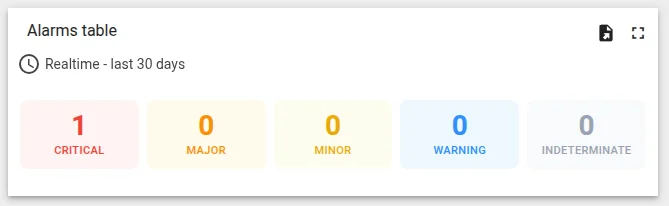
Section titled “Example 2: Severity Counter”A compact overview widget showing the alarm count per severity level — useful as a status tile on overview dashboards where you want at-a-glance severity visibility without a full table.
-
Navigate to Resources ⇾ Widgets ⇾ Widgets bundles tab.
-
Open your bundle, click + Add new widget ⇾ Create new widget, and select Alarm widget as the widget type.
-
In the HTML tab, paste:
<div class="severity-grid"><div class="severity-card"*ngFor="let item of rows"[ngClass]="'card-' + item.key"><span class="sev-count">{{item.count}}</span><span class="sev-label">{{item.label}}</span></div></div> -
In the CSS tab, paste:
.severity-grid {width: 100%;height: 100%;display: grid;grid-template-columns: repeat(auto-fit, minmax(72px, 1fr));gap: 8px;padding: 8px;box-sizing: border-box;align-content: center;}.severity-card {display: flex;flex-direction: column;align-items: center;justify-content: center;padding: 12px 8px;border-radius: 8px;gap: 4px;}.sev-count {font-size: 28px;font-weight: 700;line-height: 1;}.sev-label {font-size: 11px;font-weight: 500;text-transform: uppercase;letter-spacing: 0.4px;text-align: center;}.card-critical { background: #fef3f2; color: #f04438; }.card-major { background: #fffaeb; color: #f79009; }.card-minor { background: #fefdf0; color: #eaaa08; }.card-warning { background: #eff8ff; color: #2e90fa; }.card-indeterminate { background: #f9fafb; color: #98a2b3; } -
In the JavaScript tab, paste:
const SEVERITY_ROWS = [{ key: 'critical', label: 'Critical', severity: 'CRITICAL' },{ key: 'major', label: 'Major', severity: 'MAJOR' },{ key: 'minor', label: 'Minor', severity: 'MINOR' },{ key: 'warning', label: 'Warning', severity: 'WARNING' },{ key: 'indeterminate', label: 'Indeterminate', severity: 'INDETERMINATE' }];self.onInit = function() {let pageLink = self.ctx.pageLink(100);pageLink.typeList = self.ctx.widgetConfig.alarmTypeList;pageLink.statusList = self.ctx.widgetConfig.alarmStatusList;pageLink.severityList = self.ctx.widgetConfig.alarmSeverityList;pageLink.searchPropagatedAlarms = self.ctx.widgetConfig.searchPropagatedAlarms;self.ctx.defaultSubscription.subscribeForAlarms(pageLink, null);self.ctx.$scope.alarmSource = self.ctx.defaultSubscription.alarmSource;self.ctx.$scope.rows = SEVERITY_ROWS.map(function(r) {return { ...r, count: 0 };});};self.onDataUpdated = function() {let subscription = self.ctx.defaultSubscription;let alarms = (subscription && subscription.alarms)? subscription.alarms.data : [];let counts = {};SEVERITY_ROWS.forEach(function(r) { counts[r.severity] = 0; });alarms.forEach(function(a) {if (counts[a.severity] !== undefined) counts[a.severity]++;});self.ctx.$scope.rows = SEVERITY_ROWS.map(function(r) {return { ...r, count: counts[r.severity] };});self.ctx.detectChanges();};self.typeParameters = function() {return {hasDataPageLink: true,singleEntity: false,warnOnPageDataOverflow: false};};The widget counts alarms by severity using a simple
countsaccumulator.SEVERITY_ROWSdefines the display order and maps severity strings to CSS class keys. On eachonDataUpdated, the counts are recalculated from the full alarm list and pushed to$scope.rows. -
No settings form needed for this widget. Click Save → name it “Alarm Severity Counter”.
-
Add to a dashboard → configure the alarm source and filter. Each severity tile shows its count; tiles with zero alarms still render with
0so the layout stays consistent.
Alarm Status Reference
Section titled “Alarm Status Reference”| Status | Acknowledged | Cleared |
|---|---|---|
ACTIVE_UNACK |
No | No |
ACTIVE_ACK |
Yes | No |
CLEARED_UNACK |
No | Yes |
CLEARED_ACK |
Yes | Yes |
Next Steps
Section titled “Next Steps”- RPC Control — add action buttons that send commands from an alarm row
- Widget Patterns — CRUD tables, action sources, navigation
- Widget API Reference — full alarm subscription and alarm service API reference
Was this helpful?