Device Inactivity Alarm
Monitor device connectivity and automatically create or clear an alarm when a device stops sending data.
Use Case
Section titled “Use Case”Thermometer A1 (thermostat profile) sends temperature telemetry to ThingsBoard. When it stops reporting data, ThingsBoard marks it inactive and raises a Device inactive alarm. When the device reconnects, the alarm clears automatically.
Two approaches are covered:
- Option 1: Alarm Rule — no-code, scoped to a device profile. Best for standard inactivity monitoring.
- Option 2: Rule Engine — rule chain configuration, supports custom logic such as notifications or external forwarding.
Prerequisites
Section titled “Prerequisites”Create a device:
- Name:
Thermometer A1 - Device profile:
thermostat
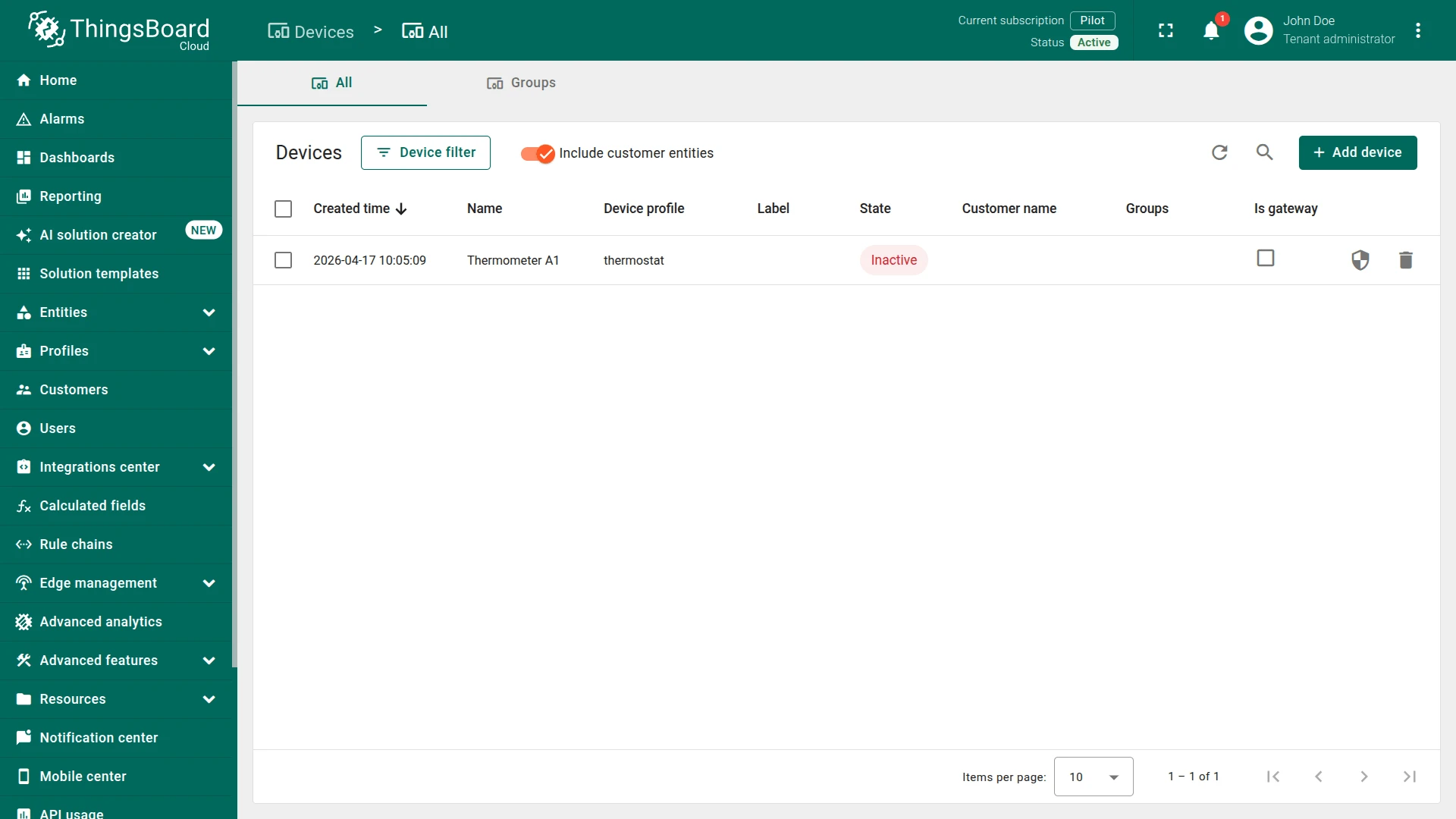
ThingsBoard’s Device State service automatically maintains two server attributes on every device:
active—truewhen the device is active,falsewhen inactiveinactivityAlarmTime— timestamp of the last inactivity event
Option 1. Alarm Rule
Section titled “Option 1. Alarm Rule”You can import a ready-made alarm rule or build it manually.
Option 1. Import alarm rule
When importing, set the thermostat as the target device profile.
Option 2. Create manually
Go to Monitor ⇾ Alarms ⇾ Alarm rules and click + Add alarm rule ⇾ Create new alarm rule.
Step 1. Configure General Settings
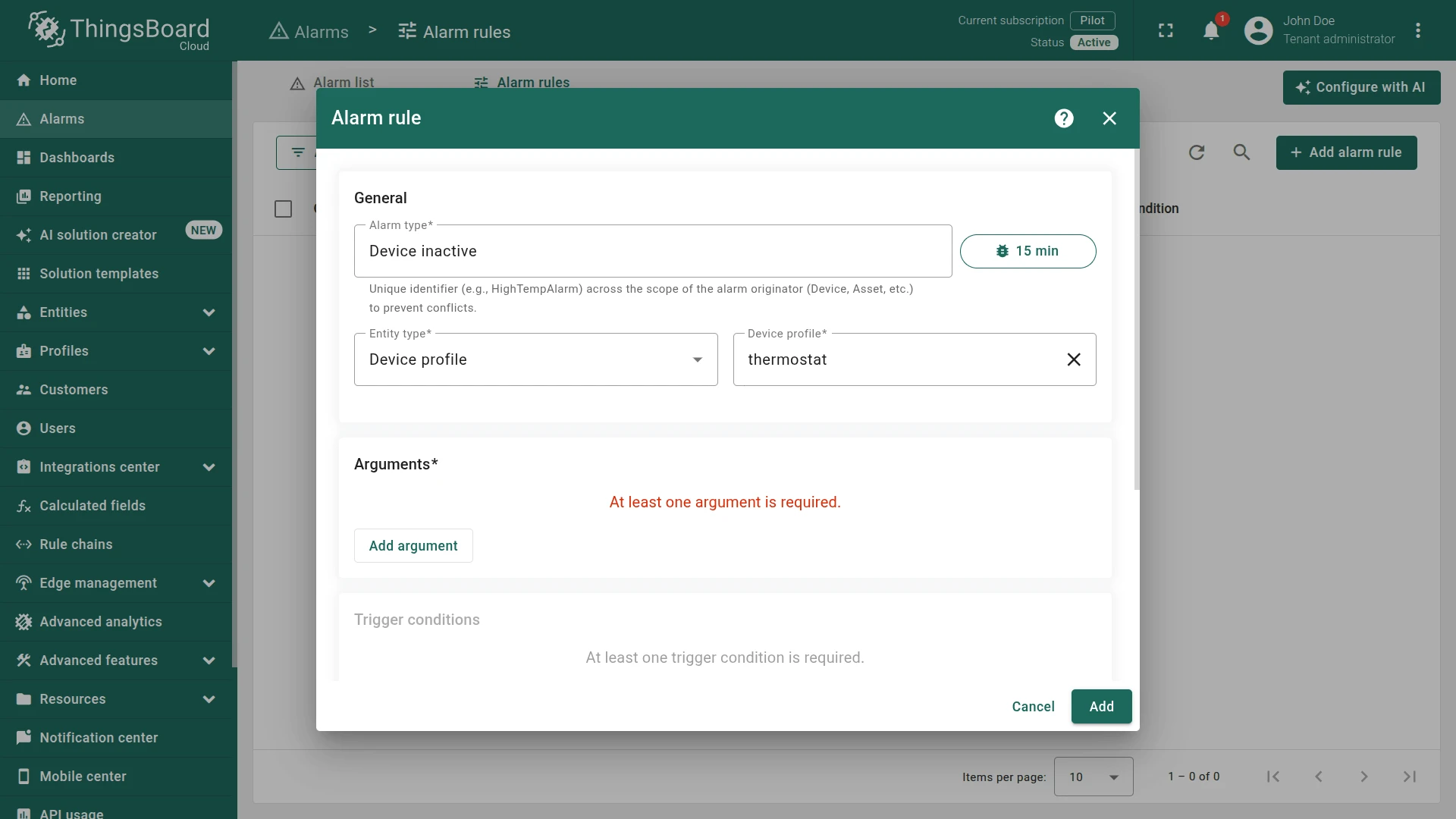
Section titled “Step 1. Configure General Settings”In the Alarm rule dialog, set:
- Alarm type:
Device inactive - Entity type:
Device profile - Device profile:
thermostat(here specify the device type of your device)
Step 2. Add Argument
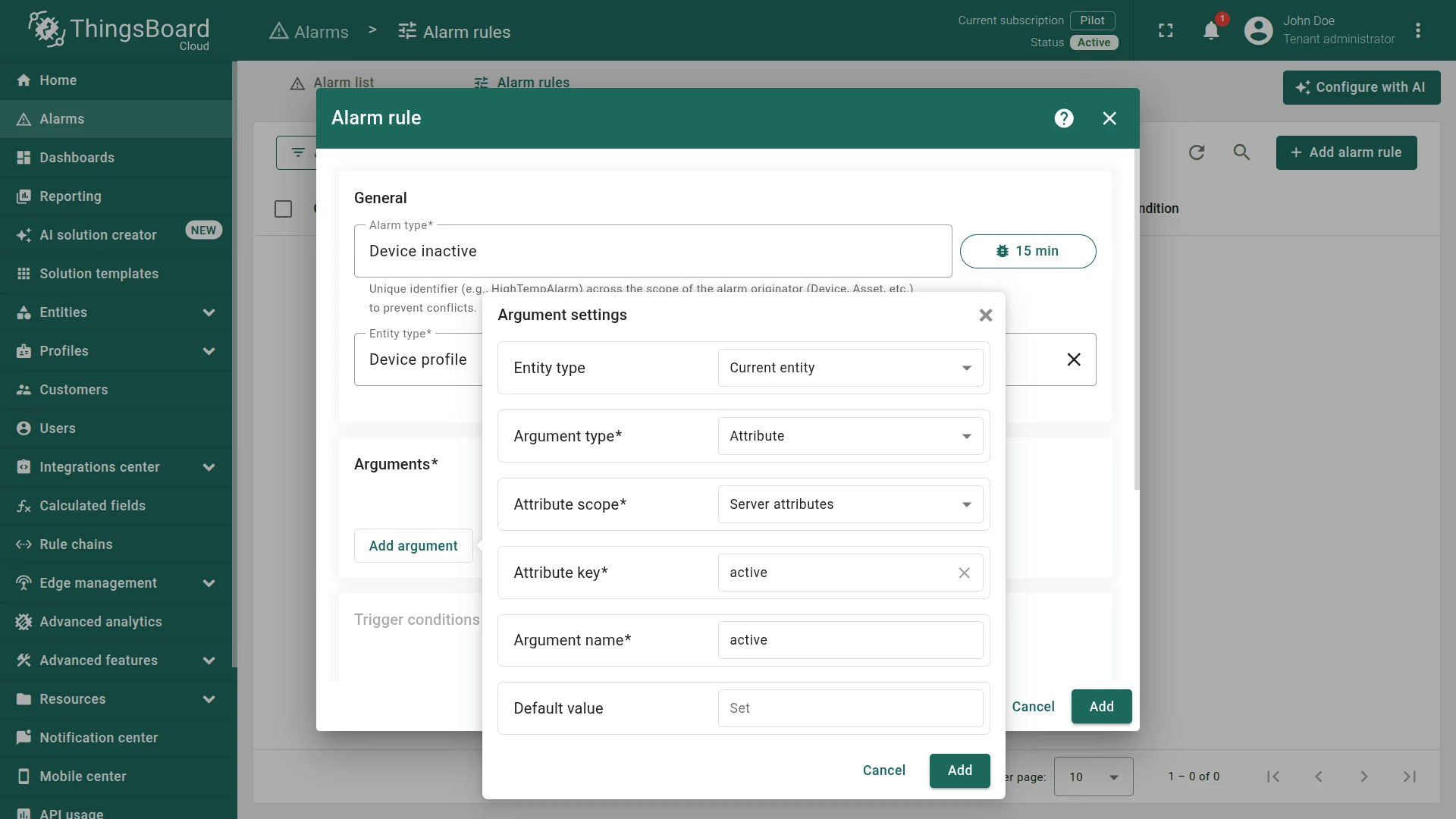
Section titled “Step 2. Add Argument”Click Add argument and configure it to read the active server attribute:
- Entity type:
Current entity - Argument type:
Attribute - Attribute scope:
Server attributes - Attribute key:
active - Argument name:
active
Step 3. Add Trigger Condition
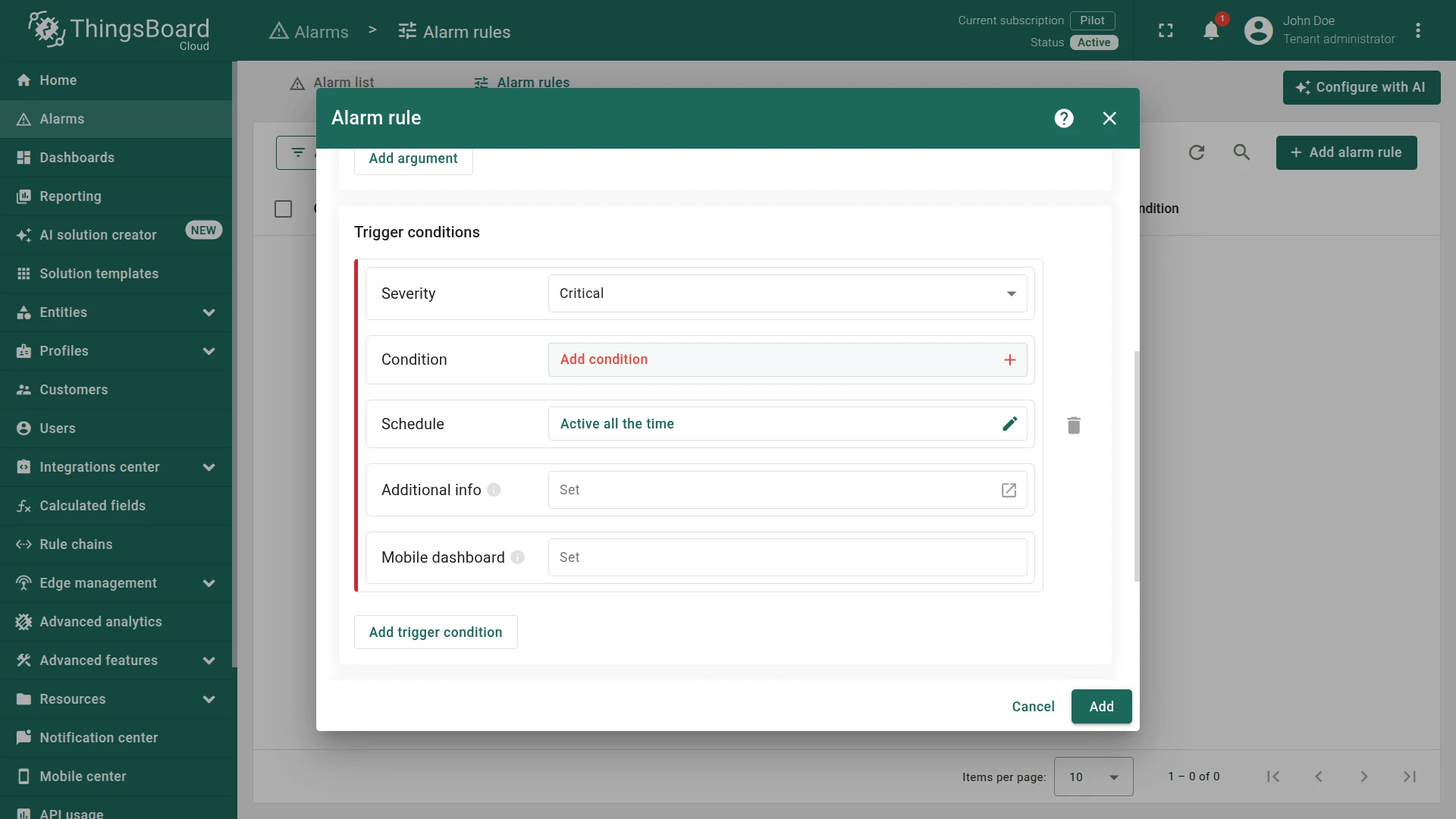
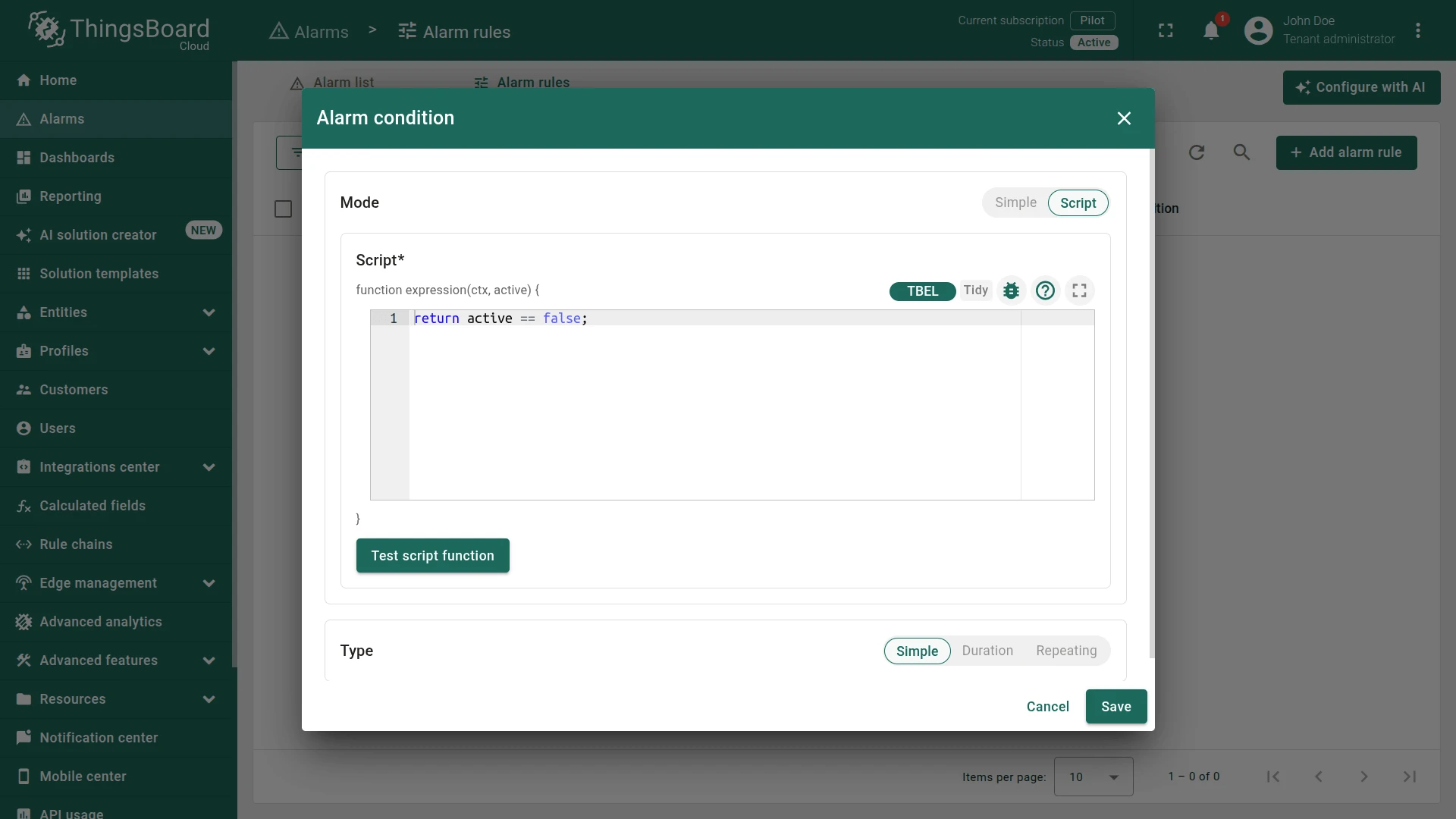
Section titled “Step 3. Add Trigger Condition”In the Trigger conditions section, set Severity to Critical, then click Add condition and configure:
- Mode:
Script - Script:
return active == false;
Step 4. Add Clear Condition
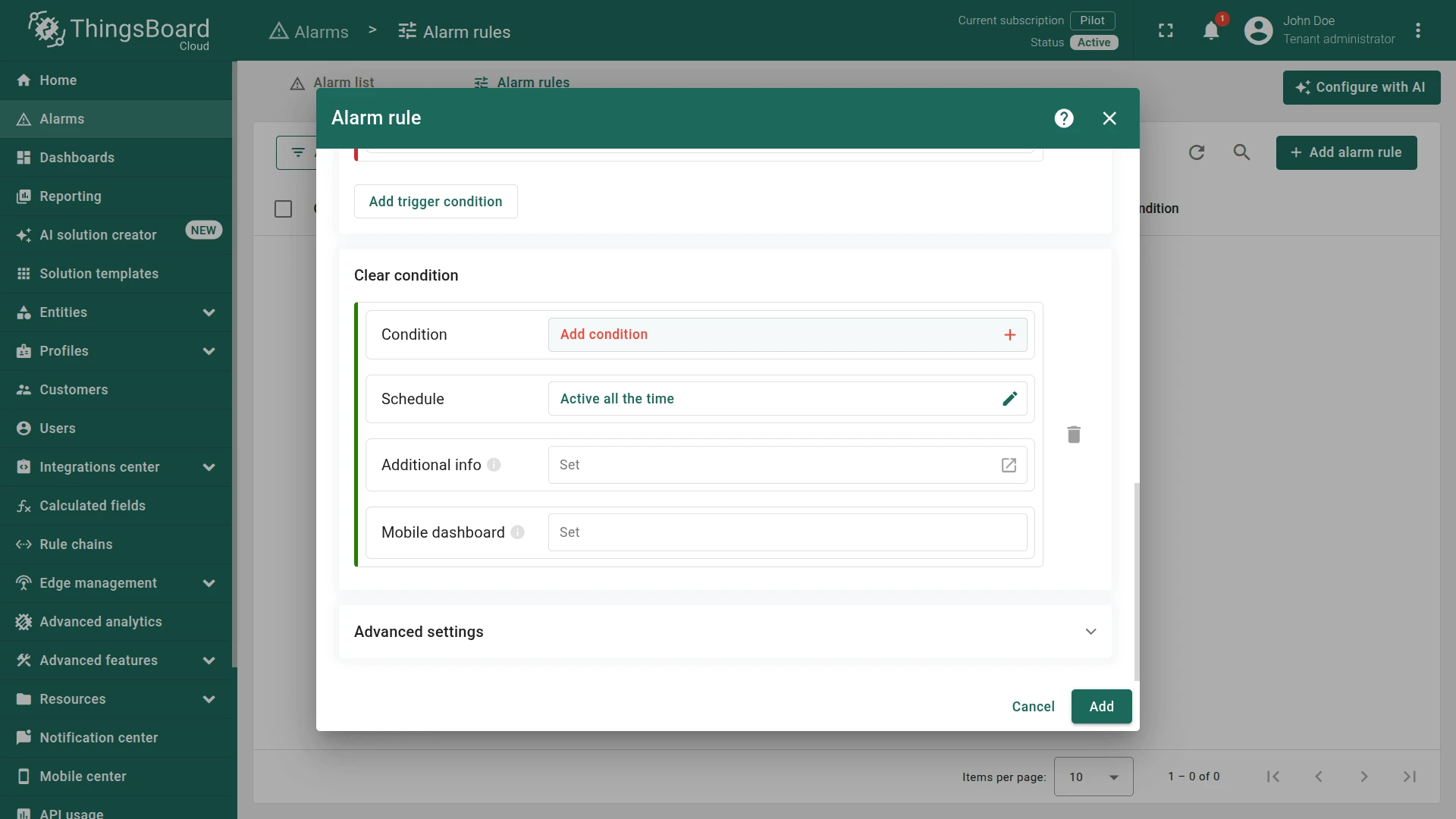
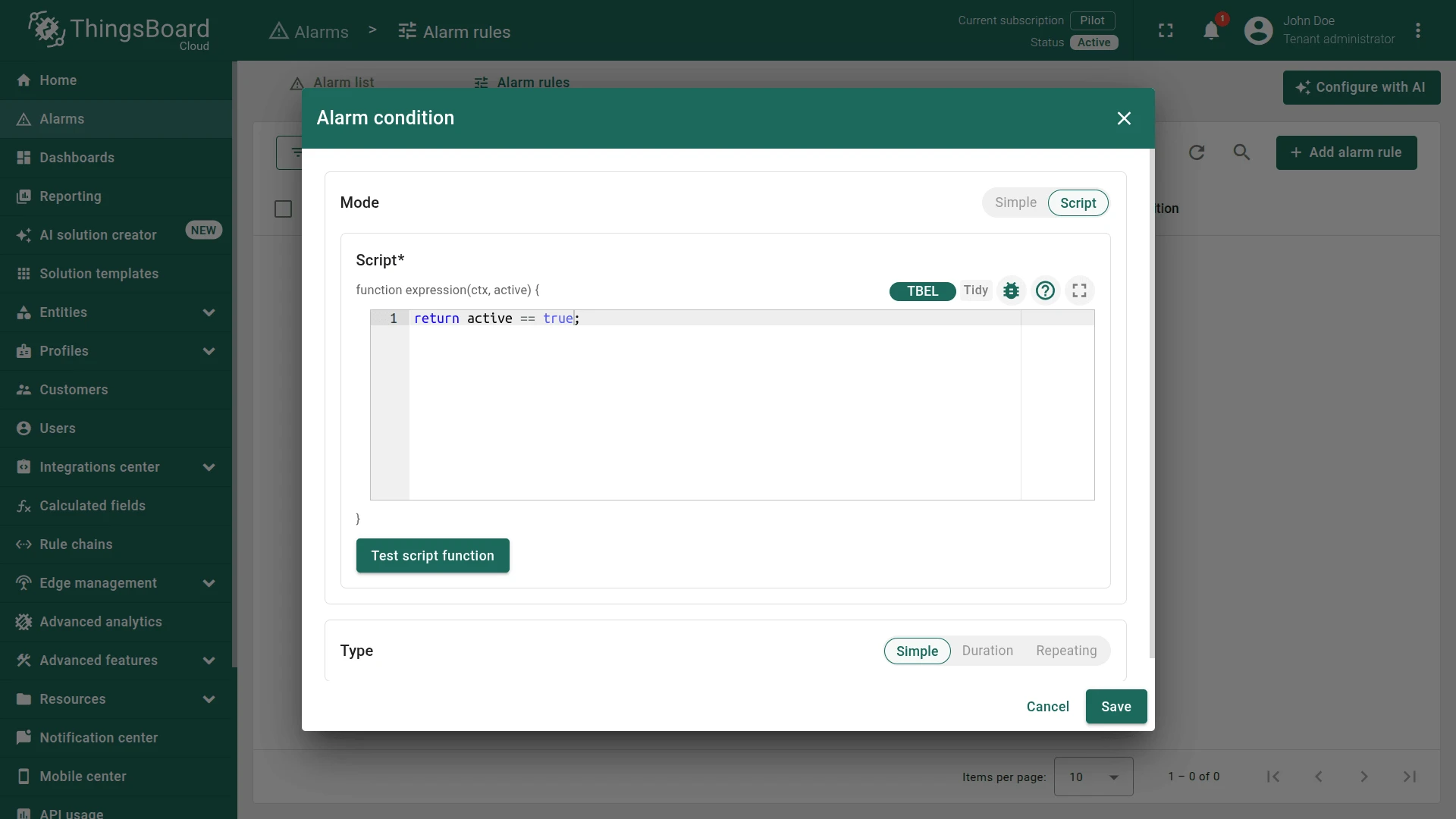
Section titled “Step 4. Add Clear Condition”Scroll down to Clear condition, click Add condition, and configure:
- Mode:
Script - Script:
return active == true;
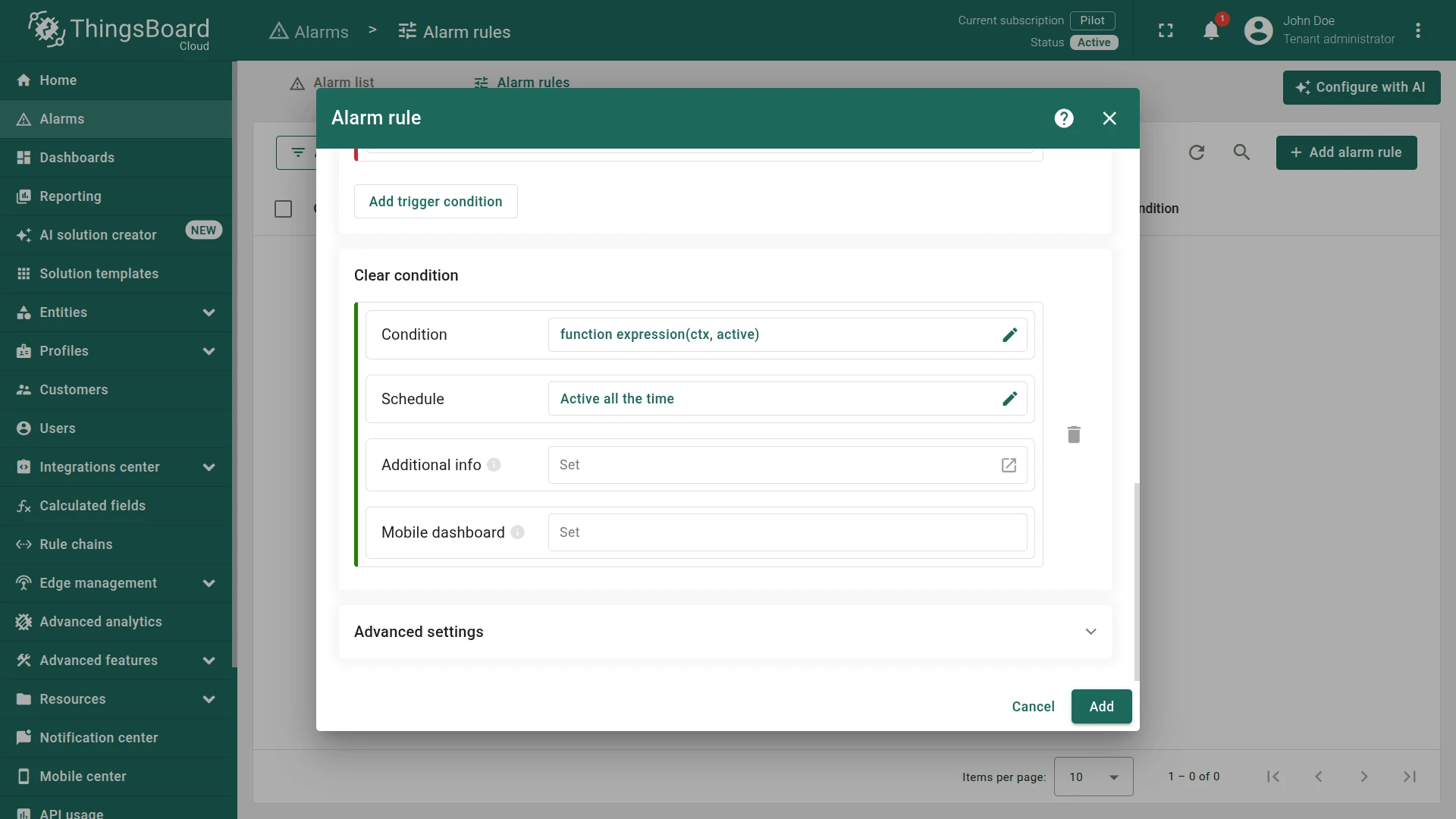
Click Add to save the alarm rule.
Step 5. Verify
Section titled “Step 5. Verify”Open Thermometer A1 ⇾ Attributes ⇾ Server attributes. ThingsBoard writes active and inactivityAlarmTime automatically.
To simulate inactivity, edit the active attribute and set it to false:
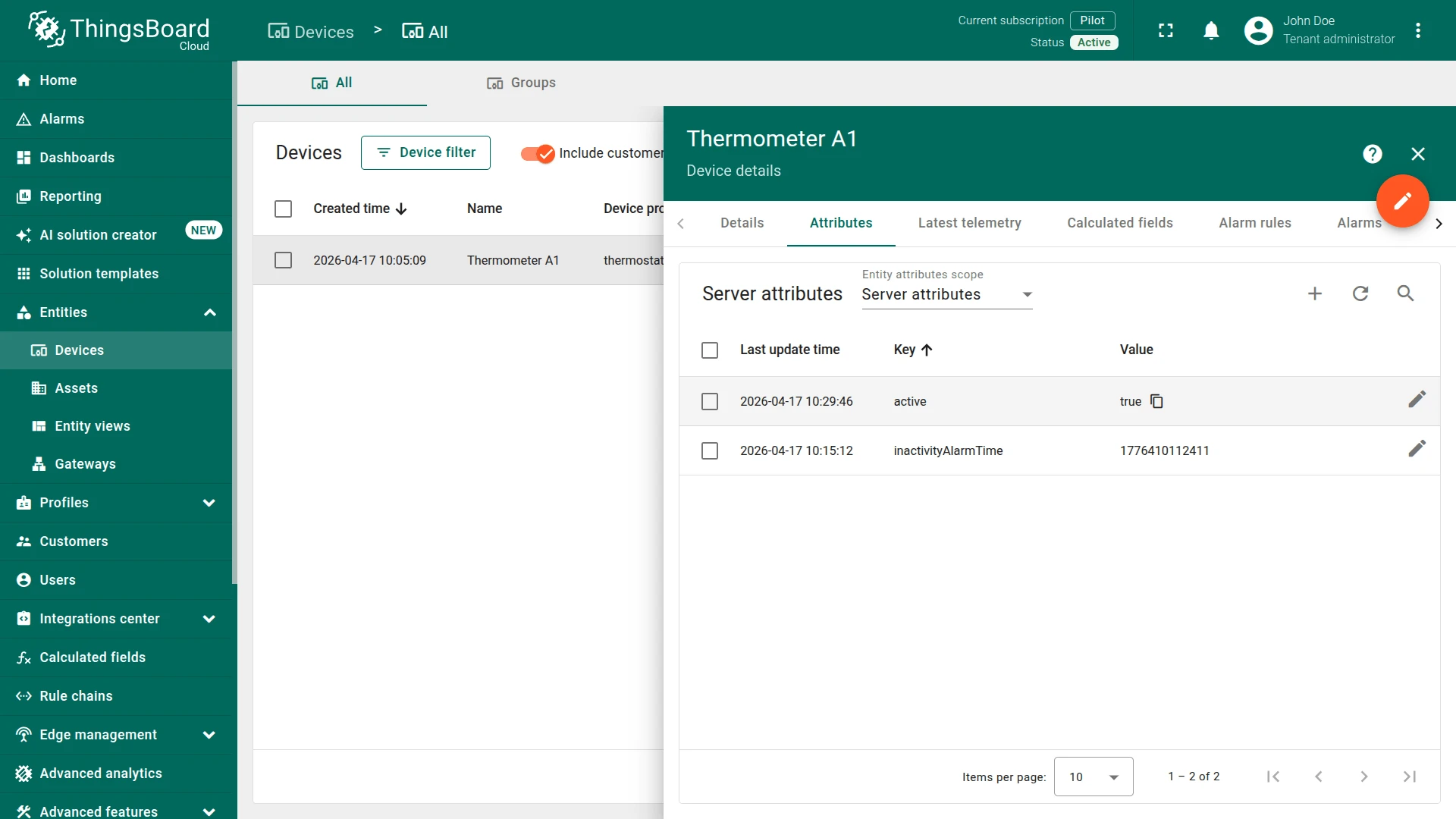
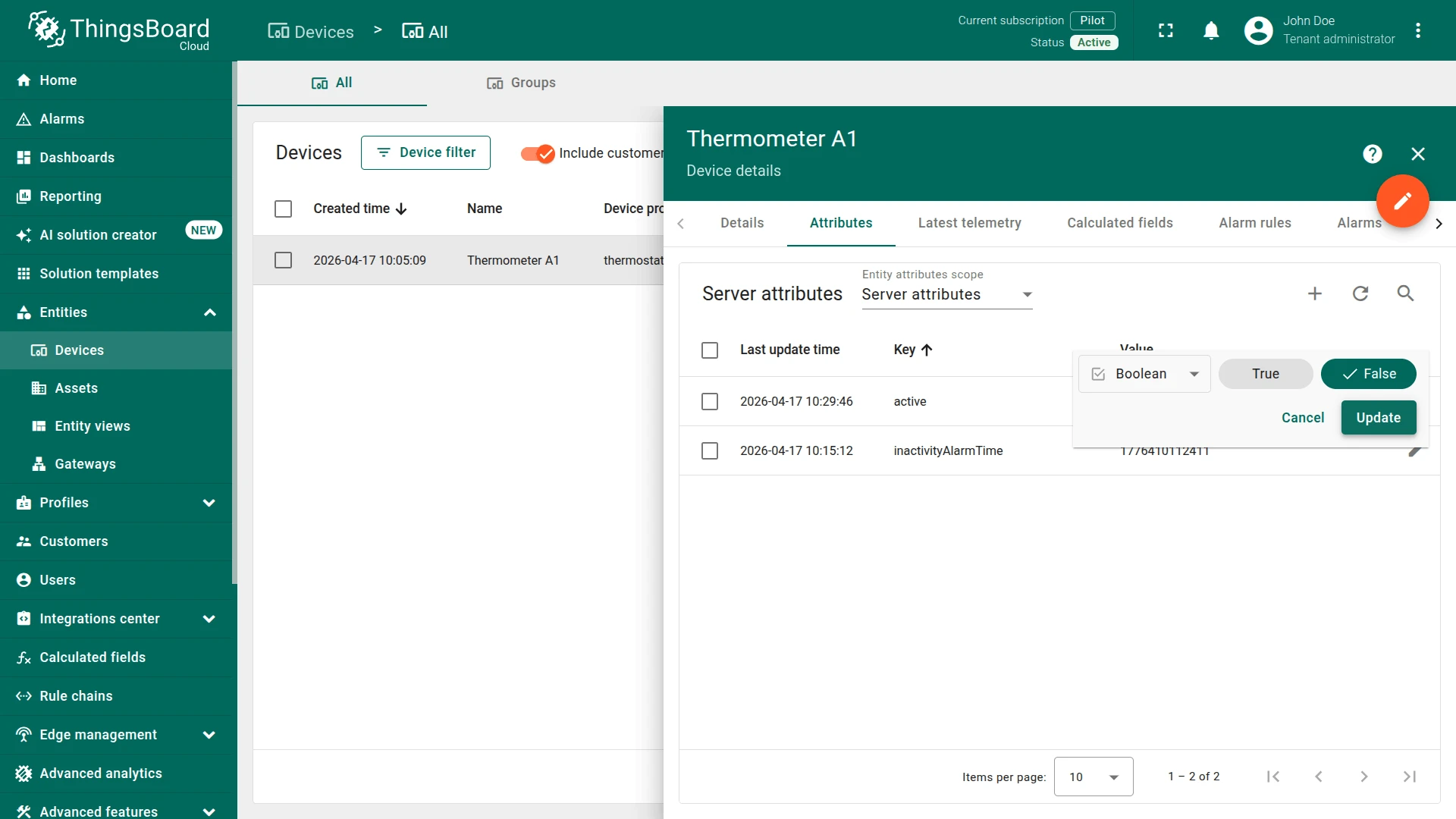
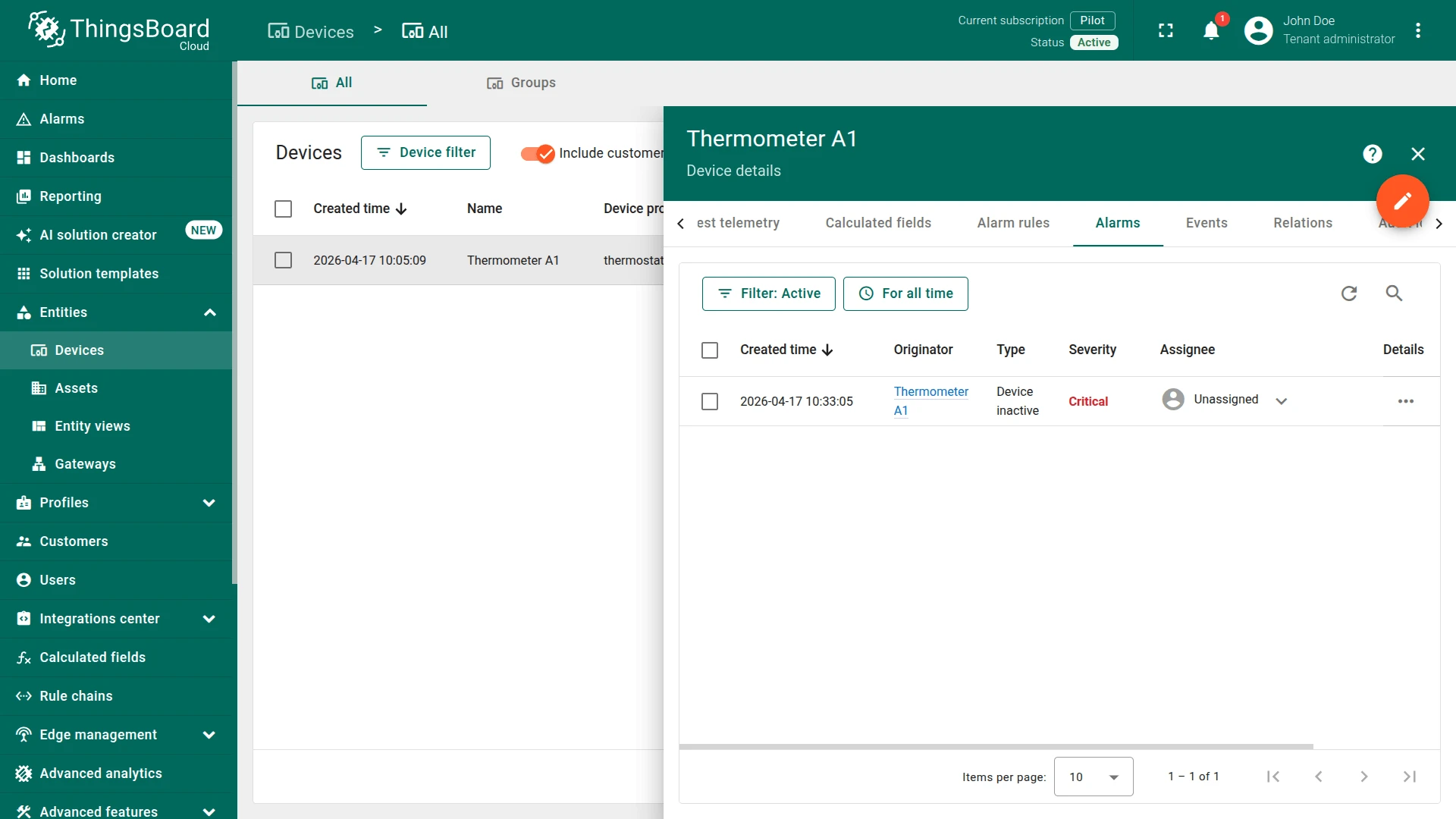
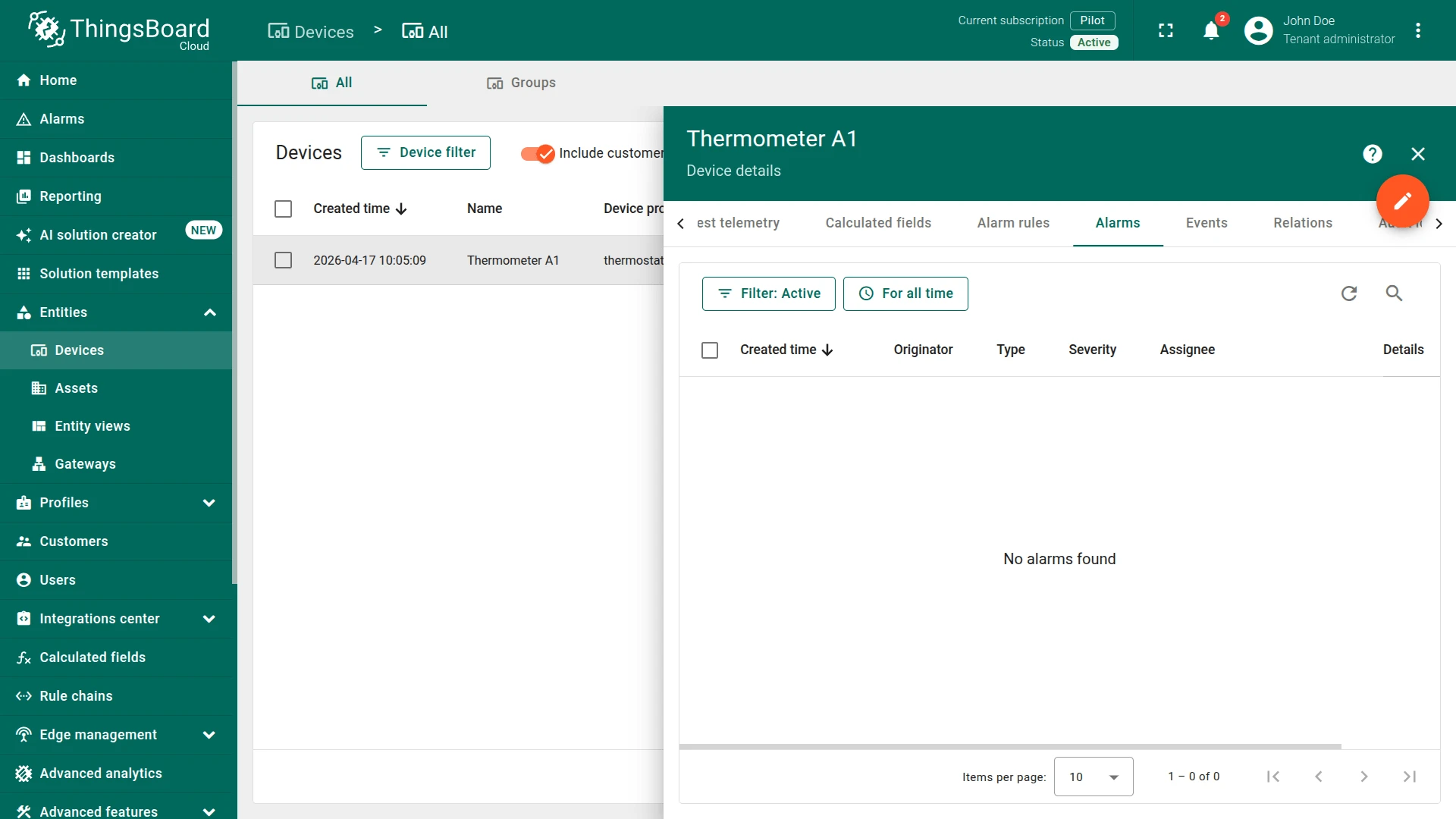
Open Thermometer A1 ⇾ Alarms. A Device inactive Critical alarm appears:
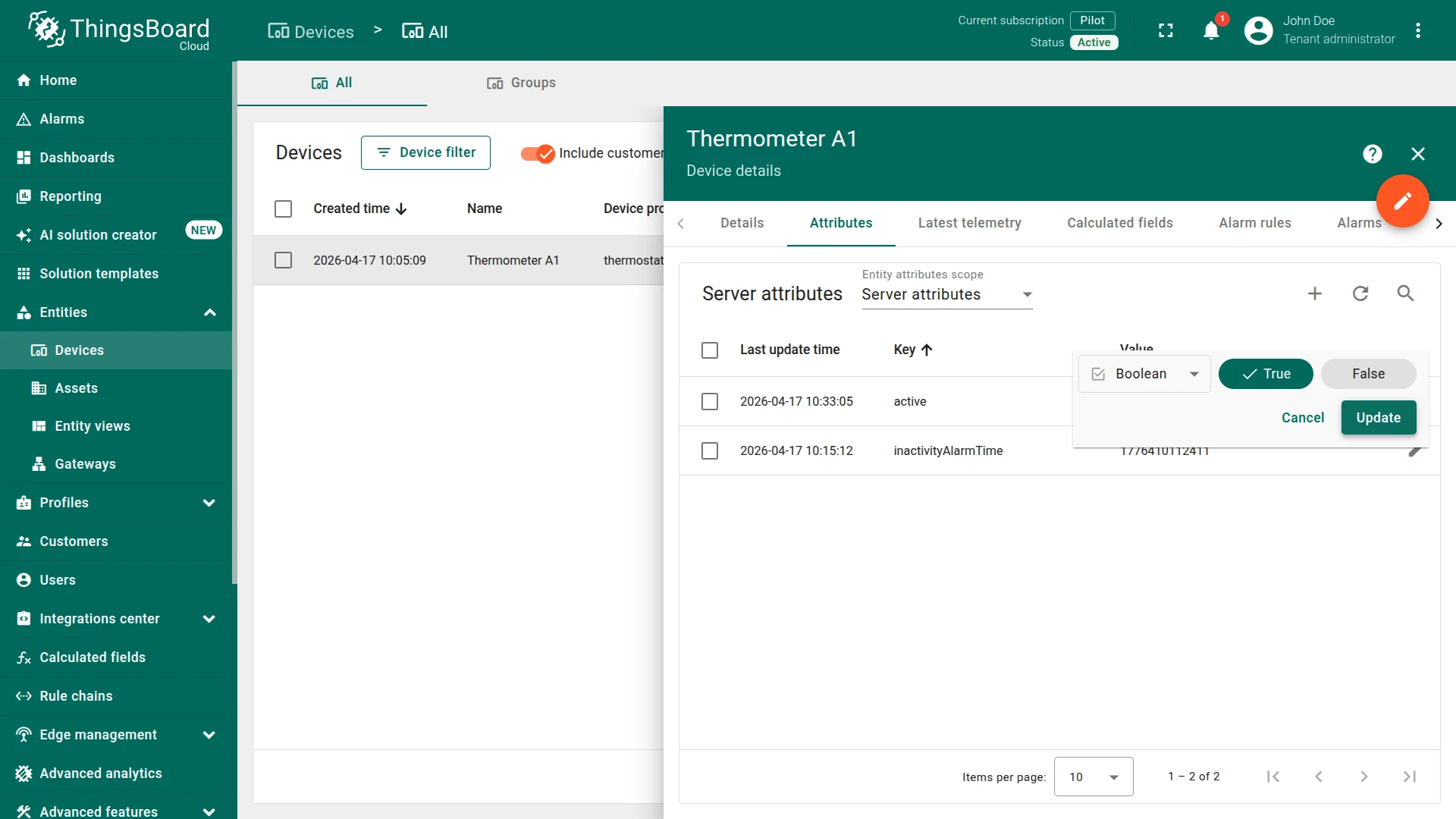
Set active back to true to clear the alarm:
Option 2. Rule Engine
Section titled “Option 2. Rule Engine”Use this approach when you need custom processing alongside the alarm — for example, sending a notification email, forwarding data to an external system, or chaining conditional logic.
The Rule Engine processes device connectivity events as special message types:
INACTIVITY_EVENT— fired when the device exceeds the inactivity timeoutACTIVITY_EVENT— fired when the device resumes activity
Step 1. Set Inactivity Timeout (Optional)
Section titled “Step 1. Set Inactivity Timeout (Optional)”The global default timeout is 600 seconds (state.defaultInactivityTimeoutInSec in thingsboard.yml).
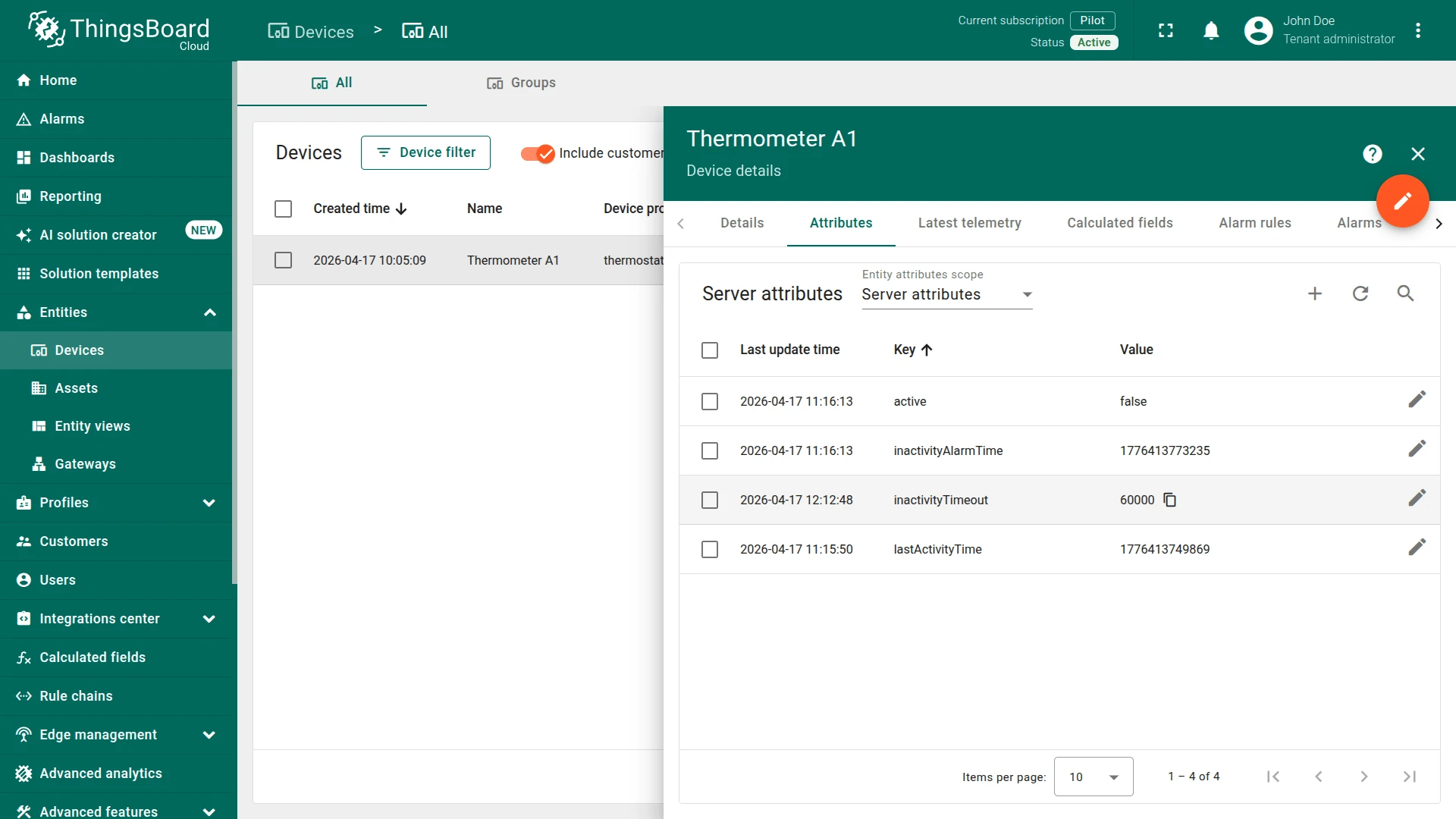
To override it particular device, add an inactivityTimeout server attribute (value in milliseconds):
- Key:
inactivityTimeout - Type:
Integer - Value:
60000(60 seconds)
Step 2. Configure the Rule Chain
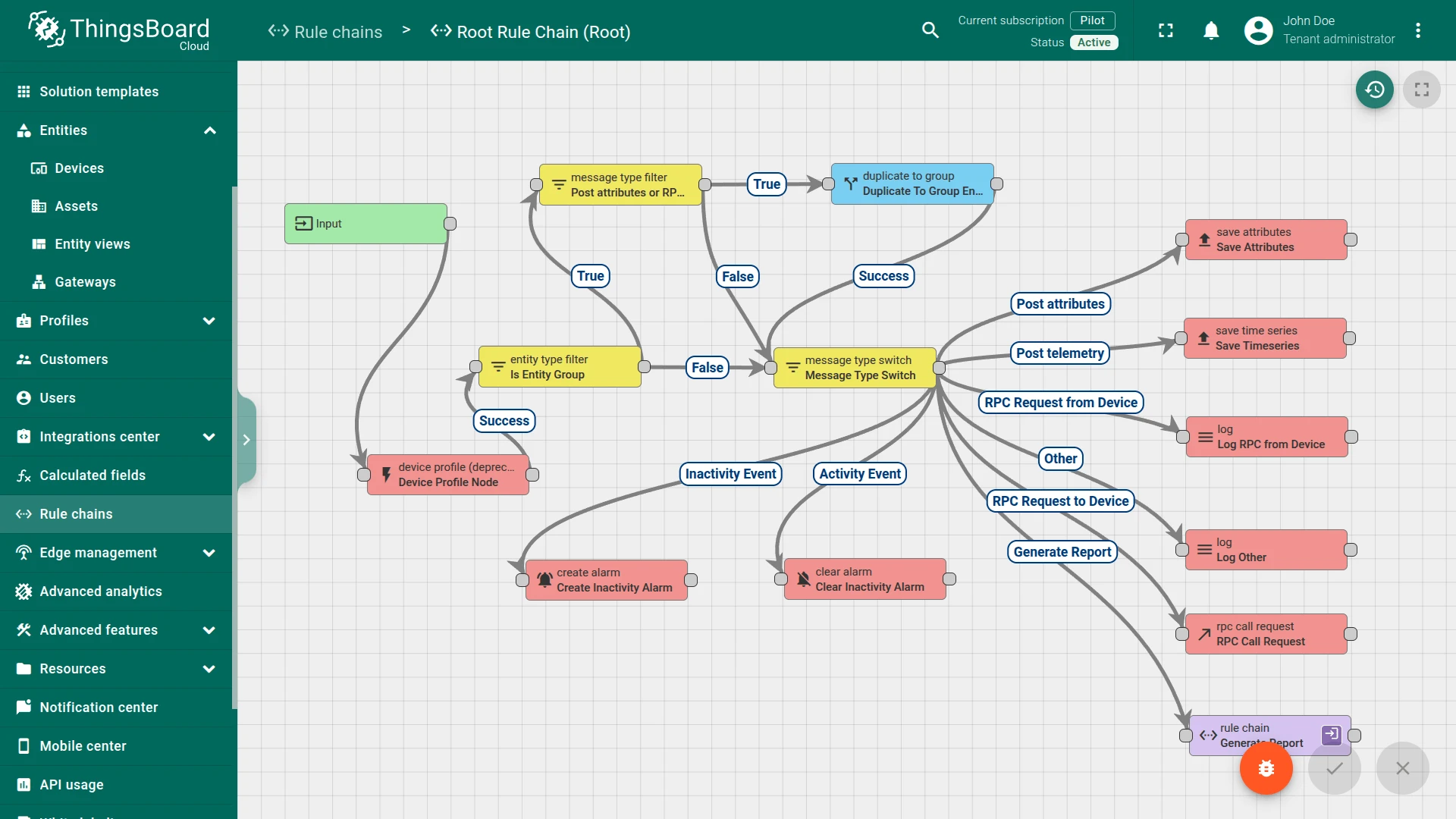
Section titled “Step 2. Configure the Rule Chain”Open your Root Rule Chain and create two nodes:
Create Alarm node:
- Name:
Create Inactivity Alarm - Alarm type:
Inactivity Timeout
Clear Alarm node:
- Name:
Clear Inactivity Alarm - Alarm type:
Inactivity Timeout
Connect these two nodes to the existing Message Type Switch node:
- Message Type Switch ⇾
Inactivity Event⇾ Create Inactivity Alarm - Message Type Switch ⇾
Activity Event⇾ Clear Inactivity Alarm
See Also
Section titled “See Also”- Device connectivity status — how ThingsBoard tracks device state
- Alarm rules — full alarm rule reference
- Create & clear alarms — threshold-based alarm recipe
Was this helpful?