Data Visualization
ThingsBoard dashboards provide interactive visualization for monitoring and managing IoT data. Key capabilities include data visualization through charts, graphs, and tables; device management; interactive control elements; customizable layouts; and role-based access controls.
A ThingsBoard dashboard is built from five core building blocks. Understanding how they connect will help you design effective dashboards.
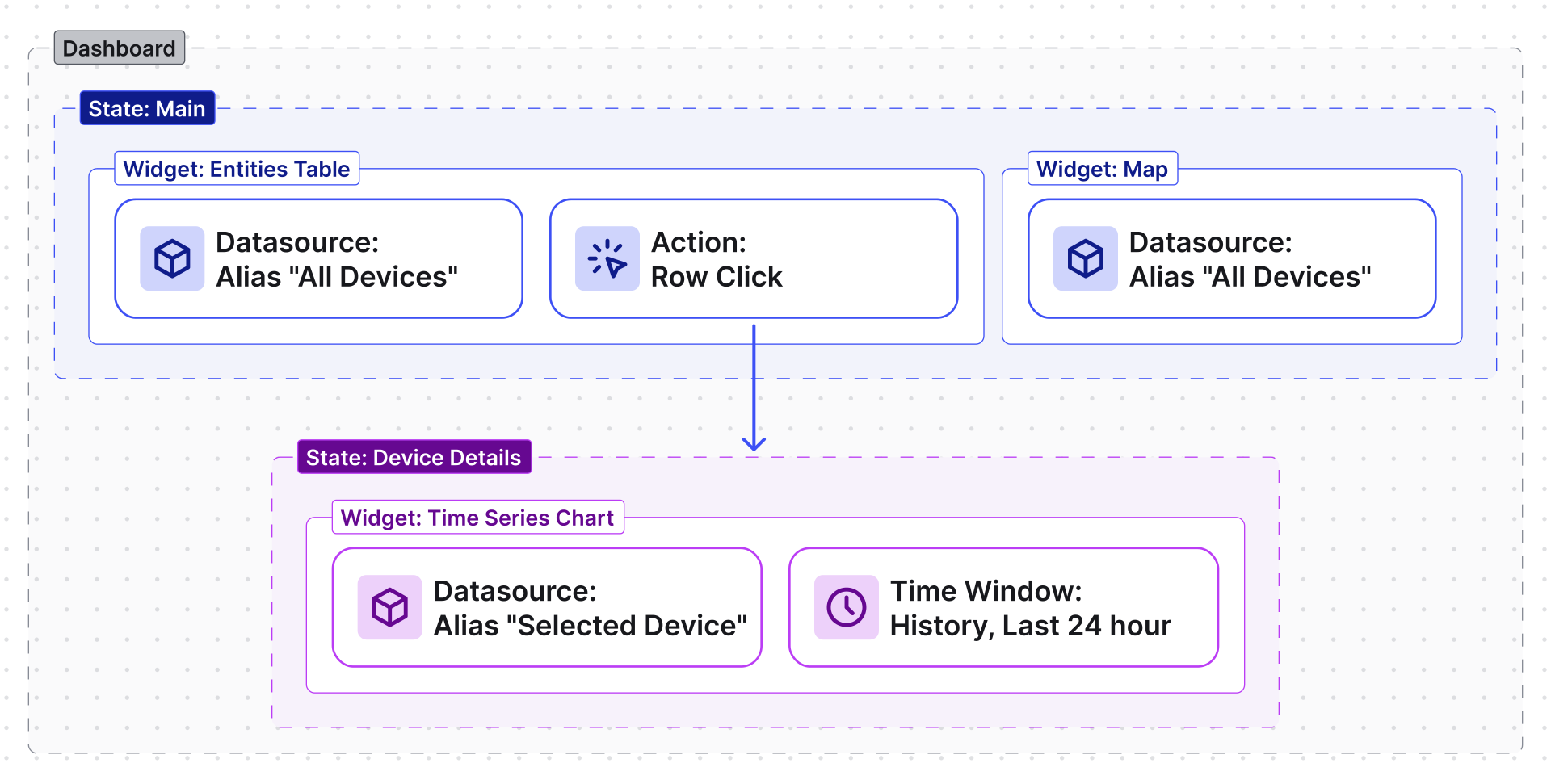
The following diagram shows a typical drill-down dashboard. The Main state lists all devices in an Entities Table. When a user clicks a row, an action fires and navigates to the Device Details state, where a chart shows data for the selected device. Each state has its own layout and time window, and each widget gets data through an alias.
States
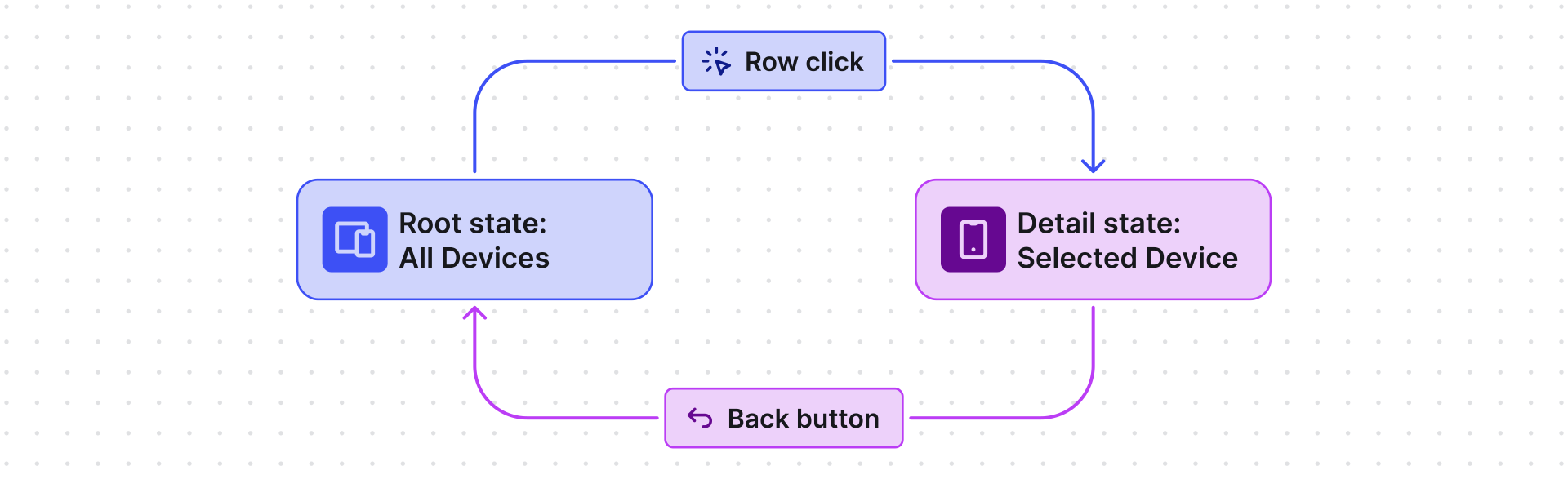
Section titled “States”States are named views within a single dashboard that form a navigation hierarchy. Every dashboard has at least one state — the root state. You can add additional states to create detail pages, configuration panels, or any other sub-views.
When to use: Drill-down from a device/asset list to individual entity details without leaving the dashboard. For example, a root state lists all thermostats, and a detail state shows temperature charts for the selected thermostat.
Entity Aliases
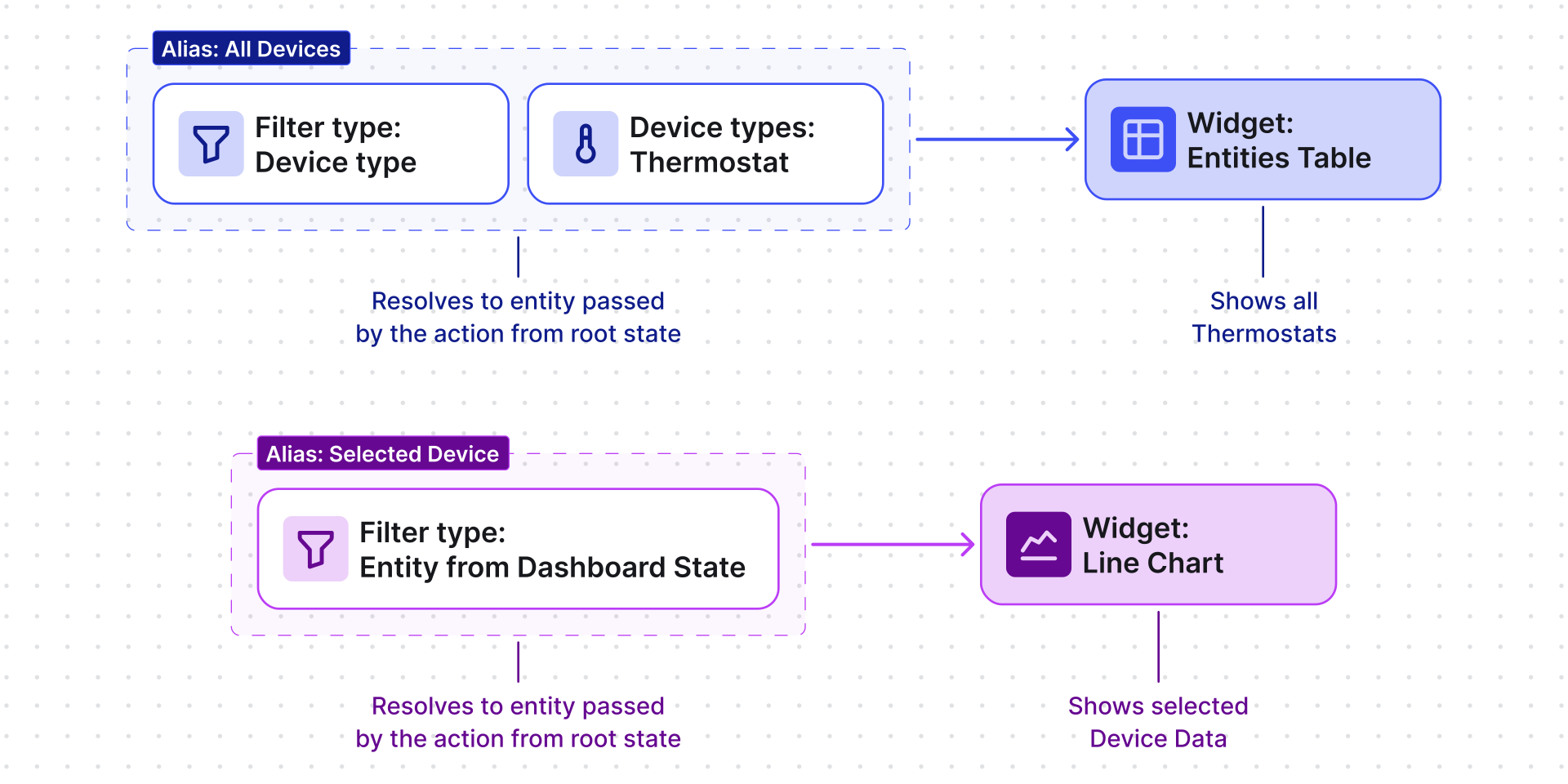
Section titled “Entity Aliases”Entity Aliases is a named reference that tells a widget where to get data. Aliases can be static (pointing to a fixed entity) or dynamic (resolved at runtime from dashboard state, relations, device type, etc.).
Not every widget requires an alias — static widgets like HTML cards or navigation buttons may have no data source. But any widget that displays entity data (telemetry, attributes, alarms) needs at least one.
When to use: Use static aliases for dashboards that always show the same entity. Use dynamic aliases — especially Entity from dashboard state — for drill-down scenarios where the alias resolves to whichever entity the user selected in the parent state.
Layouts
Section titled “Layouts”Layouts control how widgets are arranged on the dashboard grid. See Layouts for layout settings, breakpoints, and configuration details.
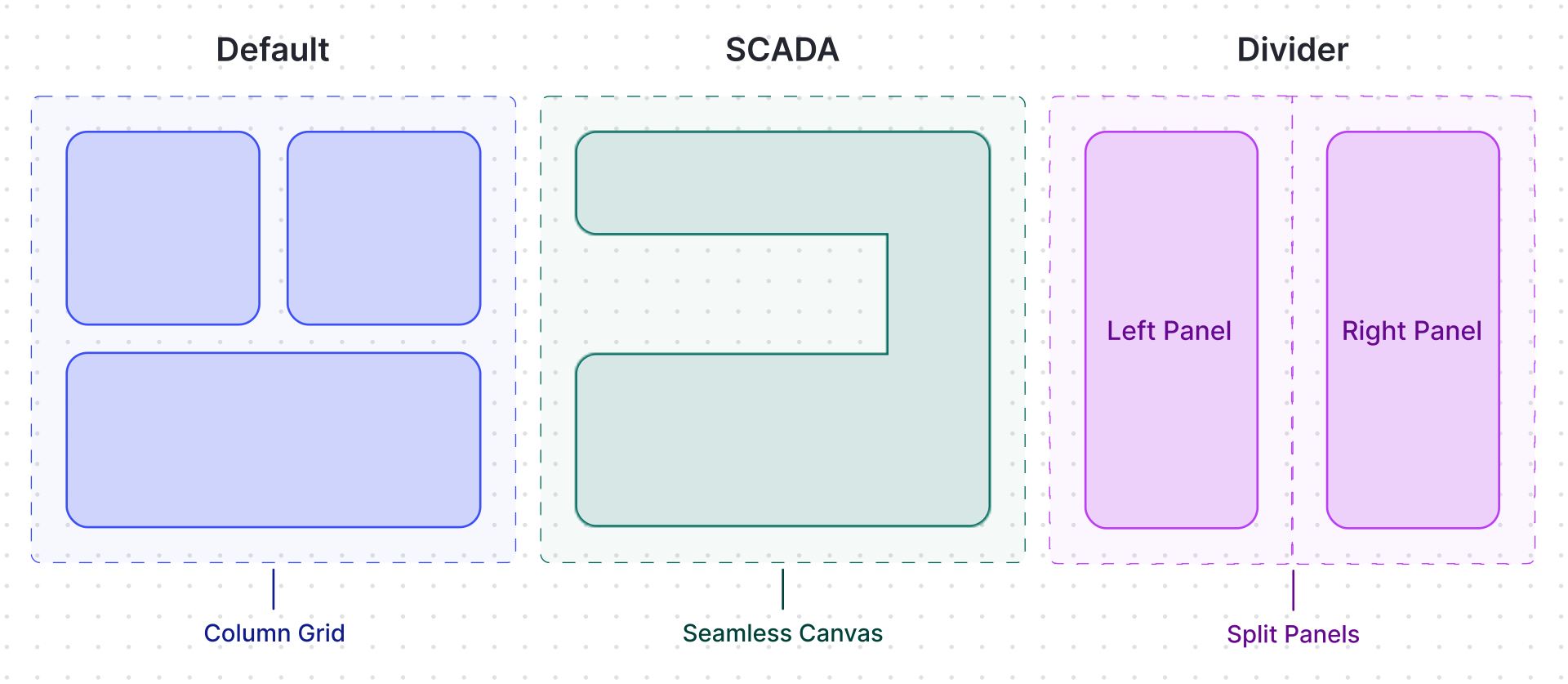
Each state has its own layout. Three types are available:
- Default — widgets snap to a column-based grid. Supports drag-and-drop positioning. If auto-fill layout height is enabled, widgets redistribute vertically to fill the screen.
- SCADA — designed for industrial HMI screens. No margin between widgets, so pipes and SCADA symbols always connect properly. Widgets are placed with a transparent background and no shadow by default, blending into the SCADA canvas.
- Divider — splits the dashboard into left and right panels, useful for master-detail views (e.g., entity list on the left, entity details on the right).
Each layout also supports breakpoints — screen-width thresholds that let you define different widget arrangements for desktop, tablet, and mobile. This means a single state can adapt its widget set and positioning for different screen sizes.
Actions
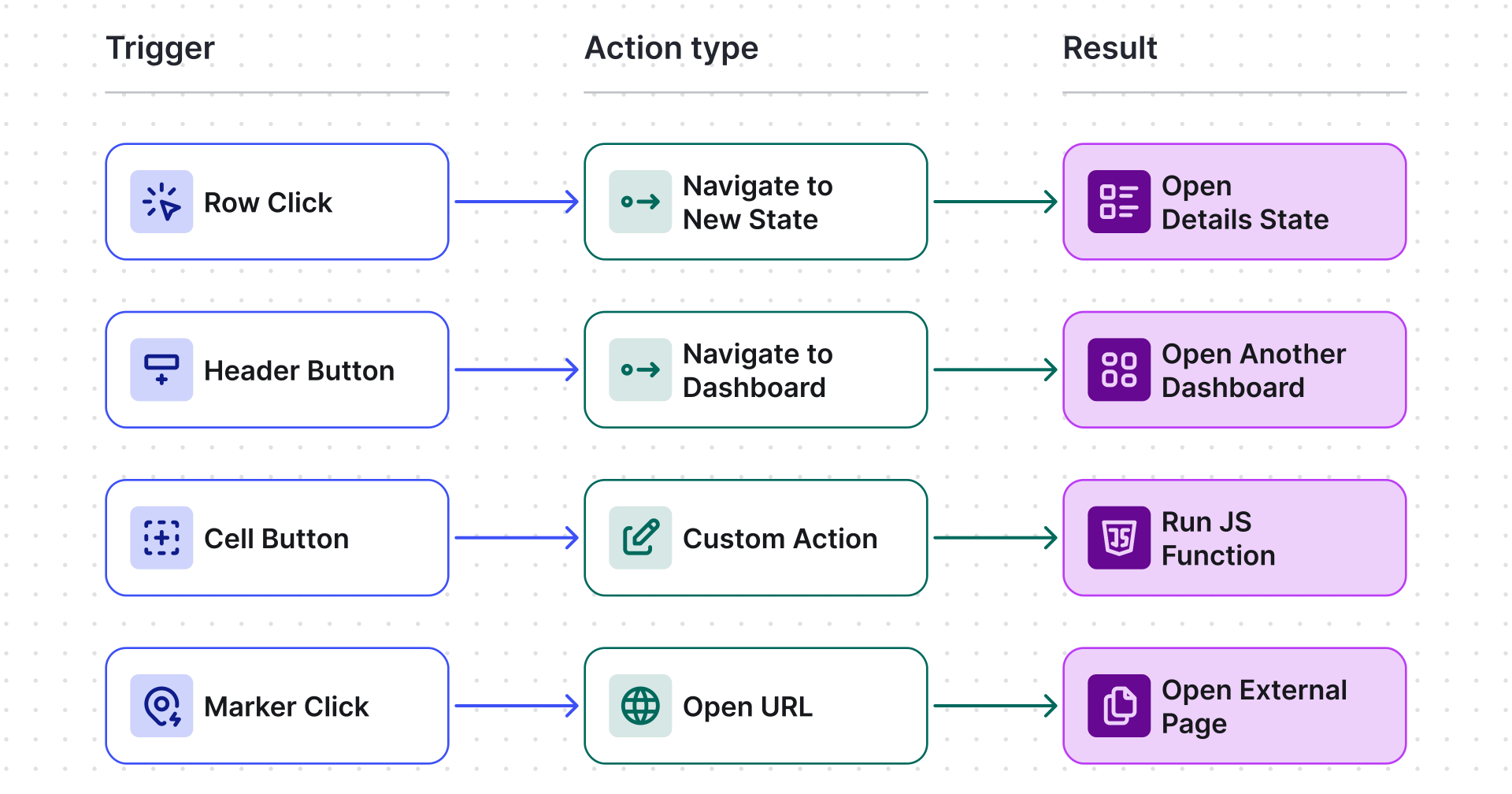
Section titled “Actions”Actions are event handlers that respond to user interactions — a row click, a header button press, a map marker tap — and trigger navigation, state updates, URL opens, or custom JavaScript logic.
When to use: Wire up drill-down navigation between states, link widgets to external pages, or trigger custom functions (delete entity, open dialog, etc.).
Time Window
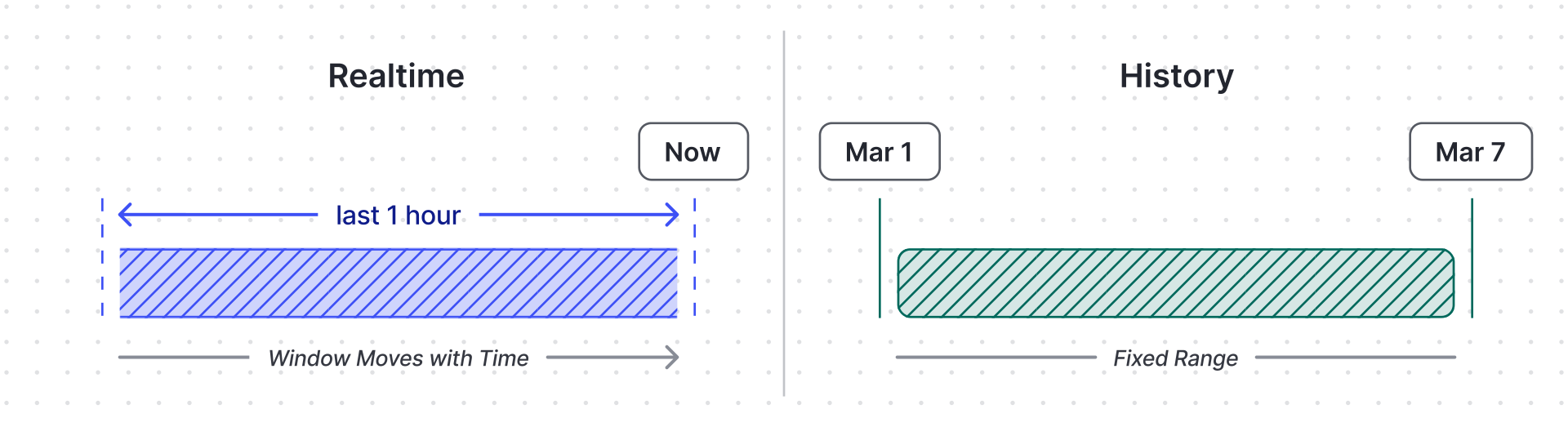
Section titled “Time Window”The time window controls the time range and aggregation applied to all time-series data on a dashboard.
- Real-time — a sliding window that continuously updates (e.g., “last 1 hour”). Use for live monitoring dashboards.
- History — a fixed time range loaded once (e.g., “March 1 – March 7”). Use for analysis and reporting.
By default, the dashboard-level time window applies to all widgets. Individual time-series widgets can override it using their own time window settings.
Was this helpful?