
Smart office
The Smart office solution template delivers a ready-to-use facility management application that enables real-time monitoring, resource tracking, and remote control of building assets. With a single installation action, the template deploys a complete digital representation of a modern office, including sensors, meters, HVAC control, dashboards, alarms, and device profiles.
No custom rule chains, widgets, or backend configuration are required. The solution is suitable for proof-of-concept demonstrations as well as scalable production deployments across single or multiple facilities.
Key application areas
Section titled “Key application areas”The Smart office solution template can be used as a foundation for:
- Productive offices: Maintaining optimal indoor climate and air quality to improve employee comfort and performance
- Sustainability and cost reduction: Monitoring energy and water consumption to identify inefficiencies, leaks, and waste
- Multi-site facility management: Scaling monitoring and control across multiple buildings, warehouses, or commercial properties using a unified dashboard
Install solution template
Section titled “Install solution template”To understand how the Smart office solution works, start by installing the solution template.
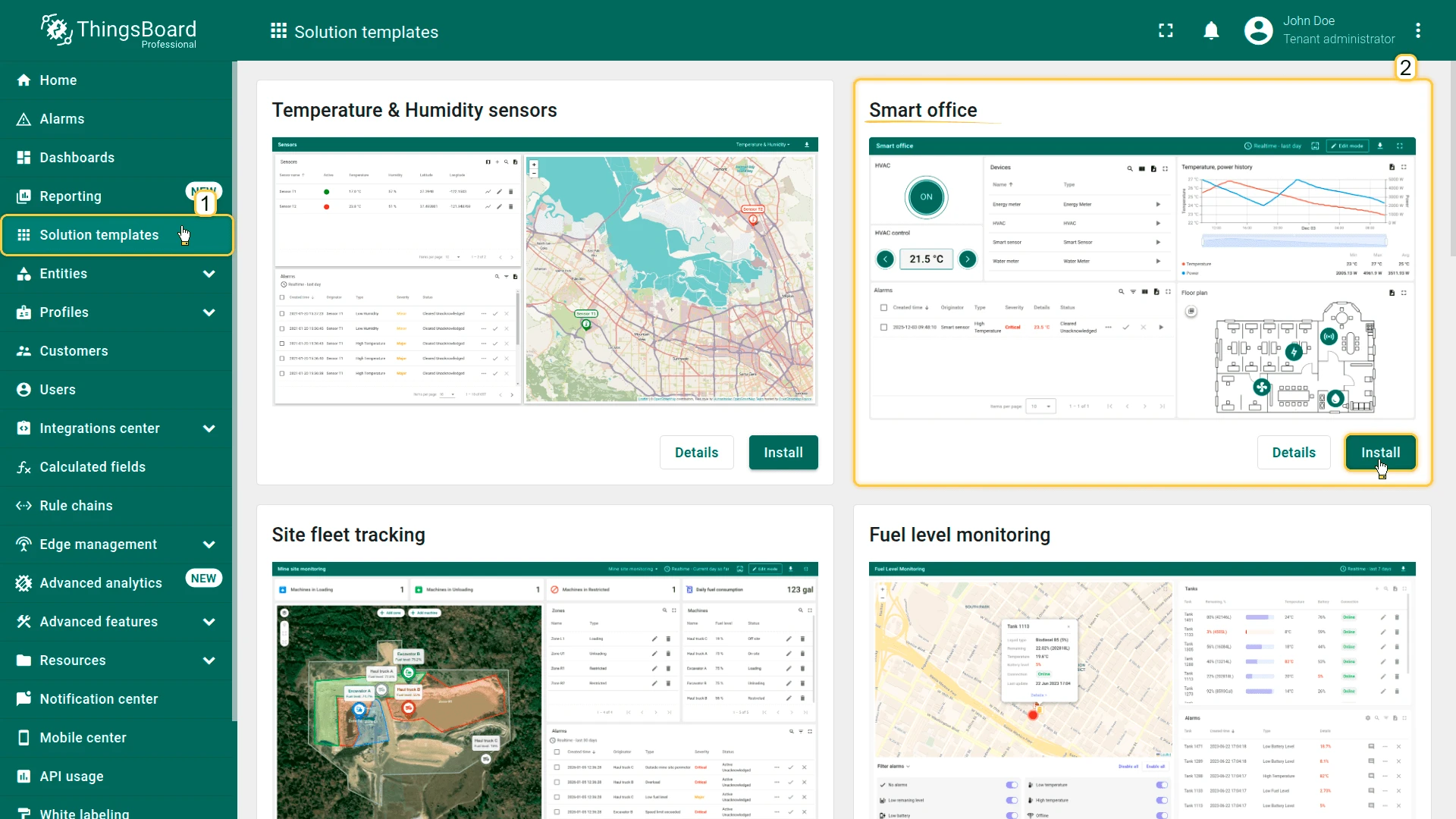
- Go to Solution templates in the main menu.
- Find Smart office and click Install.
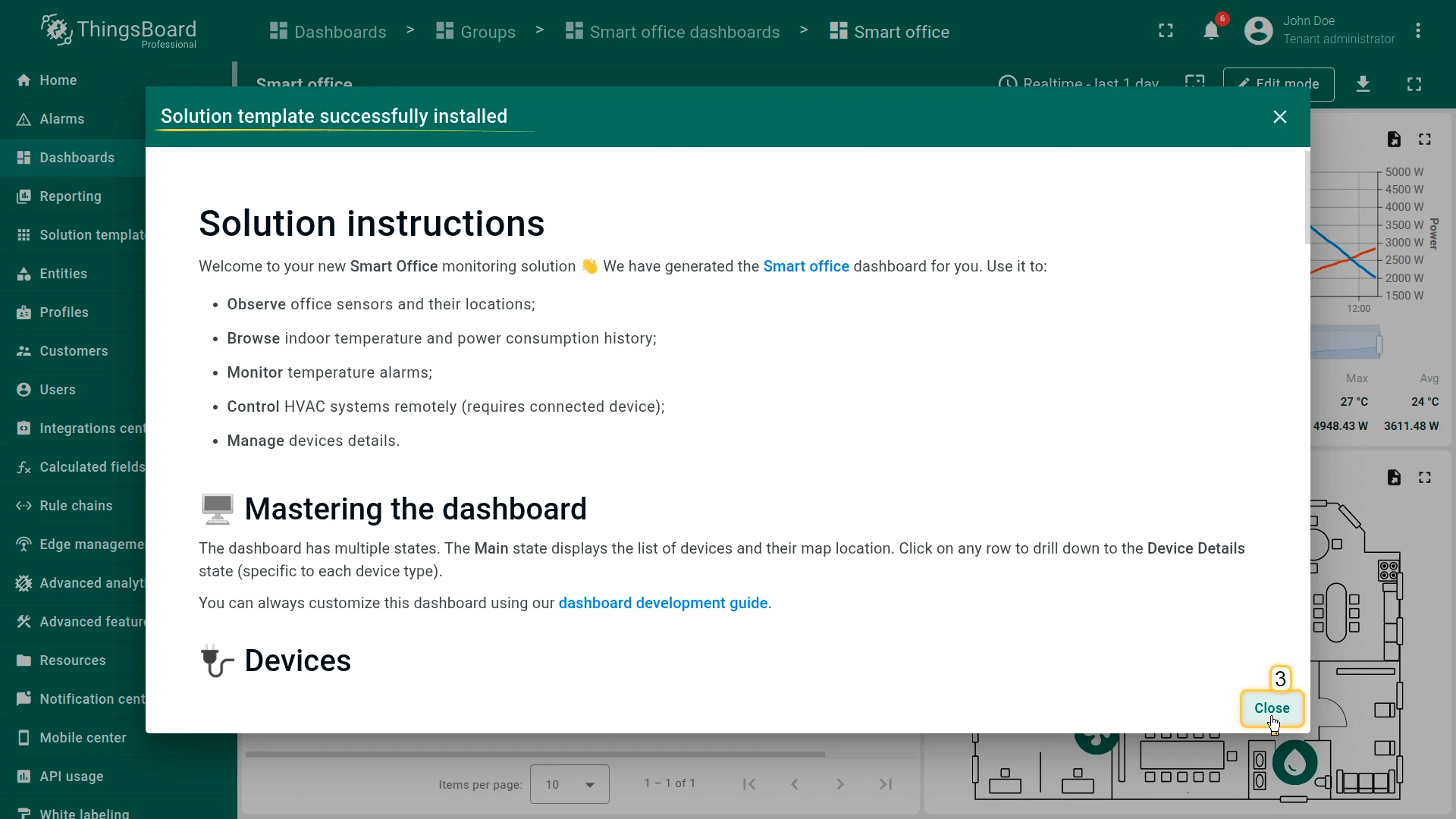
- Follow the provided configuration instructions and click Close.
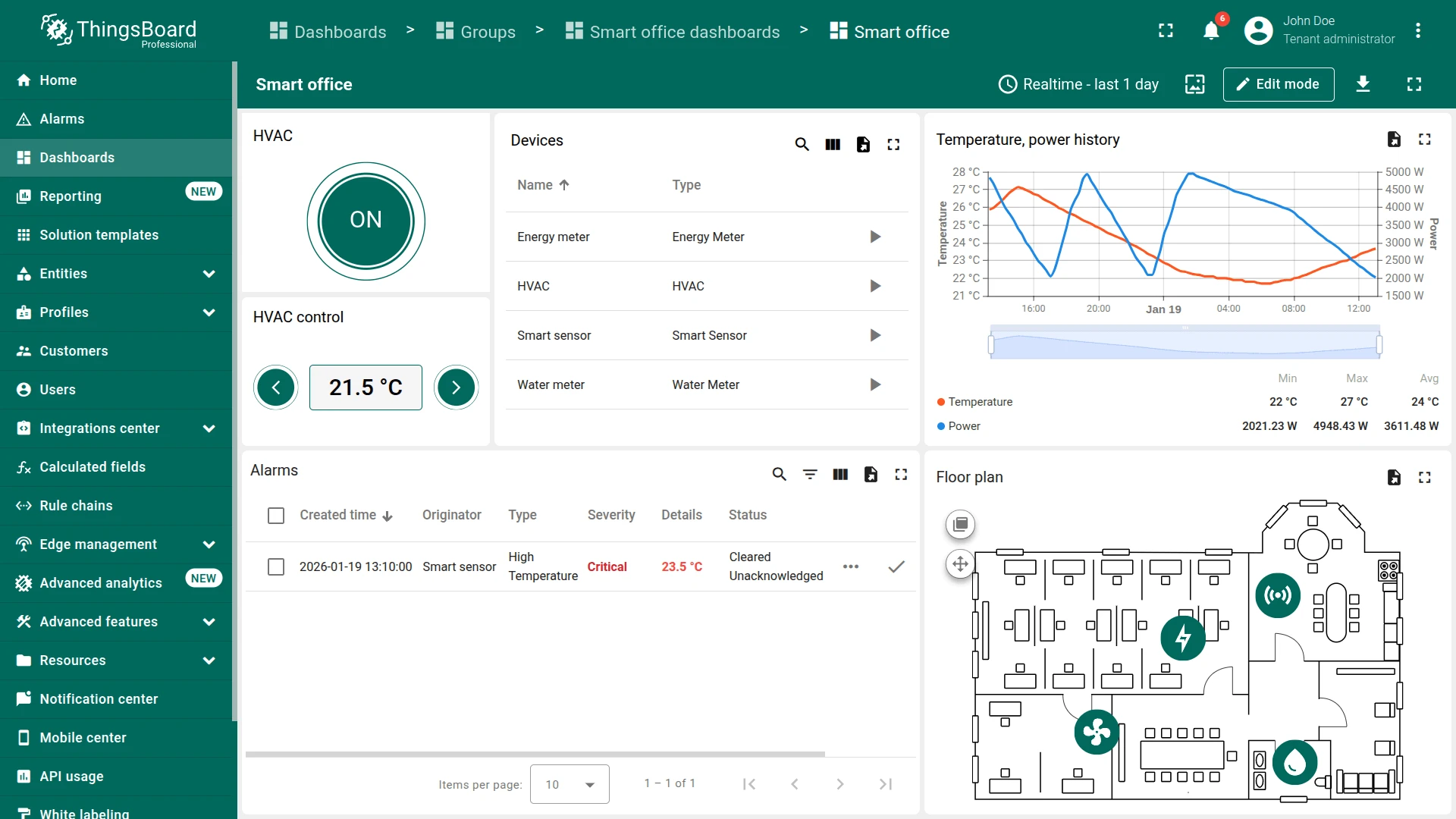
- The Smart office dashboard opens automatically.
After installation, a fully functional simulation for managing office facilities is created automatically. No devices, integrations, or custom code are required to start exploring the solution.
System components
Section titled “System components”The Smart office template includes:
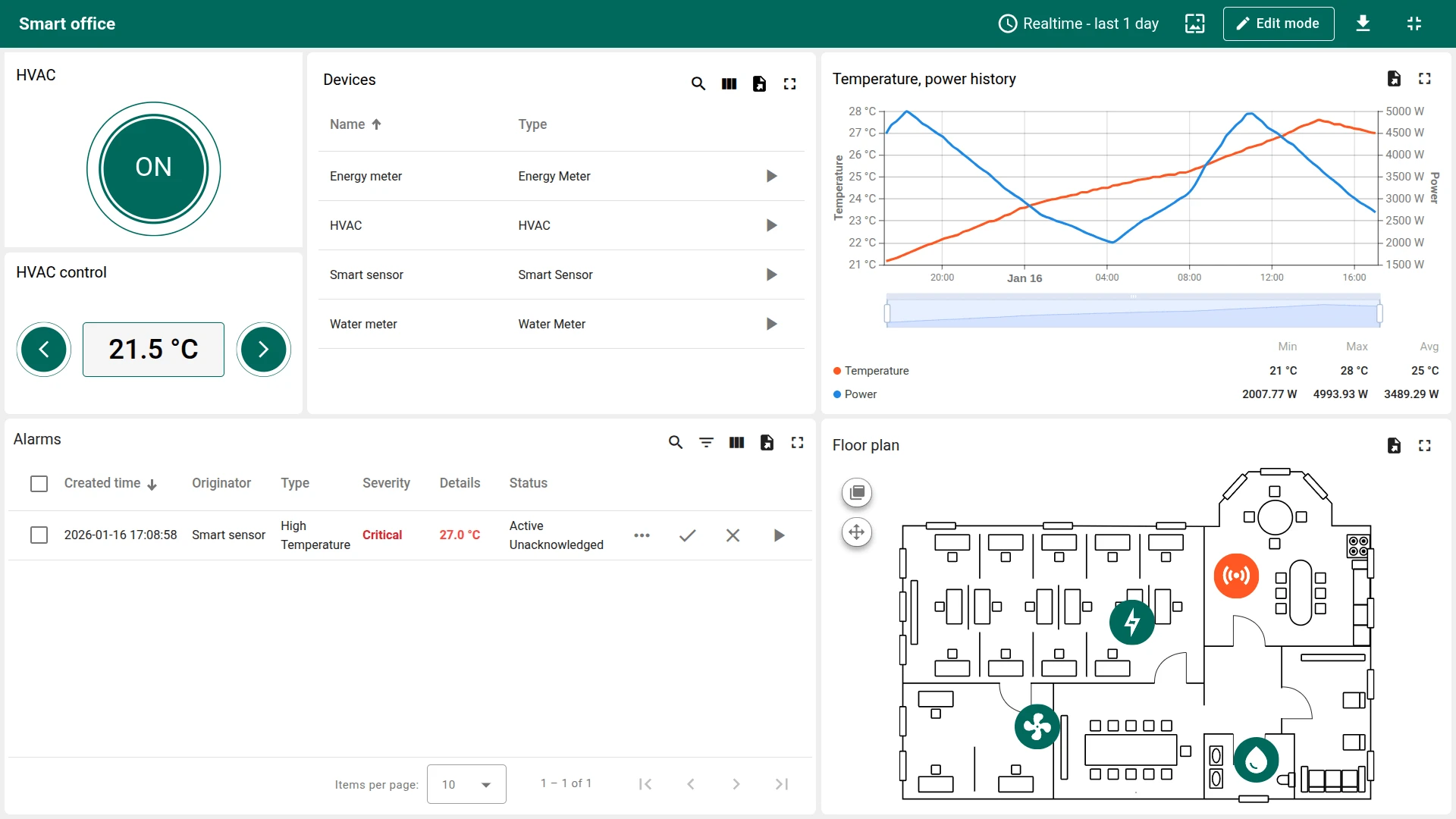
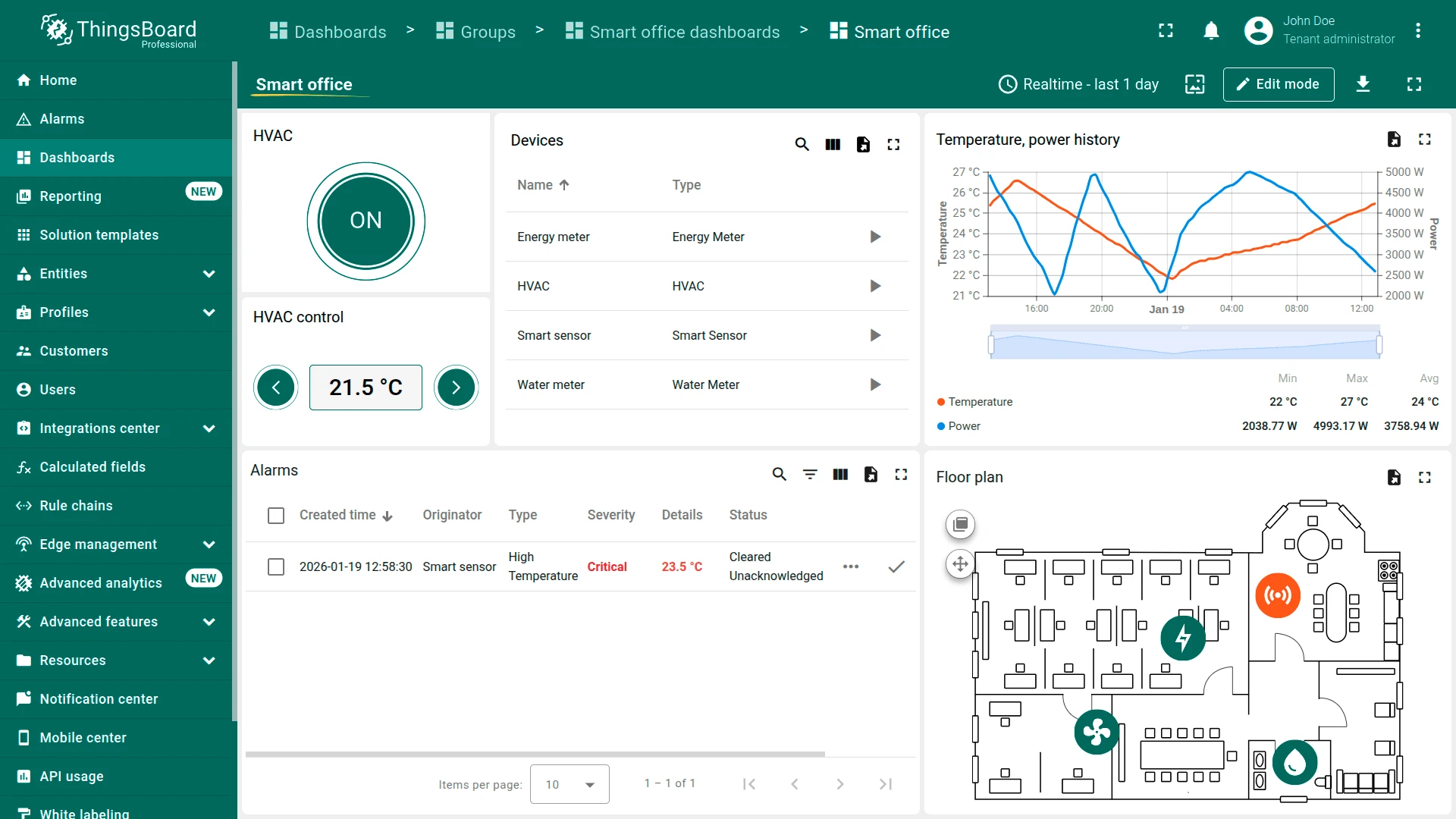
- Dashboard: The Smart Office dashboard provides interactive visualization of environmental and consumption data, floor-plan-based device representation, centralized alarm monitoring, and direct HVAC control from the user interface
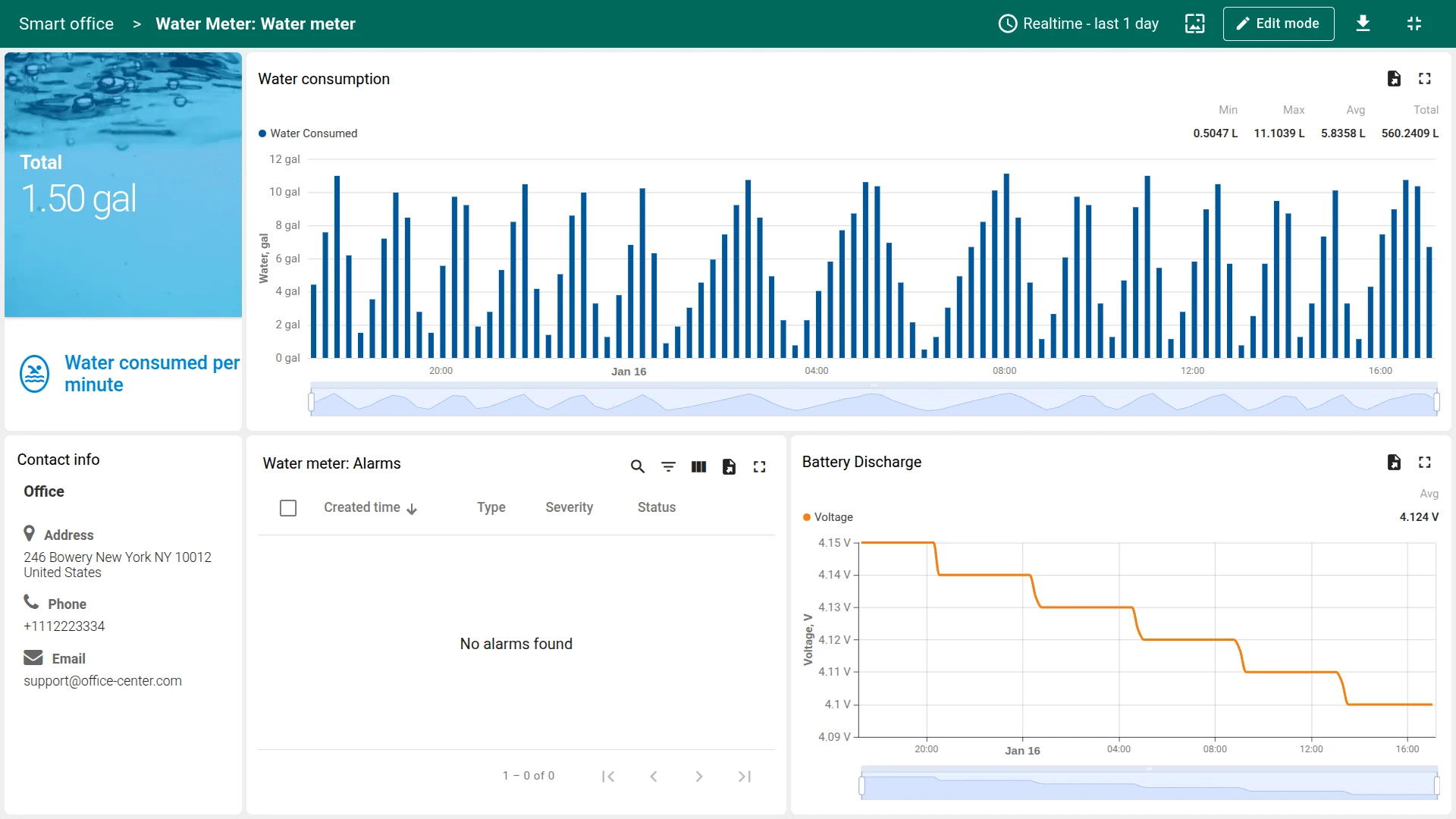
- Devices: Pre-provisioned smart sensors, HVAC devices, energy meters, and water meters populated with demo historical data
- Assets: An Office asset is created to represent the facility structure, with all devices logically associated to reflect real-world relationships
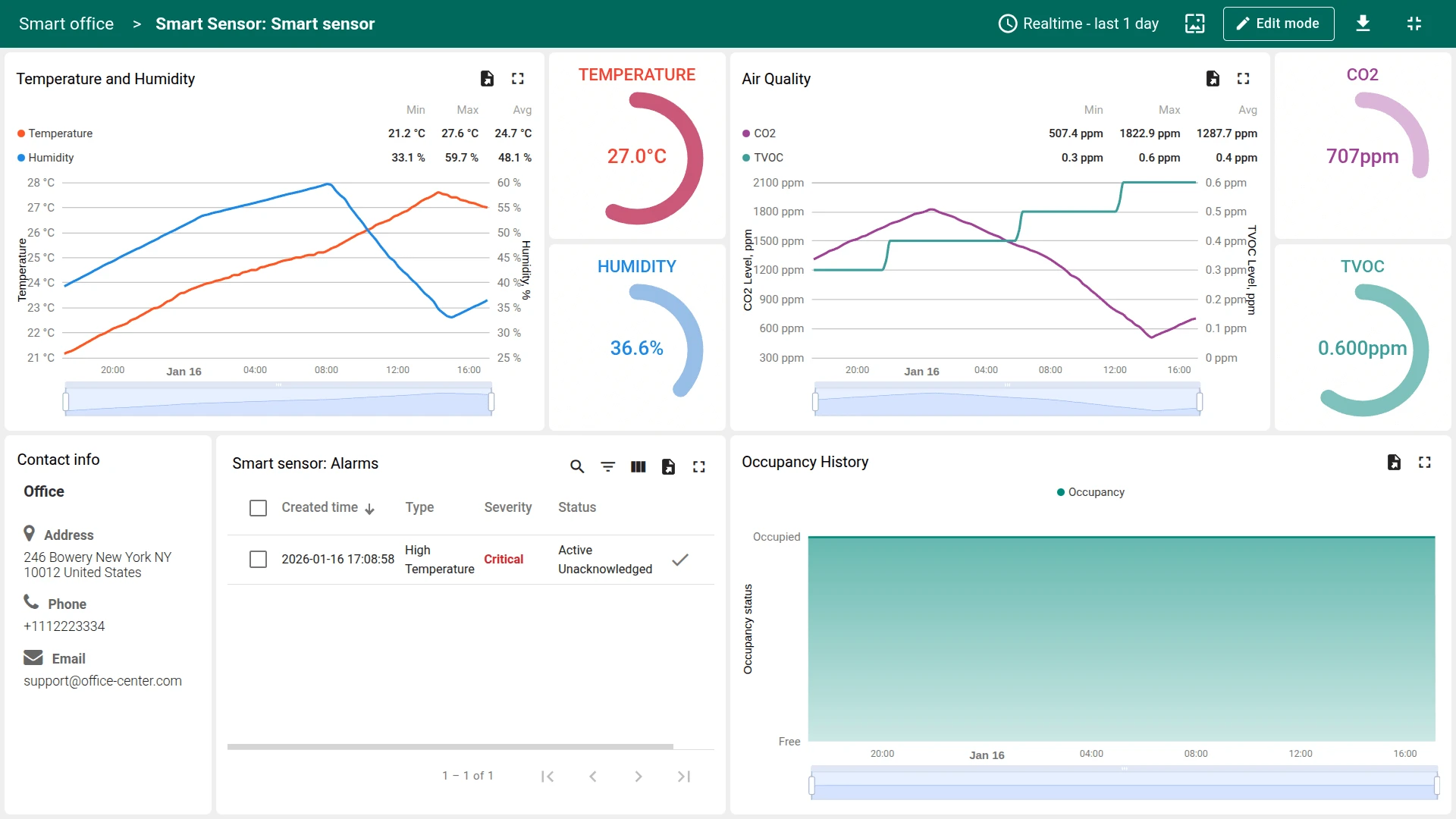
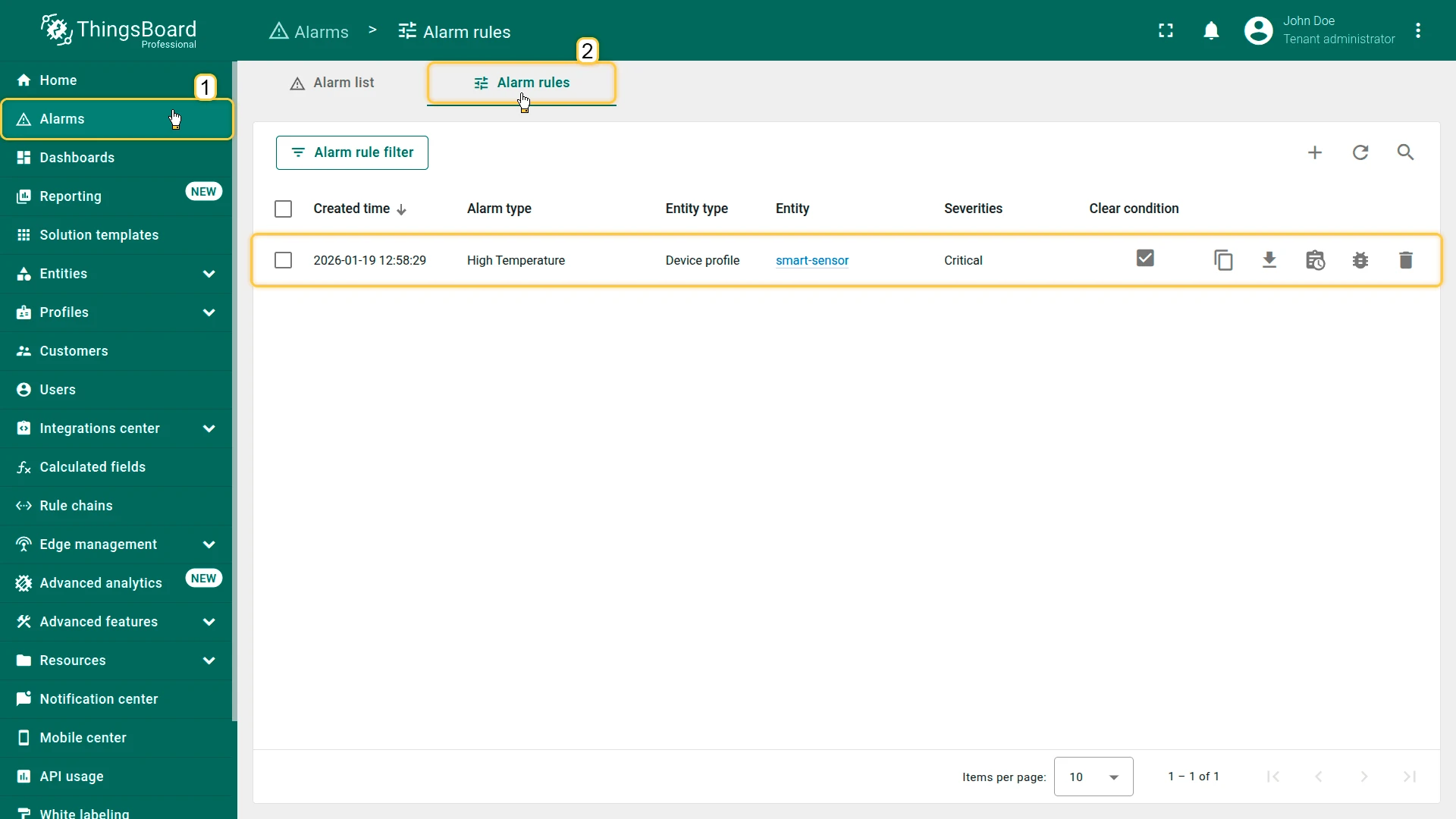
- Device profiles: Dedicated device profiles for smart-sensor, HVAC, energy-meter, and water-meter devices. The smart-sensor profile includes a preconfigured alarm rule for high temperature (Critical when temperature exceeds 25.5 °C)
Edge support. The solution can optionally be deployed to ThingsBoard Edge for local data processing and reduced latency. Edge is available as an add-on for your license or subscription. The edge computing instructions appear in the solution instructions dialog when the Edge add-on is active.
Dashboard
Section titled “Dashboard”The Smart Office dashboard acts as a centralized command center for facility monitoring and control.
You can use the dashboard to:
- Observe office devices and their locations on the floor plan
- Browse historical temperature, energy, and water consumption data
- Monitor temperature alarms
- Control HVAC systems remotely (requires a connected device)
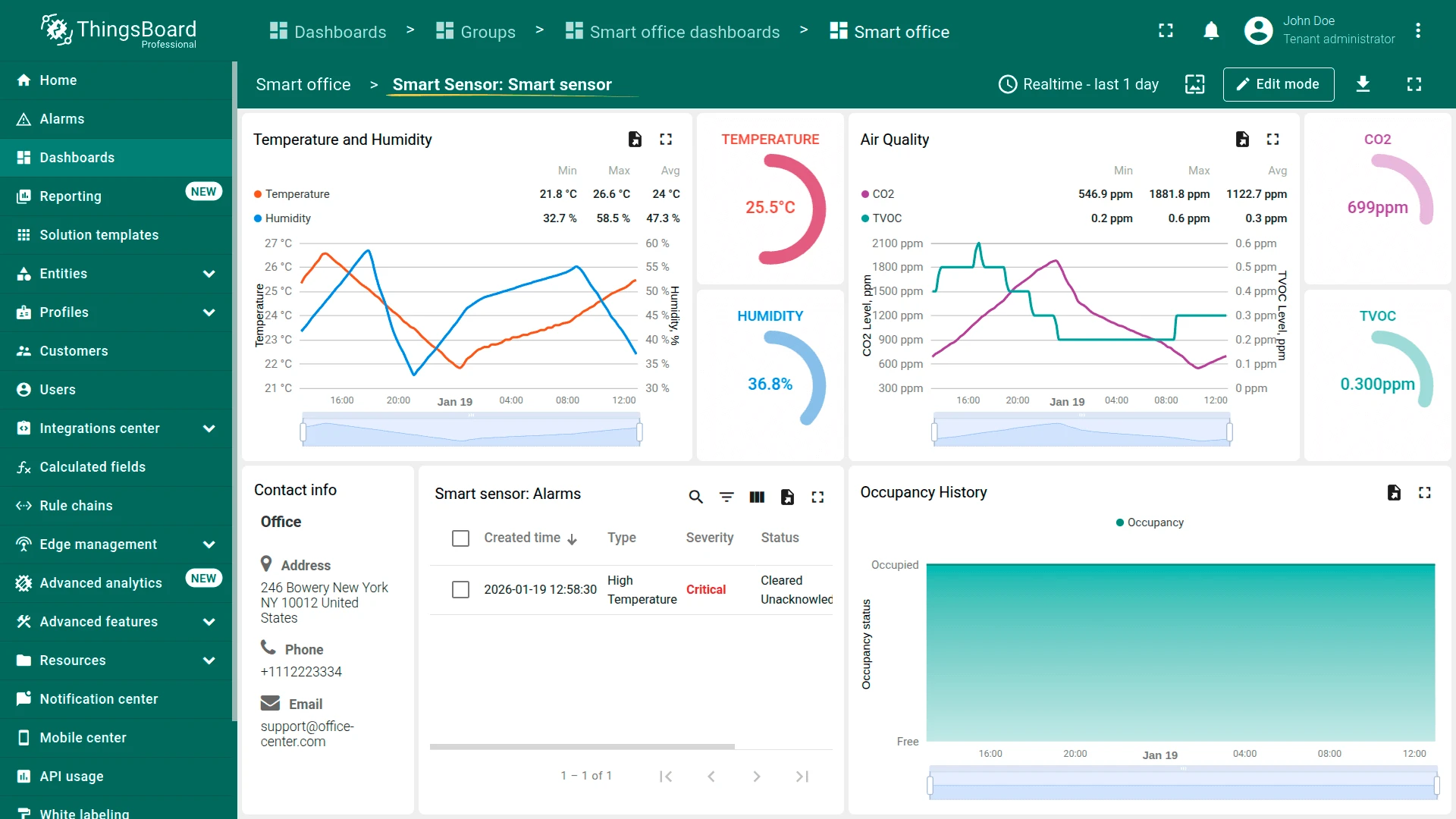
- View and manage device-specific details
Dashboard states
Section titled “Dashboard states”The dashboard consists of multiple states:
- Main state: Displays the list of devices and their locations on the office map or floor plan
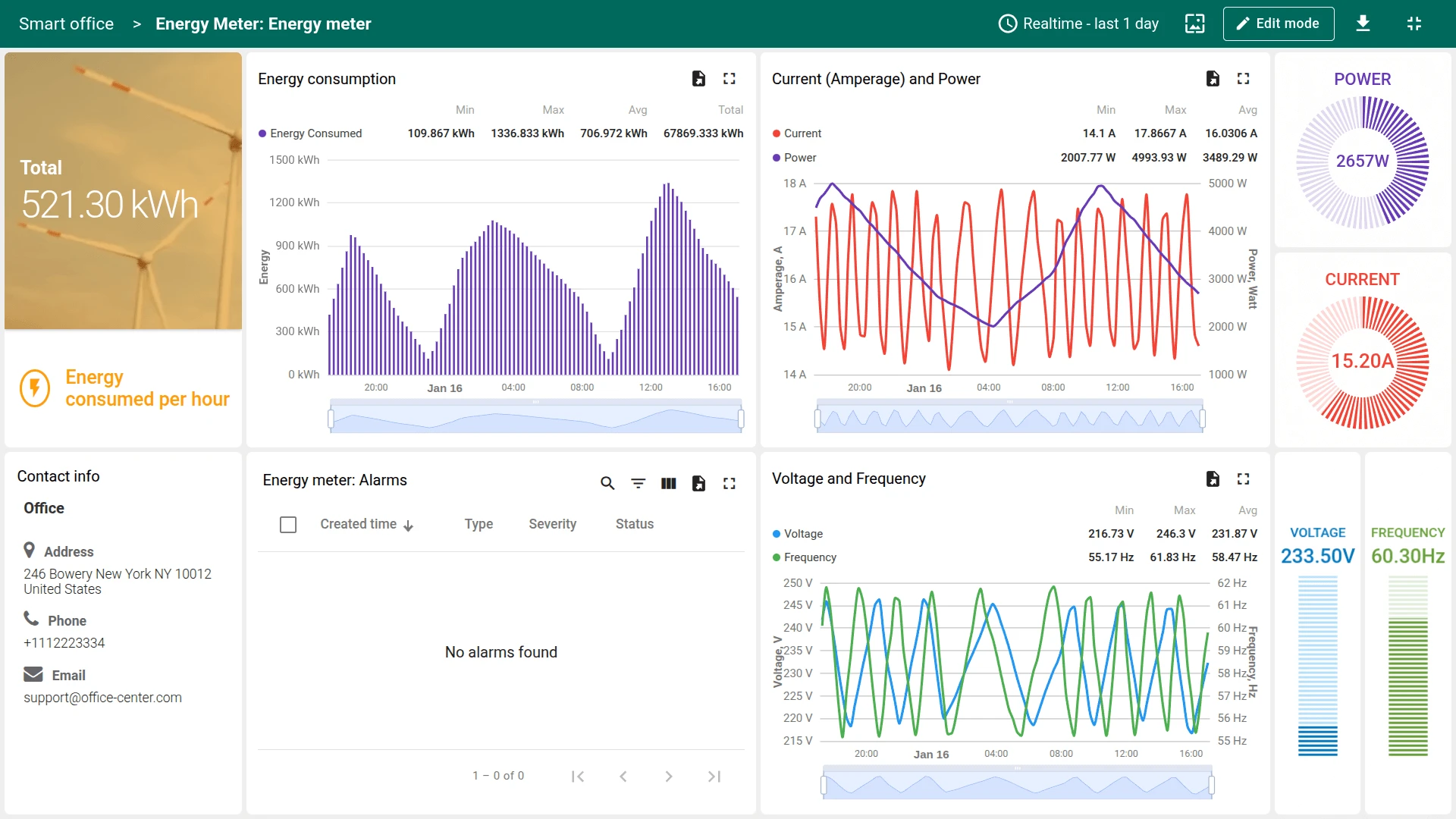
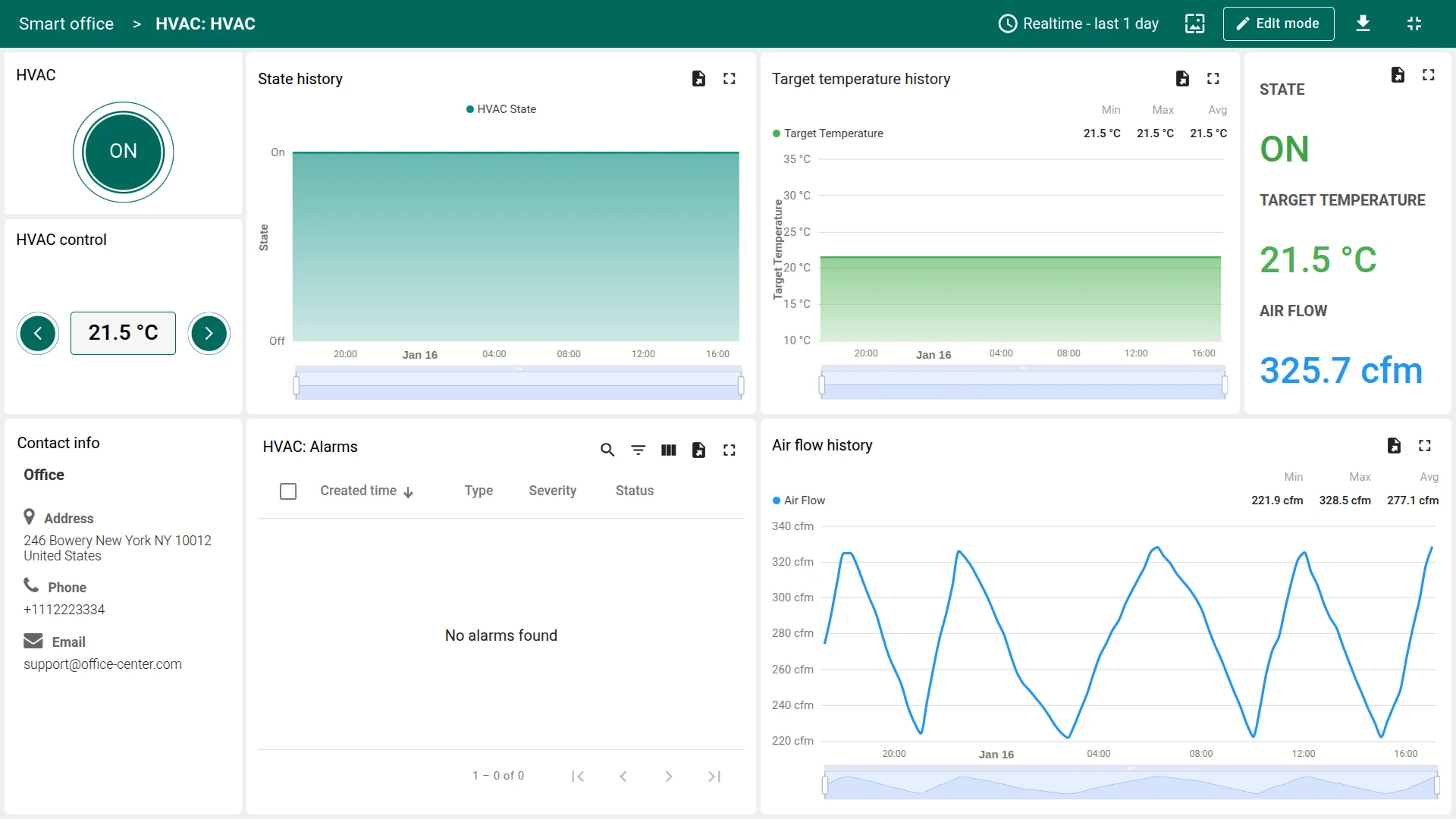
- Device details state: Opens when a device is selected. The layout and controls depend on the selected device type (sensor, HVAC, meter)
The dashboard can be fully customized using the dashboard development tools.
Devices
Section titled “Devices”The Office asset and four related devices are created automatically with demonstration data:
- Smart sensor
- HVAC
- Energy meter
- Water meter
Each device type expects specific telemetry keys. The examples below show the expected JSON payloads.
Energy meter:
{"voltage": 220, "frequency": 60, "amperage": 16, "power": 3000, "energy": 300}Water meter:
{"water": 2.3, "voltage": 3.9}Smart sensor:
{"co2": 500, "tvoc": 0.3, "temperature": 22.5, "humidity": 50, "occupancy": true}HVAC:
{"airFlow": 300, "targetTemperature": 21.5, "enabled": true}To send telemetry on behalf of a device, use the following commands. Replace $ACCESS_TOKEN with the actual access token of the device you want to send data to:
Energy meter:
curl -v -X POST \-d '{"voltage": 220, "frequency": 60, "amperage": 16, "power": 3000, "energy": 300}' \http://thingsboard.cloud/api/v1/$ACCESS_TOKEN/telemetry \--header "Content-Type:application/json"Water meter:
curl -v -X POST \-d '{"water": 2.3, "voltage": 3.9}' \http://thingsboard.cloud/api/v1/$ACCESS_TOKEN/telemetry \--header "Content-Type:application/json"Smart sensor:
curl -v -X POST \-d '{"co2": 500, "tvoc": 0.3, "temperature": 22.5, "humidity": 50, "occupancy": true}' \http://thingsboard.cloud/api/v1/$ACCESS_TOKEN/telemetry \--header "Content-Type:application/json"HVAC:
curl -v -X POST \-d '{"airFlow": 300, "targetTemperature": 21.5, "enabled": true}' \http://thingsboard.cloud/api/v1/$ACCESS_TOKEN/telemetry \--header "Content-Type:application/json"The HVAC device also accepts RPC commands from the dashboard to enable or disable the system and change the target temperature. RPC communication is handled via the RPC API.
The examples use the HTTP API. Other connectivity options (MQTT, CoAP, LwM2M, etc.) are supported as well. See connecting devices for details.
Alarms
Section titled “Alarms”Alarm generation is handled by alarm rules configured in the smart-sensor device profile.
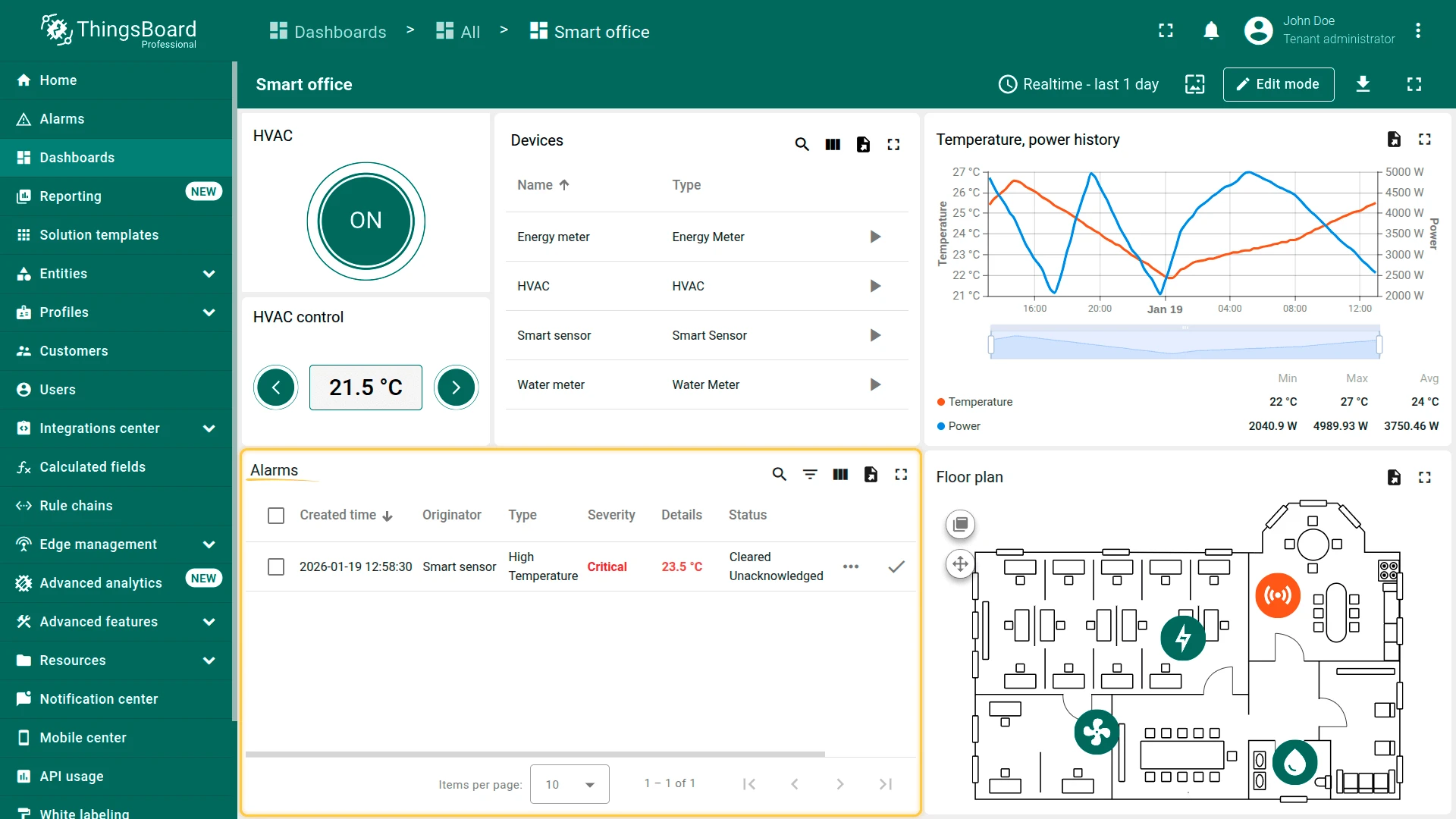
Alarms are displayed in a centralized alarm widget on the dashboard, allowing operators to detect and respond to abnormal conditions.
Conclusion
Section titled “Conclusion”The Smart office solution template provides a ready-to-use foundation for facility monitoring and control, combining environmental sensing, resource metering, alarms, and HVAC management in a single solution. It enables rapid deployment, clear operational visibility, and easy extension for real-world office and facility management scenarios.
Was this helpful?