ThingPark Enterprise Integration
ThingPark Enterprise Integration receives LoRaWAN uplinks from Actility ThingPark Enterprise (TPE), the private LoRaWAN network server of Actility. TPE sends each uplink as an HTTP request to the integration endpoint. An uplink data converter transforms it into device data, including telemetry and attributes. For downlink, ThingsBoard sends commands to the device through the TPE DX API.
Use ThingPark Enterprise Integration when:
- Your LoRaWAN devices are registered in your own ThingPark Enterprise instance.
- You need to send commands from ThingsBoard to those devices, for example when a shared attribute changes.
If your devices are on the Actility ThingPark Wireless network instead, use ThingPark Integration.
Architecture
Section titled “Architecture”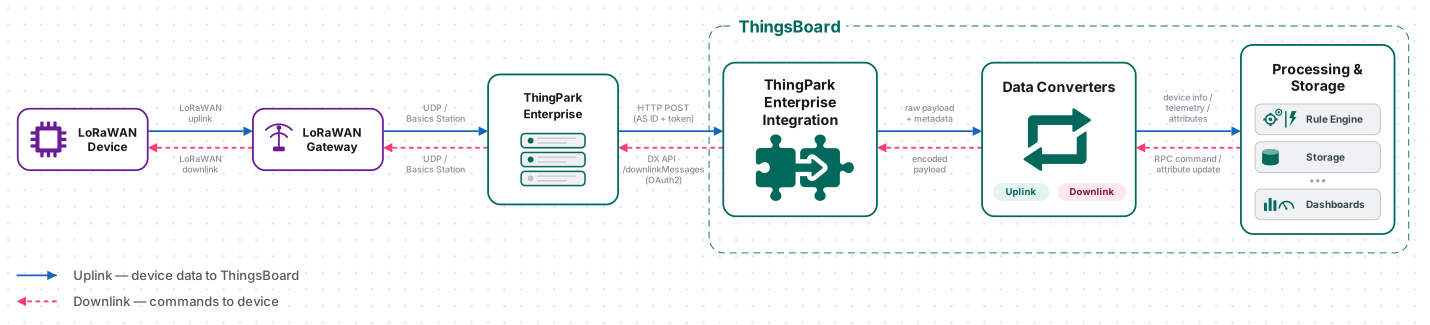
- Receive data. The device sends an uplink through a LoRaWAN gateway to ThingPark Enterprise. TPE sends it to the integration endpoint as an HTTP request with a
DevEUI_uplinkJSON body. The query string carries theAS_ID,LrnDevEui,LrnFPort,Time, andTokenparameters. - Check the request. The
AS_IDparameter must match the AS ID of the integration, and the body must holdDevEUI_uplinkwithDevEUIandFPort. Otherwise, the integration rejects the request with403 Forbidden. - Decode the payload. The uplink converter unwraps the TPE message, decodes the device payload, and returns telemetry and attributes. If Allow create devices or assets is on, ThingsBoard creates the device on its first uplink.
- Send a command (optional). The Rule Engine passes a message to the integration. The downlink converter encodes it, and ThingsBoard sends it right away through the TPE DX API, with an OAuth access token.
Prerequisites
Section titled “Prerequisites”- Access to ThingsBoard Cloud with integrations enabled for your tenant. The ThingsBoard endpoint must be reachable from your ThingPark Enterprise instance, because TPE calls it.
- Permission to create integrations and data converters, and to edit rule chains for downlink.
- A ThingPark Enterprise instance with at least one LoRaWAN device registered and joined to the network, and an account that can create applications.
- For downlink: credentials that the TPE DX API accepts, and the address of the DX API of your instance.
Prepare ThingPark Enterprise
Section titled “Prepare ThingPark Enterprise”TPE sends uplinks only to an HTTP application that the device is assigned to. The application needs the integration endpoint URL, so you create it after creating the integration. Prepare the credentials first.
Choose the AS ID and AS Key
Section titled “Choose the AS ID and AS Key”The AS ID and AS Key identify ThingsBoard as the application server of the TPE application. You enter the same pair in TPE and in ThingsBoard:
| Credential | Format | Example |
|---|---|---|
| AS ID | 16 hexadecimal characters (8 bytes) | A8360F9312345789 |
| AS Key | 32 hexadecimal characters (16 bytes) | 0122456789ABCDEF0122456789ABCDEF |
Take the values from an existing TPE application, or generate new ones with any hex string generator.
TPE adds the AS ID to every uplink as the AS_ID query parameter, and the integration compares it with its own AS ID. ThingsBoard sends the AS ID and AS Key back to TPE in every downlink request.
Get DX API Credentials
Section titled “Get DX API Credentials”Skip this step if you only need uplinks. To send downlinks, the integration calls the TPE DX API. It needs:
- DX API address — the base address of the DX API of your TPE instance. The integration appends the API paths to it, for example
/admin/latest/api/oauth/token. - Client ID and Client Secret — the credentials that the DX API accepts for an OAuth
client_credentialstoken request, usually the login and password of a TPE user with API access.
Set Up ThingPark Enterprise Integration
Section titled “Set Up ThingPark Enterprise Integration”Create the uplink converter and the integration, then create the TPE application that sends uplinks to the integration endpoint.
Create the Uplink Data Converter
Section titled “Create the Uplink Data Converter”ThingPark Enterprise Integration uses the Typed uplink converter. ThingsBoard selects it automatically for this integration type, and you cannot change it later. The converter first unwraps the TPE message: it takes the device payload from payload_hex and puts the network fields, such as eui, fPort, rssi, and snr, into the metadata. The decoder then decodes only the device payload. For details, see Typed uplink converter.
To use a ready-made decoder for your device model instead, see Use a Library Converter.
-
Go to Integrations ⇾ Data converters and click + Add data converter ⇾ Create new converter.
-
Converter type — keep Uplink.
-
Integration type — select ThingParkEnterprise.
-
Keep Create new selected.
-
Name — enter a name, for example
ThingPark Enterprise Uplink Converter. -
Main decoding configuration:
- Entity type — keep Device.
- Device name — keep
Device $eui. ThingsBoard replaces$euiwith theDevEUIof the uplink, for exampleDevice 0018B20000000123. Any key from Decoder Inputs works as a$keyplaceholder. - The decoder editor opens in TBEL with a default decoder for a sample 8-byte payload: a 4-byte serial number, then battery, temperature, and saturation. Replace it with your device’s decoding logic, or keep it to follow this guide. The decoder below is a shorter version of the default one. For JavaScript, use the TBEL / JS toggle and the JavaScript tab.
// payload — the device payload bytes from payload_hex.// metadata — integration metadata plus the keys unwrapped from the TPE message.return {attributes: {// Serial number: bytes 0–3.sn: parseBytesToInt(payload, 0, 4)},telemetry: {// Time of the uplink, parsed from the Time field of the message.ts: metadata.ts,values: {battery: parseBytesToInt(payload, 4, 1),temperature: parseBytesToInt(payload, 5, 2) / 100.0,saturation: parseBytesToInt(payload, 7, 1)}}};// payload — the device payload bytes from payload_hex.// metadata — integration metadata plus the keys unwrapped from the TPE message.return {attributes: {// Serial number: bytes 0–3.sn: parseBytesToInt(payload, 0, 4)},telemetry: {// Time of the uplink, parsed from the Time field of the message.ts: metadata.ts,values: {battery: parseBytesToInt(payload, 4, 1),temperature: parseBytesToInt(payload, 5, 2) / 100.0,saturation: parseBytesToInt(payload, 7, 1)}}};// Big-endian integer from length bytes at offset.function parseBytesToInt(input, offset, length) {var result = 0;for (var i = offset; i < offset + length; i++) {result = (result << 8) | (input[i] & 0xFF);}return result;}To adapt:
- Payload layout — change the byte offsets, lengths, and scaling to match the payload specification of your device.
- Device identity — to override the values of Main decoding configuration and Advanced decoding parameters, add
name,type(DEVICEorASSET),profile,label,customer, orgroupto the result, for examplename: 'Sensor ' + metadata.eui. - Network fields — read any key from Decoder Inputs, for example
metadata.rssi, or list it in Advanced decoding parameters to store it without code.
-
Advanced decoding parameters — ThingsBoard pre-fills them for ThingPark Enterprise:
- Device profile name, Device label, Customer name, and Device group name — empty. Without a profile name, the device gets the
defaultprofile. These fields accept$keyplaceholders too. - Telemetry —
fCnt,data,rssi,snr,channel, anddecoded. Attributes —eui,fPort,adr,spreadingFactor,bandwidth,devAddr,frequency, andclass. ThingsBoard adds these metadata keys to the decoder output, if the uplink has them. A key that the decoder already returns keeps the decoder value. The lists add keys: they do not filter the decoder output. - Update only keys list — the same keys as Attributes. ThingsBoard stores these keys only when their value changes.
- Device profile name, Device label, Customer name, and Device group name — empty. Without a profile name, the device gets the
-
Click Test payload decoder and check the result (see Test the Decoder).
-
Click Add.
Decoder Inputs
| Variable | Type | Content |
|---|---|---|
payload |
byte array | The device payload: the bytes of payload_hex. If the TPE message has a decoded payload object, the decoder gets that object as JSON bytes instead. |
metadata |
{[key: string]: any} |
The keys unwrapped from DevEUI_uplink (see the table below), ts and timeTs (the Time field in Unix milliseconds), payloadFormat (BINARY or JSON), and the integration metadata: integrationName, the AS_ID, LrnDevEui, and LrnFPort query parameters, and the pairs from the integration’s Metadata field. A key of the integration metadata replaces an unwrapped key with the same name. |
TPE sends an uplink like this one:
{ "DevEUI_uplink": { "Time": "2026-10-22T10:30:00.000+00:00", "DevEUI": "0018B20000000123", "FPort": 1, "FCntUp": 42, "ADRbit": 1, "MType": 4, "FCntDn": 5, "payload_hex": "0000162e5a0a2b41", "mic_hex": "a1b2c3d4", "Lrcid": "00000065", "LrrRSSI": -85.0, "LrrSNR": 7.25, "SpFact": 7, "SubBand": "G0", "Channel": "LC1", "Lrrid": "FF0000C8", "Late": 0, "LrrLAT": 48.8566, "LrrLON": 2.3522, "CustomerID": "100000507", "DevAddr": "04A1B2C3", "Frequency": 868.1 }}The converter unwraps these fields into metadata keys:
| Metadata key | TPE field | Example |
|---|---|---|
time |
Time |
2026-10-22T10:30:00.000+00:00 |
eui |
DevEUI |
0018B20000000123 |
fPort |
FPort |
1 |
fCnt |
FCntUp |
42 |
fCntDn |
FCntDn |
5 |
adr |
ADRbit |
1 |
mType |
MType |
4 |
data |
payload_hex |
0000162e5a0a2b41 |
micHex |
mic_hex |
a1b2c3d4 |
rssi, snr |
LrrRSSI, LrrSNR |
-85.0, 7.25 |
spreadingFactor |
SpFact |
7 |
bandwidth |
SubBand |
G0 |
channel |
Channel |
LC1 |
lrcid, lrrId |
Lrcid, Lrrid |
00000065, FF0000C8 |
late |
Late |
0 |
latitude, longitude |
LrrLAT, LrrLON |
48.8566, 2.3522 |
customerId |
CustomerID |
100000507 |
devAddr |
DevAddr |
04A1B2C3 |
frequency |
Frequency |
868.1 |
decoded |
payload |
The decoded payload object, if TPE decodes the device payload. |
The converter also unwraps less common fields when TPE sends them, for example LostUplinksAS as lostUplinksAs, LrrESP as esp, DevLrrCnt as devLrrCnt, TxPower as txPower, and CustomerData as customerData.
The sample payload_hex holds the serial number 0x0000162E (5678), battery 0x5A (90), temperature 0x0A2B (2603, or 26.03 after scaling), and saturation 0x41 (65).
Test the Decoder
Click Test payload decoder below the editor. The Payload and Metadata of the dialog hold the already unwrapped input: the device payload and the metadata keys. To test with a full TPE message:
- Click Updated RAW payload.
- Replace the Payload with the uplink from Decoder Inputs and click Apply. ThingsBoard unwraps it: Payload content type becomes Binary (Base64) with the payload
AAAWLloKK0E=, and Metadata lists the unwrapped keys, such aseuiandrssi. - Click Test.
The Decoder output tab shows the result of the decoder:
{ "attributes": { "sn": 5678 }, "telemetry": { "ts": 1792665000000, "values": { "battery": 90, "temperature": 26.03, "saturation": 65 } }}The Converter output tab shows the data that ThingsBoard stores: the device name Device 0018B20000000123 and the default profile, telemetry with fCnt, data, rssi, snr, and channel added to the decoded values, and attributes with eui, fPort, adr, spreadingFactor, bandwidth, devAddr, and frequency added to sn. If the output is empty or shows an error, fix the decoder and test again.
Use a Library Converter
The Converters library holds ready-made decoders for specific device models, from the public thingsboard/data-converters repository. For ThingPark Enterprise, it has decoders for Decentlab devices.
- In Add data converter, select Uplink and the ThingParkEnterprise integration type, and switch from Create new to Library.
- Vendor — select the vendor, for example Decentlab.
- Model — select the device model, for example DL-5TM.
- Name — ThingsBoard fills it as
ThingParkEnterprise Uplink Converter for <Vendor> <Model>, for exampleThingParkEnterprise Uplink Converter for Decentlab DL-5TM. Change it if needed. - Review the decoder and the Update only keys list, and click Add.
Library converters can differ from the converter in this guide. Some are written as generic decoders: they parse the full TPE message themselves, for example with decodeToJson(payload).DevEUI_uplink.payload_hex, and choose their own telemetry keys. Test a library converter with a full TPE message from your device before you use it.
Create the Integration
Section titled “Create the Integration”- Go to Integrations ⇾ Integrations and click + Add integration.
- Basic settings:
- Integration type — select ThingParkEnterprise.
- Name — keep the default
ThingParkEnterprise integrationor enter your own. - Enable integration and Allow create devices or assets — keep both on, so the device is created on its first uplink.
- Click Next.
- Uplink data converter:
- Click Select existing and choose
ThingPark Enterprise Uplink Converter. - Alternatively, click Create new to configure a converter here, or Library to load a ready-made one.
- Click Next.
- Click Select existing and choose
- Downlink data converter:
- Click Skip. Add a downlink converter later if you need to send commands.
- Connection:
- Copy the HTTP endpoint URL. You need it for the TPE application.
- Enable security is always on for this integration type. Enter the AS ID and AS Key from Choose the AS ID and AS Key.
- Leave the other parameters at their defaults. See Connection Settings for details.
- Click Add.
Connection Settings
Section titled “Connection Settings”| Parameter | Default | Description |
|---|---|---|
| Base URL | Address of the ThingsBoard server you are signed in to, for example https://thingsboard.cloud |
Used to build the endpoint URL. Must be reachable from TPE. Required. |
| HTTP endpoint URL | — | Read-only. Format: {Base URL}/api/v1/integrations/tpe/{integrationKey}, where integrationKey is a UUID assigned at creation. Accepts JSON bodies only. |
| Enable security | On | Always on for ThingPark Enterprise. You cannot turn it off. |
| Enable security for automatic token updates | Off | Shows the Client Id and Client Secret fields. Turn it on for downlink: the integration needs these credentials to get a DX API token. |
| AS ID | — | Compared with the AS_ID query parameter of every request, case-insensitively. A request without it or with another value is rejected with 403 Forbidden. Also sent in every downlink request. Required. |
| AS Key | — | Sent with the AS ID in every downlink request. The integration does not use it to check uplinks. Required. |
| Client Id and Client Secret | — | DX API credentials. ThingsBoard exchanges them for an access token. Shown when Enable security for automatic token updates is on. |
| Maximum time difference (seconds) | 60 |
Not used by this integration type: ThingParkEnterprise integration does not check the Time parameter. |
| Execute remotely | Off | Runs the integration as a separate process outside the ThingsBoard cluster. ThingsBoard generates an Integration key and Integration secret for it. See Remote Integration. |
| Replace response status from ‘No-Content’ to ‘OK’ | Off | In Advanced settings. No effect for this integration type: it always answers 200 OK to an accepted request. |
| Downlink URL | https://api.thingpark.com/thingpark/lrc/rest/downlink |
In Advanced settings. Base address of the TPE DX API, used only for downlink. The default is a ThingPark Wireless address: replace it with the DX API address of your TPE instance. See Configure Downlink. |
| Description | — | In Advanced settings. Free-text description. |
| Metadata | — | In Advanced settings. Key–value pairs added to the metadata of every message from this integration. |
The integration answers 200 OK when the request passes the check, 403 Forbidden when it does not, 400 Bad Request on a converter script error, and 500 Internal Server Error on other processing errors.
Create the HTTP Application
Section titled “Create the HTTP Application”The HTTP application tells TPE where to send the uplinks of its devices.
- Sign in to your ThingPark Enterprise portal.
- Go to Applications and click Create.
- Select the HTTP application type.
- Configure the destination:
- URL — paste the HTTP endpoint URL of the integration.
- Content-type — select
application/json. - AS ID and AS Key — enter the same values as in the integration.
- Click Save.
Assign Devices to the Application
Section titled “Assign Devices to the Application”- In ThingPark Enterprise, go to Devices and open the device.
- In Associated Application, select the HTTP application you created.
- Click Save.
A device can belong to one application at a time. If the device is already assigned to another application, reassign it.
Test Uplink
Section titled “Test Uplink”Send an uplink, then confirm that ThingsBoard decoded it and created the device.
Send a Test Uplink
Section titled “Send a Test Uplink”Wait for the next uplink of an assigned device. TPE forwards it to the integration endpoint.
To test without a device, send the uplink from Decoder Inputs with curl. Replace $HTTP_ENDPOINT_URL with the HTTP endpoint URL and $AS_ID with the AS ID of the integration, and run:
curl -v -X POST "$HTTP_ENDPOINT_URL?LrnDevEui=0018B20000000123&LrnFPort=1&AS_ID=$AS_ID&Time=2026-10-22T10:30:00.500%2B00:00&Token=test" \ -H "Content-Type: application/json" \ -d '{"DevEUI_uplink":{"Time":"2026-10-22T10:30:00.000+00:00","DevEUI":"0018B20000000123","FPort":1,"FCntUp":42,"ADRbit":1,"MType":4,"FCntDn":5,"payload_hex":"0000162e5a0a2b41","mic_hex":"a1b2c3d4","Lrcid":"00000065","LrrRSSI":-85.0,"LrrSNR":7.25,"SpFact":7,"SubBand":"G0","Channel":"LC1","Lrrid":"FF0000C8","Late":0,"LrrLAT":48.8566,"LrrLON":2.3522,"CustomerID":"100000507","DevAddr":"04A1B2C3","Frequency":868.1}}'The endpoint returns 200 (HTTP/2 200 on ThingsBoard Cloud). The integration does not verify the Token parameter, so any value works. ThingsBoard stores the telemetry with the time in Time. Change it to the current time to see the data as the latest values.
Verify the Result
Section titled “Verify the Result”- TPE — for an uplink from a real device, open the Wireless Logger in ThingPark Enterprise. The uplink shows that TPE sent it to the application.
- Integration events — go to Integrations ⇾ Integrations, open the integration, and click the Events tab. The request appears as an event of type Uplink with status OK. Click
⋅⋅⋅in the Message column to see the body. A request that fails the check appears with status FORBIDDEN. - Converter events — open
ThingPark Enterprise Uplink Converterin Integrations ⇾ Data converters and click the Events tab. In shows the full TPE message, before unwrapping. Out shows the decoder result. Metadata shows the integration metadata:integrationName,AS_ID,LrnDevEui, andLrnFPort. - Device — go to Devices & assets ⇾ Devices. The integration has created the device
Device 0018B20000000123with thedefaultprofile. Open it and checkbattery,temperature,saturation,fCnt,data,rssi,snr, andchannelon the Latest telemetry tab, andsn,eui,fPort,adr,spreadingFactor,bandwidth,devAddr, andfrequencyon the Attributes tab, in Client attributes.
Configure Downlink
Section titled “Configure Downlink”ThingsBoard sends each downlink right away through the TPE DX API. Nothing is queued in ThingsBoard: if a call fails, ThingsBoard records an error and drops the command.
For each downlink, the integration:
-
Gets an access token with
POST {Downlink URL}/admin/latest/api/oauth/token?grant_type=client_credentials&client_id={Client Id}&client_secret={Client Secret}, and reuses it until it expires. -
Finds the device with
GET {Downlink URL}/core/latest/api/devices: it takes therefof the device whoseEUIequals theDevEUIfrom the encoder. -
Sends the payload with
POST {Downlink URL}/core/latest/api/devices/{ref}/downlinkMessages, with the token as aBearertoken and this body:{"payloadHex": "<payload from the encoder>","targetPorts": "<1 to 15>","securityParams": {"asId": "<AS ID>","creationTime": "<current time>","asKey": "<AS Key>"}}
The integration sets targetPorts itself: it counts from 1 to 15 and starts again, one step per downlink. The encoder cannot set the LoRaWAN port.
The downlink converter turns a Rule Engine message into the payload. For the full encoder reference, see Downlink data converter.
Create and Assign the Downlink Converter
Section titled “Create and Assign the Downlink Converter”- Open the integration in Integrations ⇾ Integrations and click Toggle edit mode (pencil icon).
- In the Downlink data converter field, click Create new. The Downlink converter type and ThingParkEnterprise integration type are preselected.
- Enter a name, for example
ThingPark Enterprise Downlink Converter. - Main encoding configuration opens in TBEL with a generic encoder. It does not build the
DevEUIandpayloadfields that this integration needs. Replace it with the encoder below. For JavaScript, use the TBEL / JS toggle and the JavaScript tab. - To record downlink events, click the debug button next to the name, select All messages, and click Apply. Debug is off by default.
- Click Add.
- Under Enable security, turn on Enable security for automatic token updates and enter the Client Id and Client Secret from Get DX API Credentials.
- Under Advanced settings, set Downlink URL to the DX API address of your TPE instance.
- Click Apply changes.
Encoder used in this guide. It sends the value of the downlinkHex shared attribute as the payload, and ignores messages without it. The rule chain adds the device EUI to the metadata as cs_eui.
/** Encoder **/
// Device EUI. The rule chain adds the client attribute "eui" to the metadata as cs_eui.var eui = metadata.cs_eui;
// Payload as a hex string, for example "0102". Nothing to send without it.var payloadHex = msg.downlinkHex;if (eui == null || payloadHex == null) {    return [];}
return {    contentType: "JSON",    // The integration reads DevEUI and payload from data.    data: JSON.stringify({        DevEUI: eui,        payload: payloadHex    }),    // The integration checks that metadata has DevEUI.    metadata: {        DevEUI: eui    }};
/** Encoder **/
// Device EUI. The rule chain adds the client attribute "eui" to the metadata as cs_eui.var eui = metadata.cs_eui;
// Payload as a hex string, for example "0102". Nothing to send without it.var payloadHex = msg.downlinkHex;if (eui == null || payloadHex == null) { return [];}
return { contentType: "JSON", // The integration reads DevEUI and payload from data. data: JSON.stringify({ DevEUI: eui, payload: payloadHex }), // The integration checks that metadata has DevEUI. metadata: { DevEUI: eui }};To check the encoder, click Test encoder function. Replace the Message with {"downlinkHex": "0102"}, add cs_eui = 0018B20000000123 to Metadata, and click Test. The Output panel shows:
{ "contentType": "JSON", "data": "{\"DevEUI\":\"0018B20000000123\",\"payload\":\"0102\"}", "metadata": { "DevEUI": "0018B20000000123" }}Without downlinkHex in the message, the output is [], and nothing is sent.
The integration reads these fields from the encoder result:
| Field | Required | Description |
|---|---|---|
data |
Yes | A JSON object as a string. The integration reads its fields, listed below. |
data.DevEUI |
Yes | The device EUI. It must equal the EUI of the device in TPE exactly, including letter case. |
data.payload |
Yes | The payload as a hex string. Sent as payloadHex. |
metadata.DevEUI |
Yes | Must be present. Without it, the downlink fails with DevEUI is missing in the downlink metadata!. |
data.urlSuffixToken, data.urlSuffixGetDevices, data.urlPrefix, data.urlSuffix |
No | Override the API paths, if your TPE version uses others. Defaults: /admin/latest/api/oauth/token, /core/latest/api/devices, /core/latest/api/devices/, and /downlinkMessages. |
data.firstParamToken |
No | Overrides the grant_type of the token request. Default: client_credentials. |
Configure the Root Rule Chain
Section titled “Configure the Root Rule Chain”The encoder needs the device EUI. The uplink converter stores it as the eui client attribute. Add it to the metadata with an originator attributes node, then pass the message to the integration.
- Go to Data processing ⇾ Rule chains and open the Root Rule Chain.
- From the Enrichment section, drag an originator attributes node onto the canvas:
- Name — for example
Add EUI. - Client attributes —
eui. The node adds it to the metadata ascs_eui. - Add originator attributes to — keep Metadata.
- Click Add.
- Name — for example
- From the Action section, drag an integration downlink node onto the canvas:
- Name — for example
Downlink to ThingPark Enterprise. - Integration — select
ThingParkEnterprise integration. - Click Add.
- Name — for example
- Connect the message type switch node to
Add EUIwith the Attributes Updated relation. - Connect
Add EUItoDownlink to ThingPark Enterprisewith the Success relation. - Click Apply changes.
Test Downlink
Section titled “Test Downlink”- Go to Devices & assets ⇾ Devices and open the device created in Test Uplink.
- On the Attributes tab, select Shared attributes and click +.
- Enter Key
downlinkHex, keep the String type, enter Value0102, and click Add.
Verify the Downlink
Section titled “Verify the Downlink”- Converter events — open
ThingPark Enterprise Downlink Converterin Integrations ⇾ Data converters and click the Events tab. In shows the message{"downlinkHex": "0102"}withcs_euiin its metadata. Out shows thedatawithDevEUIandpayload. - Integration events — open the integration’s Events tab. Downlink: ATTRIBUTES_UPDATED appears for the message from the Rule Engine, and an event of type Downlink with status OK for each successful DX API call. A failed call appears with status ERROR and the error text.
- TPE — open the Wireless Logger in ThingPark Enterprise. The downlink to the device shows that TPE received it. TPE sends it in the next receive window of the device.
Troubleshooting
Section titled “Troubleshooting”| Symptom | Cause | Fix |
|---|---|---|
| No events on the integration Events tab | The device is not assigned to the HTTP application, the URL in the application is wrong, ThingsBoard is not reachable from TPE, or the integration is disabled. Or debug mode is off: it records events for 15 minutes after you turn it on. | Check Associated Application of the device. Copy the HTTP endpoint URL again. Turn on Enable integration. Turn debug mode on again. |
| Uplink events with status FORBIDDEN, and no converter events | The AS_ID query parameter is missing or does not match the AS ID of the integration. Or the body has no DevEUI_uplink, or no DevEUI or FPort in it. |
Enter the same AS ID in the TPE application and the integration. Check the body on the Events tab. |
415 Unsupported Media Type |
The request has no Content-Type: application/json header. |
Set Content-type to application/json in the TPE application. |
| Uplink events with status ERROR | The decoder failed. | Check the Error column in the converter events and fix the decoder. |
| Events of type Downlink_Sent with status ERROR | TPE reports a sent downlink with a DevEUI_downlink_Sent message. The integration accepts it once a downlink converter is assigned, but the uplink converter reads only DevEUI_uplink. |
No data is lost: the downlink was already sent. |
| Device not created | Allow create devices or assets is off. | Open the integration, click Toggle edit mode (pencil icon), turn the option on, and click Apply changes. |
| Wrong telemetry values | The byte offsets or scaling do not match the device payload. | Compare data in the Converter output with the payload specification of your device. |
| No downlink and no error | No downlink converter is assigned, the rule chain does not route attribute updates, or the encoder returned [] because the message had no downlinkHex or the metadata had no cs_eui. |
Assign the converter and check the Attributes Updated relation and the Add EUI node. Check Out in the downlink converter events. |
DevEUI is missing in the downlink metadata! |
The encoder result has no metadata.DevEUI. |
Use the encoder from this guide. |
Downlink ERROR with Bad request, 401 UNAUTHORIZED or Bad request, httpHeaders == null |
A DX API call failed. The integration reports every failed call with this text, whatever the real cause: a wrong Downlink URL or API path, wrong Client Id or Client Secret, Enable security for automatic token updates off, or a request that the DX API rejected. | Set Downlink URL to the DX API address of your TPE instance, turn the option on, and check the credentials. For the real response, check the ThingsBoard log. |
Downlink ERROR with No value present |
The device list from TPE has no device whose EUI equals data.DevEUI. |
Check that the device exists in TPE, and that the EUI matches, including letter case. |
To read debug events, open the integration or converter, click Events, and select an event: In is the received data, Out is the converter result, and Error holds the error text.
See Also
Section titled “See Also”- Integrations overview — how integrations, converters, uplinks, and downlinks fit together.
- ThingPark Integration — connect devices on the Actility ThingPark Wireless network.
- Uplink data converter — Typed and Library converters, decoder inputs, and output format.
- Downlink data converter — encoder reference.
- integration downlink node — route Rule Engine messages to an integration.
- originator attributes node — add attributes of the message originator, such as the device EUI, to the metadata.
- message type switch node — route messages by type, for example attribute updates.
- Remote Integration — run the integration outside the ThingsBoard cluster.
- TBEL — built-in functions and syntax for converter scripts.
- thingsboard/data-converters — the source of the Converters library.
Was this helpful?