Custom Integration
Custom Integration connects ThingsBoard to devices, gateways, or external systems that use a protocol without a built-in connector — TCP, UDP, a proprietary binary protocol, a vendor SDK, or any other transport your use case requires. You implement the transport layer in a standalone Java application by extending AbstractIntegration, which runs as a Remote Integration next to your devices and connects to ThingsBoard over gRPC; ThingsBoard handles payload conversion, device provisioning, Rule Engine processing, telemetry storage, and sending commands back to those devices.
This guide uses the official remote-integration-example as a reference. The example implements a simple TCP server that receives comma-separated sensor readings and forwards them to ThingsBoard.
Architecture
Section titled “Architecture”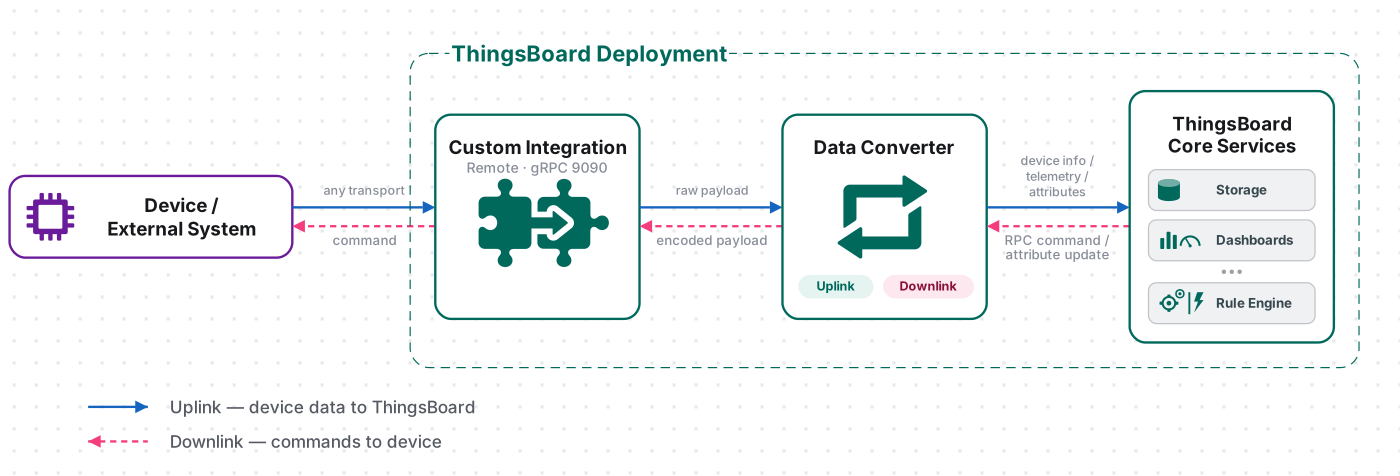
A device transmits an uplink to the custom integration over the transport you implement. The integration parses the raw payload and hands it to the uplink converter, which decodes it into telemetry and attributes; the ThingsBoard Core Services store the data, creating the device automatically on first contact. For downlink, the Rule Engine hands a message to the integration; the downlink converter encodes it, and the integration delivers it to the device. The integration process runs remotely and streams data to ThingsBoard over gRPC.
Prerequisites
Section titled “Prerequisites”Before creating the integration, ensure:
- You have access to ThingsBoard or ThingsBoard Cloud with integration functionality enabled for your tenant.
- You have permissions to create integrations and data converters in ThingsBoard.
- Java 17 and Maven are installed on the machine where you will build the Custom Integration application. The current reference project targets Java 17 (
maven.compiler.source/target); verify your JDK withjava -version, and if you build a branch that matches an older ThingsBoard deployment, use the Java version that branch requires. - The machine running the remote integration can reach the ThingsBoard gRPC endpoint. The standard configuration uses port
9090. - Any ports required by your custom device-facing protocol are open on the remote integration host.
Set Up the Custom Integration
Section titled “Set Up the Custom Integration”To set up the Custom integration, first create an uplink data converter to process incoming messages, then create and configure the integration.
Create the Uplink Data Converter
Section titled “Create the Uplink Data Converter”The uplink converter parses the raw payload the integration receives from the device and maps it to the ThingsBoard data model — it resolves the target device and extracts fields into telemetry and attributes. For the full decoder function reference, see Uplink data converter.
A device message delivered to the integration looks like this:
SN-12345,thermostat,25,40,94The first value is the device serial number and maps to the device name. The second value is the device type. The remaining values are the sensor readings — temperature, humidity, and battery level, respectively.
- Go to Integrations ⇾ Data converters.
- Click + Add data converter ⇾ Create new converter.
In the Add data converter dialog:
- Converter type — leave Uplink selected.
- Integration type — select Custom.
- Name — enter a converter name, for example
Custom Uplink Converter. - Main decoding configuration — paste the decoder function shown below.
- Click Add.
The decoder below decodes the raw bytes to a string, splits it on commas, resolves the device name and type, and maps the readings to telemetry. Adapt the field order and parsing to match your device protocol.
The decoder function used in this tutorial:
/** Decoder **/
// Decode the incoming payload to a string.var decodedString = decodeToString(payload);
// Split the payload into individual values.var payloadArray = decodedString.split(',');
// Build the message that will be sent to ThingsBoard.var result = {  // Extract device information from the payload.  deviceName: payloadArray[0],  deviceType: payloadArray[1],
  // Map device measurements to ThingsBoard telemetry.  telemetry: {    temperature: toInt(payloadArray[2]),    humidity: toInt(payloadArray[3]),    batteryLevel: toInt(payloadArray[4])  },
  // No attributes are provided in this payload.  attributes: {}};
// Return the converted uplink message.return result;/** Decoder **/
// Decode the incoming payload to a string.var decodedString = decodeToString(payload);
// Split the payload into individual values.var payloadArray = decodedString.trim().split(',');
// Build the message that will be sent to ThingsBoard.var result = { // Extract device information from the payload. deviceName: payloadArray[0], deviceType: payloadArray[1],
// Map device measurements to ThingsBoard telemetry. telemetry: { temperature: Number(payloadArray[2]), humidity: Number(payloadArray[3]), batteryLevel: Number(payloadArray[4]) },
// No attributes are provided in this payload. attributes: {}};
/** Helper functions **/
function decodeToString(payload) { return String.fromCharCode.apply(String, payload);}
// Return the converted uplink message.return result;The converter returns:
{ "deviceName": "SN-12345", "deviceType": "thermostat", "telemetry": { "temperature": 25, "humidity": 40, "batteryLevel": 94 }, "attributes": {}}Converter Input
ThingsBoard passes two variables to the decoder:
| Variable | Type | Description |
|---|---|---|
payload |
byte array | The raw bytes the integration received from the device over the transport — here, the ASCII comma-separated string. Use decodeToString(payload) to read it as text, or decodeToJson(payload) if your device sends JSON. |
metadata |
object | Key-value map with integration-level context, such as ts and integrationName, plus any Metadata entries defined on the integration. |
This metadata object — available to the decoder script as metadata.xxx — is separate from the Metadata column shown on the integration and converter Events tabs (see Verify Converter Events), which displays integration-level context rather than per-message fields.
Adapt the Decoder to Your Device
- Device name — change
payloadArray[0]to whichever field of your payload identifies the device. - Payload encoding — update the parsing to match your device’s format. Use
decodeToJson(payload)for JSON payloads, orsubstring/bit-mask arithmetic for a binary hex string. - Telemetry — add or remove keys under
telemetry(for example,pressure: toInt(payloadArray[5])). - Attributes — populate the
attributesobject to store device metadata (firmware version, configuration flags, and so on) rather than time-series values. - Add or remove fields — add more array entries (or parsing calls) for additional sensors; remove entries your device does not transmit.
- Override device identity from the payload — set
result.deviceName,result.deviceType,result.groupName, orresult.customerNameto derive device identity from payload content.
Create the Custom Integration
Section titled “Create the Custom Integration”- Go to Integrations ⇾ Integrations and click + Add integration.
- Basic settings:
- Set Integration type to Custom.
- Enter a Name for the integration, for example
Custom TCP Integration. - Leave Enable integration enabled.
- Leave Allow create devices or assets enabled if ThingsBoard should create a device automatically when the first message from an unknown device arrives.
- Click Next.
- Uplink data converter:
- Click Select existing and choose the Custom Uplink Converter created above.
- Alternatively, click Create new to define the decoder directly in the integration wizard.
- Click Next.
- Downlink data converter:
- Click Skip for now if the integration only receives data.
- If ThingsBoard must send commands to the external device or system, configure a downlink converter as described in Configure Downlink.
- Connection:
- Set Integration class to
org.thingsboard.integration.custom.basic.CustomIntegration. - Enter the Integration JSON configuration shown below.
- Copy the generated Integration key and Integration secret. You will use these credentials to configure the remote application.
- Set Integration class to
- Click Add to complete the ThingsBoard-side configuration.
Use the following Integration JSON configuration for the official example:
{ "port": 5555, "msgGenerationIntervalMs": 5000}Connection Settings
Section titled “Connection Settings”Integration Class
The fully qualified Java class that implements the custom integration.
For the official example:
org.thingsboard.integration.custom.basic.CustomIntegrationThe class extends AbstractIntegration from the ThingsBoard Remote Integration API.
When developing your own implementation, replace this value with the fully qualified class name of your integration.
For example:
com.example.integration.MyCustomIntegrationIntegration JSON Configuration
JSON configuration passed from ThingsBoard to the Custom Integration implementation during initialization.
The sample uses:
{ "port": 5555, "msgGenerationIntervalMs": 5000}| Parameter | Description |
|---|---|
port |
TCP port on which the sample Custom Integration starts its server |
msgGenerationIntervalMs |
Interval, in milliseconds, at which the built-in client emulator generates test sensor readings |
The JSON schema is defined by your implementation. A production integration can expose any protocol-specific parameters it requires.
For example:
{ "bindAddress": "0.0.0.0", "port": 7001, "readTimeoutMs": 30000, "maxConnections": 1000, "protocolVersion": 2}Execute Remotely
Custom Integration always executes remotely. The option is enabled automatically and cannot be disabled.
The standalone process establishes an outbound gRPC connection to ThingsBoard and can run:
- on the same machine as ThingsBoard;
- on another server;
- inside the device LAN;
- at an edge site close to the data source.
For more information, see Remote Integration.
Integration Key and Integration Secret
ThingsBoard generates an Integration key and Integration secret for the remote process.
The remote application uses these values to identify and authenticate the integration when connecting to ThingsBoard.
Advanced Settings
| Parameter | Description |
|---|---|
| Description | Optional description of the integration |
| Metadata | Optional key-value pairs available during message conversion |
Use integration metadata for configuration values that should be available to converters but do not belong to the device payload itself.
Build and Run the Integration Application
Section titled “Build and Run the Integration Application”The ThingsBoard-side configuration defines the integration and converters, while the custom transport runs in a standalone Java application. The official reference project is available at github.com/thingsboard/remote-integration-example. It uses Netty for its sample TCP transport and gRPC for communication with ThingsBoard.
Clone the project:
git clone https://github.com/thingsboard/remote-integration-example.gitcd remote-integration-exampleUpdate the Sample Client
Section titled “Update the Sample Client”Open the client emulator:
nano src/main/java/org/thingsboard/integration/custom/client/CustomClient.java1. Simplify the handshake message. Inside the init() method, at the end where the client connects to the server, the emulator sends a handshake that embeds the device name in square brackets. Locate this line:
// Find (in init(), right after bootstrap.connect(...).sync().channel()):clientChannel.writeAndFlush("Hello to ThingsBoard! My name is [Device B]");Change it so the handshake only opens the session — the device name no longer travels in the handshake:
// Change to:clientChannel.writeAndFlush("Hello to ThingsBoard!");2. Put the device identity into every payload. Near the bottom of the class, the generateData() method builds the message the emulator sends on each cycle. Update generateData() so the generated payload includes the device name and type before the sensor readings:
// Change to:private String generateData() {    int temperature = generateValue(10, 40);    int humidity = generateValue(0, 100);    int batteryLevel = generateValue(0, 100);
    return "SN-12345,thermostat,"            + temperature + ","            + humidity + ","            + batteryLevel;}
The generated messages now carry the device identity in every message, with telemetry values changing on each cycle:
SN-12345,thermostat,25,40,94SN-12345,thermostat,19,54,87SN-12345,thermostat,31,48,82Update the Integration Implementation
Section titled “Update the Integration Implementation”Open the integration class:
nano src/main/java/org/thingsboard/integration/custom/basic/CustomIntegration.javaThe upstream sample extracts deviceName from the handshake and later overrides the device name returned by the uplink converter. In this tutorial the converter resolves both deviceName and deviceType from the payload, so three edits are needed.
1. Add the StandardCharsets import. At the top of the file, in the import block (near the other java.util imports), add:
import java.nio.charset.StandardCharsets;2. Stop reading the device name from the handshake. Inside the init() method there is an anonymous Netty handler; find its channelRead0(...) method. In the if (msg.startsWith("Hello to ThingsBoard!")) branch, the first line parses the device name out of the brackets:
// Find (inside channelRead0, the handshake branch):if (msg.startsWith("Hello to ThingsBoard!")) { deviceName = msg.substring(msg.indexOf("[") + 1, msg.indexOf("]")); ctx.writeAndFlush("Hello from ThingsBoard!"); initialized = true;} else {Delete the deviceName = ... line so the handshake only initializes the session (leave the else branch untouched):
// Change to:if (msg.startsWith("Hello to ThingsBoard!")) { ctx.writeAndFlush("Hello from ThingsBoard!"); initialized = true;} else {3. Pass the raw payload and drop the device-name override. Find the doProcess(String msg) method:
// Find (the whole doProcess method):private String doProcess(String msg) throws Exception { byte[] data = mapper.writeValueAsBytes(msg); Map<String, String> metadataMap = new HashMap<>(metadataTemplate.getKvMap()); List<UplinkData> uplinkDataList = convertToUplinkDataList(context, data, new UplinkMetaData(getUplinkContentType(), metadataMap)); if (uplinkDataList != null && !uplinkDataList.isEmpty()) { for (UplinkData uplinkData : uplinkDataList) { UplinkData uplinkDataResult = UplinkData.builder() .deviceName(deviceName) .deviceType(uplinkData.getDeviceType()) .telemetry(uplinkData.getTelemetry()) .attributesUpdate(uplinkData.getAttributesUpdate()) .customerName(uplinkData.getCustomerName()) .build(); processUplinkData(context, uplinkDataResult); } return "OK"; } return "No Content";}Make two changes inside it — swap the first line to send raw UTF-8 bytes, and submit the converter’s UplinkData directly instead of rebuilding it with the handshake deviceName:
// Change to:private String doProcess(String msg) throws Exception { byte[] data = msg.getBytes(StandardCharsets.UTF_8); Map<String, String> metadataMap = new HashMap<>(metadataTemplate.getKvMap()); List<UplinkData> uplinkDataList = convertToUplinkDataList(context, data, new UplinkMetaData(getUplinkContentType(), metadataMap)); if (uplinkDataList != null && !uplinkDataList.isEmpty()) { for (UplinkData uplinkData : uplinkDataList) { processUplinkData(context, uplinkData); } return "OK"; } return "No Content";}The resulting processing flow is:
TCP ──► CustomIntegration ──► Uplink Converter ──► UplinkData ──► ThingsBoard (raw UTF-8 bytes) deviceName = SN-12345 deviceType = thermostat temperature = 25, humidity = 40, batteryLevel = 94Project Dependencies
Section titled “Project Dependencies”The project uses the ThingsBoard Remote Integration API, plus Netty for the sample TCP transport and gRPC for the connection to ThingsBoard:
<!-- API ThingsBoard provides to create a custom integration --><dependency>    <groupId>org.thingsboard.common.integration</groupId>    <artifactId>remote-integration-api</artifactId>    <version>${thingsboard.version}</version></dependency>
<!-- Netty for the sample TCP client-server implementation --><dependency>    <groupId>io.netty</groupId>    <artifactId>netty-all</artifactId>    <version>${netty.version}</version></dependency>
<!-- gRPC transport between the remote integration and ThingsBoard --><dependency>    <groupId>io.grpc</groupId>    <artifactId>grpc-netty</artifactId>    <version>${grpc.version}</version></dependency>
Adapt to Your Own Protocol
Section titled “Adapt to Your Own Protocol”Your own implementation can replace the TCP-specific transport with whatever library your protocol requires. The integration class extends AbstractIntegration and implements three lifecycle methods:
public class MyCustomIntegration        extends AbstractIntegration<MyIntegrationMessage> {
    @Override    public void init(TbIntegrationInitParams params) throws Exception {        super.init(params);        // Read the Integration JSON configuration.        // Initialize the protocol client or server, open ports/connections.    }
    @Override    public void process(MyIntegrationMessage message) {        // Validate the incoming protocol message.        // Prepare the raw payload and metadata, apply the uplink converter,        // and submit the converted UplinkData to ThingsBoard.    }
    @Override    public void destroy() {        // Close connections, stop workers, release network and thread resources.    }}
Keep protocol parsing and connection management in the Java integration, and keep ThingsBoard field mapping in the data converter. Typical transport choices:
| Protocol or interface | Typical implementation |
|---|---|
| TCP | Netty or Java NIO |
| UDP | Netty or Java NIO |
| WebSocket | WebSocket client/server library |
| Serial | Serial communication library |
| Proprietary binary protocol | Custom frame decoder and encoder |
| Vendor API | Vendor-provided SDK |
| Custom backend | HTTP, gRPC, or vendor SDK |
Configure the Remote Process
Section titled “Configure the Remote Process”Configure the standalone application with the Integration key and Integration secret copied from ThingsBoard, plus the address of your ThingsBoard instance.
The cloned reference project uses tb-remote-integration.yml, a configuration file located at:
nano ~/remote-integration-example/src/main/resources/tb-remote-integration.ymlOpen the file and find the integration, rpc, and service blocks. Each value uses the Spring placeholder syntax "${ENV_VAR:default}" — the part before the colon is the environment variable name, the part after the colon is the default used when that variable is not set:
integration:  routingKey: "${INTEGRATION_ROUTING_KEY:PUT_YOUR_ROUTING_KEY_HERE}"  secret: "${INTEGRATION_SECRET:PUT_YOUR_SECRET_HERE}"
rpc:  host: "${RPC_HOST:thingsboard.cloud}"  port: "${RPC_PORT:9090}"  timeout: "${RPC_TIMEOUT:5}"
service:  type: "${TB_SERVICE_TYPE:tb-integration}"
You have two ways to set the values — pick one:
Option A — edit the defaults in the file. Replace the text after each colon:
PUT_YOUR_ROUTING_KEY_HERE→ your Integration key;PUT_YOUR_SECRET_HERE→ your Integration secret;thingsboard.cloud→ the hostname of your ThingsBoard instance (keepthingsboard.cloudif you use ThingsBoard Cloud).
Option B — leave the file unchanged and pass the values as environment variables. Export them in the same terminal session you launch from, right before the run command in Build and Run the Application — Spring reads them at startup and substitutes them into ${RPC_HOST:…} and the others. No rebuild is needed: the JAR keeps the placeholders and the values are resolved at runtime.
export INTEGRATION_ROUTING_KEY="<integration-key>"export INTEGRATION_SECRET="<integration-secret>"export RPC_HOST="<thingsboard-host>" # e.g. thingsboard.cloudexport RPC_PORT="9090"Build and Run the Application
Section titled “Build and Run the Application”With the code changes and the configuration in place, build the project — this produces a JAR that already contains both your edits and the connection settings:
mvn clean installThe build produces two JARs in the target/ directory. The executable one carries a tb- prefix and a -boot suffix — for the current reference project (version 3.0.0) that is target/tb-remote-integration-example-3.0.0-boot.jar (~87 MB). The plain tb-remote-integration-example-3.0.0.jar (a few KB) is the “thin” JAR without bundled dependencies and will not run on its own.
Start it in one of two ways:
From the project root, run the -boot.jar:
java -jar target/tb-remote-integration-example-3.0.0-boot.jarDon’t guess the filename — list the artifacts and pick the executable one (the largest, ending in -boot.jar):
ls -l target/*.jarAdjust the version if your branch differs (check <version> in pom.xml). If you chose Option B (environment variables) in the previous step, export them in the same shell before this command.
To keep it running after you close the terminal, start it as a background process (nohup java -jar target/tb-remote-integration-example-3.0.0-boot.jar &) or install it as a system service.
This launches the app in place using the config in src/main/resources, which is handy while iterating:
mvn spring-boot:runIf you chose Option B (environment variables) in the previous step, export them in the same shell before this command.
On startup you should see INFO log messages reporting that the process connected to ThingsBoard and received the latest integration configuration. The application keeps running in the foreground — press Ctrl+C to stop it.
How the Integration Works
Section titled “How the Integration Works”After the modified sample application starts:
- The remote process connects to ThingsBoard over gRPC using the Integration key and Integration secret.
- ThingsBoard provides the Custom integration configuration to the remote process.
CustomIntegration.init(...)reads the Integration JSON configuration.- The application starts a TCP server on the configured
port(5555). - The built-in client emulator connects and sends
Hello to ThingsBoard!. - The server replies with
Hello from ThingsBoard!and marks the session as initialized. - The emulator generates a payload every
msgGenerationIntervalMsmilliseconds — each one includes the device identity and sensor values, for exampleSN-12345,thermostat,25,40,94. - The integration passes the raw UTF-8 payload to the configured uplink converter.
- The converter extracts
deviceName(SN-12345),deviceType(thermostat),temperature,humidity, andbatteryLevel. - The resulting
UplinkDatais submitted to ThingsBoard. - If the device does not exist and Allow create devices or assets is enabled, ThingsBoard creates it automatically.
Built-in client emulator | Hello to ThingsBoard! vCustom Integration ── Hello from ThingsBoard! ──► session initialized | SN-12345,thermostat,25,40,94 vUplink Converter +-- deviceName: SN-12345 +-- deviceType: thermostat +-- telemetry: temperature 25, humidity 40, batteryLevel 94 | v gRPC ThingsBoardTest Uplink
Section titled “Test Uplink”After the integration and converter are configured and the remote application is running, confirm that ThingsBoard receives, decodes, and stores the data correctly.
Send Test Uplink
Section titled “Send Test Uplink”As soon as the remote process starts, its built-in client emulator opens a TCP connection, completes the Hello to ThingsBoard! handshake, and then sends an uplink every msgGenerationIntervalMs milliseconds (5 seconds by default). Each message carries the device identity followed by freshly generated readings, for example:
SN-12345,thermostat,40,24,93Within a few seconds ThingsBoard provisions the device SN-12345 and telemetry begins to flow — see Verify Device Provisioning. Because the emulator generates the readings randomly, the values change on every cycle.
Verify Integration Events
Section titled “Verify Integration Events”Go to Integrations ⇾ Integrations, open the Custom integration, and click the Events tab. With Event type set to Debug, a row appears with Type: Uplink and Status: OK. Click … in the Message column to inspect the raw payload received by the integration.
Verify Converter Events
Section titled “Verify Converter Events”Go to Integrations ⇾ Data converters, open the uplink converter you configured for this integration, and click its Events tab. Click … in each column to inspect:
- In — the raw payload received by the converter.
- Out — the decoded result produced by the script:
deviceName,deviceType, andtelemetry(temperature,humidity,batteryLevel). - Metadata — integration-level context, including
integrationName.
Verify Device Provisioning
Section titled “Verify Device Provisioning”Go to Devices & assets ⇾ Devices. ThingsBoard automatically provisions a new device named after the payload serial number (SN-12345) on the first uplink, provided Allow create devices or assets is enabled. Open the device and check:
- Latest telemetry —
temperature,humidity, andbatteryLeveldecoded by the script.
Expected result: the device appears in Devices & assets ⇾ Devices within seconds of the uplink, with telemetry refresh on every emulator cycle (or matching the values in your payload).
Configure Downlink
Section titled “Configure Downlink”To send messages from ThingsBoard back to a device, create a downlink converter, assign it to the integration, and add an Integration Downlink node to the Root Rule Chain. For the full encoder reference, see Downlink data converter.
Create and Assign the Downlink Converter
Section titled “Create and Assign the Downlink Converter”Data converters translate between ThingsBoard’s data model and your device’s message format. The uplink converter (configured above) decodes incoming device payloads into telemetry and attributes; the downlink converter does the reverse — it encodes an outgoing Rule Engine message into the payload your integration expects.
- Go to Integrations ⇾ Integrations and open the Custom integration.
- Click the pencil icon to enter edit mode.
- In the Downlink data converter field, click Create new.
- In the Add data converter dialog:
- Enter a name for the converter, for example,
Custom Downlink Converter. - Use the default encoder script or replace it with your own implementation.
- Click Add.
- Enter a name for the converter, for example,
- Click Apply changes to save the integration.
The encoder function receives four parameters:
| Parameter | Description |
|---|---|
msg |
the Rule Engine message payload; for an RPC this holds method and params |
msgType |
Message type, e.g. ATTRIBUTES_UPDATED, POST_TELEMETRY_REQUEST; here RPC_CALL_FROM_SERVER_TO_DEVICE |
metadata |
Key-value pairs with additional data about the message, including deviceName |
integrationMetadata |
key-value pairs configured on the integration |
When an RPC widget or the REST API issues a command, ThingsBoard generates a RPC_CALL_FROM_SERVER_TO_DEVICE message whose data carries the RPC method and params. The encoder below builds the device command from them. The same script runs in both TBEL and JavaScript.
The encoder function used in this tutorial:
/** Encoder **/// Encode the server-side RPC command into the payload your device expects.// msg.method / msg.params carry the RPC command issued from ThingsBoard.// msgType is 'RPC_CALL_FROM_SERVER_TO_DEVICE'.// metadata includes deviceName, requestId, expirationTime, oneway.
var result = {    // Response body format: JSON, TEXT, or BINARY.    contentType: "JSON",    // Build the device command from the RPC method and params.    data: JSON.stringify({        method: msg.method,        params: msg.params    }),    // Optional routing hints for the integration.    metadata: {}};
// Return the encoded downlink message.return result;To adapt this encoder to your use case:
data— shape the payload exactly as your device expects. Readmsg.methodandmsg.paramsand build a string, hex, or object; useTEXTorBINARYcontentTypefor non-JSON protocols.metadata— populate it with routing hints your integration needs to deliver the command (target device ID, address, or topic). Values reach your Java code as message metadata;metadata.deviceNameidentifies the originating device.msgType— branch on the type if the same converter must also handle other triggers.integrationMetadata— read values defined under the integration’s Metadata advanced setting when the command must be parameterized per integration.
Configure the Root Rule Chain
Section titled “Configure the Root Rule Chain”To trigger a downlink, route the RPC message to an Integration Downlink node (Action category) of the Root Rule Chain. The node forwards the message to the Custom integration, where the downlink converter encodes it.
- Open Data processing ⇾ Rule Chains ⇾ Root Rule Chain.
- In the node panel, search for integration downlink. The node appears under the Action category. Drag it onto the canvas.
- Configure the node:
- Name —
RPC to device. - Integration — select your Custom integration.
- Click Add.
- Name —
- Connect the Message Type Switch node to the RPC to device node using the RPC Request to Device relation.
- Click Apply changes.
Test Downlink
Section titled “Test Downlink”Trigger a downlink with an RPC control widget on a dashboard, or — for a quick check without a dashboard — a one-way RPC through the REST API. Either way, ThingsBoard generates a RPC_CALL_FROM_SERVER_TO_DEVICE message, routes it through RPC to device, and the converter encodes it.
Create a control widget that sends on and off via the setState RPC method:
- Open a dashboard, click Edit mode, then click + Add widget.
- In the Control widgets bundle, select Switch Control.
- On the Data tab, set Target device to Device and select the provisioned SN-12345 device.
- Open the Appearance tab.
- Set Retrieve value using method to Don’t retrieve.
- Set RPC set value method to
setState. - Paste the following into the Convert value function field, then click Add:
return value ? "on" : "off";
- Save the dashboard and exit edit mode, then toggle the control.
A one-way RPC expects no device response, so it won’t wait or time out — ideal for confirming the downlink path without a dashboard. Replace $YOUR_TB_HOST with your ThingsBoard host (e.g. thingsboard.cloud), $JWT with your bearer token, and $DEVICE_ID with the device’s ID (copy it from the device details):
curl -X POST "https://$YOUR_TB_HOST/api/plugins/rpc/oneway/$DEVICE_ID" \ -H "X-Authorization: Bearer $JWT" \ -H "Content-Type: application/json" \ -d '{"method":"setState","params":{"value":true}}'Verify the Downlink
Section titled “Verify the Downlink”A Downlink row with Status: OK on the integration’s Events tab, and the encoded {method, params} in the Out column of the Custom Downlink Converter’s Events tab (In shows the RPC message and its metadata).
Troubleshooting
Section titled “Troubleshooting”| Issue | Likely cause | Resolution |
|---|---|---|
| Remote integration won’t connect | Wrong Integration key/secret, or ThingsBoard gRPC host/port unreachable | Verify routingKey/secret in tb-remote-integration.yml match the Connection step, and that the configured rpc.host:rpc.port (or RPC_HOST:RPC_PORT, port 9090 by default) is reachable from the integration host. |
| Connection drops right after startup | Version mismatch, or the service.type property is missing on ThingsBoard 3.3.1+ |
Add service.type: tb-integration to the configuration and confirm the integration build matches your ThingsBoard version. |
| No device created after uplink | Allow create devices or assets is disabled, or the message never reached the integration | Enable device creation on the integration; confirm the device can reach the integration’s transport port and that the integration log shows the incoming message. |
| Uplink received but no telemetry | Converter error, or the payload does not match the decoder | Enable Debug mode and check the converter Events tab; verify the field order and delimiter with the Test decoder function button. |
| Telemetry values look wrong | Parsing, indexes, or scaling do not match the payload layout | Adjust the array indexes and numeric conversion in the decoder to match your payload. |
DNS errors in the log (cannot unmarshal DNS message) |
Host DNS resolver issue | Configure the host to use Google public DNS servers. |
| Downlink never delivered | No downlink converter assigned, the Integration Downlink node is not wired, or your integration’s doProcess does not deliver commands |
Assign the downlink converter, wire the Root Rule Chain nodes, and confirm your Java integration sends the encoded payload to the device. |
See Also
Section titled “See Also”- Integrations overview — integration events, debug, and Remote Integration setup.
- Uplink data converter — full decoder reference: input parameters, output fields, and scripting patterns.
- Downlink data converter — full encoder reference and testing.
- Remote Integration — run the integration as a standalone process outside the ThingsBoard server.
- Rule Engine — how uplink messages are processed after the converter.
- TBEL — the recommended converter scripting language.
- thingsboard/remote-integration-example — the sample custom integration application.
Was this helpful?