The Things Stack Community Integration
The Things Stack Community integration connects ThingsBoard to The Things Network (TTN) — the world’s largest public LoRaWAN network. Use it when your devices connect to the public TTN rather than a private The Things Industries tenant — for private TTI connectivity, see the The Things Stack Industries integration. Bring telemetry from LoRaWAN devices already registered in TTN into ThingsBoard for monitoring and rule-based automation — including sending commands back to those devices.
Architecture
Section titled “Architecture”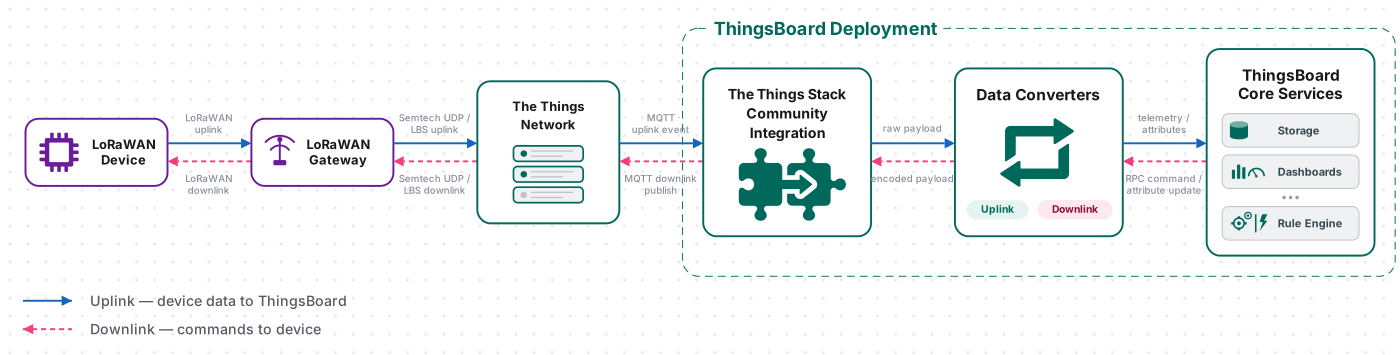
A LoRaWAN device sends an uplink to TTN, which publishes it over MQTT to ThingsBoard’s subscription on the TTN MQTT API. The uplink converter decodes the payload into telemetry and attributes, and the ThingsBoard Core Service stores the data, creating the device automatically on first contact. For downlink, the Rule Engine hands a message to the integration; the downlink converter encodes it, and ThingsBoard publishes it back to TTN over the same MQTT connection, which delivers it to the device.
Prerequisites
Section titled “Prerequisites”Before creating the integration, ensure:
- You have access to ThingsBoard or ThingsBoard Cloud with integration functionality enabled for your tenant.
- You have permissions to create integrations and data converters.
- You have a The Things Network account with at least one registered application and device.
- At least one device is registered in your TTN application and is sending uplinks. If you have not registered a device yet, follow the Register a Device step below.
Set Up The Things Stack Community
Section titled “Set Up The Things Stack Community”Register an Application
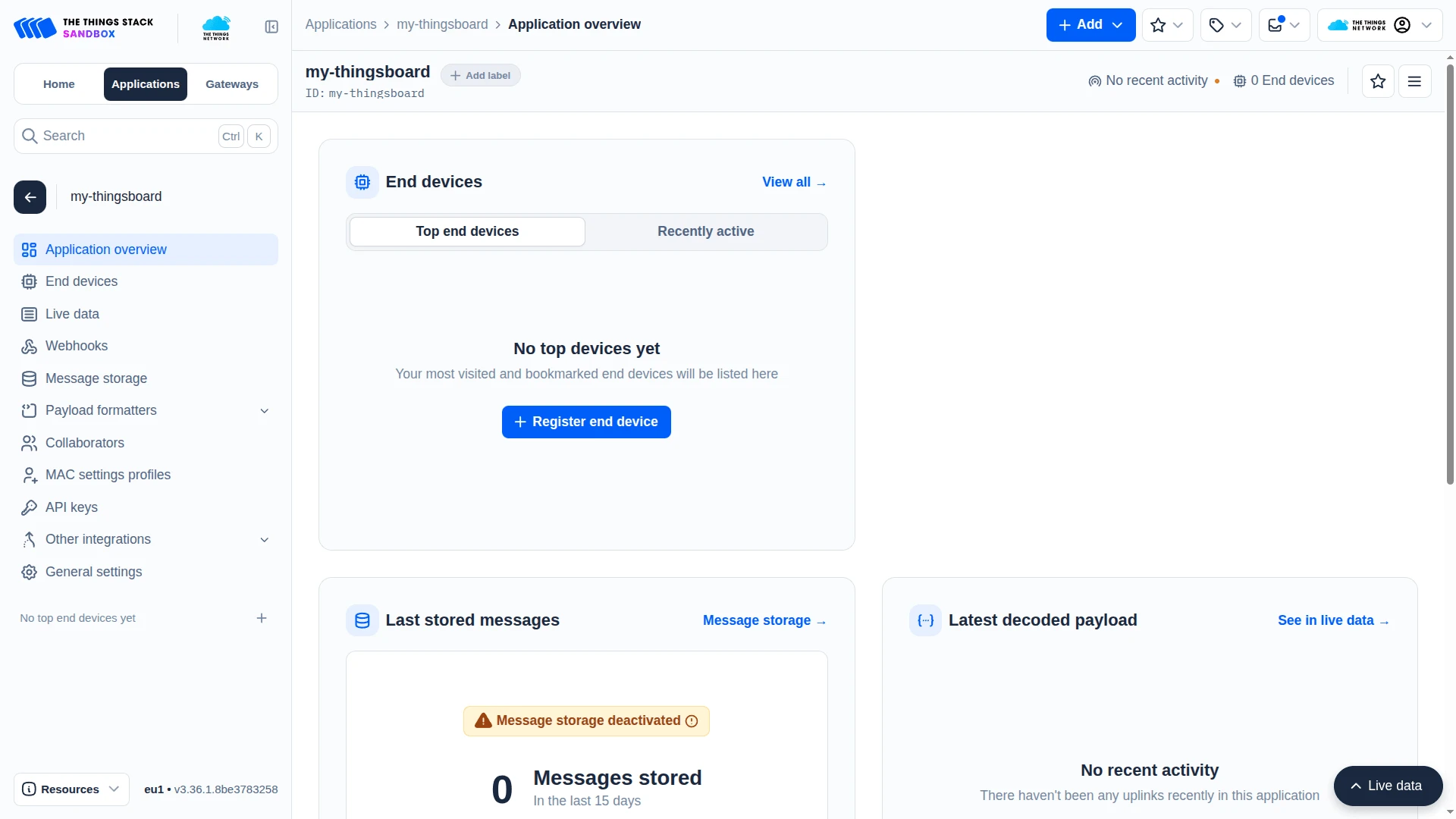
Section titled “Register an Application”- Log in to The Things Stack Console.
- Go to Applications tab, and click Add application.
- Enter Application ID — e.g.
my-thingsboard. - Click Create application.
Create an API Key
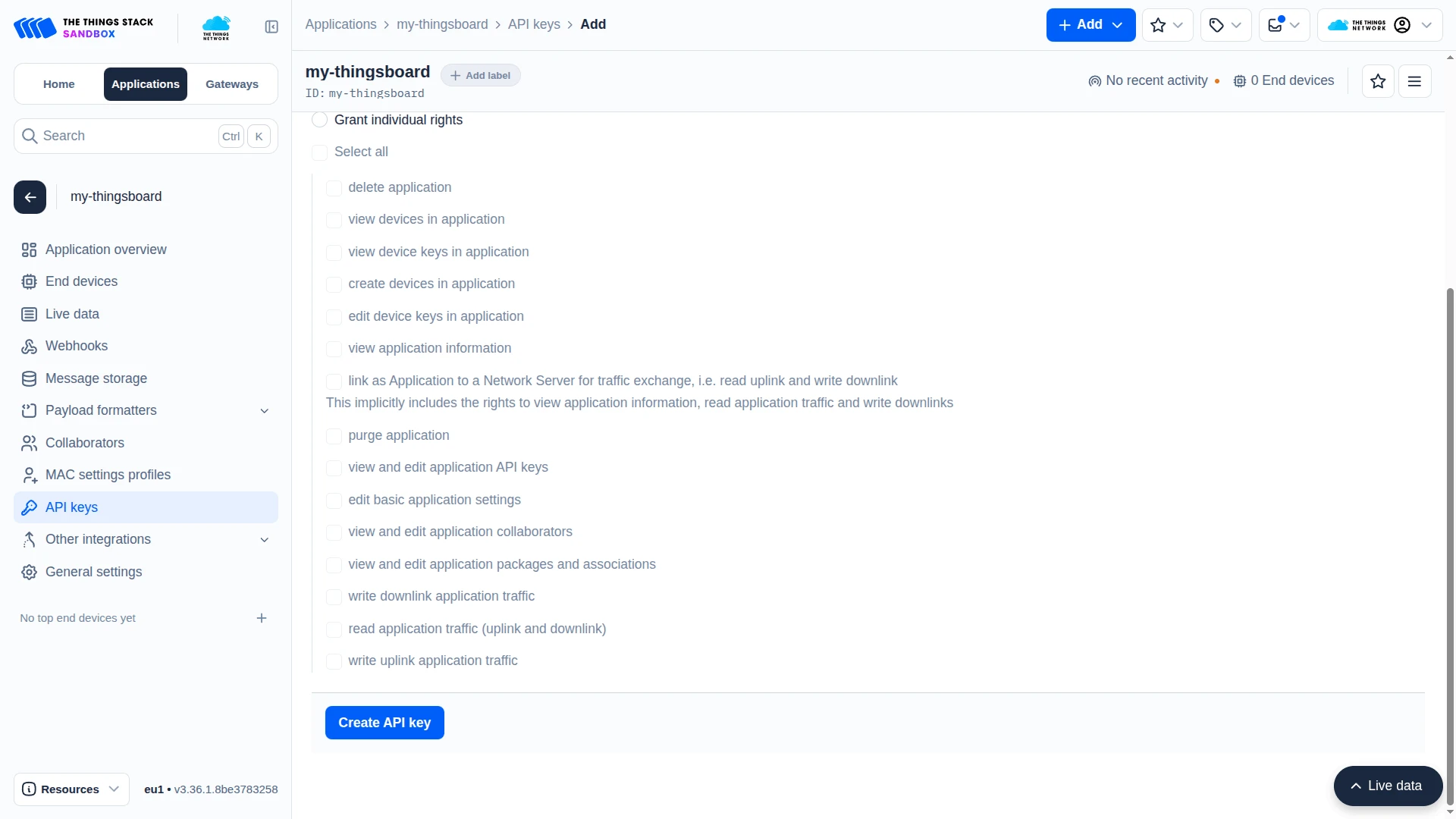
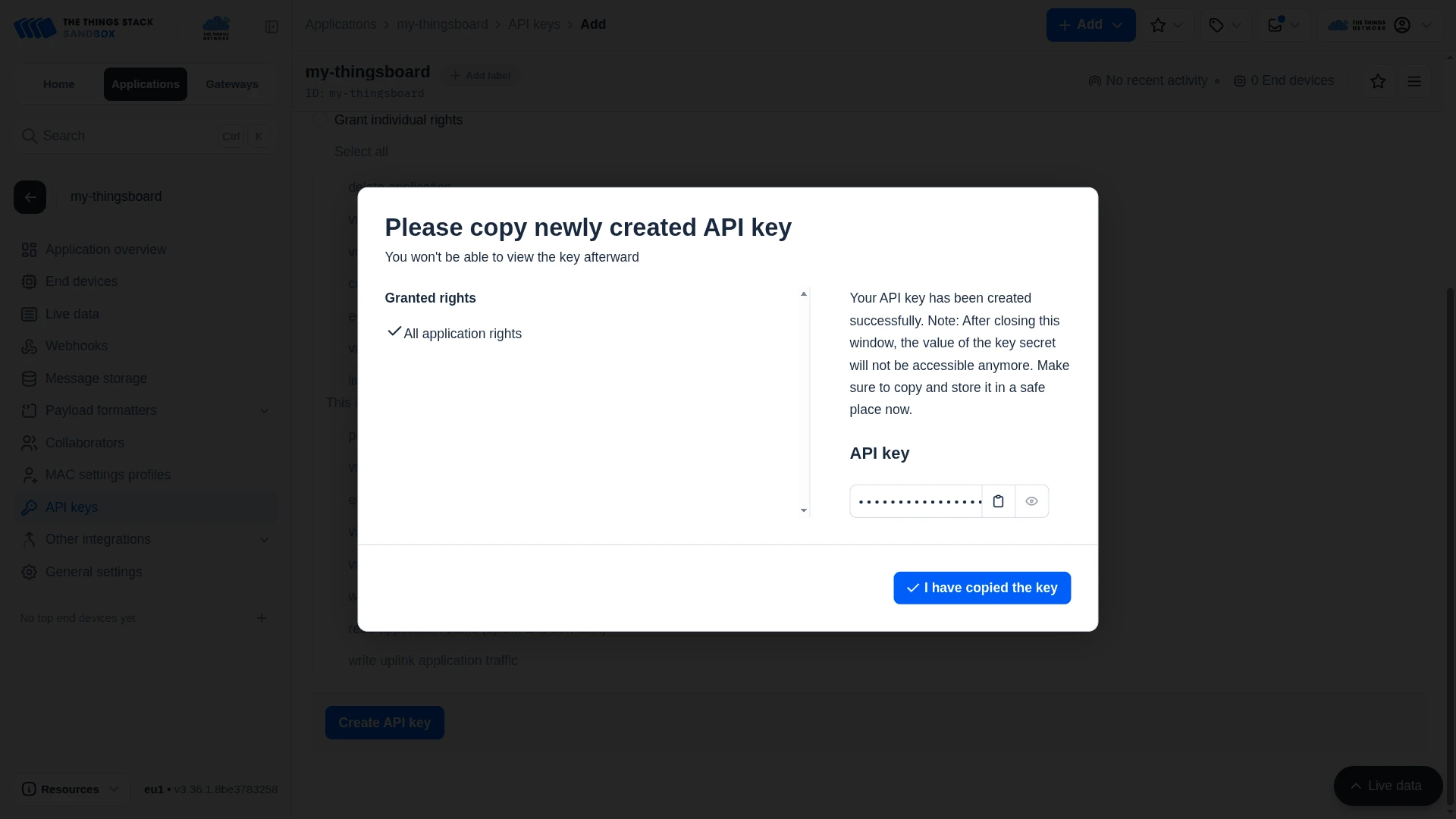
Section titled “Create an API Key”The API key authenticates ThingsBoard against the TTN MQTT broker. It is used as the password for the MQTT connection.
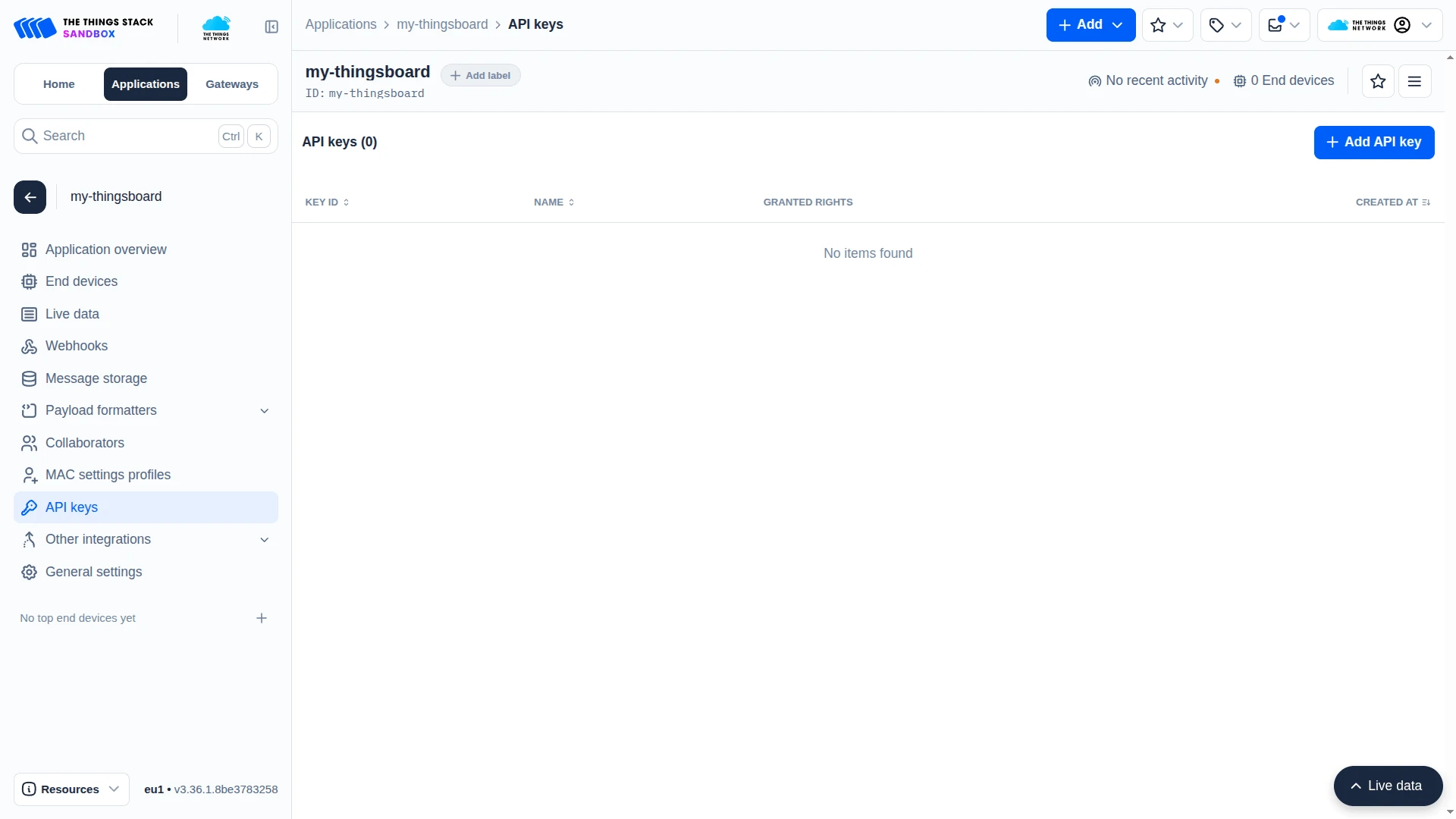
- Open your application in the TTN Console.
- In the left sidebar, go to API keys and click + Add API key.
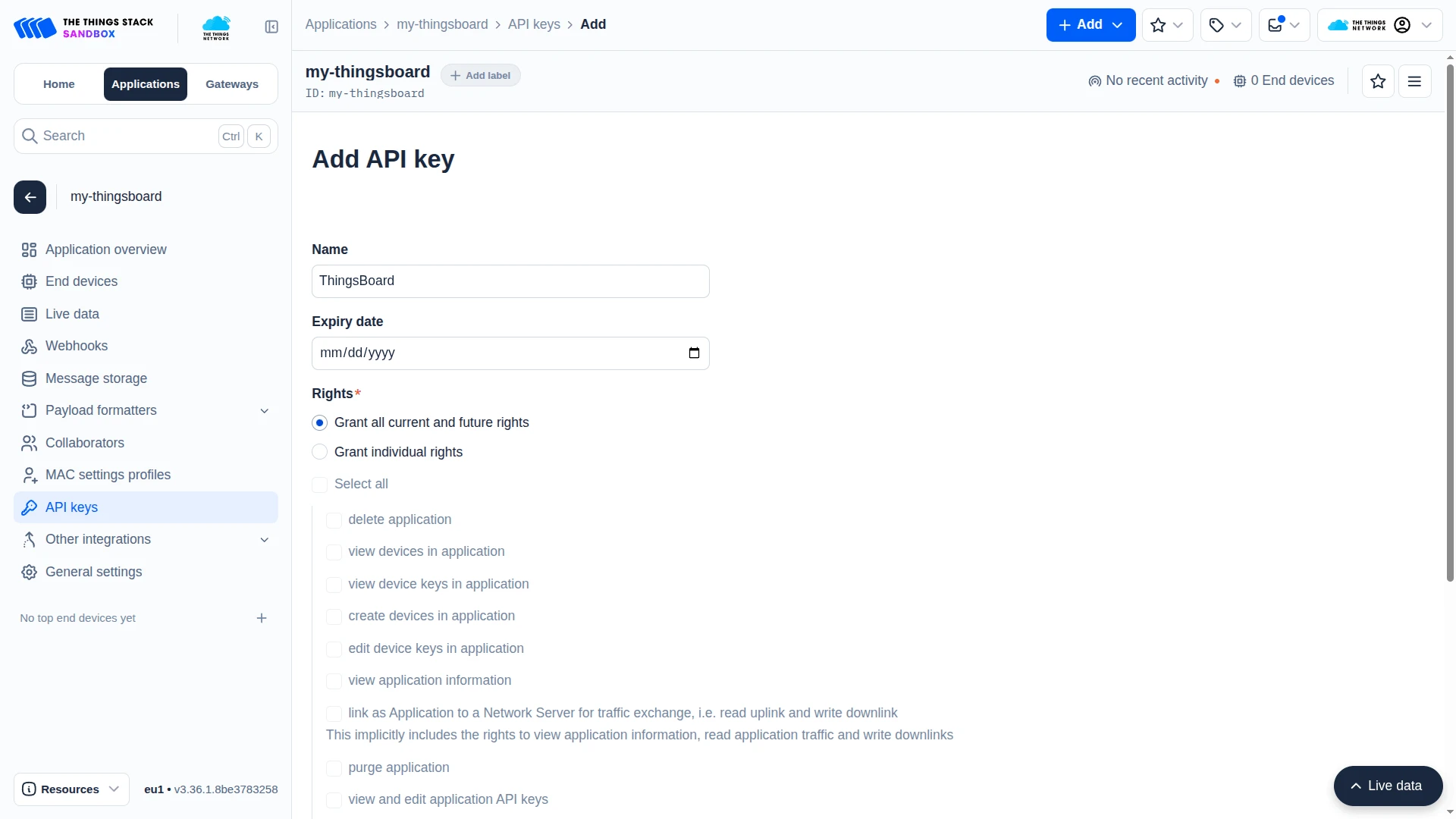
- Enter a name — e.g.
ThingsBoard. - Grant the following rights:
- Read application traffic (uplink)
- Write downlink application traffic
- Click Create API key.
Register an End Device
Section titled “Register an End Device”- In the left sidebar, go to End devices and click + Register end device.
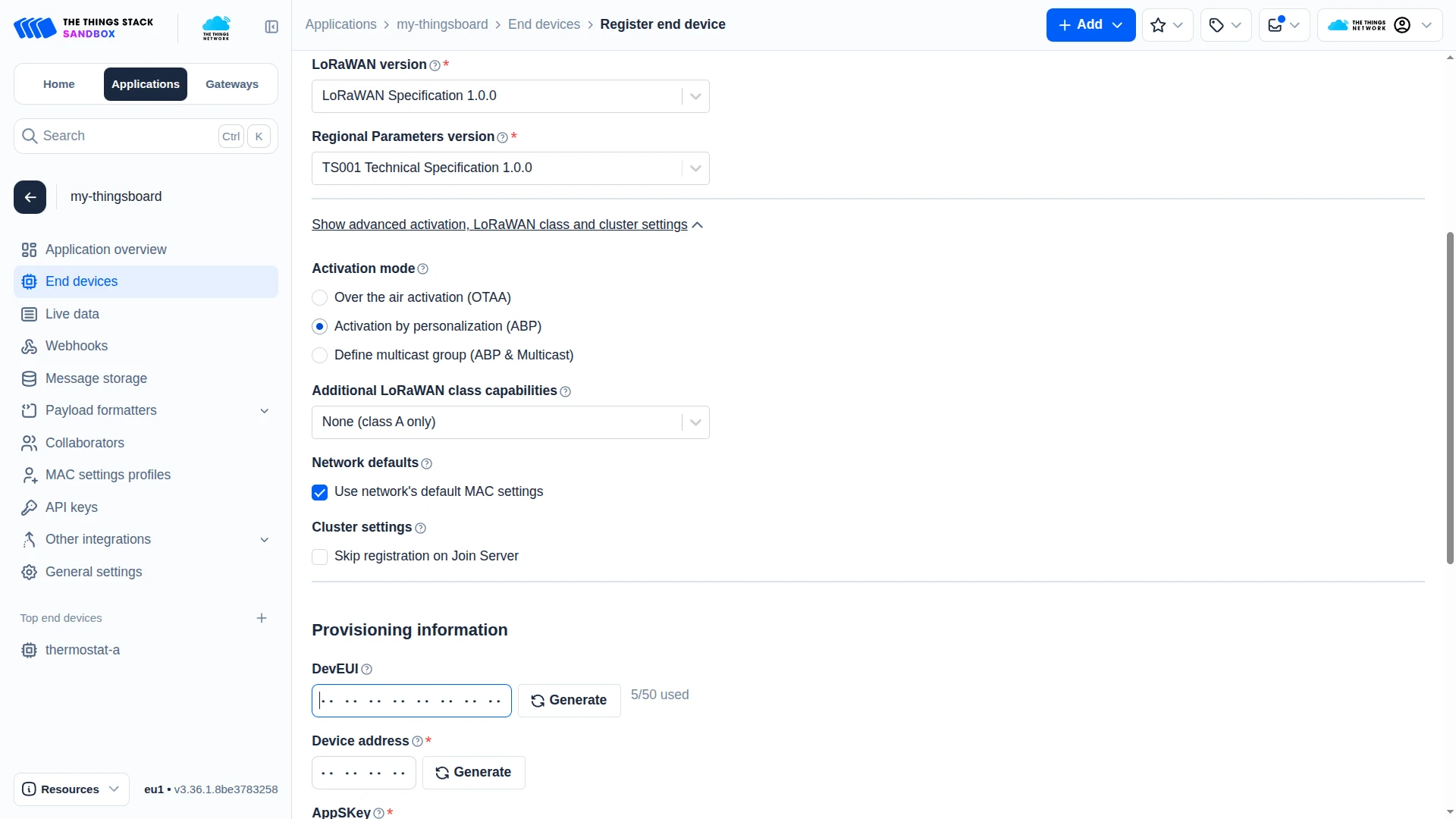
- On the Register end device page, configure the End device type:
- Under Input method, select Enter end device specifics manually.
- Frequency plan — e.g.
Europe 863-870 MHz (SF9 for RX2 - recommended). - LoRaWAN version — e.g.
LoRaWAN Specification 1.0.0. - Regional Parameters version — e.g.
TS002 Technical Specification 1.0.0.
- Click Show advanced activation, LoRaWAN class and cluster settings and set Activation mode to Activation by personalization (ABP).
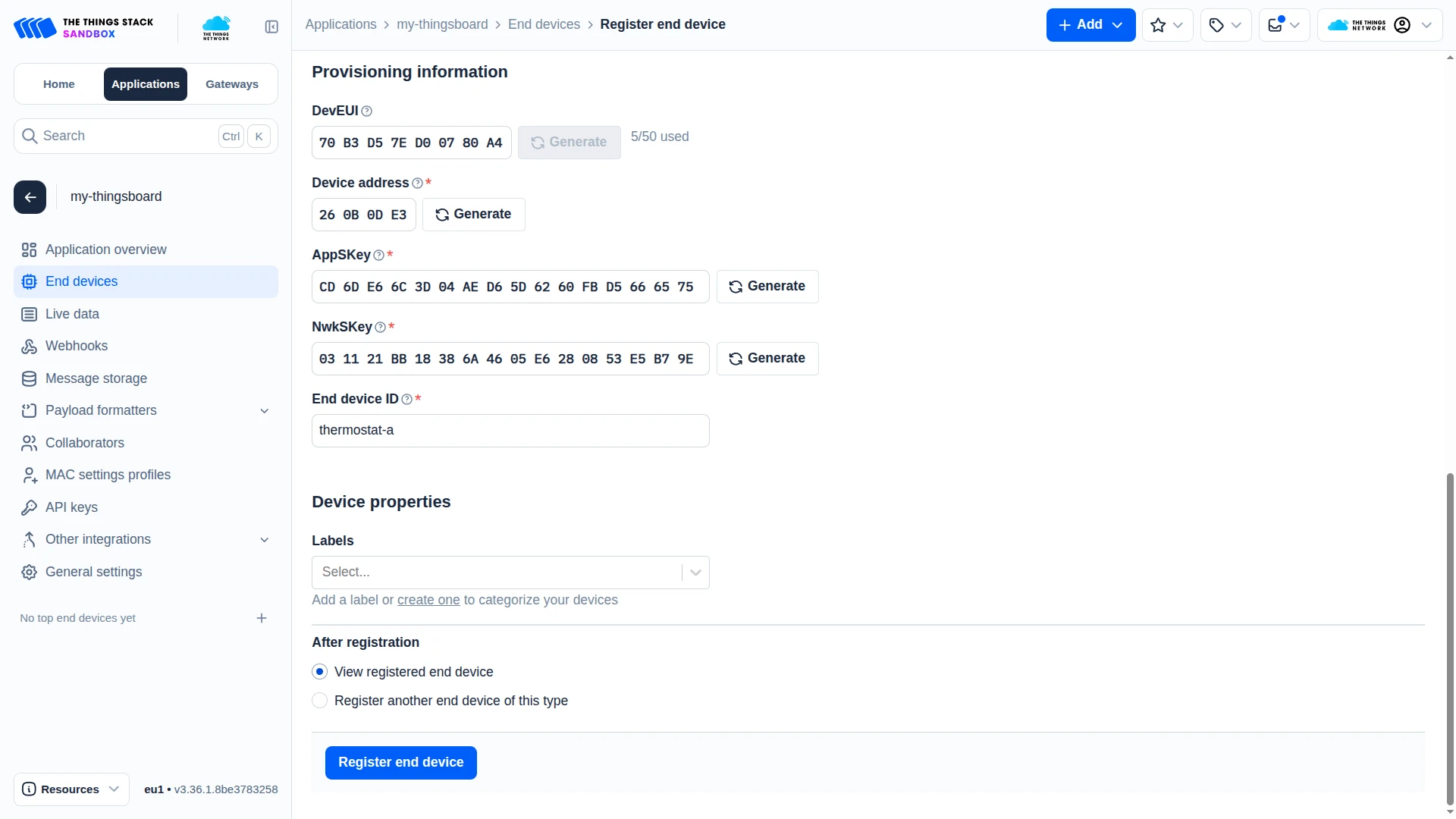
- Scroll down to Provisioning information and fill in the required fields:
- DevEUI — click Generate. This becomes the device identifier in ThingsBoard.
- Device address — click Generate.
- AppSKey — click Generate. Application session key used to encrypt the payload.
- NwkSKey — click Generate. Network session key used for MAC-layer integrity.
- End device ID — e.g.
thermostat-a. This value is used later to route downlink messages.
- Click Register end device.


Set Up the Integration in ThingsBoard
Section titled “Set Up the Integration in ThingsBoard”To set up The Things Stack integration, first create an uplink data converter to process incoming messages, then create and configure the integration.
Create the Uplink Data Converter
Section titled “Create the Uplink Data Converter”The uplink converter receives each TTN uplink message, decodes the LoRaWAN payload, and returns a structured object that ThingsBoard uses to create or update a device and store its telemetry and attributes.
If your device is in the built-in catalog, use the Library tab instead of writing a decoder — see Converters library for over 100 ready-made decoders.
For the full decoder function reference — all input parameters and output fields — see Uplink data converter.
- Go to Integrations ⇾ Data converters.
- Click + Add data converter ⇾ Create new converter.
In the Add data converter dialog:
- Converter type — leave Uplink (selected by default).
- Integration type — in the search field, enter
The Things Stack Communityand select The Things Stack Community from the list. - Name — enter a converter name, for example
TTN Uplink Converter. - Configure main decoding parameters:
- Device name - the default value
Device $euinames each ThingsBoard device using the DevEUI from the uplink message (e.g.Device 0004A30B001C4523). On the first uplink ThingsBoard creates the device; on subsequent uplinks it updates the existing one. Change this pattern if you want a different naming scheme. - The default decoder is pre-filled. Leave it unchanged for this guide.
By default the editor opens in TBEL; use the TBEL / JS toggle (upper right) to switch languages.
/*** Decodes the incoming payload and returns a structured object containing telemetry data and attributes.** @param {byte[]} input - The raw payload received as an array of bytes.* @returns {Object} output - The structured output with decoded telemetry and attributes.*/function decodePayload(input) {// Initialize the output object with empty attributes and telemetry for clarity.var result = { attributes: {}, telemetry: {}};// Detect input type and normalize to byte arrayvar bytes;if (metadata.payloadFormat == 'JSON') {// payloadFormat is 'JSON' when The Things Network payload formatters are configured on the application or device level.// In that case, decoded_payload is a JSON object produced by your formatter.// This template assumes the formatter returns { "bytes": [...] } with the raw byte array.// If your formatter returns pre-decoded values in a different structure,// update this section to extract the values directly from 'parsed' instead.var parsed = decodeToJson(input);if (parsed.bytes == null) {throw new Error("Payload formatter output does not contain a 'bytes' field. " +"Update this decoder to match your formatter's output structure.");}bytes = parsed.bytes;} else {// payloadFormat is 'BINARY' when no payload formatter is configured — raw bytes from frm_payload are passed directly.bytes = input;}// Decode serial number (SN) from the first 4 bytes of the payload.// Press '?' icon in the top right corner to learn more about built in helper functions and capabilities.result.attributes.sn = parseBytesToInt(bytes, 0, 4);// Extract the timestamp from metadata (represented in milliseconds).var timestamp = metadata.ts; // ts is the timestamp parsed from the incoming message's time, or returns the current time if it cannot be parsed.// Combine the timestamp with decoded values and add it to the telemetry.result.telemetry = {ts: timestamp,values: {// Decode battery level from the 5th byte of the payload.battery: parseBytesToInt(bytes, 4, 1),// Decode temperature from the 6th and 7th bytes of the payload (divided by 100).temperature: parseBytesToInt(bytes, 5, 2) / 100.0,// Decode saturation from the 8th byte of the payload.saturation: parseBytesToInt(bytes, 7, 1)}};// Return the fully constructed output object.return result;// Same logic, less code:// return {// attributes: {// sn: parseBytesToInt(bytes, 0, 4)// },// telemetry: {// ts: convertDateToTimestamp(extractDateFromMetadata()),// values: {// battery: parseBytesToInt(bytes, 4, 1),// temperature: parseBytesToInt(bytes, 5, 2) / 100.0,// saturation: parseBytesToInt(bytes, 7, 1)// }// }// };}var result = decodePayload(payload);// Uncomment this code block to overwrite values set in the main configuration window. Useful if you extract device/asset/customer/group names from the payload;// result.type = 'DEVICE'; // Entity type allows you to choose type of created entity. Can be 'DEVICE' or 'ASSET'.// result.name = 'Temperature Sensor'; // Device or asset name (the value must be unique)// result.profile = 'IndustrialSensorProfile'; // Device or asset profile name.// result.customer = 'MyCustomer'; // If customer is not null - created entity will be assigned to customer with such name.// result.group = 'SensorsGroup'; // If group is not null - created entity will be added to the entity group with such name.// Return the final result object.return result;/*** Decodes the incoming payload and returns a structured object containing telemetry data and attributes.** @param {number[]} input - The raw payload received as an array of bytes.* @returns {Object} output - The structured output with decoded telemetry and attributes.*/function decodePayload(input) {// Initialize the output object with empty attributes and telemetry for clarity.var result = { attributes: {}, telemetry: {}};// Detect input type and normalize to byte array.var bytes;if (metadata.payloadFormat == 'JSON') {// payloadFormat is 'JSON' when The Things Network payload formatters are configured on the application or device level.// In that case, decoded_payload is a JSON object produced by your formatter.// This template assumes the formatter returns { "bytes": [...] } with the raw byte array.// If your formatter returns pre-decoded values in a different structure,// update this section to extract the values directly from 'parsed' instead.var parsed = decodeToJson(input);if (parsed.bytes == null) {throw new Error("Payload formatter output does not contain a 'bytes' field. " +"Update this decoder to match your formatter's output structure.");}bytes = parsed.bytes;} else {// payloadFormat is 'BINARY' when no payload formatter is configured — raw bytes from frm_payload are passed directly.bytes = input;}// Decode serial number (SN) from the first 4 bytes of the payload.// Press '?' icon in the top right corner to learn more about built in helper functions and capabilities.result.attributes.sn = parseBytesToInt(bytes, 0, 4);// Extract the timestamp from metadata (represented in milliseconds).var timestamp = metadata.ts; // ts is the timestamp parsed from the incoming message's time, or returns the current time if it cannot be parsed.// Initialize an object to store decoded key/value telemetry data.var values = {};// Decode battery level from the 5th byte of the payload.values.battery = parseBytesToInt(bytes, 4, 1);// Decode temperature from the 6th and 7th bytes of the payload (divided by 100).values.temperature = parseBytesToInt(bytes, 5, 2) / 100.0;// Decode saturation from the 8th byte of the payload.values.saturation = parseBytesToInt(bytes, 7, 1);// Combine the timestamp with values and add it to the telemetry.result.telemetry = {ts: timestamp,values: values};// Return the fully constructed output object.return result;// Same logic, less code:// return {// attributes: {// sn: parseBytesToInt(bytes, 0, 4)// },// telemetry: {// ts: convertDateToTimestamp(extractDateFromMetadata()),// values: {// battery: parseBytesToInt(bytes, 4, 1),// temperature: parseBytesToInt(bytes, 5, 2) / 100.0,// saturation: parseBytesToInt(bytes, 7, 1)// }// }// };}var result = decodePayload(payload);// Uncomment this code block to overwrite values set in the main configuration window. Useful if you extract device/asset/customer/group names from the payload;// result.type = 'DEVICE'; // Entity type allows you to choose type of created entity. Can be 'DEVICE' or 'ASSET'.// result.name = 'Temperature Sensor'; // Device or asset name (the value must be unique)// result.profile = 'IndustrialSensorProfile'; // Device or asset profile name.// result.customer = 'MyCustomer'; // If customer is not null - created entity will be assigned to customer with such name.// result.group = 'SensorsGroup'; // If group is not null - created entity will be added to the entity group with such name.// Return the final result object.return result;/*** Converts a byte array to a string and parses it as JSON.** @param {number[]} payload - The array of bytes.* @returns {Object} - The parsed JSON object.*/function decodeToJson(payload) {return JSON.parse(String.fromCharCode.apply(String, payload));}/*** Parse a slice of bytes from an array into an integer (big-endian).** @param {number[]} input - The array of bytes.* @param {number} offset - The starting index.* @param {number} length - The number of bytes to convert.* @returns {number} - The resulting integer.*/function parseBytesToInt(input, offset, length) {var result = 0;for (var i = offset; i < offset + length; i++) {result = (result << 8) | (input[i] & 0xFF);}return result;} - Device name - the default value
Review advanced decoding parameters — pre-populated for The Things Stack Community; leave defaults unless your setup differs.
These parameters control TTN network metadata — signal quality, location, and LoRa settings that ThingsBoard extracts automatically from each uplink message. The decoder script above controls device sensor data — the fields written to
result.attributesandresult.telemetry.values. You do not need to add your sensor field names to the Telemetry or Attributes lists here.The default telemetry keys extracted from TTN messages include:
fCnt,data,decoded,latitude,longitude,altitude,rssi,snr,channel.The default attribute keys include:
eui,devAddr,fPort,bandwidth,spreadingFactor,codeRate,frequency,brandId,modelId,hardwareVersion,firmwareVersion,attributes,tenantId.The Update only keys list controls which attribute values are saved to the database only when they differ from the previously stored value — useful for slowly changing attributes like
spreadingFactororfirmwareVersion.- Click Add.
The decoder handles both input formats automatically: raw bytes when no TTN payload formatter is configured, and pre-parsed JSON when one is. No changes to the decoder are needed for either case.
Converter Input
ThingsBoard passes two variables to the decoder function:
| Variable | Type | Description |
|---|---|---|
payload |
byte array | The LoRaWAN payload bytes. For BINARY format — raw bytes from frm_payload. For JSON format — bytes of the serialized decoded_payload object produced by the TTN formatter. |
metadata |
object | Key-value map populated from the TTN uplink MQTT message. |
Key metadata fields available in the decoder:
| Field | Description |
|---|---|
metadata.payloadFormat |
'BINARY' or 'JSON' — use this to branch your decoding logic |
metadata.ts |
Uplink timestamp in milliseconds, parsed from the TTN received_at field; falls back to server time if the field is absent or unparseable |
metadata.eui |
DevEUI of the sending device, e.g. 0004A30B001C4523 |
metadata.devAddr |
Device address assigned by the network |
metadata.fPort |
LoRaWAN frame port number |
metadata.spreadingFactor |
Spreading factor of the uplink transmission |
metadata.rssi |
Received signal strength indicator (dBm) |
metadata.snr |
Signal-to-noise ratio (dB) |
Binary Payload Example
The decoder assumes a fixed binary payload structure. It reads byte ranges using parseBytesToInt(input, offset, length) and produces:
| Bytes | Field | Output type | Expression | Notes |
|---|---|---|---|---|
| 0–3 | sn |
attribute | parseBytesToInt(bytes, 0, 4) |
Device serial number |
| 4 | battery |
telemetry | parseBytesToInt(bytes, 4, 1) |
Battery level |
| 5–6 | temperature |
telemetry | parseBytesToInt(bytes, 5, 2) / 100.0 |
Raw value ÷ 100 |
| 7 | saturation |
telemetry | parseBytesToInt(bytes, 7, 1) |
Saturation level |
Example payload (hex):
00BC614E5F092950Example output:
{ "attributes": { "sn": 12345678 }, "telemetry": { "ts": 1690000000000, "values": { "battery": 95, "temperature": 23.45, "saturation": 80 } }}Adapt the Converter
- Different device name — change the Device name pattern in Main decoding configuration (e.g. replace
Device $euiwith$deviceIdor a fixed string). - Different byte layout — adjust the offset and length in each
parseBytesToInt()call to match your payload structure. - Different field names — rename
battery,temperature, orsaturationto match your data model; add or remove fields as needed. - TTN payload formatter — if your TTN application or device profile has a JavaScript payload formatter configured, ThingsBoard receives the formatter’s output as a JSON object (
payloadFormat == 'JSON'). The decoder maps all formatter fields directly into telemetry. If you need only a subset of fields, replacevalues: decodedwith an explicit mapping, for example:values: { temperature: decoded.temperature, humidity: decoded.humidity }. - Additional attributes — add more keys to
result.attributes(e.g.result.attributes.firmwareVersion = decoded.fw).
Create The Things Stack Community Integration
Section titled “Create The Things Stack Community Integration”- Go to Integrations ⇾ Integrations and click + Add integration.
- Basic settings:
- Set integration type to The Things Stack Community.
- Enter a Name for the integration, or keep the default
The Things Stack Community integration. - Leave Enable integration and Allow create devices or assets on so the device is created automatically on first data.
- Click Next.
- Uplink data converter:
- Click Select existing and choose the TTN Uplink Converter created in the previous step.
- Alternatively, click Create new to define the decoder inline, or use Library to load a vendor-provided preset.
- Click Next.
- Downlink data converter:
- Click Skip — the downlink converter is only needed for sending commands to devices and can be added later.
- Connection settings:
- Host type — leave Region selected.
- Region — enter the identifier of the TTN cluster where your application is registered (e.g.
eu1). ThingsBoard constructs the broker hostname as{region}.cloud.thethings.network. - Port —
8883. - Credentials:
- Username — your TTN Application ID with
@ttnappended (e.g.my-thingsboard@ttn). - Password — the API key generated in the create an API access key step.
- Enable SSL and Use API v3 are on by default — leave them enabled.
- Optionally click Check connection — the wizard advances to a verification step showing Connected when successful.
- Click Add to complete the integration setup.
Connection Settings
Section titled “Connection Settings”Host Type
| Value | Description |
|---|---|
| Region | Connect to a standard public TTN cluster. Enter the Region identifier (e.g. eu1, nam1, au1) — ThingsBoard constructs the broker host as {region}.cloud.thethings.network. |
| Custom | Specify a fully custom broker hostname — use this for private or self-hosted The Things Stack deployments. |
Port
| Value | Description |
|---|---|
8883 |
TLS-encrypted MQTT. Required when Enable SSL is on. Default and recommended for all public TTN clusters. |
1883 |
Unencrypted MQTT. Only use this for local or private deployments where TLS is not available. |
Credentials
| Parameter | Value |
|---|---|
| Username | Your TTN Application ID followed by @ttn (e.g. my-thingsboard@ttn). The Application ID is the identifier you set when creating the application — not your TTN account username. |
| Password | The API key generated in your TTN application. |
Enable SSL
Encrypts the MQTT connection using TLS. Enabled by default and required for all connections to public TTN clusters (port 8883). Disable only when connecting to a local deployment on port 1883.
Use API v3
Controls the MQTT topic structure. Leave enabled for all current TTN deployments.
| Setting | Uplink topic filter | Description |
|---|---|---|
| Enabled (default) | v3/+/devices/+/up |
TTN Stack v3 topic format — required for all public TTN clusters |
| Disabled | +/devices/+/up |
Legacy v2 topic format — only for older self-hosted deployments |
Topic Filters
Defines which MQTT topics ThingsBoard subscribes to for uplink messages. Set automatically based on Use API v3 — leave the default unless you need to restrict the subscription to a specific application or device.
| Field | Description |
|---|---|
| Topic | MQTT topic filter. + matches a single topic level. Default: v3/+/devices/+/up (all devices across all applications accessible with the API key). |
| QoS | Quality of service level: 0 — at most once; 1 — at least once (may deliver duplicates); 2 — exactly once. |
Execute Remotely
When enabled, ThingsBoard generates an Integration key and Integration secret that let external services push messages into this integration via the ThingsBoard Integration API. Not needed for standard TTN MQTT connectivity.
Advanced Settings
| Parameter | Default | Description |
|---|---|---|
| Protocol version | MQTT 3.1.1 |
MQTT protocol version for the broker connection. Change to MQTT 5 only if required by your broker configuration. |
| Max bytes in message | 32368 |
Maximum payload size in bytes. Messages exceeding this limit are silently dropped. |
| Connection timeout (sec) | 10 |
Seconds ThingsBoard waits for a broker response before marking the connection as failed. |
| Downlink topic pattern | v3/{username}@ttn/devices/${devId}/down/push |
MQTT topic used to publish downlink messages to TTN. {username} is the MQTT username configured above; ${devId} is resolved from metadata.devId in the downlink converter output. |
Test Uplink
Section titled “Test Uplink”After the integration is created, send a test uplink and confirm that ThingsBoard received the message, decoded it correctly, and provisioned the device.
Simulate a TTN Uplink
Section titled “Simulate a TTN Uplink”Use the TTN console to simulate an uplink message and confirm that ThingsBoard receives and decodes it correctly.
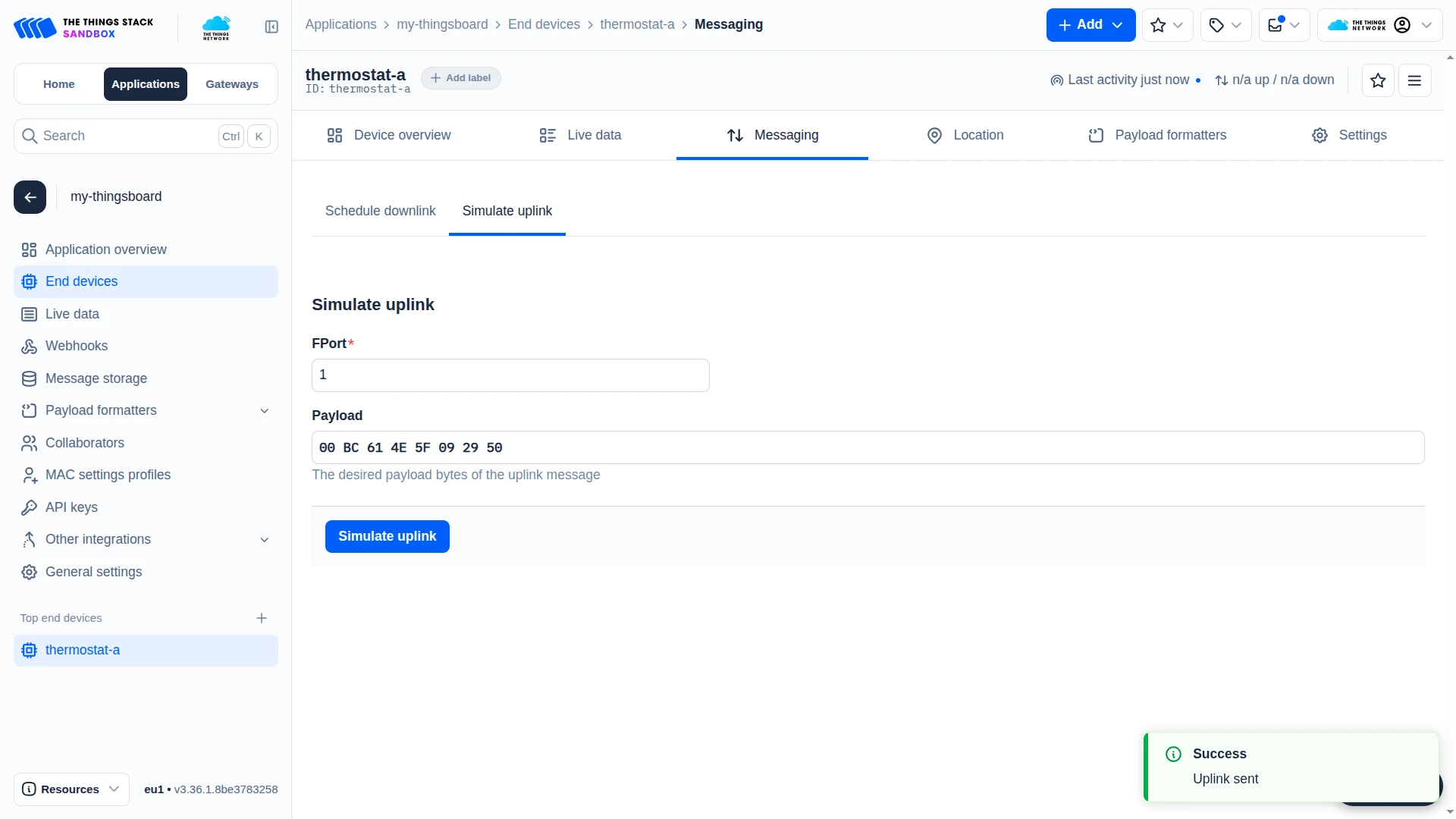
- In the TTN Console, go to End devices and open thermostat-a — or the end device you registered earlier.
- Open the Messaging tab and click Simulate uplink.
- Leave FPort at its default value (
1). - In the Payload field, enter the test payload:
00BC614E5F092950
- Click Simulate uplink. A Success — Uplink sent toast confirms the message was accepted by TTN.
This payload matches the byte layout from the uplink converter: sn = 12345678, battery = 95, temperature = 23.45, saturation = 80.

Verify Integration Events
Section titled “Verify Integration Events”Go to Integrations ⇾ Integrations, open The Things Stack Community integration, and click the Events tab. Each successfully processed uplink appears as a row with status OK.
Verify Converter Events
Section titled “Verify Converter Events”To inspect converter processing, go to Integrations ⇾ Data converters, click TTN Uplink Converter, and open its Events tab:
- In — the raw TTN message passed to the decoder.
- Out — the decoded result:
attributesandtelemetryvalues written to ThingsBoard. - Metadata — the integration name and MQTT topic associated with the message.
Verify Device Provisioning
Section titled “Verify Device Provisioning”Go to Devices & assets ⇾ Devices. ThingsBoard automatically provisions a new device named Device <DevEUI> (e.g. Device 70B3D57ED80054FE) on the first uplink from each end device.
Open the device and click the Latest Telemetry tab — you should see temperature, battery, and saturation decoded by the converter, plus network metadata fields such as rssi, snr, and latitude extracted from the TTN message.
Configure Downlink
Section titled “Configure Downlink”To send commands from ThingsBoard to TTN devices, configure the Rule Engine to trigger the downlink converter when a shared attribute is created or updated on the device.
Create and Assign the Downlink Converter
Section titled “Create and Assign the Downlink Converter”The downlink converter receives a Rule Engine message and encodes it into a TTN-compatible downlink payload. The converter output must be a JSON object with the following structure:
{ "contentType": "JSON", "data": "{\"downlinks\":[{\"f_port\":2,\"frm_payload\":\"eyJwb3dlclN0YXRlIjoib24ifQ==\",\"confirmed\":false,\"priority\":\"NORMAL\"}]}", "metadata": { "devId": "thermostat-a" }}| Field | Description |
|---|---|
contentType |
Encoding of the data field: TEXT, JSON, or BINARY. |
data |
The TTN downlink payload serialized as a string. Must contain a downlinks array with f_port, frm_payload (base64-encoded bytes), and priority. See the TTN API documentation for the full field list. |
metadata.devId |
TTN End device ID of the target device (e.g. thermostat-a). The Originator fields node injects this value from the ThingsBoard device’s Label attribute. |
For the full encoder function reference, see Downlink data converter.
Add the downlink converter to the existing integration:
- Go to Integrations ⇾ Integrations and open the The Things Stack Community integration.
- Click the pencil icon to enter edit mode.
- In the Downlink data converter field, click Create new.
- In the Add data converter dialog:
- Enter a name for the converter, for example,
TTN Downlink Converter. - Use the default encoder script or replace it with your own implementation.
- Click Add.
- Enter a name for the converter, for example,
- Click Apply changes to save the integration.
The encoder function used in this tutorial:
// Encode a Rule Engine message as a The Things Stack V3 downlink.//// msg                 - JSON message payload from the Rule Engine.// msgType             - Rule Engine message type.// metadata            - Additional message metadata.// integrationMetadata - Integration-specific metadata.
/** Encoder **/
// The Things Stack End device ID.// The value is used to resolve ${devId} in the downlink topic pattern.var devId = metadata.devId;
// LoRaWAN frame port retrieved from the client-side fPort attribute.// Originator Attributes adds the cs_ prefix to client attributes.if (metadata.cs_fPort == null) {  raiseError("Missing required metadata field: cs_fPort");}
var fPort = parseInt("" + metadata.cs_fPort);
if (devId == null || devId == "") {  raiseError("Missing required metadata field: devId");}
if (fPort < 1 || fPort > 233) {  raiseError("Invalid LoRaWAN fPort. Expected a value from 1 to 233.");}
// Serialize the incoming Rule Engine message as valid JSON.var payloadJson = JSON.stringify(msg);
// Convert the UTF-8 JSON string to bytes and encode it as Base64.var frmPayload = bytesToBase64(stringToBytes(payloadJson));
// Build The Things Stack V3 MQTT downlink payload.var data = {  downlinks: [    {      // LoRaWAN frame port used by the end device application.      f_port: fPort,
      // Base64-encoded application payload.      frm_payload: frmPayload,
      // Send an unconfirmed downlink.      confirmed: false,
      // Downlink scheduling priority.      priority: "NORMAL"    }  ]};
// Return the ThingsBoard integration downlink envelope.return { contentType: "JSON", data: JSON.stringify(data), metadata: { // Used to resolve ${devId} in the integration's downlink topic pattern. devId: devId }};// Encode a Rule Engine message as a The Things Stack V3 downlink.//// msg - JSON message payload from the Rule Engine.// msgType - Rule Engine message type.// metadata - Additional message metadata.// integrationMetadata - Integration-specific metadata.
/** Encoder **/
// Convert a UTF-8 string to Base64.function utf8ToBase64(value) { var encoded = encodeURIComponent(value);
var binary = encoded.replace( /%([0-9A-F]{2})/g, function (match, hex) { return String.fromCharCode(parseInt(hex, 16)); } );
return btoa(binary);}
// TTN End device ID used to build the MQTT downlink topic.var devId = metadata.devId;
// LoRaWAN frame port.var fPort = Number(metadata.cs_fPort);
if (devId == null || String(devId).length === 0) { throw new Error("Missing required metadata field: devId");}
if (!Number.isInteger(fPort) || fPort < 1 || fPort > 233) { throw new Error( "Invalid metadata.cs_fPort. Expected an integer from 1 to 233." );}
// Serialize the Rule Engine message as valid JSON and encode it as Base64.var frmPayload = utf8ToBase64(JSON.stringify(msg));
// Build The Things Stack V3 downlink payload.var data = { downlinks: [ { f_port: fPort, frm_payload: frmPayload, confirmed: false, priority: "NORMAL" } ]};
// Return the ThingsBoard integration downlink envelope.return { contentType: "JSON", data: JSON.stringify(data), metadata: { devId: String(devId) }};The originator fields node injects metadata.devId from the ThingsBoard device’s Label attribute. The full Rule Engine message is serialized to JSON and base64-encoded into frm_payload.
To adapt this converter:
- Different port — update the
fPortclient attribute on the device. The encoder reads it frommetadata.cs_fPort(injected by the Originator attributes node) and uses it as the LoRaWAN frame port. - Confirmed downlink — set
confirmed: trueto request an acknowledgement from the device. Use with caution — unacknowledged confirmed frames consume retries and may delay subsequent messages. - Selective payload — to send only a specific field instead of the full message, replace
JSON.stringify(msg)withJSON.stringify({ key: msg.key }). - Different device routing —
metadata.devIdis populated by the Originator fields node from the device Label. If your ThingsBoard devices use a different attribute to store the TTN End device ID, update the Originator fields node mapping accordingly.
Configure the Root Rule Chain
Section titled “Configure the Root Rule Chain”Configure the Root Rule Chain to forward attribute changes to the TTN integration.
Three rule nodes are needed: an originator attributes node that reads the device’s fPort client attribute and injects it into message metadata, an originator fields node that reads the TTN End device ID from the ThingsBoard device Label and injects it into message metadata, and an integration downlink node that sends the message to the integration.
- Open Data processing ⇾ Rule chains ⇾ Root Rule Chain and click the edit icon.
- In the node panel, search for originator attributes and drag it onto the canvas.
- Configure the node:
- Name — e.g.
Retrieve fPort. - Under Client attributes, add
fPort. - Set Add originator attributes to to Metadata.
- Click Add.
- Name — e.g.
- In the node panel, search for originator fields and drag it onto the canvas.
- Configure the node:
- Name — e.g.
Retrieve Device ID. - Under Originator fields mapping, set Source field to
Labeland Target key todevId. - Set Add mapped originator fields to to Metadata.
- Click Add.
- Name — e.g.
- In the node panel, search for integration downlink and drag it onto the canvas.
- Configure the node:
- Name — e.g.
Downlink to TTN. - Integration — select The Things Stack Community integration.
- Click Add.
- Name — e.g.
- Connect the message type switch node to the originator attributes node using the Post attributes and Attributes Updated relations.
- Connect the originator attributes node to the originator fields node using the Success relation.
- Connect the originator fields node to the integration downlink node using the Success relation.
- Click Apply changes.
Trigger a Downlink
Section titled “Trigger a Downlink”Trigger a downlink by adding a shared attribute to the ThingsBoard device provisioned during the uplink test:
- Go to Devices & assets ⇾ Devices, open the device provisioned by the integration, and open the Attributes tab.
- Switch to Shared attributes and click +.
- Set the key (e.g.
powerState) and a value (e.g.on). - Click Add.
Verify Downlink Delivery
Section titled “Verify Downlink Delivery”Verify Integration Events
Go to Integrations ⇾ Integrations, open the The Things Stack Community integration, and click the Events tab.
A Downlink event with status OK confirms that ThingsBoard forwarded the message to The Things Stack Console.
Verify Converter Events
Go to Integrations ⇾ Data converters, open TTN Downlink Converter, and click the Events tab. Click an event row to inspect:
- In — the Rule Engine message received by the converter:
msgcontains the attribute payload;metadata.devIdcontains the TTN End device ID injected by the Originator fields node. - Out — the encoded output sent to TTN: a JSON
downlinksarray withfrm_payloadbase64-encoded from the message body.
Verify Delivery in TTN console
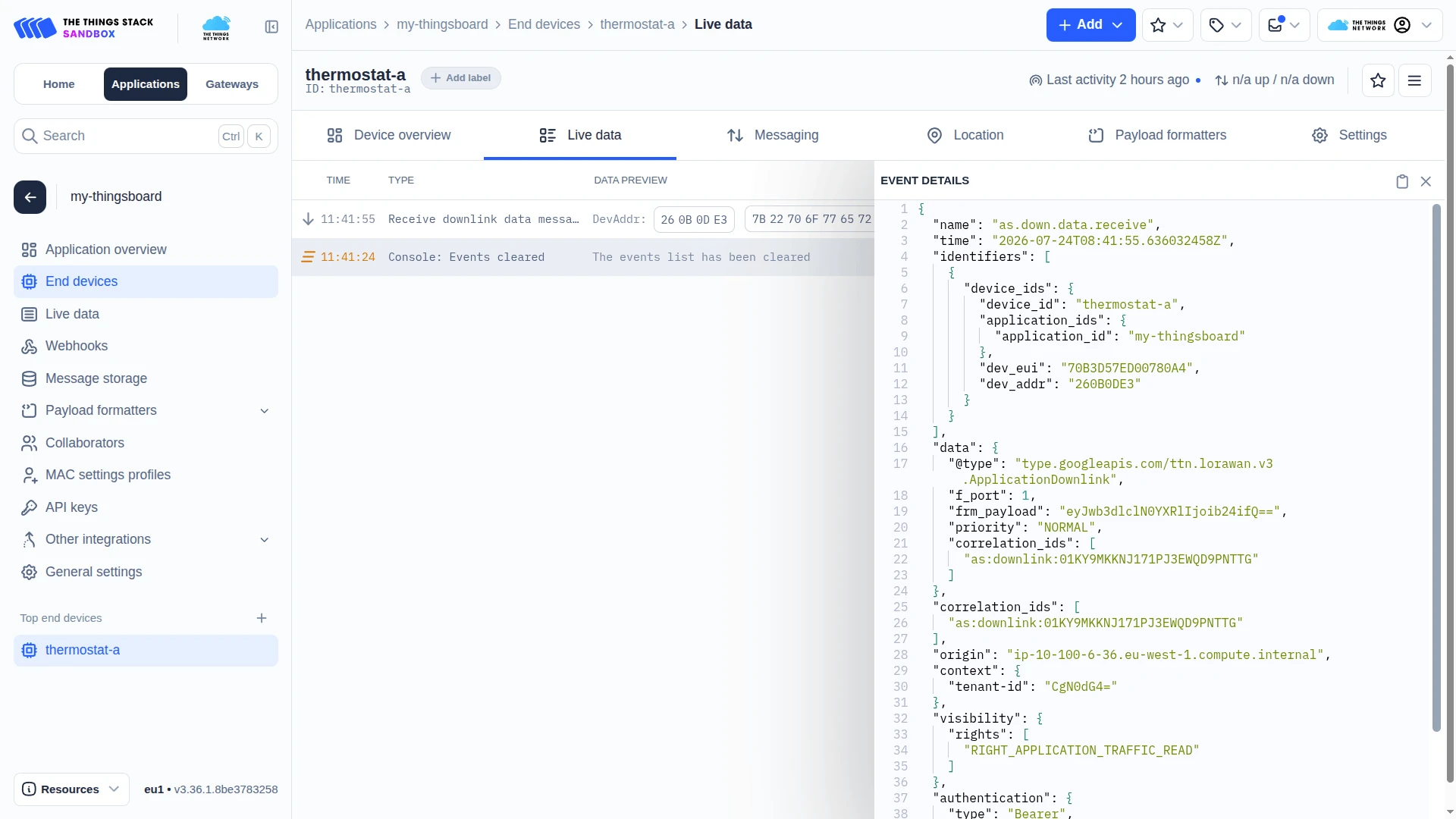
Go to the TTN console, open End devices ⇾ thermostat-a (or your device), and click the Live data tab — the downlink event appears in the list.
Troubleshooting
Section titled “Troubleshooting”This section covers the most common problems encountered when setting up and running The Things Stack Community integration. Each entry describes the symptom, the most likely cause, and the steps to resolve it.
No Uplinks Received
| Symptom | Cause | Fix |
|---|---|---|
| No uplinks received | Wrong MQTT credentials | Open the integration, click the pencil icon, go to the Connection step, and re-enter the credentials. The Username must be in the format {applicationId}@ttn (e.g. my-thingsboard@ttn) — not your TTN account username. The Password is the TTN API key. |
| No uplinks received | TTN API key expired or revoked | In the TTN Console, open your application, go to API keys, and confirm the key is active. Create a new key with Read application traffic (uplink) right and update the integration password. |
| No uplinks received | TTN API key missing required rights | The API key must have the Read application traffic (uplink) right. Open the key in the TTN Console and confirm. |
| No uplinks received | Wrong cluster region | The broker host is constructed as {region}.cloud.thethings.network. Confirm the Region field matches the cluster your TTN application is registered on — eu1, nam1, or au1. Open your TTN application in the Console and check the server address in the address bar. |
| No uplinks received | SSL mismatch | Port 8883 requires Enable SSL to be on. Port 1883 requires it to be off. Using port 8883 without SSL, or 1883 with SSL, causes a connection failure. |
| No uplinks received | Wrong topic filter | When Use API v3 is on (default), the uplink topic must be v3/+/devices/+/up. When off, it must be +/devices/+/up. Open the integration in edit mode and check the Topic filters field. |
| Check connection passes but no uplinks arrive | No devices sending uplinks | Confirm the end device is active and sending messages. In the TTN Console, open the device and click Live data — uplinks appear in real time. |
Uplink Received but Device Not Created
| Symptom | Cause | Fix |
|---|---|---|
| Uplink received, no device in ThingsBoard | Allow create devices or assets is disabled | Open the integration, click the pencil icon, and enable Allow create devices or assets in the Basic settings step. |
| Uplink received, no device in ThingsBoard | Converter returns empty output or device name is unresolved | Go to Integrations ⇾ Data converters, open the uplink converter, and click the Events tab. Inspect the Out panel of a recent event — confirm name is present and non-empty. If the Device $eui template is used, confirm metadata.eui is populated in the In panel. |
| Uplink received, converter shows error | TBEL or JavaScript exception in the decoder | Open the uplink converter Events tab, filter by Error, and inspect the stack trace. Common causes: incorrect byte offset, division by zero, or undefined variable. |
Downlink Not Delivered
| Symptom | Cause | Fix |
|---|---|---|
| Downlink converter Events tab is empty — no events triggered | Rule Chain misconfigured | In the Root Rule Chain, confirm the message type switch node is connected to the Retrieve fPort (originator attributes) node via the Post attributes and Attributes Updated relations, that Retrieve fPort connects to Retrieve Device ID (originator fields) via Success, and that Retrieve Device ID connects to Downlink to TTN (integration downlink) via Success. |
Downlink converter triggered but metadata.devId is empty |
ThingsBoard device Label is not set | Open the device in Devices & assets ⇾ Devices, click the pencil icon, and set the Label field to the TTN End device ID (e.g. thermostat-a). The Originator fields node reads the device Label and injects it into metadata.devId. Without it, the downlink topic cannot be resolved and no message is sent to TTN. |
Downlink converter triggered, metadata.devId is set, but no downlink in TTN |
TTN API key missing downlink right | The API key must have the Write downlink application traffic right. Open the key in the TTN Console and confirm, or create a new key and update the integration password. |
| Downlink converter triggered, output looks correct, TTN shows no downlink | Wrong f_port |
The device must be listening on the f_port used in the downlink. Update the fPort client attribute on the device — the encoder reads it from metadata.cs_fPort (injected by the Originator attributes node). |
| Downlink delivered to TTN but device does not respond | confirmed: true with no acknowledgement |
If the downlink uses confirmed: true, the device must send an uplink to acknowledge. If the device is out of range or offline, confirmed frames are retried by TTN until the retry limit is reached, which delays subsequent messages. Switch to confirmed: false unless ACK tracking is required. |
Connection Check Fails
| Symptom | Cause | Fix |
|---|---|---|
| “Connection refused” | Wrong port or SSL setting | Confirm port 8883 with SSL on, or port 1883 with SSL off. |
| “Connection timeout” | Wrong cluster hostname | Confirm the Region is set correctly and the host resolves to {region}.cloud.thethings.network. Use Custom host type and enter the full hostname directly to rule out a region lookup issue. |
| “Unauthorized” or “Bad credentials” | Invalid username or password | Re-enter the username in {applicationId}@ttn format and paste a fresh API key as the password. |
| “Not authorized to subscribe” | API key lacks uplink read right | Create a new key with Read application traffic (uplink) and update the integration password. |
Inspect Debug Events
- Go to Integrations ⇾ Integrations, open The Things Stack Community integration, and click the Events tab.
- Click an event row to inspect:
- In — the raw MQTT message received from TTN before processing.
- Out — what the converter returned: device name, attributes, and telemetry values passed to ThingsBoard.
- Error — error text and stack trace, if processing failed.
Enable Debug mode on the integration to capture all raw input/output events. Starting from ThingsBoard 3.9, full debug events are stored only during the first hour — afterward, only error events are retained. Disable debug mode once the issue is identified.
See Also
Section titled “See Also”- Integrations Overview — how ThingsBoard connects to external platforms and how uplink/downlink flow works
- The Things Stack Industries Integration — connect to a private The Things Industries tenant instead of the public The Things Network
- Uplink Data Converter — full decoder function reference: input parameters, output fields, and scripting patterns
- Downlink Data Converter — full encoder function reference: input parameters, output fields, and scripting patterns
- Remote Integration — run the integration outside the ThingsBoard server to reach TTN from a private network
- TBEL scripting reference — built-in functions and operators for writing converter scripts
- Rule Engine — how the Root Rule Chain routes shared attribute updates to the downlink converter
Was this helpful?