Register Your Deployment
Starting with ThingsBoard 4.4, Community Edition and Professional Edition are unified into a single platform that requires a license key.
Register your existing Community Edition deployment for the Community Grant Program to get a free perpetual license key. The key lets you upgrade to ThingsBoard 4.4 and keep your current deployment scale.
Registration does not upgrade, restart, or interrupt your current deployment.
Register for a Community Grant
Section titled “Register for a Community Grant”Log in to your ThingsBoard CE deployment as a System Administrator.
Step 1. Start registration
Section titled “Step 1. Start registration”On the Home page, click Get your Community Grant on the Version card. The button appears only on eligible deployments.
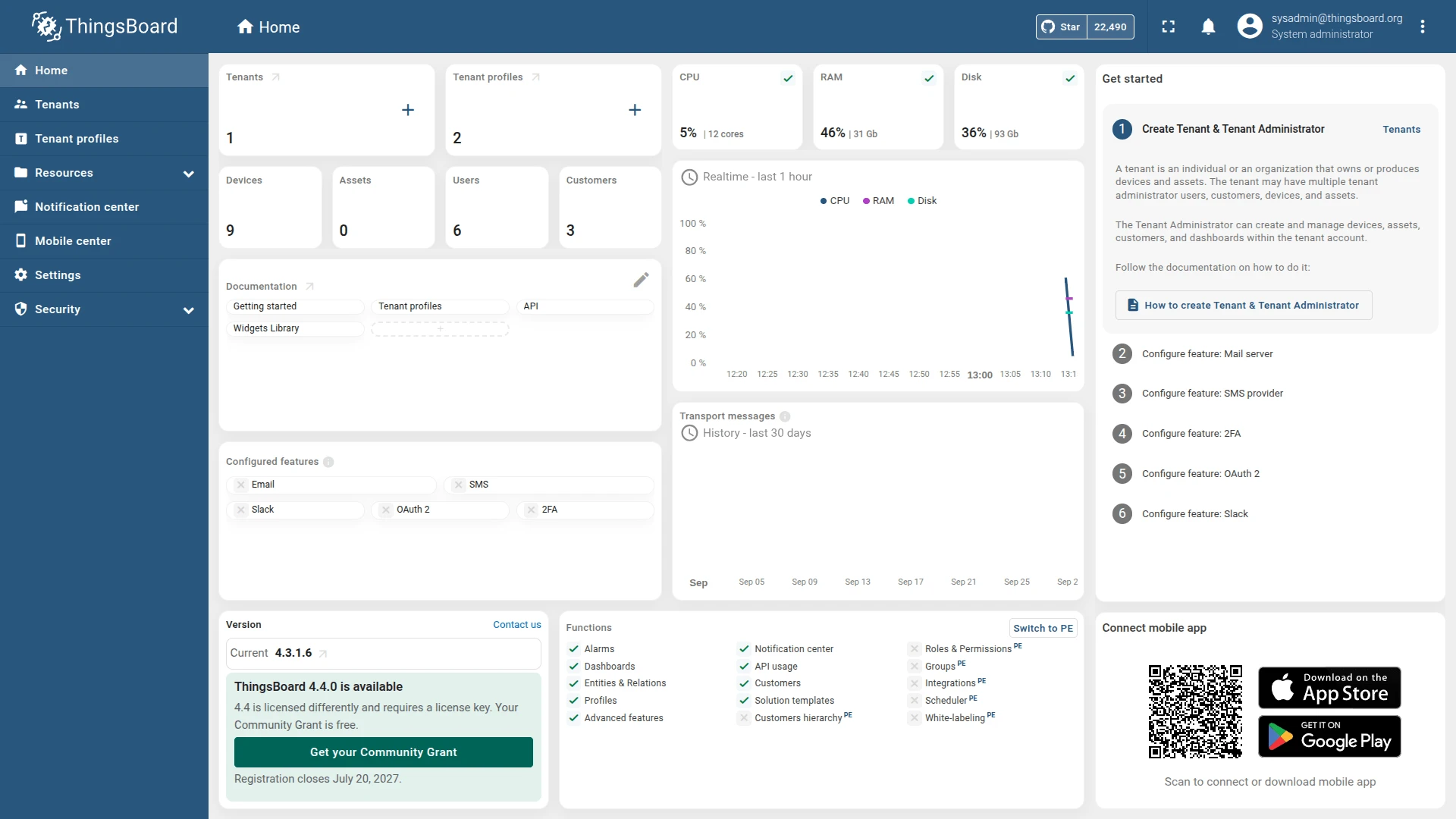
Review the grant details and click Register this deployment. The License Portal opens in a new tab.

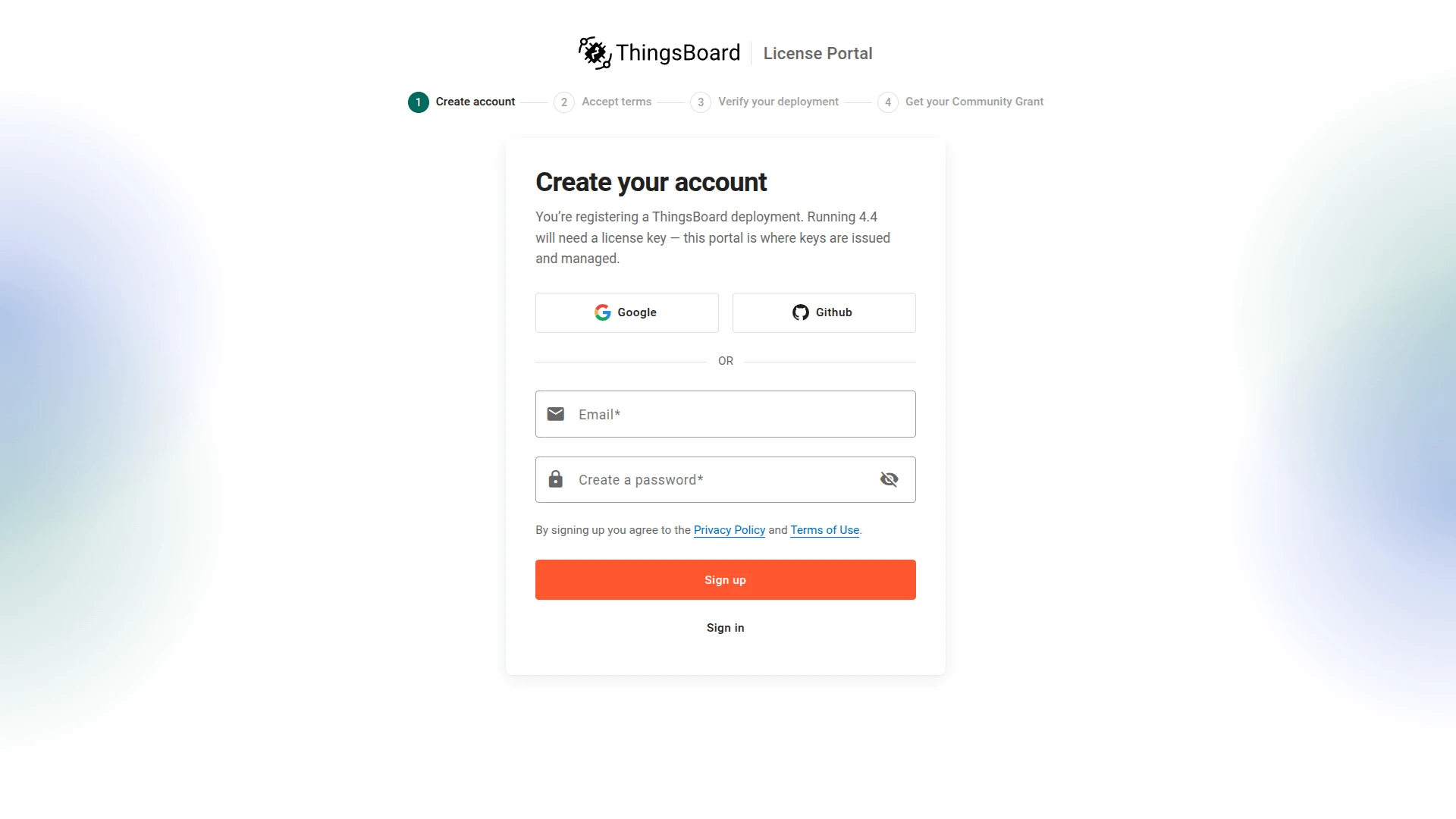
Step 2. Create or sign in to your License Portal account
Section titled “Step 2. Create or sign in to your License Portal account”Sign up with Google, GitHub, or email and password, or click Sign in if you have an account. The grant and license key are issued to this account.
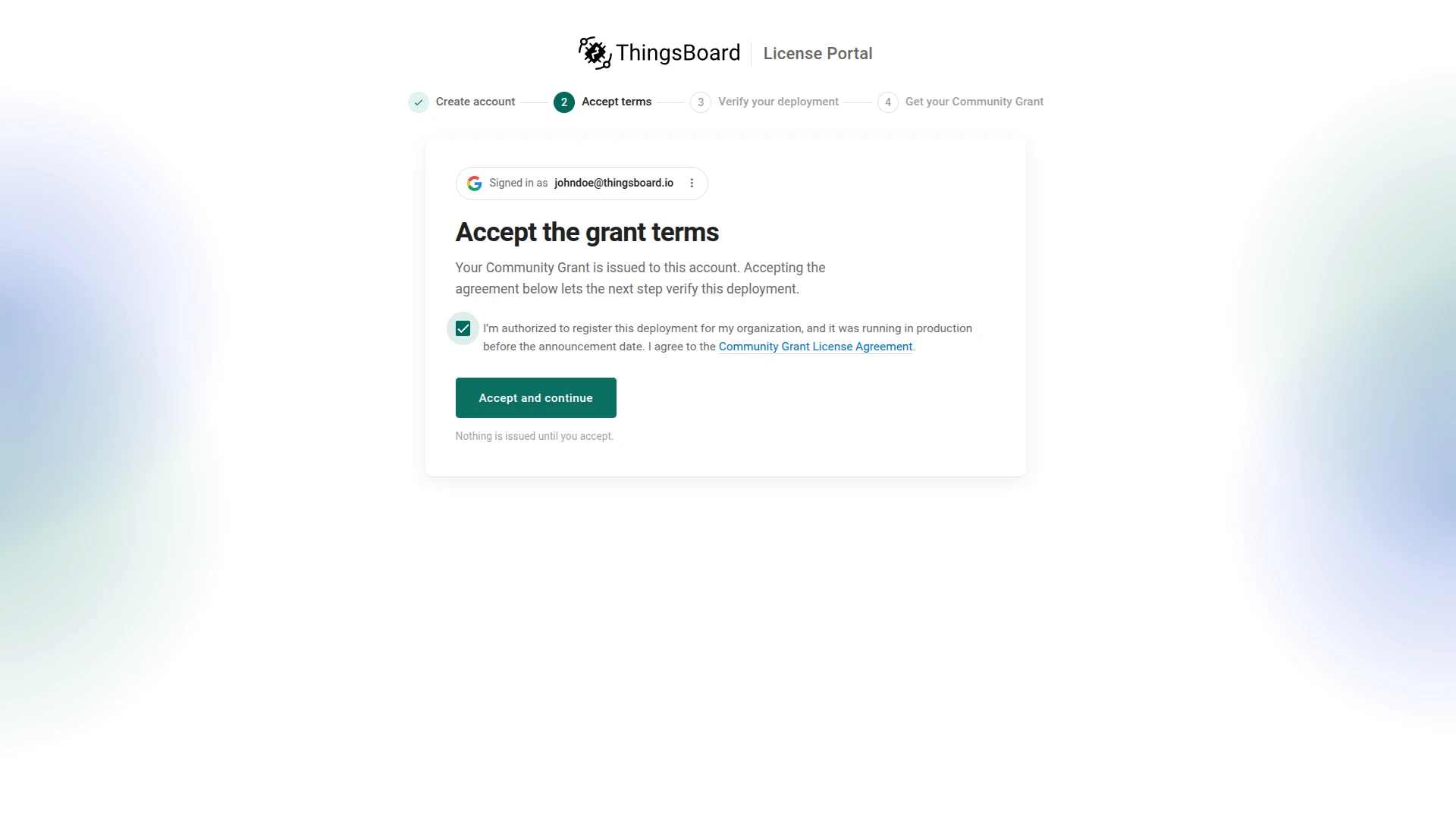
Step 3. Accept the grant terms
Section titled “Step 3. Accept the grant terms”Select the checkbox to confirm that you are authorized to register the deployment and accept the Community Grant License Agreement, then click Accept and continue.
Step 4. Get your Community Grant
Section titled “Step 4. Get your Community Grant”The License Portal verifies your deployment automatically. On large databases, this can take several minutes; you can close the page and return later.
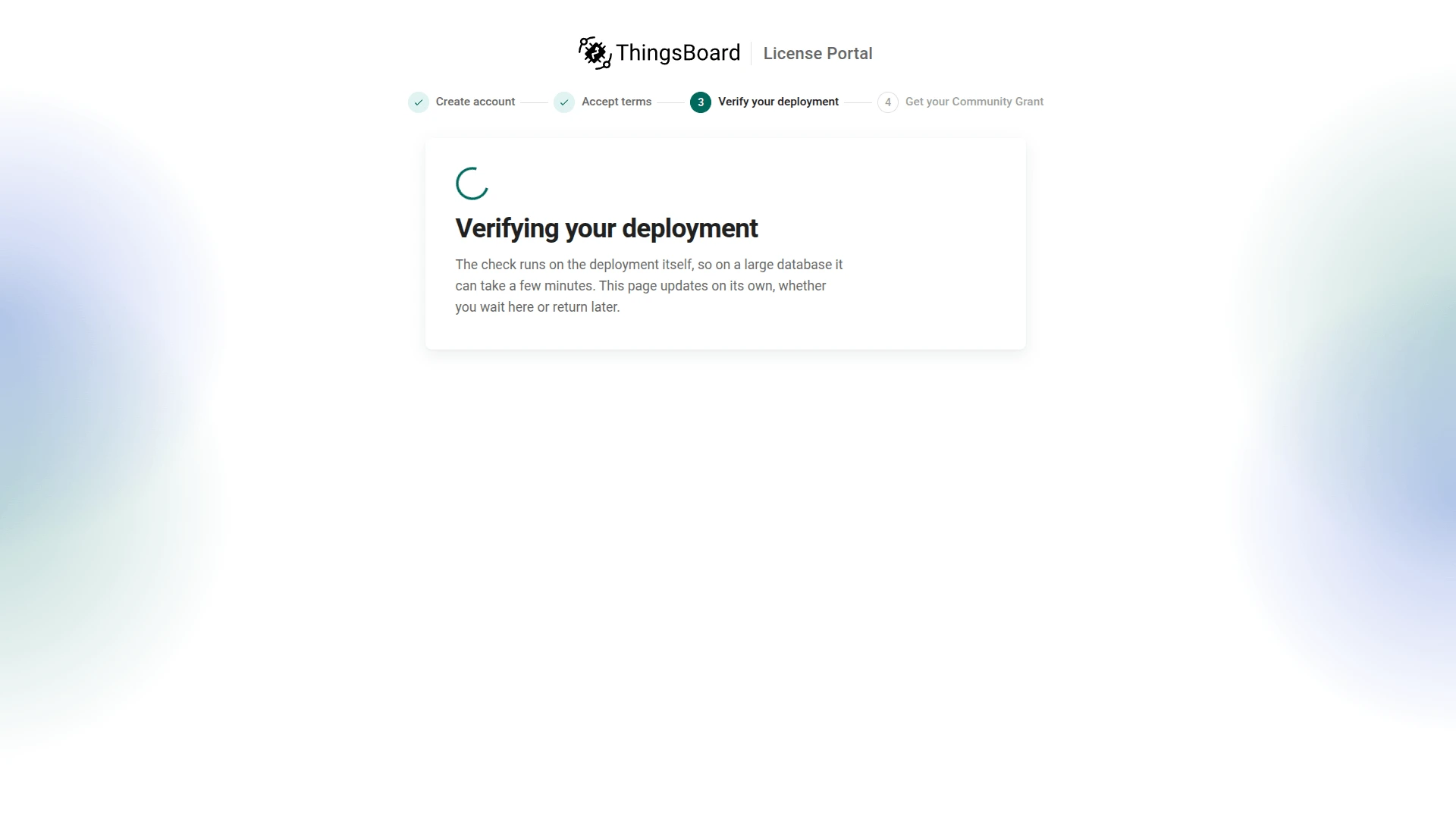
Most deployments receive the grant immediately; some are placed under review first. The license key is issued only after verification.
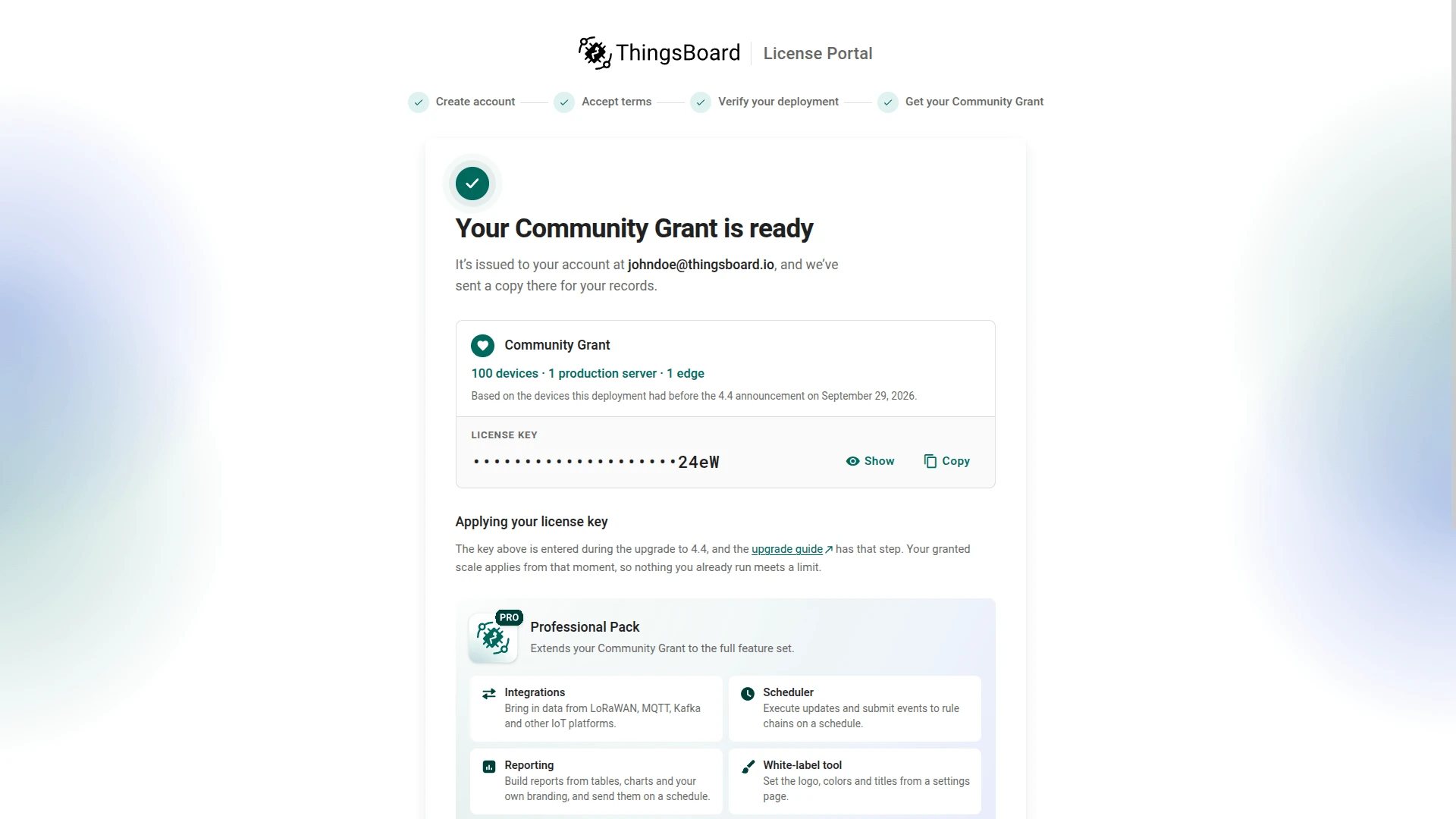
When the grant is ready, the Portal shows the granted scale (devices, production servers, and edges) and your License key. Click Show or Copy. The key is also emailed to you and stored in your Portal account.
Step 5. Return to ThingsBoard
Section titled “Step 5. Return to ThingsBoard”Switch back to ThingsBoard. The dialog confirms that the deployment is registered. Click Close.

The Version card now shows Community Grant registered. No further action is required until you upgrade.

Next steps
Section titled “Next steps”When you are ready to upgrade, follow the ThingsBoard 4.4 upgrade guide and enter your Community Grant license key when prompted.
Was this helpful?