X.509 Certificate Chain Provisioning
X.509 Certificate Chain provisioning lets a fleet of devices authenticate with their own X.509 certificates without registering each certificate in ThingsBoard. You register one CA certificate on a device profile. Every device that connects over MQTT with mutual TLS, using a certificate issued by that CA, is recognized, bound to its device in ThingsBoard and, depending on the profile settings, created automatically.
ThingsBoard verifies device certificates and binds them to devices. It does not issue, sign or deliver certificates: that is the job of your public key infrastructure (PKI). This page explains how the two fit together across the whole certificate lifecycle. For the other provisioning strategies, see Provisioning.
How it works
Section titled “How it works”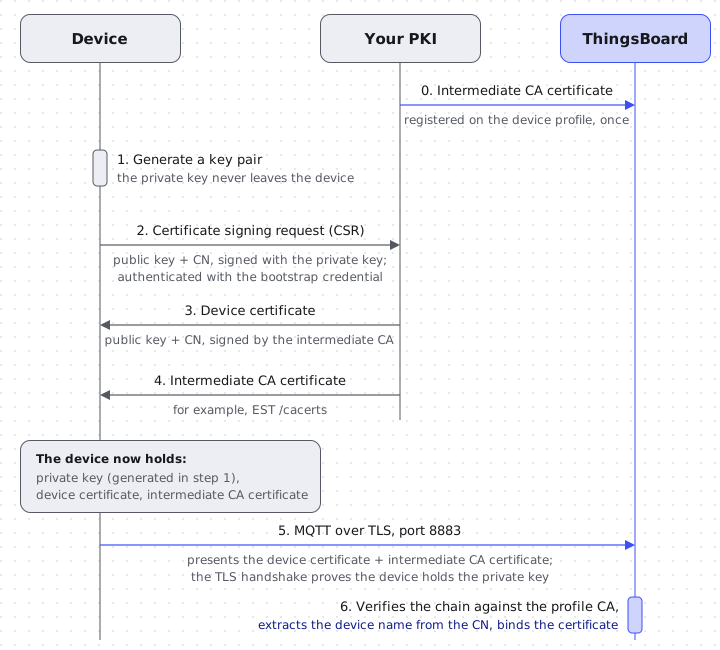
Three parties take part:
- Device — generates its own key pair, keeps the private key, and stores its certificate together with the intermediate CA certificate.
- Your PKI — an enrollment service (for example, an EST server as defined in RFC 7030) and the certificate authority that signs device certificates.
- ThingsBoard — holds the CA certificate on a device profile, verifies the chain a device presents, extracts the device name from the certificate’s Common Name (CN), and binds the certificate to that device.
What happens when a device connects
Section titled “What happens when a device connects”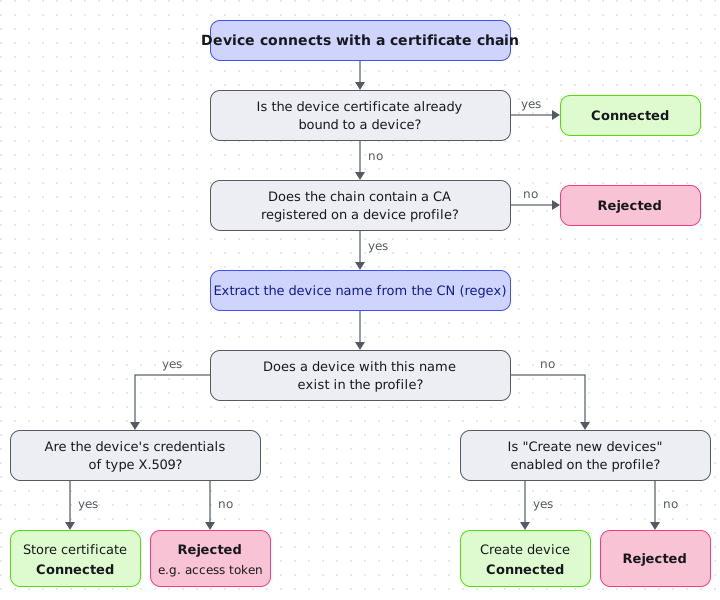
When a device opens an MQTT connection over TLS and presents its certificate chain, ThingsBoard:
- Looks for a device whose stored credentials match the device certificate. If one exists, the device is connected. This is the usual path once a certificate has been bound.
- Otherwise, looks for a device profile whose registered CA certificate is present in the chain. If there is none, the connection is rejected.
- Extracts the device name from the device certificate’s CN using the profile’s regular expression.
- If a device with that name exists in the profile and has X.509 credentials, replaces its stored certificate with the presented one and connects it.
- If no device with that name exists and Create new devices is enabled, creates the device with the presented certificate and connects it. Otherwise, the connection is rejected.
Step 4 makes certificate renewal automatic: a device that presents a new certificate with the same CN, issued by the same CA, is re-bound without any action in ThingsBoard. It also means that a device whose credentials are not X.509, for example a device created with the default access token, is rejected even if its name matches.
Set up ThingsBoard
Section titled “Set up ThingsBoard”Server prerequisites
Section titled “Server prerequisites”Mutual TLS must terminate at the ThingsBoard MQTT transport, so that the client certificate reaches ThingsBoard. Enable TLS on the transport as described in MQTT over TLS, and expose port 8883 directly or through a TCP (layer 4) pass-through load balancer. A load balancer or reverse proxy that terminates TLS does not forward client certificates, and devices will be rejected.
CA certificate
Section titled “CA certificate”- Register the CA certificate that signs your device certificates on the device profile. This is usually an intermediate CA. Whichever certificate you register must be included in the chain that devices present.
- A CA certificate can be registered on only one device profile across all tenants. If you need several profiles, for example one per device type, issue a separate intermediate CA for each of them under a common root.
- Well-known public root CAs cannot be registered.
Configure the device profile
Section titled “Configure the device profile”- Go to Profiles ⇾ Device profiles, open the profile your devices will use, and switch to the Device provisioning tab.
- Select the X509 Certificates Chain strategy.
- Fill in the fields described below and save the profile.
| Field | Description |
|---|---|
| Certificate in PEM format | The CA certificate (usually the intermediate CA) that signs device certificates. |
| CN Regular Expression variable | Regular expression that extracts the device name from the certificate’s CN; the first capturing group is the device name. The default (.*) uses the whole CN. For example, (.*)\.devices\.example\.com turns the CN esp32-0042.devices.example.com into the device name esp32-0042. |
| Create new devices | Whether a device is created automatically the first time a certificate for an unknown name is presented. See below. |
Create new devices: enabled or disabled
Section titled “Create new devices: enabled or disabled”- Enabled — the simplest setup. Any device with a valid certificate from your CA is created the first time it connects. You do not need to know device names in advance.
- Disabled — only devices that you have registered in advance can connect. A certificate for an unknown name is rejected even if it is signed by your CA, so the list of registered devices acts as an allow-list. Choose this mode if you need to block individual devices later (see Revocation).
Pre-register devices
Section titled “Pre-register devices”With Create new devices disabled, each device must exist in the profile with credentials of type X.509 before its first connection. The credentials value is only a placeholder that the device’s first real certificate replaces. It must be unique on the server, so use a random value such as a UUID. A device created with the default access token is not bound to a certificate and is rejected.
Create devices with credentials of type X.509 in one of these ways:
-
UI — in the Add new device dialog, on the Credentials step, select X.509 and enter the placeholder in Certificate in PEM format. For an existing device, open it and use Manage credentials.
-
REST API —
POST /api/device-with-credentials:{"device": {"name": "esp32-0042","deviceProfileId": { "id": "<device profile id>", "entityType": "DEVICE_PROFILE" }},"credentials": {"credentialsType": "X509_CERTIFICATE","credentialsValue": "placeholder-6f1c2a9e-3b7d-4e58-9a0c-2d4b8e7f1a35"}} -
Bulk import — map a CSV column with unique placeholder values to the X.509 credential column, and a Type column with the exact name of the X.509 device profile. Without a Type column, devices are created in the default profile; a misspelled name creates a new profile. See Bulk Provisioning.
Prepare devices
Section titled “Prepare devices”- Present the full chain, device certificate first. The device must send its own certificate followed by the intermediate CA certificate. If only the device certificate is sent, ThingsBoard cannot find the registered CA and rejects the connection. Keep sending the full chain after the first connection as well: a renewed certificate needs the CA in the chain to be re-bound.
- Keep the CN stable. ThingsBoard matches the certificate to the device by the name extracted from the CN, so renewed certificates must keep the same CN.
- Protect the private key. Generate it on the device and never export it. Use the secure storage your hardware provides.
Certificate lifecycle
Section titled “Certificate lifecycle”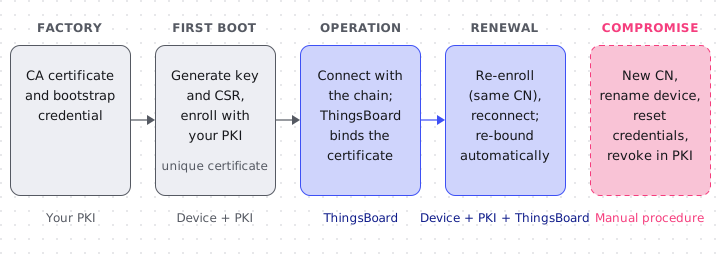
Initial enrollment
Section titled “Initial enrollment”On first boot, the device generates a key pair and a certificate signing request (CSR) and enrolls with your PKI to obtain its unique certificate. EST (RFC 7030) is a good fit, but any authenticated service that signs CSRs works: ThingsBoard only sees the resulting certificate.
The first enrollment needs some way to authenticate the device before it has its own certificate. RFC 7030, section 2.2 lists the options: a previously installed certificate, a credential shared out of band, or a username and password. Common ways to apply them across a fleet, all of them decisions on the PKI side:
- Shared bootstrap certificate — a certificate common to a production batch, accepted by your enrollment service for enrollment only and replaced by the unique device certificate. Issuing one per batch limits the impact if it leaks.
- Allow-list of expected identities — your PKI issues certificates only for device names (CNs) it expects.
- One-time enrollment credentials — a per-device one-time password used only for the first enrollment, as recommended in RFC 7030, section 6.
- Enrollment in a controlled environment — the first enrollment happens on the production line or during commissioning by a trusted installer, before shared bootstrap material leaves your control.
Devices may share trust — the CA certificate and a bootstrap credential — but each device must end up with its own certificate and private key. A certificate shared by several devices makes them indistinguishable and impossible to block individually.
Renewal
Section titled “Renewal”Before the certificate expires, the device re-enrolls (for example with EST /simplereenroll), keeps the same CN, and reconnects with the new certificate and the intermediate CA. ThingsBoard re-binds the new certificate automatically, as described in What happens when a device connects. The stored certificate is replaced, but the previous certificate stays usable until it expires: if it is presented again, it is bound again in the same way. Short certificate lifetimes keep this window small (see Revocation).
Expiry
Section titled “Expiry”ThingsBoard checks the validity period of the device certificate on every connection, so an expired certificate is rejected.
This check can be turned off with MQTT_SSL_SKIP_VALIDITY_CHECK_FOR_CLIENT_CERT=true on the MQTT transport. Keep the default value, false: short certificate lifetimes are the main protection against leaked certificates, as described in Revocation.
Revocation
Section titled “Revocation”ThingsBoard verifies the signatures along the presented chain and the validity period of the device certificate, but it does not check certificate revocation lists (CRLs) or OCSP. With X.509 Certificate Chain provisioning, there is currently no way to revoke an individual certificate while keeping the device’s identity: any valid certificate issued by your CA whose CN resolves to an existing device is accepted for that device. Resetting the device’s credentials does not help, because the certificate is bound again on its next connection.
To limit the impact of a leaked certificate:
-
Use short certificate lifetimes, so a leaked certificate stops working when it expires.
-
Keep Create new devices disabled. If a certificate leaks, move the device to a new identity:
- Enroll the device again with a different CN. EST re-enrollment keeps the same subject (RFC 7030, section 4.2.2), so this is a fresh enrollment.
- Rename the device in ThingsBoard to the name extracted from the new CN.
- Reset the device’s credentials to a new X.509 placeholder.
The leaked certificate then matches no device and is rejected, while the device keeps its data. With Create new devices enabled this does not work, because a new device would be created for the old name.
-
Revoke the certificate in your PKI as well, so it cannot be used to obtain a new one.
Troubleshooting
Section titled “Troubleshooting”| Symptom | Cause | Fix |
|---|---|---|
| Connection rejected on first connect; the device sends only its own certificate | The registered CA is not in the presented chain | Send the device certificate followed by the intermediate CA certificate |
| Pre-registered device rejected with code 5 (Not authorized) | The device was created with access-token credentials | Change its credentials to X.509 with a placeholder value (Manage credentials on the device) |
| Unknown device rejected although its certificate is signed by your CA | Create new devices is disabled and the device is not pre-registered | Pre-register the device, or enable Create new devices |
| Pre-registered device rejected although its name matches | The device belongs to a different device profile | Move the device to the profile that holds the CA certificate |
| Renewed certificate rejected | The CN changed, or the CA is missing from the chain | Keep the CN and send the full chain |
| Saving the device profile fails | The CA certificate is already registered on another profile, or it is a well-known public root CA | Use a dedicated intermediate CA for this profile |
| Code 2 (Identifier rejected) on connect | No client certificate reached ThingsBoard | Check that the device sends its certificate and, on a self-hosted installation, that TLS is not terminated before the ThingsBoard MQTT transport |
For the meaning of MQTT connection codes, see Connection Response Codes.
Related
Section titled “Related”Was this helpful?